
Overview of LightBurn 2.1.04
Table of Contents
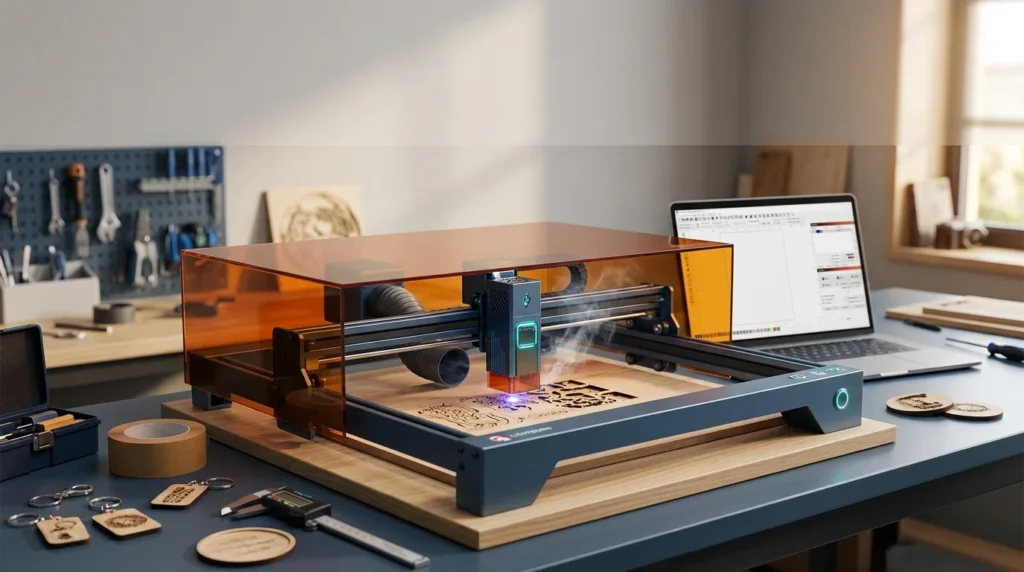
LightBurn 2.1.04 is the latest patch release of the industry-standard laser cutting and engraving software from LightBurn Software. This version focuses on stability improvements, workflow refinements, and critical bug fixes that enhance the overall user experience. LightBurn has established itself as the premier layout, editing, and control software for laser cutters, offering professional-grade tools for both hobbyists and production environments.
The software supports a wide range of laser systems, including GCode-based lasers, DSP controllers from Ruida, TopWisdom, and Trocen, as well as Galvo laser systems with EZCad2 and BSL controllers. Whether you are working with diode lasers, CO₂ lasers, or fiber lasers, LightBurn provides a unified platform for design creation, job planning, and machine control.
Version 2.1.04 builds upon the significant feature additions introduced in the 2.1 series, including Quick Nest for efficient material usage, enhanced camera support for network and dual-camera systems, and the addition of Tangent Circle Generator for precise geometric design work.
Key Features
LightBurn 2.1.04 delivers a comprehensive feature set designed to streamline laser workflow from design to production.
-
Design Suite: Create and edit vector shapes, import artwork in multiple formats, and use Boolean operations, offset generation, and node editing tools.
-
Job Planning: Organize cutting and engraving operations with layer-based controls, adjust power, speed, interval, and DPI settings per layer.
-
Machine Control: Connect to and control your laser directly from LightBurn, with jogging controls, start/pause/stop functionality, and real-time job monitoring.
-
File Format Support: Import and export a wide range of vector and image formats including SVG, AI, PDF, DXF, PLT, PNG, JPG, BMP, and more.
-
Camera Integration: Use a camera to position designs accurately on your material, with support for network cameras and dual-camera setups.
-
Material Library: Save and manage material settings for quick recall, ensuring consistent results across projects.
-
Quick Nest: Automatically arrange multiple parts on your material to minimize waste and maximize efficiency.
Design and Editing Tools
LightBurn includes a robust set of design tools that eliminate the need for external vector editing software. The platform supports shape creation, vector repair and editing, image tracing, Boolean operations, offset generation, and comprehensive text creation with variable text capabilities. The Undo History feature, added in the 2.1 series, provides granular control over your editing workflow.
Layer Management
The layer system in LightBurn allows precise control over each operation. Each layer has independent settings for speed, power, number of passes, and processing mode (Line, Fill, or Offset Fill). This enables complex multi-stage projects to be executed with a single job file.
What’s New in the Latest Version
LightBurn 2.1.04 is a patch release focused on bug fixes and stability improvements rather than introducing new features. The update was released on August 11, 2026, and addresses several issues reported by the user community.
Bug Fixes in 2.1.04
-
Optimizer Fix: Resolved an issue where the optimizer did not allow reversing of open shapes, improving path optimization for certain vector designs.
-
Focus Test Improvement: The focus test now only displays the laser choice option when two tubes are enabled, eliminating confusion for single-tube configurations.
-
EZCad3 Clock Bug: Fixed a timing issue affecting EZCad3 controller communication.
-
Variable Text Update: The “End” line in variable text now updates correctly when loading new CSV files.
-
Memory Leak Fixes: Addressed memory leaks that could affect performance during extended sessions.
-
BSL Device Improvements: Suppressed unnecessary jump-to-zero behavior per rotary slice, better handled “red light always on” states, and honored the “Always Open MO” setting to avoid per-jump oscillator delays.
-
External Axis Dialog: Fixed a display issue where the dialog showed controls that should not have been visible.
-
Crash Fixes: Resolved potential crashes when loading backup preferences or importing preference files, and fixed a crash when checking art library file status.
-
Galvo Correction Solver: Improved the accuracy of galvo correction calculations.
Enhancements from the 2.1 Series
While 2.1.04 is a maintenance release, users upgrading from earlier versions will benefit from features introduced in the broader 2.1 series. These include Quick Nest for automated layout optimization, Tangent Circle Generator for precise geometric constructions, Split Marking functionality, and 16-bit depth map engraving for detailed relief work. The Material Test tool now includes a border option with the ability to disable text and border as needed.
System Requirements
LightBurn 2.1.04 has specific hardware and operating system requirements to ensure optimal performance. The development team recommends different configurations based on usage patterns.
Operating System
Current versions of LightBurn, including 2.1.04, support:
-
Windows: 64-bit Windows 10 (build 1809) or later
-
macOS: macOS 12 or higher
-
Linux: Support ended with LightBurn 1.7 for Linux systems
Hardware Recommendations
| Component | Recommended (Heavy Designing) | Practical Minimum | Absolute Minimum |
|---|---|---|---|
| Processor | Intel Core i5 / AMD Ryzen 5 or newer, Apple M-Series | Intel Core i3 / AMD Ryzen 3 | 64-bit Dual-Core |
| RAM | 16 GB | 8 GB | 4 GB |
| Storage | 256 GB NVMe SSD | Solid State Drive (SSD) | Traditional HDD |
| Display | 1920 x 1080 or higher | 1920 x 1080 | 1280 x 1024 |
| Free Space | At least 450 MB for installation | — | — |
These requirements are for LightBurn 2.1. If your computer does not meet these specifications, you can download an earlier version of LightBurn that is compatible with your system and was released within your license’s valid update period.
Installation Guide
Installing LightBurn 2.1.04 is a straightforward process. Follow these steps to get started.
Step 1: Download the Installer
Visit the official LightBurn website and navigate to the download page. Select the installer appropriate for your operating system (Windows, macOS). LightBurn offers a free 30-day trial with full access to all features, allowing you to evaluate the software before purchasing a license.
Step 2: Run the Installer
On Windows: Locate the downloaded .exe file, double-click to launch the installer, and follow the on-screen prompts. You can choose the installation directory and whether to create desktop shortcuts.
On macOS: Open the downloaded .dmg file, drag the LightBurn application to your Applications folder, and launch it from there.
Step 3: Initial Setup
Upon first launch, LightBurn will guide you through the initial configuration:
-
Select Your Laser: Choose your laser type from the device setup wizard. If your specific model is not listed, you can select a compatible controller type and configure custom settings.
-
Import Device Profile: If available, import your laser’s
.lbdevdevice profile file to automatically configure the correct working area, origin position, and connection settings. -
Connection Setup: Select the appropriate communication port and connection method (USB, Ethernet, or serial).
Step 4: License Activation
After the trial period, you can activate LightBurn with a purchased license key. Navigate to Help → License Management and enter your key. LightBurn Core licenses are available for $99 USD, while Pro licenses are priced at $199 USD, both as one-time purchases that include a year of updates.
How to Use the Software
LightBurn provides an intuitive workflow that guides you from design to finished product. Here is a step-by-step overview of the typical process.
Creating or Importing a Design
-
Import Artwork: Use File → Import (Ctrl/Cmd+I) to bring in vector files (SVG, AI, DXF, PDF) or raster images (PNG, JPG, BMP). LightBurn supports a comprehensive range of file formats, making it compatible with output from Adobe Illustrator, Inkscape, CorelDRAW, and CAD software.
-
Draw Shapes: Use the built-in shape tools to create rectangles, ellipses, polygons, and freehand paths directly within LightBurn.
-
Edit and Arrange: Use alignment tools, grouping, and the Quick Nest feature to arrange your design efficiently on the workspace.
Configuring Laser Settings
-
Assign Layers: Each element in your design can be assigned to a specific layer. Use the C00 through C30 color-coded layers to organize different operations.
-
Set Parameters: For each layer, configure the processing mode (Line, Fill, or Offset Fill), speed, power, number of passes, and interval settings.
-
Material Testing: Use the Material Test tool to determine optimal settings for a new material. This generates a test grid with varying power and speed combinations.
Previewing and Running the Job
-
Preview: Press Alt+P to preview the exact path the laser will follow. This helps verify the order of operations and estimated job time.
-
Frame the Job: Use the Frame or Border tool to preview the engraving area on your material, ensuring proper alignment.
-
Start the Job: Once satisfied, click Start to send the job to your laser. LightBurn provides real-time progress monitoring and allows you to pause or stop if needed.
Using the Material Library
LightBurn’s Material Library allows you to save and recall settings for different materials. Click the Library panel, then use Load to import a settings file or Assign to apply saved parameters to your current project. Linking materials to specific colors enables quick visual organization of complex projects.
Best Use Cases
LightBurn 2.1.04 serves a diverse range of applications across hobbyist, educational, and commercial settings.
Hobbyist and Maker Projects
Home workshop users leverage LightBurn for personalized gifts, custom signage, decorative engravings, and small-batch production. The software’s intuitive interface and comprehensive feature set make it accessible to beginners while offering depth for experienced users.
Small Business Production
Sign shops, Etsy sellers, and custom fabrication businesses use LightBurn to manage production workflows. Features like Quick Nest reduce material waste, while the Material Library ensures consistent results across repeated jobs. The support for DSP and Galvo controllers in the Pro version accommodates light-industrial laser systems.
Educational Institutions
Schools and makerspaces use LightBurn to teach digital fabrication principles. The software’s Beginner Mode simplifies the interface for new users, while the full feature set provides room for advanced coursework in design and manufacturing.
Prototyping and Product Development
Engineers and product designers use LightBurn for rapid prototyping of enclosures, brackets, and mechanical components. The ability to import from CAD software and export GCode facilitates integration with broader product development workflows.
Advantages and Limitations
Advantages
-
One-Time Purchase: Unlike subscription-based alternatives, LightBurn offers a perpetual license with a one-time payment. After the initial purchase, you can continue using your version indefinitely without additional costs.
-
Comprehensive Controller Support: With support for GCode, DSP, and Galvo controllers, LightBurn covers virtually every laser system type available on the market.
-
Active Development: Regular patch releases like 2.1.04 demonstrate ongoing commitment to stability and user-reported issue resolution.
-
Integrated Design Tools: The built-in design suite reduces dependency on external vector editing software, streamlining the workflow.
-
Strong Community: An active user forum provides peer support, troubleshooting assistance, and a platform for feature requests.
Limitations
-
Linux Support Discontinued: As of LightBurn 2.0, Linux operating systems are no longer supported. Users on Linux must remain on LightBurn 1.7.08 or earlier.
-
Learning Curve: While Beginner Mode helps new users, the full feature set can be overwhelming for those unfamiliar with laser cutting concepts.
-
Pro Features Cost Extra: Advanced capabilities like DSP and Galvo controller support require the Pro license, which doubles the cost for users who need these features.
-
Hardware Requirements: Older computers may struggle with the recommended system specifications, particularly for complex designs or multitasking workflows.
Alternatives to the Software
While LightBurn is widely regarded as the industry standard for laser control software, several alternatives exist for users with different needs or budget constraints.
LaserGRBL
LaserGRBL is a free, open-source option for GRBL-based diode lasers. It offers basic engraving capabilities and is suitable for simple projects, but lacks the design tools and advanced features found in LightBurn. It is Windows-only and does not support DSP or Galvo controllers.
CutLabX
CutLabX is a mobile-first laser engraving application designed for GRBL devices including Ortur, xTool, ATOMSTACK, Twotrees, and Glowforge systems. It provides a simplified workflow for beginners and supports common image formats.
RDWorks
RDWorks is the stock software often bundled with Ruida DSP controllers. While it offers basic functionality for Ruida-based lasers, it is generally considered less intuitive and feature-rich than LightBurn. Many users choose to purchase LightBurn specifically to replace RDWorks.
MeerK40t
MeerK40t is an open-source laser software specifically designed for K40 laser cutters and GRBL/fiber laser systems. It provides an alternative for users who prefer open-source solutions, though it lacks the polish and comprehensive feature set of LightBurn.
EZCAD2
EZCAD2 is the standard software for Galvo fiber laser systems, particularly those using EZCad controllers. LightBurn Pro supports EZCad2 controllers, offering an alternative interface for users who prefer LightBurn’s workflow. However, EZCAD2 remains necessary for certain advanced galvo-specific functions.
Frequently Asked Questions
Is LightBurn 2.1.04 free to use?
No, LightBurn is commercial software. However, a free 30-day trial with full feature access is available. After the trial period, a license is required. Core licenses are $99 USD and Pro licenses are $199 USD, both as one-time purchases.
What is the difference between LightBurn Core and Pro?
LightBurn Core supports GCode-based lasers such as GRBL, Marlin, and Smoothieware systems. LightBurn Pro adds support for DSP controllers (Ruida, TopWisdom, Trocen, BSL) and Galvo controllers (EZCad2, EZCad3), making it suitable for light-industrial and production-level laser systems.
Can I use LightBurn on Linux?
Linux support ended with LightBurn 1.7.08. The current 2.1.x series only supports Windows 10/11 and macOS 12 or higher. Linux users must remain on version 1.7.08 or earlier.
How many computers can I install LightBurn on?
A single LightBurn license allows installation on up to three computers for personal use.
What file formats does LightBurn support?
LightBurn imports project files (.lbrn, .lbrn2), image files (.bmp, .jpg, .png, .gif, .tif, .tiff, .tga, .webp), vector files (.ai, .pdf, .dxf, .nc, .hpgl, .svg), and additional machine-specific formats (.gc, .gcode, .plt, .rd, .sc, .scpro2).
How often does LightBurn release updates?
LightBurn releases patch updates as needed to address bugs and stability issues. Feature updates are typically released on a quarterly basis. Your license includes one year of free updates from the date of activation.
What should I do if I encounter a bug in LightBurn 2.1.04?
Report bugs on the LightBurn Software Forum or contact support directly. The development team actively monitors community reports and addresses issues in subsequent patch releases.
Is there a student or educational discount for LightBurn?
LightBurn does not currently offer an educational discount, but the 30-day free trial allows students and educators to evaluate the full software before purchasing.
Final Thoughts
LightBurn 2.1.04 represents the continued refinement of what is widely considered the best laser control software available. While this specific release is a maintenance update focused on bug fixes and stability improvements, it demonstrates the development team’s commitment to maintaining a reliable, professional-grade tool for the laser community.
For users new to laser cutting, LightBurn offers a well-designed learning curve with Beginner Mode, extensive documentation, and a supportive community forum. For experienced users and production environments, the software provides the depth of control and workflow efficiency needed to maximize productivity and minimize material waste.
The one-time purchase model, combined with a generous 30-day trial, makes LightBurn an accessible entry point into professional laser software. Whether you are engraving personalized gifts in a home workshop or managing production runs in a small manufacturing business, LightBurn 2.1.04 provides the tools and reliability to get the job done.
Our Paid Service
“We do not sell or provide any software. We only offer professional support services. If any software on your system is not working properly, or you are facing installation errors, crashes, or any other technical issue — just contact us. We will help you fix the problem quickly and remotely via AnyDesk. No software will be provided from our side — only expert troubleshooting and support.”