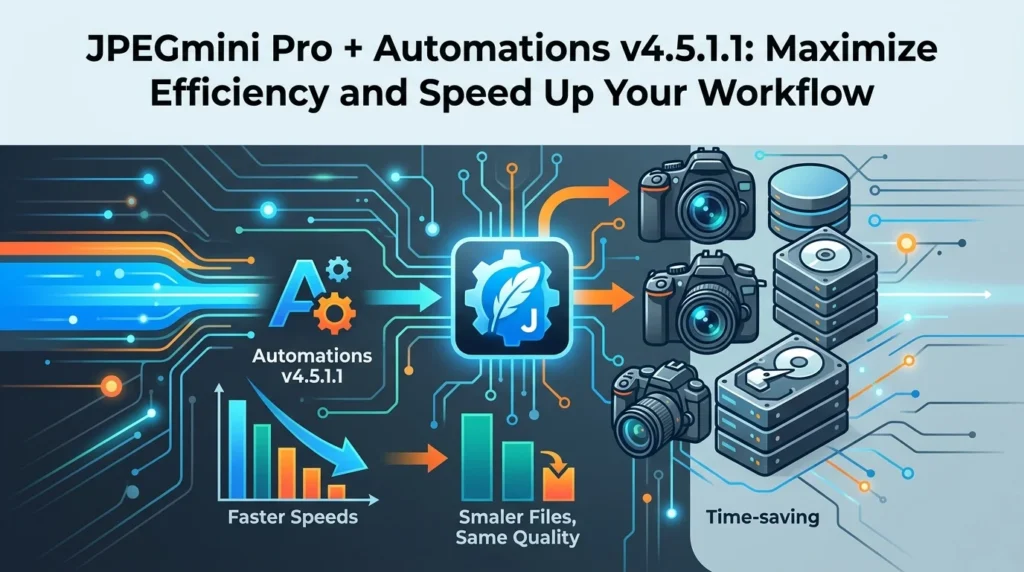

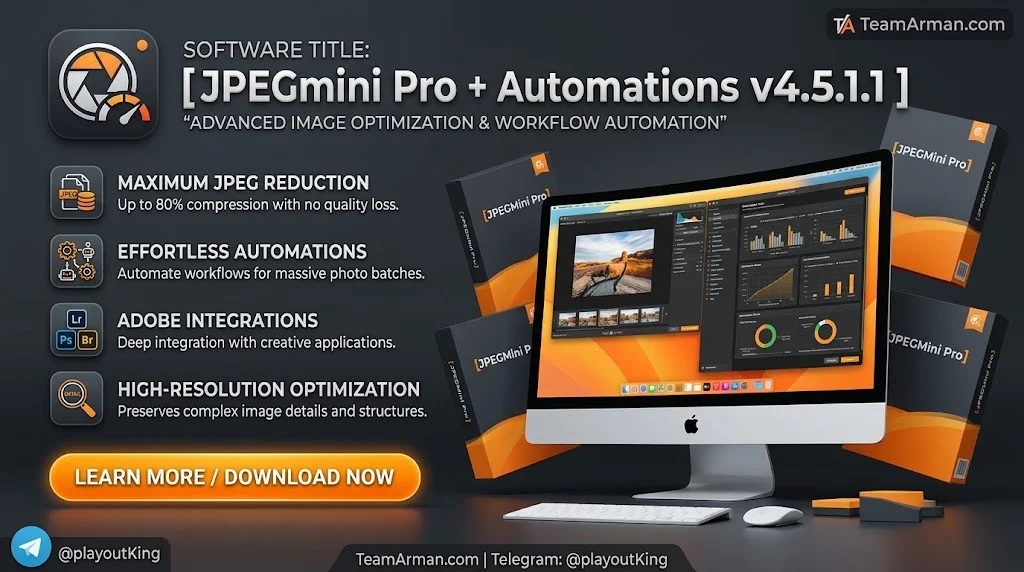
Overview of JPEGmini Pro + Automations
Table of Contents
JPEGmini is a patented image recompression technology that analyzes each photo using an algorithm modeled on the human visual system. It determines the maximum compression level that will not produce visible artifacts, then applies that level to the file. The result is a dramatically smaller file that looks identical to the original.
JPEGmini Pro is the professional edition of the software. It supports higher resolutions, faster processing, and integration with Adobe Lightroom, Photoshop, and Capture One. The Automations module, introduced in version 4.5, adds watch folder functionality. You designate a folder; any image or video dropped into it is automatically optimized and exported to your chosen output folder.
The software is available for both Windows (Windows 10 and Windows 11) and macOS (including Apple Silicon and Intel architectures).
Key Features of JPEGmini Pro
JPEGmini Pro offers a comprehensive set of tools for photographers, videographers, and content creators.
Core Compression Technology
-
Up to 80% file size reduction for JPEG photos without visible quality loss.
-
HEIC to JPEG conversion for iPhone photos, eliminating the need for separate conversion tools.
-
Video optimization supporting H.264/AVC and H.265/HEVC codecs in MP4, MOV, and M4V containers, with file size reductions of up to 50%.
Performance and Resolution
-
Supports photos up to 128 megapixels (and up to 512MP in recent updates).
-
Up to 8x faster than the standard JPEGmini edition, utilizing all available CPU cores.
-
Batch processing for large photo libraries and video projects.
Workflow Integration
-
Adobe Lightroom Classic and CC plugin for optimizing images during export.
-
Adobe Photoshop extension for direct optimization within your editing workflow.
-
Capture One plugin (Pro Suite edition).
-
Drag-and-drop interface for quick, one-off optimizations.
Automations (Version 4.5+)
-
Watch folders that process files automatically within seconds of being added.
-
Background agent that runs even when JPEGmini Pro is closed.
-
Multi-size export with built-in presets for Gallery (2048px), Social (1080px), 4K, 1080p, and 720p.
-
Retention policy to keep or automatically remove original files after processing.
What’s New in JPEGmini Pro + Automations v4.5.1.1
Version 4.5.1.1 is a maintenance release that builds on the major Automations update from version 4.5.0. Key improvements in this release include:
-
Reliable Automations purchases: The in-app purchase flow for Automations licenses has been stabilized.
-
No more watch folder loops: A bug that could cause files to be processed repeatedly has been fixed.
-
Accurate Retrieve counts and dates: The original file retrieval feature now reports correct information.
-
512MP image support fixed: The high-resolution image limit introduced in version 4.2.3 is now fully functional.
-
Automations and licensing UI polish: Minor interface refinements for a smoother experience.
The foundation of version 4.5 remains the Automations module, which fundamentally changes how photographers and videographers handle repetitive optimization tasks. Instead of manually dragging files into the app, you set up a watch folder once and let the background agent do the work.
System Requirements
Windows
-
Operating System: Windows 10 or Windows 11 (64-bit)
-
Processor: Intel Pentium IV or higher
-
RAM: 1 GB minimum (2 GB recommended)
-
Hard Disk Space: 200 MB or more available space
-
Display: Standard monitor resolution
macOS
-
Operating System: macOS 10.13 (High Sierra) or later
-
Architecture: Intel and Apple Silicon (ARM) supported
-
RAM: 2 GB or more recommended
-
Hard Disk Space: 200 MB or more available space
Cross-Platform Notes
-
JPEGmini Pro can be installed on up to 3 devices with a single license.
-
The license is cross-platform, so you can use the same key on both Mac and Windows computers.
-
For Automations, a separate license or an active trial is required in addition to the Pro license.
Installation Guide
Step 1: Download the Software
Visit the official JPEGmini website and download the latest version for your platform. For macOS, you will receive a .dmg file. For Windows, you will receive an .exe installer.
Step 2: Install the Application
macOS: Open the downloaded .dmg file and drag JPEGmini Pro into your Applications folder.
Windows: Run the installer and follow the on-screen prompts.
Step 3: Activate Your License
Launch JPEGmini Pro and open Settings (click the gear icon in the sidebar or choose View › Settings from the menu bar). Click “Enter new activation code”, paste your license key, and click Activate. Your license key is included in your order confirmation email.
Step 4: Set Up Your First Automation (Optional)
If you have an Automations license or an active trial:
-
Click the Automations icon in the sidebar.
-
Click “+ Add Automation” to open the setup panel.
-
Give your automation a descriptive name (e.g., “Client Delivery” or “Social Posts”).
-
Choose your watch folder—this is the folder JPEGmini will monitor. Note that the watch folder cannot be changed after creation.
-
Choose your output folder—this must be different from the watch folder.
-
Configure export sizes using built-in presets or custom dimensions.
-
Set your retention policy for original files.
Step 5: Install Plugins (Optional)
For Adobe Lightroom integration, download the JPEGmini Pro Lightroom Plug-in installer and follow the installation wizard. Once installed, JPEGmini becomes available as an export option within Lightroom. Similar plugins are available for Photoshop and Capture One.
How to Use JPEGmini Pro
Manual Optimization
-
Launch JPEGmini Pro and accept the license agreement.
-
Drag and drop JPEG files, HEIC files, or video files onto the application window.
-
The software will analyze each file and display a preview alongside a counter showing how much disk space you are saving.
-
Click “Optimize” to process the files.
-
Use “Export to Folder” to save the optimized versions to your desired location.
Using Automations
Once you have set up an automation, the workflow is entirely hands-off:
-
Drop files into your designated watch folder.
-
JPEGmini detects the new files within a few seconds and begins processing.
-
Optimized files appear in your output folder, organized into subfolders by dimension if you selected multiple export sizes.
-
Original files are moved to a hidden folder and can be retrieved within your retention window.
Batch Processing
For large projects, JPEGmini Pro can process hundreds of images simultaneously. The software utilizes all available CPU cores to maximize throughput. Simply select a folder or group of files and let the application work through them.
Best Use Cases
Professional Photography
Wedding, portrait, and event photographers generate thousands of high-resolution JPEGs per shoot. JPEGmini Pro reduces delivery file sizes by up to 80%, making it faster to upload client galleries, burn DVDs, or transfer files to USB drives.
Videography
Videographers shooting in H.264 or HEVC can compress final cuts by up to 50% without sacrificing visual quality. This is particularly useful for real estate agents, social media content creators, and anyone delivering video files to clients.
E-Commerce and Product Photography
Online stores need high-quality product images that load quickly. JPEGmini Pro reduces image weight while preserving detail, which improves page load times and can positively impact search rankings and customer satisfaction.
Social Media Management
Content managers can use Automations to automatically resize and optimize images for different platforms. The Social (1080px) preset is tailored for Instagram, while Gallery (2048px) works well for portfolio websites.
Client Delivery Workflows
Photographers can set up a “Client Delivery” watch folder on their desktop. After editing in Lightroom or Capture One, they export files to the folder and walk away. JPEGmini optimizes the files, resizes them to the required dimensions, and exports them to a delivery folder—all in the background.
Advantages and Limitations
Advantages
-
Significant file size reduction: Up to 80% for photos and 50% for videos.
-
No perceptible quality loss: The compression is based on a human visual perception model.
-
Automation saves time: Watch folders eliminate repetitive manual tasks.
-
Cross-platform: Works on both Mac and Windows with a single license.
-
Plugin integration: Seamless workflow with Lightroom, Photoshop, and Capture One.
-
One-time purchase: No subscription required for the license.
Limitations
-
JPEG-focused: The core technology is optimized for JPEG; other image formats (PNG, WebP) are not supported.
-
Premium pricing: The Pro license costs $59, and the Pro Suite costs $89.
-
Automations require a separate license: The Automations module is not included in the base Pro license.
-
Limited free tier: The free version allows only 50 images per day.
-
Learning curve for Automations: Setting up watch folders requires some initial configuration.
Alternatives to JPEGmini Pro
TinyPNG / TinyJPG
A free, web-based image compression service that supports JPEG, PNG, WebP, and AVIF. It offers good compression rates but lacks desktop automation and video support. Best for occasional, small-batch optimization.
ImageOptim
A free, open-source Mac application that optimizes PNG, JPEG, and GIF files. It is lightweight and integrates well with macOS workflows, but it does not offer Windows support or video compression.
Caesium Image Compressor
A free, open-source tool available for Windows, Mac, and Linux. It supports batch processing and multiple output formats. It lacks the plugin integrations and Automations features of JPEGmini Pro.
Faststone Image Viewer
A Windows-only image viewer and converter that supports batch processing and HEIC conversion. It is much cheaper than JPEGmini Pro but does not offer the same level of compression efficiency or video optimization.
Yuka SuperAlpha Plus
For professionals in the apparel and fashion industry, Yuka SuperAlpha Plus is a parametric pattern-making and 3D design CAD system developed by Yuka & Alpha Co., Ltd. in Japan. It offers automatic pattern creation from numerical inputs, built-in sizing databases, and 3D visualization through the myu3D module. While it serves a completely different niche than JPEGmini Pro, it is an example of how specialized professional software can automate complex, repetitive workflows.
Comparison Summary
| Tool | Best For | Platform | Free Tier | Video Support |
|---|---|---|---|---|
| JPEGmini Pro | Professional photo/video optimization | Mac, Windows | 50 images/day | Yes |
| TinyPNG | Web-based quick compression | Browser | Unlimited (small batches) | No |
| ImageOptim | Mac users, PNG optimization | Mac | Yes (fully free) | No |
| Caesium | Cross-platform batch compression | Mac, Windows, Linux | Yes (fully free) | No |
| Yuka SuperAlpha Plus | Fashion pattern-making CAD | Windows | No | N/A |
Frequently Asked Questions
What is JPEGmini Pro used for?
JPEGmini Pro is a photo and video optimization tool that reduces file sizes by up to 80% for images and 50% for videos without visible quality loss. It is used by photographers, videographers, and content creators to speed up delivery, save storage space, and improve website performance.
Is JPEGmini Pro free?
JPEGmini Pro offers a free tier that limits you to 50 images per day. The full Pro license costs $59 (one-time purchase) and removes all limits. The Pro Suite, which includes Adobe and Capture One plugins, costs $89.
Does JPEGmini Pro work on Windows 11?
Yes. JPEGmini Pro is compatible with Windows 10 and Windows 11 (64-bit). It also works on macOS 10.13 and later, including Apple Silicon Macs.
What is the Automations feature in JPEGmini Pro?
Automations is a watch folder system introduced in version 4.5. You designate a folder, and any files dropped into it are automatically optimized, resized, and exported to your chosen output folder. The background agent runs even when the main application is closed.
Can JPEGmini Pro compress videos?
Yes. JPEGmini Pro supports video optimization for H.264/AVC and H.265/HEVC codecs in MP4, MOV, and M4V containers. File size reductions of up to 50% are achievable without quality loss.
Does JPEGmini Pro work with Adobe Lightroom?
Yes. JPEGmini Pro includes a Lightroom Classic and CC plugin that integrates directly into your export workflow. There are also plugins for Adobe Photoshop and Capture One (Pro Suite only).
How does JPEGmini Pro compare to TinyPNG?
JPEGmini Pro offers higher compression rates for JPEG files, supports video optimization, and includes desktop automation. TinyPNG is a free web-based tool that supports more image formats but lacks advanced workflow features and video support.
Is JPEGmini Pro safe to use?
Yes. JPEGmini Pro is developed by Beamr Imaging Ltd., a publicly traded company, and has been reviewed and praised by major photography publications including DPReview, PetaPixel, Fstoppers, and Macworld. The software uses a patented, legally compliant compression technology.
Final Thoughts
JPEGmini Pro + Automations v4.5.1.1 is a mature, well-regarded solution for anyone who regularly works with JPEG photos, HEIC files, or compressed video. Its core strength lies in the quality of its compression algorithm—files shrink dramatically, but the visual difference is practically imperceptible.
The Automations module in version 4.5 transforms the software from a manual tool into a background service. For photographers and videographers who process large volumes of media, the watch folder system eliminates a significant amount of repetitive work. The v4.5.1.1 update smooths out the rough edges of that automation system, fixing purchase flows, retrieval counters, and watch folder loops.
The main drawback is the price. At $59 for Pro and $89 for Pro Suite, JPEGmini Pro is not the cheapest option available. Free alternatives like TinyPNG and Caesium exist, but they do not match the combination of compression quality, video support, and workflow automation that JPEGmini Pro offers.
If your work involves delivering large volumes of JPEG images or compressed video to clients, JPEGmini Pro + Automations is a worthwhile investment. The time saved through automation and the storage saved through compression will likely justify the cost for most professional users.
Our Paid Service
“We do not sell or provide any software. We only offer professional support services. If any software on your system is not working properly, or you are facing installation errors, crashes, or any other technical issue — just contact us. We will help you fix the problem quickly and remotely via AnyDesk. No software will be provided from our side — only expert troubleshooting and support.”