
Overview of the Software
Table of Contents
eCut 7.4.11 is a specialized plugin designed exclusively for CorelDRAW, a leading vector graphics software. This tool transforms CorelDRAW into a powerful CAD/CAM solution, particularly for professionals in sign-making, woodworking, CNC routing, laser cutting, and sheet metal fabrication. Unlike standard drawing tools, eCut automates complex tasks such as automatic nesting, true shape nesting, lead-in/out creation, and cutting path optimization. By integrating directly into the CorelDRAW interface, version 7.4.11 allows users to prepare files for production without switching between multiple software platforms, significantly reducing manual setup time and material waste.
Key Features
This plugin is renowned for its engineering-grade precision. Below are the core functionalities that make eCut 7.4.11 an industry standard.
-
Automatic Nesting Engine: The software calculates the most efficient arrangement of shapes on a raw sheet. This reduces scrap material and lowers production costs.
-
True Shape Nesting (H3): Unlike basic rectangular packing, eCut performs true shape nesting. It rotates and interlocking irregular polygons (like letters or organic shapes) to maximize yield.
-
Cutting Path Optimization (H3): The plugin analyzes drawing paths to eliminate unnecessary tool lifts and travel distances. It supports common CNC controllers (G-code) and PLT plotters.
-
Lead-In and Lead-Out Creation: Automatically adds entry and exit paths for laser or router bits, preventing burn marks or edge damage on the final workpiece.
-
Barcode and Registration Marks: Generates registration marks for print-and-cut workflows and barcodes for job tracking, ensuring alignment between printed graphics and the cutting line.
-
DXF/DWG Import/Export: Seamlessly exchanges vector files with other CAD software (AutoCAD, SolidWorks) while preserving layer and block data.
What’s New in eCut 7.4.11
Version 7.4.11 is a significant stability and feature update. Users upgrading from version 6 or earlier will notice the following improvements:
-
Enhanced CorelDRAW 2025 Support: Full compatibility with the latest CorelDRAW Graphics Suite (2023, 2024, and 2025), ensuring no lag or rendering errors.
-
Improved Flattening Algorithm: Better handling of complex Bezier curves and imported SVG files, reducing node counts without losing shape accuracy.
-
Multi-Sheet Nesting Reports: New analytics dashboard that calculates exact material usage percentages and estimated production time per sheet.
-
UI Dark Mode Integration: The plugin interface now respects CorelDRAW’s system theme settings, reducing eye strain during long design sessions.
System Requirements
To run eCut 7.4.11 without performance issues, your workstation must meet the following specifications:
Minimum Requirements:
-
OS: Windows 10 (64-bit) or Windows 11
-
Processor: Intel Core i3 or AMD Ryzen 3
-
RAM: 8 GB (16 GB recommended for complex nests)
-
Host Software: CorelDRAW 2019 to 2025 (64-bit)
-
Storage: 500 MB free space
-
Display: 1920 x 1080 resolution
Supported File Formats:
-
Input: CDR, DXF, DWG, AI, PDF, SVG, EPS
-
Output: DXF, PLT (HPGL), G-code (ISO), CSV (cutting lists)
Installation Guide
Follow this step-by-step guide to install the plugin legally and safely.
Step 1: Obtain a Legal License
Visit the official developer website (EuroSystems) to purchase a license key. Note: The software requires online activation. Unauthorized versions will fail to validate.
Step 2: Run the Installer
Close CorelDRAW completely. Right-click the eCut_7.4.11_Setup.exe file and select “Run as Administrator” to ensure registry permissions are granted.
Step 3: Select CorelDRAW Version
The installer will detect all CorelDRAW versions on your PC. Check the box next to the version you use (e.g., CorelDRAW 2024).
Step 4: License Activation
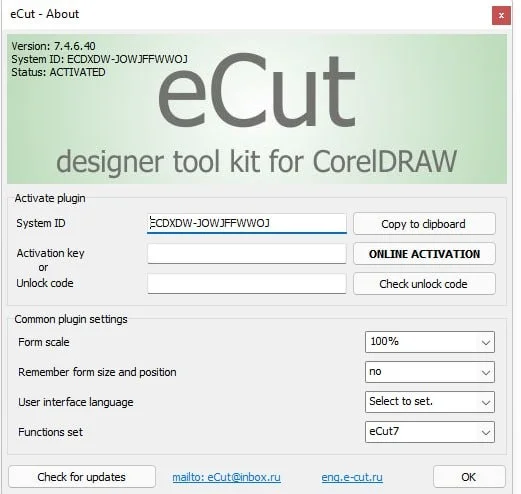
Launch CorelDRAW. You will see the eCut toolbar appear. Open the “License” tab and enter your Serial Number and Activation Code. Click “Activate Online.”
Step 5: Restart
Reboot CorelDRAW to finalize the integration. The “eCut” menu should appear next to “Effects” and “Bitmaps.”
How to Use the Software
Mastering eCut requires understanding its workflow logic. Here is a basic tutorial for a standard nesting job.
Step 1 – Preparing the Artwork
Draw your objects in CorelDRAW using closed paths. Ensure all shapes are converted to curves (Ctrl + Q) and have no open nodes, as open paths cannot be nested for cutting.
Step 2 – Selecting Nesting Parameters
Select all objects, then navigate to eCut > Nesting > True Shape Nesting. A dialog box will appear.
-
Material Width: Input the size of your raw sheet (e.g., 2440mm x 1220mm).
-
Rotation: Allow 0, 90, or 180-degree rotation to optimize fit.
-
Spacing (Kerf): Define the gap between parts (e.g., 0.5mm for laser, 3mm for router).
Step 3 – Generating the Nest
Click “Calculate.” The engine will automatically arrange your parts. Review the layout on screen.
Step 4 – Adding Toolpaths
Go to eCut > Toolpath > Contour. Select “Outside” for external cuts. Click “Apply Lead-In” to add a small arc entry for your bit.
Step 5 – Exporting to CNC
Finally, go to eCut > Export > G-Code. Select your machine post-processor (e.g., Mach3, GRBL, or LinuxCNC). Save the .nc file to your USB drive for your router.
Best Use Cases
eCut 7.4.11 is not a general illustration tool; it is a manufacturing tool. Here are the specific scenarios where it excels:
-
Signage and Lettering: Nesting aluminum or acrylic letters to minimize expensive sheet waste.
-
Leather and Textile Cutting: Optimizing shoe patterns or garment pieces on digital cutting tables.
-
Industrial Packaging: Creating die-cut lines for cardboard boxes and foam inserts.
-
Jewelry Design: Arranging small gold or silver pieces on a casting tree or flat sheet.
-
DIY Woodworking: Generating cut lists and toolpaths for custom furniture (shelves, brackets, puzzles).
Advantages and Limitations
Advantages (Pros)
-
Massive Time Saver: Reduces manual layout work from hours to seconds.
-
Material Cost Reduction: High-density nesting algorithms can save 15–30% on raw materials.
-
No Separate CAM Required: Works entirely inside CorelDRAW, a software many designers already own.
-
Regular Updates: Version 7.4.11 actively supports modern Windows and CorelDRAW updates.
Limitations (Cons)
-
Windows Only: There is no native macOS or Linux version (requires virtualization).
-
Steep Learning Curve: The nesting engine has over 50 variables; beginners may feel overwhelmed.
-
Price Point: Commercial licenses are expensive (approx. $300-$500 USD) compared to basic nesting tools.
-
No 3D Simulation: Unlike high-end CAM (like VCarve or Aspire), eCut only offers 2D top-down previews.
Alternatives to eCut
Depending on your budget and workflow, consider these alternatives:
| Software | Platform | Best For | Nesting Quality |
|---|---|---|---|
| DeepNest | Windows/Linux (Open Source) | Hobbyists and budget users | Basic true-shape |
| SigmaNEST | Windows (Standalone) | Industrial sheet metal (heavy steel) | Expert-level |
| EnRoute | Windows | Woodworking and routing (3D) | Advanced |
| VCarve Pro | Windows/Mac | Sign making and CNC beginners | Intermediate |
| LightBurn | Win/Mac/Linux | Laser engraving specific | Good (Bridge tool) |
Note: Unlike eCut, most alternatives require exporting from CorelDRAW and importing into a separate software, breaking the design workflow.
Frequently Asked Questions
Q1: Is eCut 7.4.11 compatible with CorelDRAW on Mac?
No. eCut is a Windows COM plugin. Mac users running CorelDRAW for Mac must use Parallels or Boot Camp to run Windows 11, then install CorelDRAW Windows within the virtual machine.
Q2: Can eCut generate G-code for any CNC router?
Yes, generally. It supports standard G-code dialects (G0, G1, G2, G3). You can edit the “Post Processor” file in the installation folder to match custom machine codes (e.g., replacing M3 with M4 for spindle direction).
Q3: Does the nesting calculate material grain direction?
Yes. In the “Part Properties” panel, you can lock rotation angles or enforce grain direction (useful for wood veneers where grain must run vertically).
Q4: Why does my antivirus flag the eCut installer?
False positives sometimes occur because the installer modifies CorelDRAW’s DLL files (Dynamic Link Libraries). This is required for injection. Always download directly from the official EuroSystems site to avoid malware.
Q5: What is the difference between “Array Nesting” and “True Shape Nesting”?
Array nesting places parts in rows and columns (grid layout). True shape nesting rotates and shuffles parts dynamically to fill empty spaces, resulting in higher material efficiency but longer calculation times.
Q6: Can I use eCut to cut printed stickers (Print & Cut)?
Yes. Use the “Registration Marks” feature to print 3 or 4 corner marks. After printing, load the sheet back into the plotter and use the “Read Marks” tool to correct skew and distortion automatically.
Final Thoughts
eCut 7.4.11 is an essential productivity plugin for any professional using CorelDRAW for manufacturing. While the initial investment is higher than hobbyist tools, the return on investment (ROI) comes quickly through saved materials and eliminated manual labor. For version 7.4.11, the stability improvements and CorelDRAW 2025 compatibility make it the definitive choice for sign shops and digital fabrication labs. Always ensure you obtain a legitimate license to receive technical support and virus-free updates. If your workflow involves flatbed cutting, laser engraving, or CNC routing, this tool will pay for itself within the first few projects.
Our Paid Service
“We do not sell or provide any software. We only offer professional support services. If any software on your system is not working properly, or you are facing installation errors, crashes, or any other technical issue — just contact us. We will help you fix the problem quickly and remotely via AnyDesk. No software will be provided from our side — only expert troubleshooting and support.”