
Overview of Wilcom EmbroideryStudio e4.5.8
Table of Contents
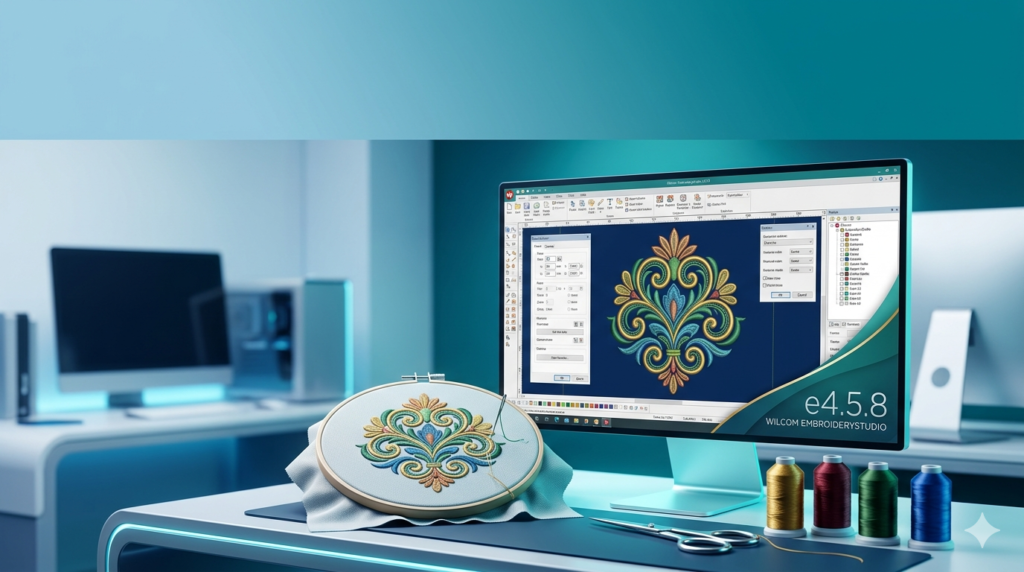
Wilcom EmbroideryStudio e4.5.8 is a professional-grade digitizing software widely recognized as the industry standard for advanced embroidery design. This powerful application enables users to create, edit, and optimize complex embroidery files for multi-head machines and single-needle systems.
As the latest iteration in the e4.5 series, version 4.5.8 offers refined stability, enhanced digitizing tools, and improved compatibility with modern embroidery machinery. Unlike basic hobbyist tools, Wilcom EmbroideryStudio targets professional digitizers, sample makers, and production houses requiring precise stitch control and high-fidelity output.
Designed for both Microsoft Windows environments, this software bridges the gap between vector graphics and stitch-based embroidery production. It supports over 70 native embroidery formats, including DST, PES, EXP, and CND.
Key Features of Wilcom EmbroideryStudio e4.5.8
Wilcom EmbroideryStudio e4.5.8 includes a comprehensive feature set for professional digitizing. Below are the core capabilities:
TrueSizer Auto-Digitizing
The software includes advanced auto-digitizing that converts raster images (BMP, JPEG, PNG) into editable stitches. Users can control stitch density, pull compensation, and underlay settings manually or through automated presets.
Stitch Engine & Simulation
-
Real-time 3D stitch preview simulates thread tension, fabric penetration, and density before production.
-
Dynamic stitch editing allows point-by-point modification of entry/exit points.
-
Lettering module with over 100 built-in fonts and custom font creation tools.
File Format Compatibility
The software reads and writes native industry formats:
| Format | Usage |
|---|---|
| DST | Tajima commercial machines |
| PES | Brother & Baby Lock consumer machines |
| EXP | Melco systems |
| CND | Wilcom native format |
| SVG, AI, DXF | Vector import for conversion |
Production Tools
-
Multi-hooping support for large designs beyond hoop limits.
-
Color sequence management with Pantone and Madeira thread palettes.
-
Lettering with TrueType support for custom typography.
What’s New in Wilcom EmbroideryStudio e4.5.8
Version e4.5.8 introduces several improvements over earlier e4.5 builds:
-
Enhanced stability for multi-threaded rendering on Windows 10 and Windows 11.
-
Improved pull compensation algorithms reducing fabric puckering on stretch materials.
-
Faster DST export with optimized stitch trimming.
-
Bug fixes for the Properties panel and Undo/Redo history in complex designs.
-
Updated machine driver support for 2024–2026 commercial embroidery hardware.
These updates make Wilcom EmbroideryStudio e4.5.8 a reliable choice for production environments where uptime and accuracy are critical.
System Requirements for Wilcom EmbroideryStudio e4.5.8
Before installing, ensure your workstation meets the following specifications:
Minimum Requirements
-
OS: Windows 10 (64-bit) version 21H2 or later
-
Processor: Intel Core i5 8th gen or AMD Ryzen 5 3000 series
-
RAM: 8 GB
-
Storage: 20 GB free SSD space
-
Display: 1920×1080 resolution, DirectX 11 compatible
-
GPU: 2 GB VRAM (NVIDIA GeForce or AMD Radeon)
Recommended Requirements
-
OS: Windows 11 Pro (64-bit)
-
Processor: Intel Core i7 12th gen or AMD Ryzen 7 5000 series
-
RAM: 16–32 GB
-
Storage: 512 GB NVMe SSD
-
Display: 2560×1440 or higher
-
GPU: 4 GB VRAM (NVIDIA RTX series for 3D simulation)
Note: The software is not natively supported on macOS or Linux. Windows users only.
Installation Guide for Wilcom EmbroideryStudio e4.5.8
Follow this step-by-step guide for a successful installation. Only legal, licensed installations are covered here.
Pre-Installation Preparation
-
Disable antivirus temporarily – some security tools may flag installer components incorrectly.
-
Run Windows Update to ensure all system libraries (C++ Redistributables, .NET Framework) are current.
-
Close all Office and design applications to avoid file-locking conflicts.
Step-by-Step Installation
-
Insert the official USB dongle (hardware key) provided with your license.
Wilcom products require a physical or virtual dongle for activation. -
Run
Setup.exeas Administrator. -
Select Install Wilcom EmbroideryStudio e4.5.8.
-
Choose installation directory (default:
C:\Wilcom\EmbroideryStudio_e4.5). -
Select components:
-
Core digitizing engine
-
Font library (full recommended)
-
Machine output drivers (select all or specific brands)
-
-
Click Install and wait for file extraction (approx. 5–10 minutes).
-
When prompted, restart your computer.
License Activation
-
Launch the application.
-
Enter your serial number (found in your purchase email or box).
-
The software will detect the USB dongle automatically.
-
For network licenses, contact your system administrator for server address.
How to Use Wilcom EmbroideryStudio e4.5.8
Importing Artwork
-
Go to File > Import.
-
Select vector (AI, SVG, EPS) or raster (PNG, JPG, BMP) files.
-
Use the Image Tracer panel to adjust threshold, noise reduction, and corner smoothing.
Manual Digitizing Workflow
-
Create a new design – set hoop size (e.g., 200×200 mm).
-
Select stitch type – satin, tatami, run, or motif stitches.
-
Digitize outlines – click points along your artwork paths.
-
Adjust stitch angle – use the Angle Brush tool for fills.
-
Add underlay – choose edge run, zigzag, or center run underlay.
-
Simulate – press F5 to preview stitching.
-
Export – save as DST for commercial machines.
Production Tips
-
Use pull compensation (0.2–0.5 mm for caps, 0.1–0.3 for flat goods).
-
Group similar thread colors to reduce color changes.
-
Save work in native CND format before exporting to DST.
Best Use Cases for Wilcom EmbroideryStudio e4.5.8
Professionals use this software for:
-
Custom logo digitizing – corporate uniforms, team apparel.
-
High-density embroidery – patches, caps, and puffy foam designs.
-
Large-format production – back designs for jackets (multi-hooping).
-
Letter-intensive projects – monograms, names, and team rosters.
-
Converting vector graphics – from Adobe Illustrator or CorelDRAW to stitch files.
Example: A sportswear company digitizes a 150×150 mm team logo in DST format. Using Wilcom EmbroideryStudio e4.5.8, they reduce color changes from 12 to 6, cutting machine runtime by 35%.
Advantages and Limitations of Wilcom EmbroideryStudio e4.5.8
Advantages
-
Industry standard – most commercial embroidery shops accept Wilcom-native CND and DST exports.
-
Precise stitch control – down to individual stitch points.
-
Extensive format support – reads/writes 70+ embroidery file types.
-
3D simulation – reduces physical test sew-outs.
-
Regular updates – e4.5.8 fixes critical production bugs.
Limitations
-
Steep learning curve – requires weeks of practice for mastery.
-
High cost – license pricing is professional-tier (typically $1,500–$6,000 depending on edition).
-
Windows only – no native macOS version.
-
Hardware dongle – some users prefer software-based licensing.
Alternatives to Wilcom EmbroideryStudio e4.5.8
If Wilcom EmbroideryStudio e4.5.8 does not fit your budget or workflow, consider these legitimate alternatives:
| Software | Best For | Platform | Approx. Price |
|---|---|---|---|
| Hatch Embroidery 3 | Hobbyists & semi-pro (by Wilcom) | Windows | $200–$1,200 |
| PE-Design Plus 2 | Brother machine owners | Windows | $700–$1,500 |
| Ink/Stitch | Open-source, Inkscape users | Win/Mac/Linux | Free |
| SewArt | Auto-digitizing beginners | Windows | $100–$200 |
| Tajima DG16 Pulse | Large production houses | Windows | $3,000+ |
For most professional users, Wilcom EmbroideryStudio remains the top choice. Hatch Embroidery 3 offers the same core engine at a lower price but with fewer production tools.
Frequently Asked Questions (FAQ)
Is Wilcom EmbroideryStudio e4.5.8 compatible with Windows 11?
Yes. Version e4.5.8 is fully compatible with Windows 11 Pro (64-bit) and Windows 10 (version 21H2 or later).
Can I convert JPG to DST using Wilcom EmbroideryStudio?
Absolutely. The software includes auto-digitizing tools to convert JPG, PNG, and BMP files to editable stitches, then export as DST for Tajima machines.
How much does a legal license for EmbroideryStudio e4.5.8 cost?
Pricing varies by edition (Express, Standard, Professional). Expect $1,500 to $6,000. Contact an authorized Wilcom reseller for a current quote.
Does Wilcom EmbroideryStudio work on a Mac?
No. It requires Windows. Mac users can run it via Boot Camp or Parallels Desktop with a licensed Windows installation, but performance is not guaranteed.
What is the difference between Wilcom EmbroideryStudio and Hatch Embroidery?
Both are developed by Wilcom. EmbroideryStudio targets commercial production with advanced features like multi-hooping, network licensing, and batch processing. Hatch is designed for home embroiderers and small businesses.
How do I update from e4.5.0 to e4.5.8?
Log into your Wilcom customer portal. Download the e4.5.8 update installer. Run it as Administrator. Your existing dongle and license remain valid.
Can I import Adobe Illustrator files directly?
Yes. Wilcom EmbroideryStudio e4.5.8 imports AI, EPS, and SVG files. The software preserves layers and paths for easier digitizing.
Why does my DST export show skipped stitches?
Check your pull compensation and underlay settings. Also verify thread tension on your machine. The simulation in e4.5.8 should predict such issues before export.
Final Thoughts on Wilcom EmbroideryStudio e4.5.8
Wilcom EmbroideryStudio e4.5.8 remains the gold standard for professional embroidery digitizing. Its combination of precision stitch editing, broad format support, and production-ready tools justifies the premium price for commercial users.
Version 4.5.8 brings meaningful stability fixes and updated machine drivers, making it a reliable workhorse for daily production. Beginners may prefer the lower-cost Hatch Embroidery family, but any serious digitizing operation will eventually need the power of EmbroideryStudio.
For legal, licensed use, purchase directly from Wilcom or an authorized distributor. This ensures you receive updates, support, and malware-free software.
Our Paid Service
“We do not sell or provide any software. We only offer professional support services. If any software on your system is not working properly, or you are facing installation errors, crashes, or any other technical issue — just contact us. We will help you fix the problem quickly and remotely via AnyDesk. No software will be provided from our side — only expert troubleshooting and support.”