
Overview of SteelX Industrial
Table of Contents
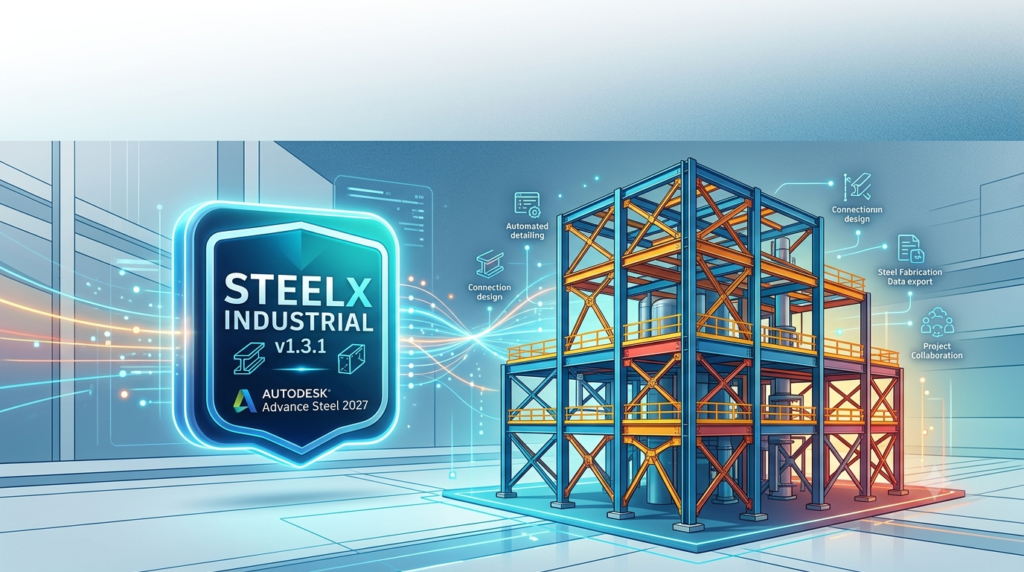
SteelX Industrial serves as a productivity bridge for structural engineers and steel detailers who work with Autodesk Advance Steel but require functionality beyond its native toolkit. The plugin focuses on industrial steel structure projects—a segment where precision, assembly coordination, and seamless data exchange are non-negotiable.
The software targets professionals in industries such as:
-
Industrial plant construction
-
Pipe rack and equipment support design
-
Platform and walkway fabrication
-
Ladder and handrail detailing
-
Structural steel for process plants
Since Advance Steel’s development has been frozen, third-party solutions like SteelX Industrial have become essential for teams seeking modern BIM features and workflow efficiencies that the base software no longer provides. The plugin integrates directly into the Advance Steel environment, operating within the familiar AutoCAD-based interface while adding specialized industrial steel components and automated processes.
Key Features
SteelX Industrial v1.3.1 delivers a robust set of features designed to streamline industrial steel detailing and fabrication workflows.
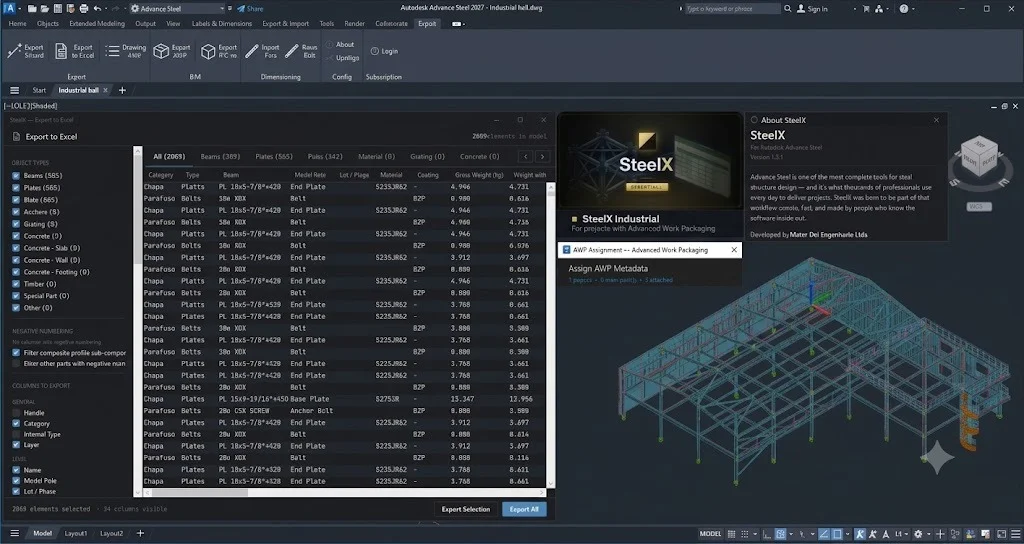
Advanced IFC Export with BIM Properties
One of the plugin’s standout capabilities is its comprehensive IFC export functionality. SteelX Industrial supports both IFC4 and IFC2x3 formats, enabling seamless data exchange with other BIM platforms. The export process preserves:
-
Full 3D geometry accuracy
-
Color coding by layer for visual clarity
-
BIM properties embedded per element
-
Assembly grouping—beams, plates, and fasteners linked together
This functionality ensures that steel models exported from Advance Steel remain fully usable in Autodesk Revit, Navisworks, and BIM 360 environments.
Advanced Work Packaging (AWP) Integration
SteelX Industrial incorporates built-in AWP capabilities, a project management methodology increasingly adopted in large-scale industrial construction. The plugin allows users to assign:
-
Construction Work Areas (CWA)
-
Construction Work Packages (CWP)
-
Installation Work Packages (IWP)
These assignments are carried through to the IFC export, enabling better project planning, scheduling, and on-site coordination.
Industrial Component Libraries
The plugin provides extensive libraries of company-standard and industry-standard components specifically tailored for industrial steel structures, including:
-
Pipe racks and support structures
-
Equipment platforms and walkways
-
Staircases, ladders, and handrail systems
-
Structural steel connections typical in process plants
Automated Detailing and Documentation
SteelX Industrial automates time-consuming detailing tasks, including:
-
Intelligent connection macros for industrial assemblies
-
Automatic numbering and part identification
-
Faster generation of fabrication drawings
-
Bills of Materials (BOM) production
Custom Macros and Standards Compliance
The plugin supports custom macros that enable firms to enforce their detailing standards consistently. This ensures that all outputs—drawings, BOMs, and CNC data—comply with company or regional requirements without manual intervention.
What’s New in SteelX Industrial v1.3.1
Version 1.3.1 represents a significant update to the SteelX Industrial plugin, delivering key improvements for Autodesk Advance Steel 2027 users.
Full Compatibility with Advance Steel 2027
The latest version has been optimized for Autodesk Advance Steel 2027, ensuring stable performance and full integration with the newest release of the host platform.
Enhanced IFC Export Performance
v1.3.1 introduces improved export algorithms that handle larger models more efficiently, reducing processing time for complex industrial steel structures.
Expanded Component Library
The update adds new industrial component types and connection macros based on user feedback, expanding the plugin’s utility for pipe rack and equipment support design.
Improved AWP Data Handling
Work packaging data management has been refined, making it easier to assign and track CWA, CWP, and IWP assignments across large project teams.
Bug Fixes and Stability Improvements
The release includes numerous fixes addressing issues reported in previous versions, resulting in more stable operation during large-model handling and export operations.
System Requirements
For Autodesk Advance Steel 2027 (Host Platform)
Since SteelX Industrial operates within Advance Steel, your system must first meet Autodesk’s requirements for the host software.
Minimum Hardware Requirements:
| Component | Minimum Specification | Recommended Specification |
|---|---|---|
| Processor | 2.5–2.9 GHz base (ARM processors not supported) | 3 GHz base minimum, 4 GHz turbo |
| Memory (RAM) | 16 GB | 32 GB |
| Graphics Card | 2 GB GPU, 29 GB/s bandwidth, DirectX 11 | 8 GB GPU, 106 GB/s bandwidth, DirectX 12 |
| Display Resolution | 1920 x 1080 true color | Up to 3840 x 2160 (4K) with recommended GPU |
| Disk Space | 10 GB (SSD recommended) | 16 GB + 12 GB temp space for online install |
| Additional Cache | 1 GB free disk space for disk cache | 1 GB free disk space for disk cache |
DirectX Requirement: DirectX 12 with Feature Level 12_0 is required for visual styles including Shaded (Fast), Shaded with Edges (Fast), Conceptual (Fast), and Hidden (Fast).
Pointer Device: Microsoft mouse-compatible pointing device.
Operating System: Windows 11 64-bit is required for Advance Steel 2027.
For SteelX Industrial v1.3.1
As a plugin, SteelX Industrial inherits these requirements. For large industrial projects, Autodesk recommends:
-
6 GB free hard disk space beyond installation requirements
-
3840 x 2160 (4K) or higher true-color display adapter
-
12 GB VRAM or greater for optimal performance
-
Pixel Shader 3.0 or higher
-
DirectX-compatible workstation-class graphics card
Installation Guide
Prerequisites
Before installing SteelX Industrial v1.3.1, verify that:
-
Autodesk Advance Steel 2027 is properly installed and activated on your system
-
Your system meets the minimum hardware requirements
-
You have administrative privileges on your Windows PC
-
Your antivirus software is temporarily disabled (or configured to allow plugin installation)
-
You have your SteelX Industrial license key ready
Step-by-Step Installation
Step 1: Download the Installer
Visit the official Mater Dei Engenharia or DiPCSoft distribution portal to download the SteelX Industrial v1.3.1 installer package.
Step 2: Close Advance Steel
Ensure Autodesk Advance Steel is completely closed before proceeding with installation. Save all open projects and exit the application.
Step 3: Run the Installer
Right-click the downloaded installer file and select “Run as Administrator” to ensure proper system-level installation.
Step 4: Accept License Terms
Review and accept the End User License Agreement (EULA) to proceed.
Step 5: Select Installation Location
Choose the installation directory. The default path typically points to the Advance Steel plugins folder. Unless you have specific requirements, use the default location.
Step 6: Enter License Information
Input your product key or license credentials when prompted. SteelX Industrial requires a valid license for full functionality.
Step 7: Complete Installation
Follow the on-screen prompts to complete the installation. The process typically takes 2–5 minutes depending on your system.
Step 8: Launch Advance Steel
Open Autodesk Advance Steel 2027. The SteelX Industrial plugin should appear in the ribbon interface or as an available add-on.
Step 9: Activate the Plugin
The first launch may require additional activation steps. Follow the on-screen instructions to verify your license.
Verification
To confirm successful installation:
-
Open Advance Steel 2027
-
Check the ribbon for SteelX Industrial tabs or buttons
-
Navigate to Add-Ins or Plugins to verify the plugin is listed
-
Test basic functionality, such as opening the component library
How to Use SteelX Industrial
Getting Started
After installation, launch Autodesk Advance Steel 2027 and open your steel structure model. The SteelX Industrial interface typically appears as a dedicated tab or toolbar within the Advance Steel ribbon.
Working with IFC Export
To export a model with BIM properties:
-
Open your completed steel model in Advance Steel
-
Navigate to the SteelX Industrial export menu
-
Select IFC Export from the available options
-
Choose the desired format (IFC4 or IFC2x3)
-
Configure export settings:
-
Include assembly grouping
-
Preserve layer colors
-
Embed BIM properties
-
-
Specify the destination folder and file name
-
Click Export and monitor the progress bar
The resulting IFC file will contain all structural elements grouped by assembly, making it ready for import into Revit, Navisworks, or BIM 360.
Utilizing AWP Features
To assign work packaging data:
-
Select structural elements in your model
-
Access the SteelX Industrial AWP tools
-
Assign CWA (Construction Work Area) classification
-
Define CWP (Construction Work Package) boundaries
-
Create IWP (Installation Work Package) assignments
-
Verify assignments in the AWP dashboard
This data automatically transfers to exported IFC files, enabling project managers to coordinate installation sequences with the BIM model.
Using Component Libraries
To insert industrial steel components:
-
Open the SteelX Industrial component library
-
Browse or search for required components:
-
Pipe rack sections
-
Equipment supports
-
Platform structures
-
Ladders and handrails
-
-
Configure component parameters (dimensions, material, connections)
-
Insert into your model
-
Adjust positioning as needed
Generating Documentation
To create fabrication drawings and BOMs:
-
Complete your model assembly
-
Use SteelX Industrial’s automated numbering tools
-
Select Generate Drawings from the detailing menu
-
Choose drawing types (single-part, assembly, general arrangement)
-
Configure Bill of Materials (BOM) output options
-
Generate and review outputs
Best Use Cases
Industrial Plant Steel Detailing
SteelX Industrial excels in complex industrial plant projects where structural steel must integrate with process equipment, piping, and electrical systems. The plugin’s component libraries and AWP integration streamline coordination between engineering disciplines.
Pipe Rack Design and Fabrication
The plugin’s specialized libraries for pipe rack structures significantly reduce modeling time. Automated assembly generation and connection macros ensure consistent detailing across multiple racks, while IFC export facilitates coordination with pipe stress engineers.
Equipment Support Structures
For projects requiring custom equipment support steel, SteelX Industrial provides the flexibility to create and standardize support assemblies. The ability to assign work packaging data aids in sequencing installation around equipment delivery schedules.
BIM Coordination and Data Exchange
Firms using Revit, Navisworks, or BIM 360 for overall project coordination benefit from SteelX Industrial’s robust IFC export. The plugin ensures steel models transfer with complete geometry, property data, and assembly groupings intact.
Fabrication Shop Drawing Production
Steel fabricators can leverage the plugin’s automated detailing to generate shop drawings, CNC data (DSTV/NC files), and material lists directly from the Advance Steel model—reducing manual documentation time.
Advantages and Limitations
Advantages
Enhanced BIM Functionality
SteelX Industrial adds features that Autodesk has ceased developing for Advance Steel, including modern IFC export with complete BIM properties.
Industrial Specialization
Unlike general-purpose steel plugins, SteelX Industrial targets industrial structures specifically, providing relevant component libraries and workflows.
AWP Integration
Built-in Advanced Work Packaging support enables better project planning and on-site coordination through BIM data.
Time Savings
Automated detailing, numbering, and documentation significantly reduce manual work compared to native Advance Steel workflows.
Seamless Data Exchange
IFC4 and IFC2x3 support ensures compatibility with major BIM platforms including Revit, Navisworks, and BIM 360.
Improved Collaboration
Bidirectional model synchronization facilitates coordination between structural engineers and other disciplines.
Limitations
Third-Party Dependency
As a third-party plugin, SteelX Industrial is not officially supported by Autodesk. Updates and support depend on Mater Dei Engenharia’s development roadmap.
Additional Cost
The plugin requires a separate license beyond the Advance Steel subscription, increasing total software costs.
Learning Curve
Teams accustomed to native Advance Steel workflows may require training to effectively utilize the plugin’s specialized features.
Industrial Focus
While excellent for industrial projects, the plugin’s specialization may offer limited benefits for commercial or residential structural steel detailing.
Version Lock
SteelX Industrial v1.3.1 is specifically designed for Advance Steel 2027. Compatibility with future Autodesk releases depends on plugin updates.
Alternatives to SteelX Industrial
Native Autodesk Advance Steel Capabilities
For firms with less demanding industrial steel requirements, Advance Steel’s built-in features may suffice. The software includes:
-
Parametric connection engine
-
Automated drawing generation
-
Bill of Materials reporting
-
IFC export (though less comprehensive than SteelX Industrial)
-
Bi-directional Revit integration
Best for: General structural steel projects without specialized industrial requirements.
Other Advance Steel Plugins
The Advance Steel ecosystem includes several third-party plugins offering similar functionality:
-
Graitec PowerPack for Advance Steel – Comprehensive detailing automation
-
GRAITEC Advance Steel – Additional connection types and macros
-
Custom-developed plugins – Tailored solutions for specific firm requirements
Considerations: Evaluate each plugin’s specialization, cost, and compatibility with your specific industrial steel workflows.
Building Information Modeling Platforms
For firms seeking broader BIM capabilities, alternatives include:
-
Tekla Structures – Independent structural BIM software with strong steel detailing
-
Revit with Steel Structures add-ons – Native Autodesk ecosystem integration
-
Bentley Systems solutions – Comprehensive infrastructure and industrial BIM
Note: These alternatives may require significant workflow changes and data migration.
Comparison Summary
| Feature | SteelX Industrial | Native Advance Steel | Other Plugins |
|---|---|---|---|
| Industrial Component Libraries | Specialized | Limited | Varies |
| AWP Integration | Built-in | Not available | Rare |
| IFC Export Quality | Advanced BIM properties | Basic geometry | Varies |
| Cost | Additional license | Included in subscription | Varies |
| Support | Mater Dei Engenharia | Autodesk | Third-party |
Frequently Asked Questions
What is SteelX Industrial and what does it do?
SteelX Industrial is a third-party plugin for Autodesk Advance Steel 2027 developed by Mater Dei Engenharia. It adds specialized BIM capabilities for industrial steel structures—including advanced IFC export with BIM properties, Advanced Work Packaging (AWP) integration, and automated detailing features for industrial plants, pipe racks, and equipment supports.
Is SteelX Industrial compatible with Autodesk Advance Steel 2027?
Yes, SteelX Industrial v1.3.1 is fully compatible with Autodesk Advance Steel 2027 and also supports versions 2024 through 2026.
What are the system requirements for SteelX Industrial?
SteelX Industrial runs within Advance Steel 2027. Minimum requirements include a 2.5 GHz processor, 16 GB RAM, 2 GB graphics card, and 10 GB disk space. For large industrial projects, Autodesk recommends a 3 GHz+ processor, 32 GB RAM, 8 GB graphics card, and SSD storage.
How does SteelX Industrial improve IFC export?
The plugin provides real IFC export with full 3D geometry, color coding by layer, BIM properties per element, and assembly grouping for beams, plates, and fasteners. It supports both IFC4 and IFC2x3 formats for compatibility with Revit, Navisworks, and BIM 360.
What is Advanced Work Packaging (AWP) in SteelX Industrial?
AWP is a project management methodology that breaks construction into manageable work packages. SteelX Industrial allows users to assign Construction Work Areas (CWA), Construction Work Packages (CWP), and Installation Work Packages (IWP) directly to model elements—with this data carried through to IFC exports for coordination with project management teams.
Where can I download or purchase SteelX Industrial?
SteelX Industrial is available through Mater Dei Engenharia’s official distribution channels and DiPCSoft, an authorized distributor. Always obtain your license directly from the developer to ensure you receive legitimate software and support.
Who is SteelX Industrial designed for?
The plugin is designed for structural engineers, steel detailers, and fabricators working on industrial projects such as process plants, pipe racks, equipment supports, platforms, and walkways. It requires familiarity with Autodesk Advance Steel.
Does SteelX Industrial work with Revit?
Yes, SteelX Industrial’s IFC export generates files that are fully usable in Autodesk Revit, Navisworks, and BIM 360. The exported models retain BIM properties and assembly groupings for seamless coordination between structural and other disciplines.
Final Thoughts
SteelX Industrial v1.3.1 addresses a genuine gap in the Autodesk Advance Steel ecosystem. With Autodesk placing Advance Steel into maintenance mode in 2023, users working on industrial steel projects have limited options for extending the software’s capabilities. This plugin provides specialized functionality that native Advance Steel lacks—particularly robust IFC export with BIM properties, Advanced Work Packaging integration, and industrial component libraries.
For firms regularly tackling industrial plant structures, pipe racks, and equipment supports, SteelX Industrial represents a worthwhile investment. The time savings from automated detailing and component libraries can quickly offset the plugin’s additional cost. Furthermore, the improved IFC export ensures smoother collaboration with teams using Revit, Navisworks, or BIM 360—a critical advantage in today’s multi-platform BIM environment.
However, the plugin is not for everyone. Firms focused on general structural steel rather than industrial applications may find limited benefit. The additional licensing cost and learning curve should also factor into purchasing decisions.
Ultimately, SteelX Industrial v1.3.1 exemplifies how third-party developers are filling innovation gaps left by larger software vendors. For industrial steel detailers seeking to maximize productivity and data exchange quality, this plugin is a compelling solution worth evaluating.
Our Paid Service
“We do not sell or provide any software. We only offer professional support services. If any software on your system is not working properly, or you are facing installation errors, crashes, or any other technical issue — just contact us. We will help you fix the problem quickly and remotely via AnyDesk. No software will be provided from our side — only expert troubleshooting and support.”
‘