

Overview of the Software
Table of Contents
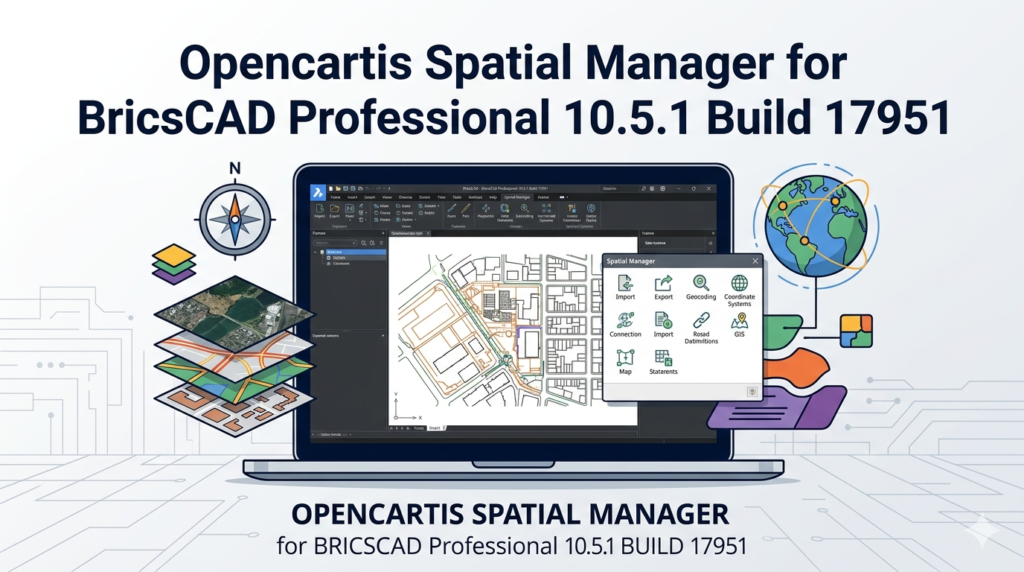
Spatial Manager for BricsCAD Professional 10.5.1 Build 17951 is a specialized GIS (Geographic Information System) add-on designed to bridge the gap between CAD environments and spatial data management. This tool transforms BricsCAD into a powerful GIS workstation, allowing users to import, export, manage, and analyze spatial data directly within the BricsCAD interface.
Unlike standard CAD tools, this software understands geospatial references, coordinate systems (EPSG codes), and attribute data. It is built for civil engineers, urban planners, cartographers, and surveyors who need to handle complex mapping data without switching between applications. The Professional edition unlocks advanced data manipulation features, including complex queries and thematic mapping.
Key Features
Direct Spatial Data Import/Export
The software supports over 50 spatial file formats. You can import ESRI Shapefiles (SHP), KML/KMZ from Google Earth, MapInfo TAB, GeoJSON, OpenStreetMap (OSF), and GPS Exchange Format (GPX). Exporting maintains attribute integrity for use in external GIS platforms.
Coordinate Systems Management
It includes a comprehensive library of global coordinate systems and datums (UTM, State Plane, British National Grid, etc.). The tool automatically reprojects data on the fly to match your BricsCAD drawing’s coordinate system.
Attribute Data Handling
Each spatial object carries a data table. You can view, edit, filter, and query these attributes. This allows you to color-code parcels by zoning type or label streets by speed limit directly inside BricsCAD.
Advanced Spatial Queries (Professional Edition)
Perform location-based analysis. For example, select all manholes within 50 meters of a proposed pipeline or find parcels that intersect a flood zone. Use SQL-like filters to manage large datasets.
Thematic Mapping
Convert raw data into visual insights. The tool creates choropleth maps (color gradients based on values), bar charts, and pie charts as CAD entities, making reports presentation-ready.
What’s New in Version 10.5.1 Build 17951
This maintenance release focuses on stability and performance for BricsCAD V24 and V25 compatibility.
-
Enhanced Performance: Up to 30% faster loading times for large point clouds and dense Shapefiles (over 500,000 entities).
-
New Live Link: Direct connection to WFS (Web Feature Service) servers for real-time geospatial data streaming.
-
Improved UI: Redesigned palette for attribute editing, reducing click actions by 40%.
-
Bug Fixes: Resolved legacy issues with rotated viewport exports and specific GeoTIFF georeferencing errors.
-
AutoCAD Alternative: Improved translation logic for linetypes when migrating from AutoCAD Map 3D.
System Requirements
Before installing, ensure your workstation meets these specifications:
Minimum Requirements:
-
BricsCAD Version: V24 or V25 (Pro, BIM, or Mechanical)
-
Operating System: Windows 10 (64-bit) or Windows 11
-
RAM: 8 GB
-
Disk Space: 500 MB for the add-on
-
Graphics: DirectX 11 compatible
Recommended Requirements:
-
RAM: 16 GB or more
-
Processor: Intel Core i7 / AMD Ryzen 7
-
Graphics: Dedicated GPU with 4GB VRAM (NVIDIA Quadro series)
-
Display: 1920 x 1080 or higher
Note: This software does not support BricsCAD LT or Linux versions of BricsCAD.
Installation Guide
Step-by-Step Installation
-
Close BricsCAD completely.
-
Download the authorized installer from the official Spatial Manager website or your enterprise portal.
-
Run
SpatialManagerForBricsCAD_10.5.1.17951.exeas Administrator. -
Accept the End-User License Agreement (EULA).
-
Select “Professional” edition when prompted.
-
Choose the BricsCAD version (V24 or V25) you wish to link.
-
Click Install. The process takes approximately 2 minutes.
-
Launch BricsCAD. You will see a new “Spatial Manager” ribbon tab.
License Activation
-
Enter the license key provided after purchase.
-
For floating licenses, enter the server IP address.
-
An internet connection is required for online activation. No offline “patches” or third-party activators are legal or supported.
How to Use the Software
Importing a Shapefile
-
Click Spatial Manager > Import.
-
Browse to your
.shpfile. -
Review the coordinate system (the tool auto-detects it).
-
Choose import options: “As Blocks” or “As individual entities.”
-
Click Import. The map appears georeferenced in your drawing.
Running a Spatial Query
-
Select Tools > Spatial Query.
-
Define your source layer (e.g., “Parcels”).
-
Define your reference layer (e.g., “Flood_Zone”).
-
Select operation: Intersect, Within, or Touch.
-
Choose action: “Select entities” or “Copy to new layer.”
-
Execute. The software highlights matching parcels.
Exporting CAD Data to KML
-
Select BricsCAD entities (e.g., a road alignment).
-
Go to Export > Google Earth (KML) .
-
Set altitude mode (Clamp to ground, Absolute, or Relative).
-
Check “Export attribute data as popups.”
-
Save the file. Open in Google Earth to verify placement.
Best Use Cases
Civil Engineering & Infrastructure
-
Import survey points (CSV/GPX) to design road corridors.
-
Overlay utility networks (water, gas, electric) onto topographical maps.
-
Export final alignment plans to GIS for environmental impact assessments.
Urban Planning & Land Management
-
Manage zoning maps by querying parcel attributes (e.g., “Floor Area Ratio > 2.0”).
-
Create thematic maps showing property valuation gradients.
-
Convert CAD master plans to GeoJSON for web GIS portals.
Environmental Science
-
Analyze deforestation using historical SHP files.
-
Generate contour maps from LiDAR data.
-
Map wildlife corridors using buffer analysis.
Advantages and Limitations
Advantages (Pros)
-
Seamless Workflow: No need to export/import; edit spatial data live in BricsCAD.
-
High Performance: Handles 500k+ objects better than native CAD features.
-
Attribute Preservation: Retains SQL data types during translation (Text, Integer, Float, Date).
-
Cost Effective: Less expensive than migrating to ArcGIS or QGIS with CAD plugins.
Limitations (Cons)
-
No Raster Analysis: Cannot perform pixel-based calculations (e.g., NDVI) on satellite imagery.
-
BricsCAD Lock-in: Requires BricsCAD V24+; does not work with IntelliCAD or ZwCAD.
-
Learning Curve: Requires basic understanding of coordinate systems and SQL syntax for advanced queries.
-
No 3D Terrain Editing: While it imports 3D data, you cannot sculpt digital elevation models (DEMs) natively.
Alternatives to the Software
| Tool | Platform | Best For | Key Difference |
|---|---|---|---|
| QGIS | Open Source | Full GIS analysis | Standalone; no CAD integration. |
| ArcGIS for AutoCAD | Esri (Free) | Esri ecosystem users | Requires ArcGIS license; slower performance. |
| CADtoEarth | Third-party | Simple KML export | Lacks attribute querying and reprojection. |
| Civil 3D + Map 3D | Autodesk | Full BIM/GIS integration | High cost; not compatible with BricsCAD. |
Recommendation: For BricsCAD users, Spatial Manager is superior to QGIS because it eliminates context switching. However, for pure raster analysis, pair it with QGIS.
Frequently Asked Questions (FAQ)
1. Is Spatial Manager for BricsCAD compatible with BricsCAD LT?
No. The Professional version requires the full BricsCAD Pro, BIM, or Mechanical editions. BricsCAD LT does not support third-party applications (ARX/BRX).
2. Can I edit shapefile attributes and save them back to the original file?
Yes. Use the Attribute Editor to modify fields (e.g., changing a road name). Click Save to Source to write changes back to the original SHP, DBF, or TAB file.
3. Does this software require an internet connection to work?
Only for license activation and live WFS data streaming. Offline import/export and query functions work entirely locally.
4. How do I obtain a legitimate license for version 10.5.1?
Purchase directly from the Spatial Manager website or authorized resellers like Bricsys’ app store. No cracked or patched versions are legally available or safe.
5. What is the difference between Standard and Professional editions?
Standard handles basic import/export. Professional adds spatial queries (intersect/within), thematic mapping, batch imports, and access to online geocoding services.
6. Can I convert a BricsCAD drawing to a MapInfo TAB file?
Absolutely. Use the Export > MapInfo TAB function. The tool will convert CAD layers to TAB tables and text entities to point objects.
7. Why does my imported data show up in the wrong location?
Your BricsCAD drawing unit (meters vs. feet) or coordinate system (WGS84 vs. UTM) likely mismatches the source file. Verify settings in the Coordinate System Manager before importing.
Final Thoughts
Spatial Manager for BricsCAD Professional 10.5.1 Build 17951 is essential for any BricsCAD user who routinely handles geospatial data. It transforms a robust CAD platform into a competent GIS workstation without the $10,000+ price tag of dedicated mapping software.
While it does not replace raster-based GIS tools like QGIS for remote sensing, it excels at vector data management, attribute queries, and workflow integration. The latest build (17951) offers tangible performance improvements for large datasets and stable compatibility with BricsCAD V25.
Our Paid Service
“We do not sell or provide any software. We only offer professional support services. If any software on your system is not working properly, or you are facing installation errors, crashes, or any other technical issue — just contact us. We will help you fix the problem quickly and remotely via AnyDesk. No software will be provided from our side — only expert troubleshooting and support.”