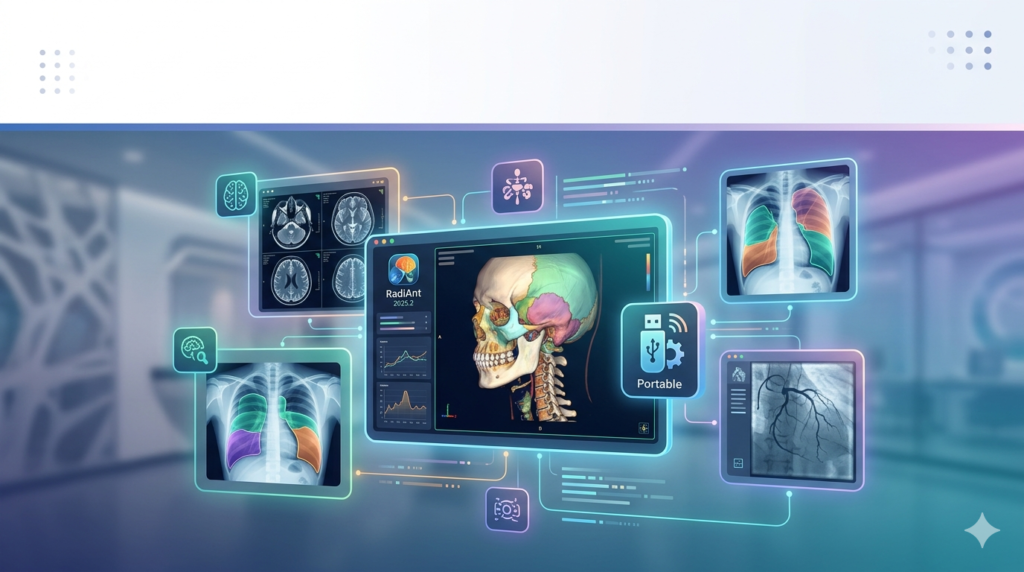

Download the RadiAnt DICOM Viewer 2025.2 (Complete Review & Portable Deployment Guide) from this link…

Overview of the Software
Table of Contents
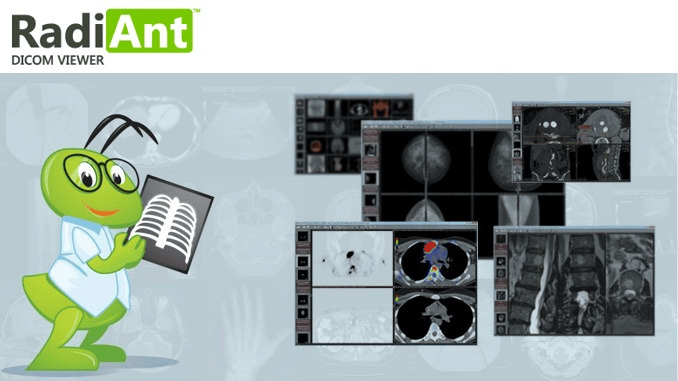
RadiAnt DICOM Viewer 2025.2 is a specialized medical imaging software designed for radiologists, physicians, and medical technicians. Unlike generic image viewers, this tool is built to handle DICOM (Digital Imaging and Communications in Medicine) files, the universal standard for storing and transmitting medical images such as CT scans, MRIs, X-rays, and ultrasounds.
The software is renowned for its speed, lightweight performance, and intuitive interface. Version 2025.2 represents a significant evolution, offering faster rendering engines and improved compatibility with modern PACS (Picture Archiving and Communication Systems). This review focuses on the legitimate installation process, including options for portable deployment for professionals who require mobility across different workstations.
Key Features
RadiAnt DICOM Viewer distinguishes itself through a combination of advanced visualization tools and user-friendly design.
-
Multi-Planar Reconstruction (MPR): Convert 2D axial slices into coronal, sagittal, or arbitrary oblique planes in real-time.
-
3D Volume Rendering: Generate high-quality 3D reconstructions of anatomical structures from volumetric data sets.
-
Measurement Tools: Includes precise calipers, ROI (Region of Interest) circles, angles, and specialized tools for length, volume, and SUV (Standardized Uptake Value) calculations in PET/CT.
-
DICOM Support: Reads DICOM files from CDs, DVDs, USB drives, local storage, or directly from PACS via DICOM Query/Retrieve.
-
Customizable Layout: Display unlimited series across multiple monitors with synchronized scrolling and panning.
-
Annotation & Markup: Add arrows, text, and drawings to images for surgical planning or patient consultations.
What’s New in Version 2025.2
The 2025.2 update focuses on performance optimization and workflow automation.
-
Enhanced 3D Renderer: Reduces lag when manipulating large datasets (e.g., 512+ slice CT scans).
-
AI-Assisted Measurement: Preliminary AI detection for nodules and vessel measurements (experimental mode).
-
Improved DICOM RT Support: Better compatibility with radiotherapy structure sets and dose distributions.
-
Portable Config Sync: Allows users to save viewer settings and presets directly onto a portable drive for consistent experience across multiple PCs.
System Requirements
To run RadiAnt DICOM Viewer 2025.2 effectively, your system should meet the following specifications.
| Component | Minimum Requirement | Recommended Requirement |
|---|---|---|
| Operating System | Windows 10 (64-bit) | Windows 11 (64-bit) |
| Processor | 1.8 GHz dual-core | 3.0 GHz quad-core or higher |
| RAM | 4 GB | 16 GB or more |
| GPU | DirectX 10 capable | Dedicated GPU with 4GB VRAM (OpenGL 4.0) |
| Storage | 500 MB for installation | SSD with 10 GB for cache |
| Display | 1280 x 1024 | 1920 x 1080 or dual diagnostic monitors |
Installation Guide
This guide covers the standard installation for individual licensed users. Always download the software from the official developer’s website or a verified healthcare IT portal.
Step 1: Obtain the Installer
Download the official setup file (RadiAnt_DICOM_Viewer_Setup_2025.2.exe) from the vendor’s website. Ensure you have a valid license key if you are using the Pro version (the basic viewer is free for non-commercial use).
Step 2: Run the Installer
Right-click the installer and select “Run as Administrator.” Accept the End-User License Agreement (EULA).
Step 3: Select Installation Type
-
Full Installation: Installs the viewer into
C:\Program Files\. This integrates the software with DICOM file types and context menus. -
Portable Deployment: Select the “Portable” option. This does not write to the Windows Registry or System32 folder. Instead, it extracts all necessary files to a folder on your local drive or external USB drive.
Step 4: Configure File Associations
Choose whether to associate .dcm and .dicom files with RadiAnt. For radiology workstations, enabling this is recommended.
Step 5: Launch
After installation completes, launch the software. The free version will display a brief splash screen, while the Pro version will validate your license.
How to Use the Software
Loading a Study
-
Drag and Drop: Simply drag a DICOM folder or file into the RadiAnt window.
-
Open Dialog: Use
Ctrl + Oto browse for DICOM directories. -
CD/DVD: Insert a medical CD; RadiAnt will automatically detect and index the study.
Navigating Images
-
Scroll: Use your mouse wheel to scroll through series slices.
-
Zoom/Pan: Right-click and drag to pan; use the scroll wheel with
Ctrlto zoom. -
Windowing: Left-click and drag vertically to change brightness/contrast (Window/Level).
Performing Measurements
-
Click the Measurement icon (ruler) on the toolbar.
-
Click to start point, drag, and release to end point.
-
The result (e.g., 4.5 cm) appears immediately on the image.
-
Use the Delete key to remove measurements.
Creating a 3D Reconstruction
-
Load a volumetric series (e.g., CT or MRI).
-
Click the 3D button in the toolbar.
-
Adjust the threshold slider to isolate bone or soft tissue.
-
Rotate the 3D model by left-clicking and dragging.
Best Use Cases
-
Radiology Clinics: Quick viewing of patient studies without launching a full PACS workstation.
-
Surgical Planning: Orthopedic surgeons use MPR and 3D tools to assess fracture angles.
-
Remote Consultation: The portable version allows specialists to review images on any Windows PC via USB drive.
-
Teaching & Research: Annotating images for medical lectures or journal publications.
-
Patient Communication: Showing annotated scans to patients to explain diagnoses.
Advantages and Limitations
Advantages
-
Extremely fast loading – Opens large CT studies in seconds.
-
No database required – Works directly with files and folders.
-
True portability – Runs from a USB stick without installation.
-
Affordable – Free tier for basic viewing; Pro version is a one-time purchase.
-
Intuitive UI – Minimal learning curve for clinicians.
Limitations
-
Windows-only – No native macOS or Linux versions.
-
Limited reporting – No built-in structured reporting templates (you must export screenshots).
-
Basic PACS integration – Lacks advanced Q/R (Query/Retrieve) scheduling for enterprise PACS.
-
No mobile app – Cannot view studies natively on iPad or Android tablets.
Alternatives to the Software
| Software | Platform | Best For | Key Difference |
|---|---|---|---|
| Horos Project | macOS | Free, open-source medical imaging | Native M1/M2 support; DICOM networking |
| 3D Slicer | Win/macOS/Linux | Advanced research and segmentation | Steep learning curve; extensive AI plugins |
| MicroDicom | Windows | Lightweight free viewer | Simpler 3D tools; portable version available |
| Weasis | Web/Java | PACS web viewer | Requires Java; better for hospital intranets |
Frequently Asked Questions
1. Is RadiAnt DICOM Viewer really free?
Yes, a free version exists for non-commercial, home, or educational use. The free version displays a small watermark and lacks advanced measurement export features. Hospitals and private clinics require a Pro license.
2. Can I run RadiAnt from a USB drive without installing it?
Yes. Version 2025.2 officially supports a portable deployment mode. Select “Portable” during setup, choose your USB drive, and the software will run on any Windows PC without leaving traces.
3. Does RadiAnt support DICOM JPEG 2000 compression?
Yes, the 2025.2 version fully decodes JPEG 2000 lossless and lossy compressed DICOM images, which are common in modern CT and MRI archives.
4. How do I export an image for a PowerPoint presentation?
Click the Save icon (floppy disk) or press Ctrl + S. Choose PNG or JPEG format. Uncheck “Show annotations” if you want clean images, or keep it checked to preserve measurement overlays.
5. Why won’t my DICOM CD open automatically?
Windows may disable AutoRun for security. Open “This PC,” right-click your CD/DVD drive, select “Open,” then drag the DICOM folder into RadiAnt.
6. Can I measure SUV (Standardized Uptake Value) in PET scans?
Yes, but only in the Pro version. You must input the patient’s weight, injected dose, and radiotracer calibration time into the DICOM header or manually via the measurement panel.
7. Does this software require an internet connection?
No. RadiAnt operates entirely offline. Only license validation (Pro version) requires a one-time online check.
Final Thoughts
RadiAnt DICOM Viewer 2025.2 sets a high standard for lightweight, responsive medical imaging software. Its ability to function as both a fully installed workstation tool and a portable utility makes it exceptionally versatile for radiologists, surgeons, and medical students.
While it does not replace enterprise PACS workstations for large hospitals, it is the ideal solution for individual practitioners, small clinics, and emergency scenarios where speed and simplicity matter more than complex reporting workflows. For legitimate, legal use, download the official installer or configure the portable version to maintain compliance while maximizing mobility.
Premium Software Support Service
If you need professional help with software installation, setup, or technical configuration, our team is available to assist you.
Contact & Support
For quick assistance and latest updates, connect with us using the links below:
🔹 Direct Telegram Support
https://t.me/PlayoutKing
🔹 Official Telegram Updates Group
https://t.me/yourgroup
Service Policy
- Remote testing available through AnyDesk before confirmation.
• Verify the setup and performance before completing the order.
• Support available for single or multiple systems.
• Step-by-step guidance to ensure smooth installation and working environment.
Our goal is to provide reliable technical assistance so your software runs smoothly without interruptions.