
Overview of the Software
Table of Contents
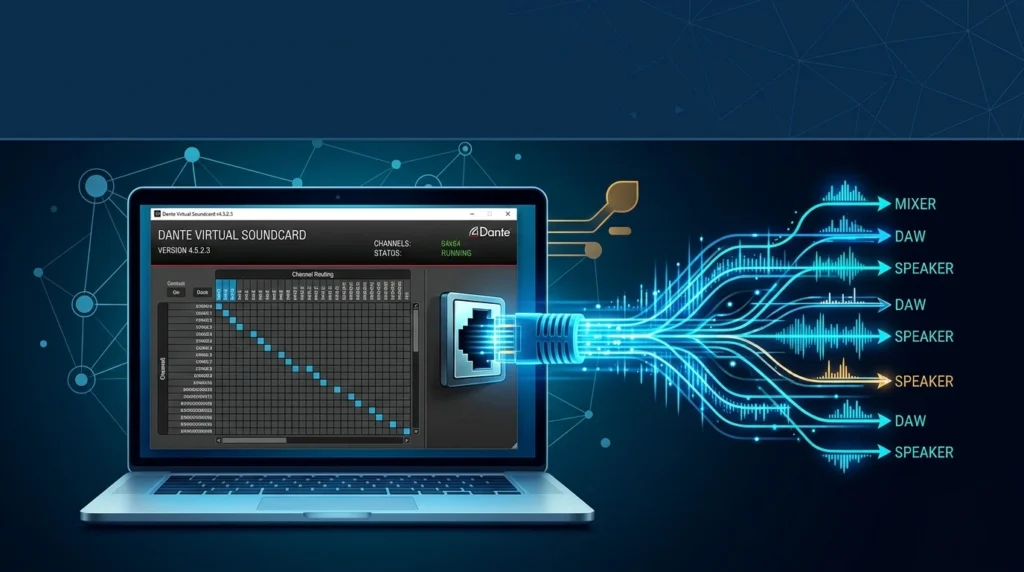
Dante Virtual Soundcard (DVS) is a software application developed by Audinate that transforms a standard Windows or macOS computer into a fully functional Dante-enabled audio device. Instead of requiring a dedicated hardware interface, DVS uses the computer’s existing Ethernet port to transmit and receive high-quality, uncompressed audio over a Dante network. Version 4.5.2.3 is a maintenance release from October 2025 that delivers a range of bug fixes while preserving the core functionality that has made DVS a staple in live sound, studio recording, broadcast, and commercial AV environments.
The software supports multiple audio interface standards depending on the operating system: Core Audio on macOS, and both Steinberg ASIO and WDM on Windows. This flexibility allows DVS to integrate with professional digital audio workstations (DAWs) such as Pro Tools, Logic Pro, Reaper, and Cubase, as well as general-purpose applications like Zoom, Teams, and media players. What truly sets DVS apart is its ability to eliminate the need for expensive dedicated hardware, making Dante networking accessible to a much broader range of users and workflows.
Key Features
Dante Virtual Soundcard v4.5.2.3 offers a robust feature set designed for flexibility and performance:
-
High Channel Counts – The standard license supports up to 64×64 audio channels at 44.1 kHz or 48 kHz, scaling down to 32×32 at 88.2/96 kHz, and 8×8 at 176.4/192 kHz. The Pro license unlocks up to 128×128 channels at 96 kHz for demanding applications.
-
Multiple Latency Options – Users can choose from fixed latency settings of 4 ms, 6 ms, or 10 ms, allowing them to balance performance and system load based on their specific use case.
-
Broad Application Compatibility – DVS presents itself as a standard audio interface, making it usable with virtually any audio software that supports Core Audio, ASIO, or WDM.
-
Flexible Licensing Models – Audinate offers a Single Machine License (ideal for fixed installations), a Transferable License (for users who move between computers), and a Pro License (annual subscription with advanced features including virtual machine support and unicast clocking).
-
Bit Depth and Sample Rate Support – DVS supports 16-bit, 24-bit, and 32-bit audio at sample rates including 44.1, 48, 88.2, 96, 176.4, and 192 kHz.
-
Dante Controller Integration – Full routing and device management are handled through Dante Controller, Audinate’s free network configuration tool, which works alongside DVS to provide complete control over audio flows.
What’s New in the Latest Version
Version 4.5.2.3 is a maintenance release focused on stability and bug fixes rather than introducing new headline features. The key improvements in this release include:
-
A warning dialog now appears when users click “Start” without a valid license, helping prevent confusion during setup.
-
A subscription resolution issue related to unicast flows when transitioning from a maximum receive flow exceeded state has been corrected.
-
The DVS Pro license now correctly displays the full term of the subscription.
-
Several additional bug fixes address edge cases reported by users in previous versions.
It is important to note that the Pro license, which unlocks 128×128 channels and virtual machine compatibility, is only available from DVS v4.5.0 and later, making v4.5.2.3 fully compatible with the Pro tier for users who require those advanced capabilities.
System Requirements
Before installing Dante Virtual Soundcard v4.5.2.3, ensure your system meets the following requirements:
Supported Operating Systems
-
Windows 11 or Windows 10 (64-bit)
-
macOS 10.13 or later, including native support for both Intel and Apple Silicon (ARM) architectures
Hardware and Network
-
A wired Ethernet port (100 Mbps or Gigabit); a Gigabit connection is strongly recommended for channel counts above 32×32 and for optimal performance
-
A dual-core CPU minimum, with an Intel i7 (8 cores) and 16 GB RAM recommended for high-channel-count or low-latency workflows
-
At least 4 GB of RAM (8 GB or more recommended for professional use)
Licensing and Activation
-
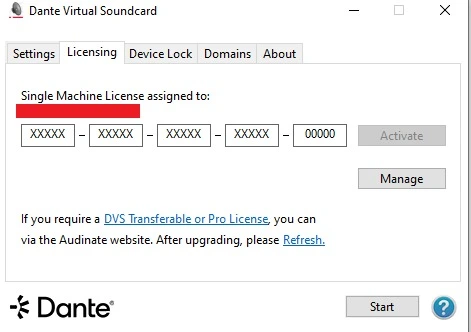
A valid Dante Virtual Soundcard License ID (format: xxxxx-xxxxx-xxxxx-xxxxx-xxxxx)
-
An internet connection is required for initial license registration and activation
-
A hardware Dante audio device or a separate computer running Dante Via must be present on the network to act as the Leader Clock—unless you are using a DVS Pro license, which supports unicast clocking without external hardware
Important Note on Virtual Machines
Dante Virtual Soundcard can only be installed on virtual machines when using a DVS Pro license. Standard licenses do not support VM environments.
Installation Guide
Installing Dante Virtual Soundcard on Windows follows a straightforward process:
-
Log in as Administrator – Ensure you are logged into your Windows account with administrative privileges.
-
Run the Installer – Double-click the downloaded installer file to launch the setup wizard.
-
Accept the License Agreement – Read the license text and, if you agree, check the “I Agree…” box. If you do not accept the terms, click Close to terminate the installation.
-
Complete the Installation – Click Install and acknowledge any Windows security warnings that appear.
-
Activate Your License – Open Dante Virtual Soundcard, navigate to the Licensing tab, and enter your License ID. An internet connection is required for activation.
For macOS users, the process is equally simple: open the .dmg file, run the .pkg installer, accept the license terms, and follow the on-screen prompts. The application will be installed in the Applications folder.
A Note on Upgrades
If you are upgrading from an earlier version of DVS, you do not need to uninstall the previous version first. However, be aware that if DVS is currently set as your default audio interface in Windows, the upgrade process will reset that selection, and you will need to reselect DVS as the default device afterward.
How to Use the Software
Getting started with DVS involves both network configuration and software settings. The following workflow outlines the essential steps:
Step 1: Prepare Your Network
Connect your computer to the Dante network either directly to a Dante device or through a network switch. Ensure all devices, including DVS, are on the same subnet. The simplest approach is to set your computer and Dante devices to obtain IP addresses automatically (DHCP).
Step 2: Configure Your Switch
For reliable performance, disable Energy Efficient Ethernet (EEE) and IGMP Snooping on managed switches. These features can interfere with Dante’s multicast traffic. If your network carries both audio and non-audio data, consider enabling QoS to prioritize audio traffic.
Step 3: Install Dante Controller
Dante Controller is the companion application used to route audio between devices on the network. It is available for free from Audinate and is essential for configuring channel assignments and monitoring network status.
Step 4: Configure DVS Settings
Open Dante Virtual Soundcard and review the Settings tab before starting the application. Here you can select the number of audio channels, the Dante latency (4 ms, 6 ms, or 10 ms), and the correct network interface if your computer has multiple Ethernet ports.
Step 5: Choose the Right Audio Interface Mode (Windows)
On Windows, select ASIO mode for professional DAWs such as Cubase, Pro Tools, or Ableton Live to achieve lower latency. Use WDM mode for general applications like Zoom, Teams, or media players.
Step 6: Start DVS and Route Audio
Click “Start” in DVS, then use Dante Controller to create subscriptions—associating a receiving (Rx) channel on one device with a transmitting (Tx) channel on another. Finally, set DVS as your default playback device in your operating system’s sound settings.
Best Use Cases
Dante Virtual Soundcard excels in a variety of professional and commercial audio scenarios:
Live Sound and Studio Multitrack Recording
DVS allows engineers to record live performances or studio sessions directly into a DAW without the need for an external hardware interface. Multiple channels can be captured simultaneously, making it ideal for capturing full band performances, orchestral recordings, and complex productions.
Virtual Soundcheck and Playback
For touring engineers, DVS enables virtual soundchecks by playing back multitrack recordings from a DAW into a Dante-equipped console. This allows the mix to be refined before the band even arrives at the venue.
Conference and Lecture Capture Systems
DVS can send audio from multiple in-room sources—such as microphones and presentation systems—to unified communications platforms or recording software. This makes it a valuable tool for classrooms, corporate boardrooms, and hybrid meeting environments.
Media Playback and Background Audio
Any application on the computer, from iTunes to Spotify to a web browser, can be routed through DVS into a Dante audio system. This is useful for venues, retail spaces, and houses of worship that need flexible background audio distribution.
Software-Based Audio Processing
DVS enables the use of software plugins and processing tools in live sound workflows. For example, a Waves SuperRack instance running on a laptop can receive audio from a Dante network, process it, and send it back—all without dedicated hardware.
Advantages and Limitations
Advantages
-
Hardware-Free Dante Integration – DVS eliminates the need for a physical Dante interface, significantly reducing costs for users who already have a capable computer and a Dante-equipped console or stage box.
-
High Channel Counts at an Accessible Price Point – The standard license supports up to 64×64 channels, far exceeding what most USB or Thunderbolt audio interfaces offer at a comparable price.
-
Broad Software Compatibility – Because DVS presents itself as a standard audio device, it works with virtually any audio application on the market.
-
Flexible Licensing – Users can choose between fixed, transferable, and subscription-based Pro licenses to match their workflow and budget.
Limitations
-
Higher Latency Than Hardware Solutions – DVS introduces approximately 8 ms of round-trip latency overhead compared to a dedicated Dante hardware interface. This can be a drawback for live record monitoring or latency-sensitive applications such as in-ear monitoring.
-
Requires a Clock Leader (Non-Pro Licenses) – Standard and Transferable licenses require either a hardware Dante device or a separate computer running Dante Via to act as the Leader Clock. DVS cannot function as a standalone Dante device without this clock source.
-
Periodic License Validation – The Transferable and Pro licenses require internet access every 30 days for license validation. In live production environments where internet connectivity may be unreliable, this can become a logistical challenge.
-
CPU Resource Usage Scales with Channel Count – DVS uses computer CPU resources proportionally to the number of channels configured. High channel counts on older or less powerful machines may require higher latency settings or result in audio dropouts.
-
Network Sensitivity – DVS is sensitive to network configuration. Issues such as incorrect IP subnets, IGMP Snooping being enabled, or antivirus software blocking Dante traffic can prevent discovery or cause unstable audio.
Alternatives to the Software
While DVS is a powerful tool, it is not the only option for integrating a computer into a Dante network. The following alternatives are worth considering depending on your latency requirements, budget, and workflow:
Dante Via (Audinate)
Dante Via is Audinate’s other software-based Dante solution. Unlike DVS, Dante Via is designed to connect individual applications and USB devices to a Dante network, and it can act as a clock leader without additional hardware. It is a good choice for users who need to route audio from multiple applications or who require a standalone software clock source.
RME Digiface Dante
The RME Digiface Dante is a hardware interface that provides a Dante connection via USB. It offers significantly lower latency than DVS and is favored by engineers who require reliable, low-latency performance for live sound or studio monitoring. The trade-off is a higher upfront cost—typically several hundred dollars more than a DVS license.
Focusrite RedNet Interfaces
Focusrite’s RedNet range includes PCIe and Thunderbolt Dante interfaces that integrate directly into a computer. Like the RME solution, these hardware options provide lower latency and more consistent performance than software-based DVS, but at a substantially higher price point.
DAD Core 256
The DAD Core 256 is a high-end Dante-to-computer interface designed for professional studios and live production. It offers extremely low latency and robust reliability for mission-critical applications where DVS’s overhead is unacceptable.
Dante Virtual Soundcard Pro
For users who need higher channel counts (up to 128×128 at 96 kHz) or virtual machine compatibility, the Pro license is the natural upgrade path within the DVS ecosystem itself. It retains the software-based convenience of DVS while unlocking capabilities that approach hardware-level flexibility.
Frequently Asked Questions
What is Dante Virtual Soundcard used for?
Dante Virtual Soundcard turns a computer into a Dante-enabled audio device, allowing it to send and receive multichannel audio over an Ethernet network. It is commonly used for multitrack recording, virtual soundcheck, conference audio routing, and media playback in Dante-based AV systems.
Does Dante Virtual Soundcard require a hardware Dante device?
For standard and Transferable licenses, yes—you must have a hardware Dante device or a separate computer running Dante Via on the network to act as the Leader Clock. The Pro license supports unicast clocking, which removes this requirement.
What is the difference between Dante Virtual Soundcard and Dante Via?
DVS is designed to turn the entire computer into a Dante endpoint, providing a single multichannel audio interface to applications. Dante Via is application-focused, allowing individual programs and USB devices to be routed to and from a Dante network. Dante Via can also act as a clock leader, which DVS (non-Pro) cannot.
Why can’t Dante Controller see my Dante Virtual Soundcard?
This is usually a network configuration issue. Check that DVS is running, that the correct network interface is selected in both DVS and Dante Controller, and that the computer and Dante devices are on the same IP subnet. Antivirus software may also block Dante’s network ports.
What latency setting should I use with DVS?
Start with 4 ms on a high-performance computer. If you experience intermittent audio dropouts or your system is under heavy load, increase to 6 ms or 10 ms. Higher latency settings reduce the strain on the CPU and improve stability at the cost of slightly delayed audio.
Can I use Dante Virtual Soundcard on a virtual machine?
Only with a DVS Pro license. Standard and Transferable licenses are not licensed for use on virtual machines.
How often does DVS need internet access?
The Single Machine License requires internet access only for initial activation. The Transferable and Pro licenses require periodic internet access every 30 days for license validation.
What audio interface mode should I choose on Windows?
Use ASIO mode for professional DAWs to achieve lower latency. Use WDM mode for general-purpose applications such as video conferencing software, media players, and web browsers.
Final Thoughts
Dante Virtual Soundcard v4.5.2.3 represents a mature and reliable entry point into the world of networked audio. By transforming a standard computer into a Dante-enabled device, it removes the financial barrier of dedicated hardware while still delivering professional-grade multichannel audio capabilities. The maintenance-focused 4.5.2.3 release reinforces Audinate’s commitment to stability, and the availability of the Pro license ensures that the platform can scale to meet the demands of high-channel-count, virtualized, and software-clocked workflows.
That said, DVS is not a universal replacement for hardware Dante interfaces. Its higher latency and clock-leader dependency make it less suitable for latency-critical live monitoring, and its reliance on periodic license validation can complicate deployment in offline production environments. Prospective users should weigh these limitations against the significant cost savings and flexibility that DVS offers.
For engineers, producers, AV integrators, and educators who already work within the Dante ecosystem—or who are looking to adopt networked audio without a large hardware investment—Dante Virtual Soundcard remains one of the most accessible and versatile tools available. When configured correctly on a well-designed network, it delivers stable, high-quality audio routing that can adapt to a remarkably wide range of applications.
Our Paid Service
“We do not sell or provide any software. We only offer professional support services. If any software on your system is not working properly, or you are facing installation errors, crashes, or any other technical issue — just contact us. We will help you fix the problem quickly and remotely via AnyDesk. No software will be provided from our side — only expert troubleshooting and support.”