

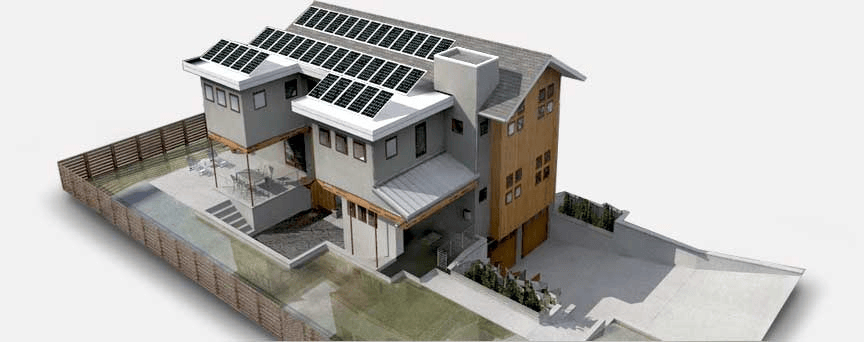
Download the Skelion Pro 5.5.3 (Solar Systems Design Plugin for SketchUp (Complete Guide)) from this link…

Overview of the Software
Table of Contents
Skelion Pro 5.5.3 is a specialized, parametric plugin designed exclusively for Trimble SketchUp (versions 2017–2024). It enables architects, photovoltaic (PV) engineers, and solar energy consultants to design, simulate, and optimize solar panel layouts directly within their 3D models.
Unlike generic 3D modeling tools, Skelion Pro automates the placement of solar modules on complex roof geometries, calculates solar irradiation based on geographic location, and generates professional energy estimates. As of version 5.5.3, the plugin bridges the gap between architectural design and renewable energy engineering, making it a top-tier solar design extension for SketchUp.
This article provides a legally compliant, comprehensive guide to using Skelion Pro 5.5.3, including its features, installation, use cases, and alternatives. All information is for educational and professional implementation only.
Key Features
Skelion Pro 5.5.3 includes a robust set of tools for solar system design. Below are the core functionalities:
-
Automated Solar Panel Placement – Place photovoltaic (PV) modules on flat, sloped, or curved roofs with one click.
-
Geographic & Climatic Data Integration – Import real-time solar irradiation data (PVGIS, NASA SSE) using latitude/longitude coordinates.
-
Shading Analysis Engine – Calculate shading from nearby buildings, trees, or roof obstacles (chimneys, vents).
-
3D Solar Radiation Maps – Generate color-coded heat maps showing annual insolation (kWh/m²) across any surface.
-
PV System Configuration – Define panel type (monocrystalline, polycrystalline, thin-film), inverter specifications, and string sizing.
-
Energy Yield Simulation – Estimate monthly and annual AC/DC energy production.
-
Report Generation – Export professional PDF reports including panel count, layout, shading losses, and financial metrics (payback period, ROI).
-
Component Libraries – Access built-in libraries of real solar panels (Jinko, Longi, Trina) and inverters (SMA, Fronius, Huawei).
-
BOS (Balance of System) Design – Add mounting rails, clamps, and cable trays.
What’s New in Skelion Pro 5.5.3
Version 5.5.3 focuses on performance and compatibility. Key updates include:
-
SketchUp 2024 Compatibility – Full support for the latest SketchUp release.
-
Faster Shading Calculation – Up to 30% quicker simulation on complex meshes using multi-threading.
-
Updated PV Module Database – Added 150+ new panel models from 2023–2024.
-
Improved Export to PVSyst – Native
.PVSystproject file export with no data loss. -
Bug Fixes – Resolved memory leak during large array generation and fixed metric/imperial unit conversion errors.
System Requirements
Before installing Skelion Pro 5.5.3, ensure your workstation meets these specifications:
| Component | Minimum Requirement | Recommended |
|---|---|---|
| SketchUp Version | SketchUp 2017 (64-bit) | SketchUp 2022–2024 Pro |
| Operating System | Windows 10 / macOS 11 (Big Sur) | Windows 11 / macOS 13 (Ventura) |
| RAM | 8 GB | 16 GB or more |
| GPU | 1 GB VRAM (OpenGL 3.1) | 4 GB VRAM (NVIDIA Quadro / RTX) |
| CPU | 2.5 GHz dual-core | 3.0 GHz+ quad-core (Intel i7/AMD Ryzen 7) |
| Disk Space | 500 MB | 1 GB (for project files) |
Installation Guide
Follow this step-by-step guide to install Skelion Pro 5.5.3 legally and safely. Do not use unauthorized installers or cracked versions.
Prerequisites: A licensed copy of SketchUp Pro and a valid Skelion Pro license key.
Steps:
-
Download the Installer – Visit the official Skelion website (Skelion.com) and download
SkelionPro_5.5.3.rbzfor your operating system. -
Open SketchUp – Launch SketchUp Pro.
-
Access Extension Manager – Navigate to
Window>Extension Manager. -
Install Extension – Click
Install Extension, locate the.rbzfile, and confirm installation. -
Activate License – Go to
Extensions>Skelion Pro>License Manager. Enter your purchase email and license key. -
Restart SketchUp – Close and reopen SketchUp. The Skelion Pro toolbar will appear.
-
Verify Installation – Load a sample model and test the
Place PVtool. If the panel appears, installation succeeded.
Note: Skelion Pro requires an active internet connection for geographic data retrieval. Firewall exceptions may be needed.
How to Use the Software
This practical guide covers the typical workflow for designing a rooftop solar system using Skelion Pro 5.5.3.
Step 1: Set Project Location
-
Click
Skelion Pro>Set Location. -
Enter the project address or latitude/longitude.
-
Select the nearest weather station from PVGIS or NASA.
Step 2: Create or Import Roof Geometry
-
Model the roof in SketchUp (or import from a CAD file).
-
Ensure the roof is a single group or component.
-
Use
Surface Inspectorto check for reversed faces (blue faces receive no sunlight).
Step 3: Run Shading Analysis
-
Select the roof surface.
-
Click
Shading Analysis>Annual. -
Set the time resolution (1-hour intervals recommended).
-
The plugin generates a color map: red (high irradiation) to blue (low).
Step 4: Configure PV System
-
Click
System Configuration. -
Choose panel model (e.g., Longi LR5-54HPH-405M).
-
Set inverter model (e.g., SMA Sunny Boy 5.0).
-
Define string size (number of panels per series).
Step 5: Place Solar Panels Automatically
-
Click
Place PV>On Surface. -
Select the roof face.
-
Set panel spacing (5–10 mm typical) and offset from edges (200–500 mm).
-
Click
Generate. The plugin populates the roof with optimally spaced panels.
Step 6: Generate Energy Report
-
Select all placed panels.
-
Click
Energy Simulation>Run. -
Review monthly production (kWh), system losses (%), and performance ratio.
-
Export a PDF report for client or permit submission.
Best Use Cases
Skelion Pro 5.5.3 excels in specific professional scenarios:
| Use Case | Why Skelion Pro is Ideal |
|---|---|
| Residential Rooftop Solar | Fast panel placement on complex hip/gable roofs. Shading from chimneys is automatically avoided. |
| Commercial Flat Roofs | Ballasted racking layouts with row spacing for optimal tilt. |
| Solar Carports | Custom structural members + panel arrays on elevated surfaces. |
| Educational Training | Students can simulate real-world irradiation data without physical installs. |
| BIM Integration | Export .IFC files with embedded PV metadata for BIM coordination (Revit, Archicad). |
Advantages and Limitations
Advantages
-
Time-saving – Cuts PV layout time from hours to minutes.
-
Accurate shading analysis – Uses SketchUp’s ray-tracing engine.
-
Professional reporting – Ready for permit applications and incentives (SREC, net metering).
-
Active support – Official forum and email support (48-hour response typical).
Limitations
-
SketchUp dependency – Requires a separate SketchUp Pro license (no free version).
-
No electrical single-line diagram – Does not generate wiring or conduit plans.
-
Limited to 2D panel projection – Cannot model curved/flexible PV modules accurately.
-
Steep learning curve – Beginners need 2–3 hours of tutorials.
Alternatives to the Software
If Skelion Pro does not fit your budget or workflow, consider these legal alternatives:
| Software | Type | Platform | Best For | Price Range |
|---|---|---|---|---|
| PVSyst | Standalone PV design | Windows | Utility-scale & detailed loss analysis | High ($$$$) |
| Helioscope | Web-based | Browser | Commercial rooftop & shade analysis | Medium ($$$) |
| PVSketch | SketchUp plugin | SketchUp | Quick residential proposals | Low ($) |
| SketchUp + Manual Layout | Manual method | SketchUp | Small DIY projects | Free (your time) |
Comparison note: Skelion Pro offers the best balance of automation and cost for SketchUp users. PVSyst is more accurate but harder to learn.
Frequently Asked Questions
1. Is Skelion Pro 5.5.3 compatible with SketchUp Free (web version)?
No. Skelion Pro only works with SketchUp Pro 2017–2024 (desktop versions). The web-based SketchUp Free does not support Ruby extensions.
2. Can I use Skelion Pro without an internet connection?
Yes, but with reduced functionality. Geographic and irradiation data require an internet connection. Offline mode allows manual panel placement only.
3. Does Skelion Pro simulate battery storage systems?
Version 5.5.3 does not include battery simulation. It focuses on PV generation only. For battery modeling, export data to PVSyst or Homer Pro.
4. How do I update the solar panel database?
Go to Extensions > Skelion Pro > Update Component Libraries. An active license and internet are required.
5. What file formats can I export from Skelion Pro?
-
SketchUp native:
.skp -
Report:
.pdf,.csv(energy data) -
PVSyst:
.PVSyst -
Image:
.png,.jpg(radiation maps)
6. Is there a free trial or educational discount?
Yes. Skelion offers a 15-day fully functional trial. Educational institutions receive 50% off annual licenses. Contact [email protected].
7. My shading analysis takes too long. How can I speed it up?
Reduce the time resolution (e.g., 3-hour vs 1-hour steps). Also, simplify complex roof meshes using SketchUp’s Simplify Contours tool before analysis.
8. Can Skelion Pro generate structural load calculations?
No. It provides panel counts and areas, but you must use dedicated structural software (e.g., StruSoft, RISA) for load compliance.
Final Thoughts
Skelion Pro 5.5.3 remains a gold-standard plugin for solar professionals using SketchUp. Its automated panel placement, accurate shading analysis, and professional reporting streamline photovoltaic project workflows from concept to permit. While it requires a SketchUp Pro license and has a learning curve, the time savings and precision justify the investment for residential, commercial, and educational users.
For those beginning in solar design, start with the free trial. Follow the step-by-step guide above to place your first array. For large-scale or utility projects, consider pairing Skelion Pro with PVSyst for deeper loss modeling.
Premium Software Support Service
If you need professional help with software installation, setup, or technical configuration, our team is available to assist you.
Contact & Support
For quick assistance and latest updates, connect with us using the links below:
🔹 Direct Telegram Support
https://t.me/PlayoutKing
🔹 Official Telegram Updates Group
https://t.me/yourgroup
Service Policy
- Remote testing available through AnyDesk before confirmation.
• Verify the setup and performance before completing the order.
• Support available for single or multiple systems.
• Step-by-step guidance to ensure smooth installation and working environment.
Our goal is to provide reliable technical assistance so your software runs smoothly without interruptions.