
Overview of the MRP40 Morse Decoder Software
Table of Contents
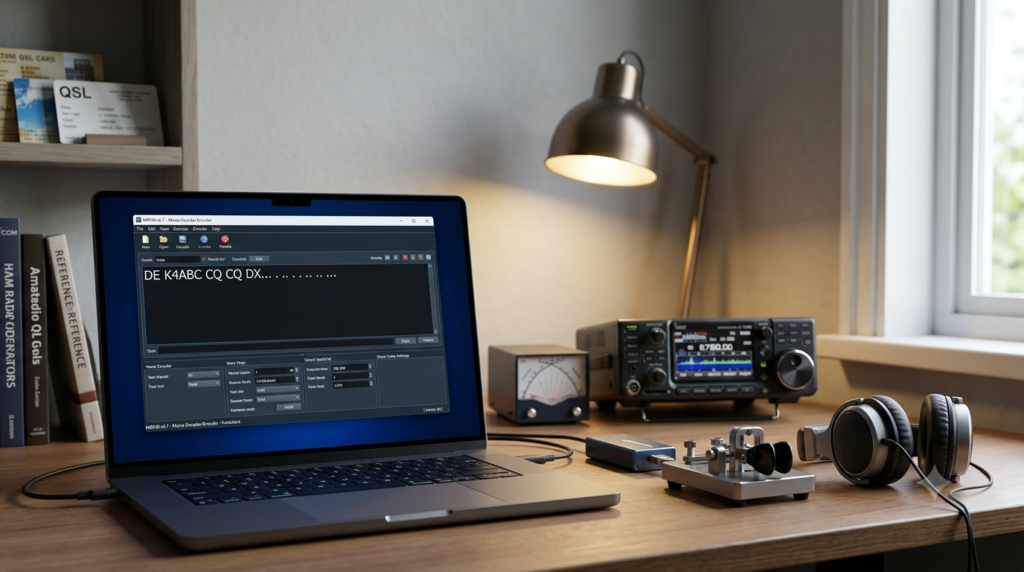
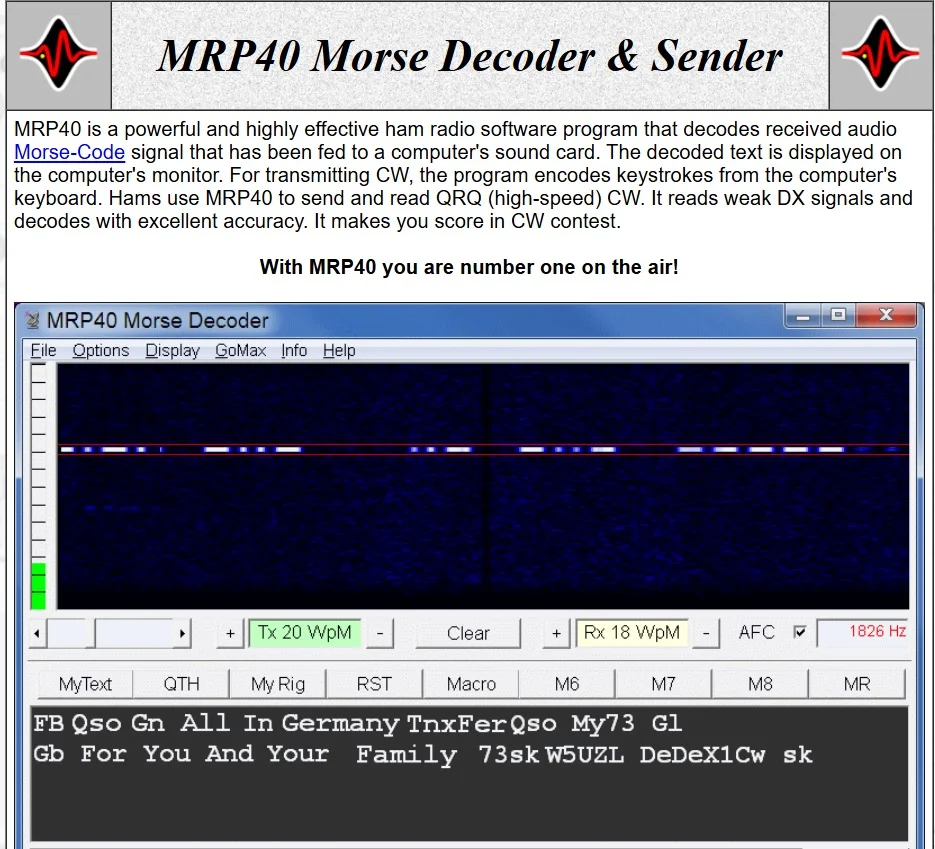
MRP40 is a powerful and highly effective ham radio software program designed for decoding and transmitting Morse code (CW) signals using a computer’s sound card . Developed by Norbert Kohnz, this Windows-based application transforms a standard PC into a sophisticated CW communication tool. It allows amateur radio operators to read incoming Morse code from their transceiver, displaying the decoded text on the monitor, and to send CW by typing on the keyboard . With its robust signal processing, MRP40 has earned a reputation among hams as one of the best CW decoders available, particularly known for its performance under weak, noisy, and fading signal conditions . The software is available as a fully functional trial version, allowing users to evaluate its capabilities before purchase .
Key Features of MRP40
High-Performance Decoding and Signal Processing
MRP40’s core strength lies in its advanced digital signal processing (DSP) engine, which is designed to extract CW signals from challenging conditions.
-
Automatic Speed Recognition & Tracking: The software automatically detects and adapts to the speed of the incoming Morse signal, supporting speeds up to 60 WPM . It also features Automatic Frequency Control (AFC) to track drifting signals, ensuring stable decoding .
-
Software CW Filtering: A high-performance software CW filter allows operators to narrow the receiver bandwidth, suppressing nearby noise and interference .
-
Automatic Gain Control (AGC): Built-in AGC maintains a consistent audio level for the decoder, improving performance across varying signal strengths .
-
Weak Signal & Contest Performance: Users consistently report that MRP40 excels in heavy contest conditions and can achieve near 100% copy even with weak DX signals, local QRM, and QSB (fading) .
-
Text Formatting: A unique feature formats the raw, often unspaced, decoded text into a more readable format. It adds spaces and capitalizes the first letter of words, making it easier to understand at a glance .
Flexible Transmitting Options
MRP40 offers multiple methods to transmit CW from the computer keyboard, catering to different station setups and operator preferences.
-
AFSK (Audio Frequency-Shift Keying): This recommended method sends CW audio tones through the computer’s sound card to the radio, which is set to SSB mode. The generated signals have a sine waveform with a smooth envelope, preventing key clicks and using minimal bandwidth .
-
Serial COM Port Keying: The software can key a transceiver via a legacy RS-232 serial port or a USB-to-serial adapter, requiring a simple interface cable .
-
Winkeyer USB Support: It natively supports the popular K1EL Winkeyer USB, which provides hardware-level timing for sending perfect, latency-free CW . This is considered the gold standard for computer-sent CW.
-
Beacon Mode: Users can configure MRP40 to function as a CW beacon, automatically transmitting pre-defined messages at adjustable intervals .
Integrated Logging and Interface
The software includes a “MiniLogBook” for logging contacts, which supports the ADIF file format for easy export to other logging programs . It also features a built-in QRZ.com database lookup, automatically displaying the name and location of the station being worked . MRP40 can interface with other software, such as DXLab’s WinWarbler, for enhanced logging and control capabilities .
What’s New in MRP40 Version 67
Version 67 of MRP40 represents a significant update, primarily focused on ensuring compatibility and stability with Microsoft’s latest operating system, Windows 11 . Key improvements and new features include:
-
Official Windows 11 Support: This version was specifically released to address compatibility issues that arose with Windows 11 updates, ensuring the application runs smoothly on the newest platform .
-
Winkeyer Tune Button: A dedicated “Tune” button has been added to the main window, allowing operators to easily test and adjust their Winkeyer interface connection directly from the interface .
-
Registration System Update: The software registration scheme was updated to streamline the licensing process for users .
-
Bug Fixes: Several bugs were fixed, including issues with the beacon and transmission functions, as well as the QRZ LookUp and F-key (function key) features .
System Requirements
Before downloading MRP40, ensure your station computer meets the minimum system requirements for optimal operation.
| Component | Requirement |
|---|---|
| Operating System | Windows 7, 8, 10, or 11 |
| Sound Device | Any general-purpose sound card (onboard or USB) |
| I/O Interface | A USB COM Port for radio control and keying |
| Processor & RAM | Meets or exceeds minimum requirements for the selected Windows OS. |
Installation Guide
Installing MRP40 is a straightforward process, but it’s important to follow the steps carefully for a successful setup.
-
Download the Installer: Obtain the latest version, MRP4067, from the official Polar Electric website .
-
Run the Installer: Execute the downloaded file to begin the installation process.
-
Follow the Wizard: Accept the license agreement and follow the on-screen prompts to install the software to your preferred directory.
-
Security Software Notice: Some users have reported that certain antivirus or firewall programs may incorrectly flag MRP40 during installation. You may need to temporarily disable these or add MRP40 to your firewall’s exception list. After a successful installation, these protections can be re-enabled .
-
Audio Device Setup: The first time you run MRP40, you must configure the audio input. Go to
Options > Show... > Soundcard...and select the audio device that connects to your radio’s receiver output . -
Administrator Rights: On some systems, running the program with administrator privileges may be necessary for full functionality .
How to Use the MRP40 Software
MRP40’s interface is designed to be intuitive, but understanding the basic workflow is key to effective operation.
Configuring the Audio for Decoding
-
Connect your radio’s audio output to your computer’s sound card line-in or microphone jack .
-
Open MRP40 and navigate to
Options > Show... > Soundcard.... -
Select the correct audio input and output devices from the dropdown menus .
-
Adjust the Windows audio input volume so that the Morse tones are strong but not distorting.
Decoding CW Signals
-
Tune your radio to a CW signal.
-
In MRP40, the “Audio Band Display” will show the detected Morse signal as a series of dots and dashes .
-
Click on the signal within the display. Two red lines will appear, marking the center frequency and bandwidth of the software’s CW filter .
-
Set the receive speed (
Rx---WpM) roughly to the speed of the incoming signal. The software will fine-tune the speed automatically . -
The decoded text will begin appearing in the main receive window . Experiment with the “Text Formatting” settings in the
RX Settingsmenu to enhance readability .
Sending CW from the Keyboard
-
Go to
Options > TxSettingsand choose your preferred transmission method:Send via Com Port,Send via Soundcard, orSend via WinKeyer. -
Type your message into the lower, green text box .
-
Set the desired transmission speed (
Tx --WpM). -
The software will transmit your typed message as CW, with automatic PTT (Push-to-Talk) control in many configurations . Press the ESC key to stop transmission .
Best Use Cases for MRP40
MRP40 serves a variety of roles for amateur radio operators, from contesting to skill development.
-
CW Contesting: MRP40 is a powerful tool for contesting, allowing operators to “copy” high-speed callsigns and exchanges that may be difficult for the human ear, significantly improving scores .
-
Working Weak DX: For DX (long-distance) stations with weak signals, the software’s advanced filtering and decoding capabilities can pull a call or report out of the noise that would otherwise be missed .
-
Assisted Operation & Training: Operators with hearing impairments or those still learning Morse code use MRP40 as a reading aid to participate in CW QSOs . It can also be used as a training tool to provide real-time feedback on one’s own sent code.
-
Unattended Operation & Beacon Monitoring: The beacon function allows for automatic transmission of pre-defined messages, while the logging features support data collection and analysis .
Advantages and Limitations of MRP40
Advantages
-
Superior Decoding: Widely regarded as one of the best, if not the best, software decoders for handling weak, noisy, and distorted CW signals .
-
Feature-Rich: Offers a comprehensive set of features including sophisticated filtering, text formatting, multiple TX methods, and an integrated logbook .
-
Winkeyer Support: Direct support for the Winkeyer USB provides hardware-timed, perfect transmission .
-
Active Development: The release of version 67 demonstrates ongoing development and support for new operating systems like Windows 11 .
Limitations
-
Cost: While functional for a free trial period, MRP40 is commercial software requiring a license purchase (approximately 49.90 Euro) .
-
Learning Curve: As a professional-grade tool, there is a learning curve to optimize all its settings, such as the minimum speed and different RX modes, for various conditions .
-
Security Software Conflicts: Some antivirus programs may falsely flag or block the software, requiring manual user intervention to add exceptions during installation .
Alternatives to MRP40
While MRP40 is a leading software in its class, several other ham radio programs offer CW decoding and transmission capabilities.
-
CW Get: A popular competitor that many users find to be nearly as effective as MRP40. It is also a Windows-based decoder and is often cited for working well with logging software like N1MM+ .
-
CW Terminal: A newer, free option developed by F4LPS. Written in Python, it features a modern interface, advanced DSP, and support for Icom and Yaesu radios via CAT control. It offers unique features like “TX Continu” mode for immediate keyboard-to-CW transmission .
-
FLdigi: A comprehensive, free, and open-source multi-mode digital communications suite. It includes a CW mode and is widely used for many digital modes, making it a versatile choice for the ham shack .
Frequently Asked Questions
Is MRP40 compatible with Windows 11?
Yes, version 67 of MRP40 was specifically released to provide official support for Windows 11, addressing previous compatibility issues .
What is the primary advantage of using a Winkeyer with MRP40?
Using a K1EL Winkeyer USB provides hardware-level timing for CW transmission. This eliminates timing latencies often associated with software-only keying, ensuring perfectly timed dits and dahs regardless of PC processing loads .
Can MRP40 automatically format the decoded text?
Yes. The software has a “Text Formatting” feature in the RX Settings menu that can automatically add spaces between words and format the text to significantly improve readability .
What audio connection do I need between my radio and my PC for MRP40?
You need to feed the audio from your radio’s receiver output into your PC’s sound card. This can be done via a cable connecting the radio’s “Line Out” or “REC” jack to the PC’s “Line In” or “Mic” jack, or via a USB audio interface like the SignaLink .
Does MRP40 interface with any logging programs?
While it does not interface directly with external logging software, MRP40 includes its own “MiniLogBook” tool that supports the ADIF file format, allowing for easy export of logs to other programs .
What is the trial period for MRP40?
The software is available as a fully functional, time-limited trial. It is generally available for a 30-day period, allowing users to test its decoding and sending capabilities before purchase .
Final Thoughts
MRP40 stands as a highly respected and capable software solution for ham radio operators working with Morse code. Its reputation is built on one of the best decoding engines in the market, especially valuable for contesting and working weak DX. With version 67, the developer has shown a commitment to modernizing the software, ensuring it remains viable for users on Windows 11. While it comes with a cost and may present a learning curve for some, its performance and feature set make it a worthwhile investment for any operator serious about making the most of CW communication. For those seeking the best possible software decoding, MRP40 is a consistent top contender.
Our Paid Service