
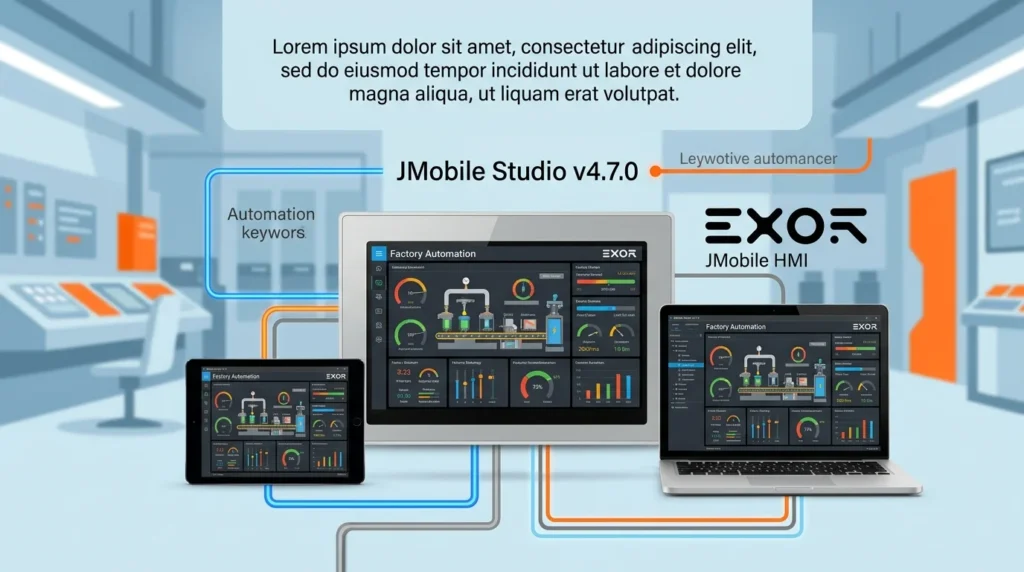


Overview of EXOR JMobile Studio
Table of Contents
EXOR JMobile Studio is a professional, scalable, and all-in-one software suite designed for creating advanced HMI applications. Developed by EXOR International, a renowned name in the industrial automation industry, this HMI software is engineered to handle complex automation tasks. It enables users to build intuitive and interactive interfaces that connect seamlessly to a vast array of industrial equipment and control systems.
The core strength of JMobile Studio lies in its versatility. It supports the creation of applications for a wide range of EXOR’s hardware panels, from compact units to high-performance industrial PCs. Based on open standards and the HTML5 framework, the software ensures that projects are future-proof and easily deployable across different operating systems like Linux, Windows, and Android. This open architecture makes it an ideal industrial control software for modern, connected factories.
Key Features of JMobile Studio
EXOR JMobile Studio is packed with features that streamline the HMI development process and deliver powerful results. Its design environment is intuitive, yet provides the depth required for creating sophisticated applications.
-
WYSIWYG Visual Editor: The drag-and-drop, What-You-See-Is-What-You-Get (WYSIWYG) editor allows for rapid prototyping and intuitive HMI application design. You can place and configure graphical objects, set properties, and see the result in real-time, significantly accelerating the development cycle.
-
Advanced Graphic Library: The software comes with an extensive library of scalable, vector-based graphic objects. This includes standard shapes, meters, gauges, sliders, and advanced control widgets. This rich library facilitates the creation of professional and easily readable HMIs.
-
Data Logging and Trending: JMobile Studio features built-in data logging capabilities. It can store process data directly to the target device’s memory, an external SD card, or a database server. This data can be displayed in real-time trends or historical charts, which is essential for process analysis and optimization.
-
Alarm Management: A comprehensive alarm management system is integrated into the software. You can configure alarms with various priorities, and the system supports reporting and historical logging. This feature helps in quickly identifying and resolving operational issues.
-
Connectivity: This is the software’s cornerstone. It supports over 250 communication drivers for PLCs (Programmable Logic Controllers), drives, and other industrial devices. This extensive library ensures compatibility with virtually any automation equipment on the market.
-
Web-Based Dashboards: With its HTML5 export capabilities, JMobile Studio allows you to create web-based dashboards that can be accessed from any device with a modern browser. This is crucial for remote monitoring and Industry 4.0 applications.
What’s New in EXOR JMobile Studio v4.7.0
The v4.7.0 release of JMobile Studio introduces several enhancements that improve user experience, security, and connectivity. It is a significant step forward in industrial HMI software.
-
Enhanced Security Features: This version includes updated security protocols to meet the demands of modern industrial cybersecurity. This includes support for more secure communication protocols and improved user access control, ensuring your automation network is protected against vulnerabilities.
-
Improved Protocol Support: The update adds support for new and updated communication drivers. This broadens the software’s compatibility with newer generation devices, making it easier to integrate with legacy equipment and modern IIoT sensors.
-
UI/UX Refinements: The user interface of the development environment has been refined for a smoother workflow. This includes minor design tweaks and performance improvements in the visual editor, allowing developers to work more efficiently and comfortably.
-
Performance Optimizations: v4.7.0 includes runtime performance improvements. HMI applications built with this version will render faster and handle complex data streams more efficiently, leading to a more responsive operator experience on the hardware device.
System Requirements for JMobile Studio
Before installing the development environment, it is important to ensure your PC meets the necessary system requirements.
Development System (PC) Requirements:
-
Operating System: Windows 10 (64-bit), Windows 11 (64-bit)
-
Processor: Intel i5 or equivalent, 2.5 GHz or higher
-
RAM: Minimum 4 GB (8 GB or more is recommended for complex projects)
-
Hard Disk Space: At least 5 GB of free space
-
Graphics: DirectX 9.0c compatible video card
-
Communication Ports: USB (for hardware licensing and device connection), Ethernet
Supported Target Systems:
-
EXOR HMI Panels (e.g., eTOP, eSMART, iX, UBIQ series)
-
Industrial PCs running Windows 7/8/10/11, Linux, or Android
Installation Guide for EXOR JMobile Studio 4.7.0
Installing EXOR JMobile Studio is a straightforward process. Follow these steps to get the software up and running on your development workstation.
-
Obtain the Installer: Download the official installation package (EXOR_JMobile_Studio_v4.7.0_Setup.exe) from the EXOR International official website or your authorized distributor.
-
Run the Setup File: Double-click the installer file. If prompted by Windows User Account Control (UAC), click “Yes” to allow the program to make changes to your device.
-
Select Installation Language: Choose your preferred language for the installation process.
-
Accept the License Agreement: Read the End-User License Agreement (EULA) and select “I accept the terms of the license agreement” to proceed.
-
Choose Installation Type:
-
Typical (Recommended): This installs all standard components and is ideal for most users.
-
Custom: Use this option to select specific components to install or to change the default installation path.
-
-
Configure Shortcuts: You can select whether to create shortcuts on your desktop and start menu.
-
Install: Click the “Install” button to begin the installation. The process may take a few minutes as it copies all necessary files.
-
Finish: Once the installation is complete, click “Finish.” You may be prompted to restart your computer.
-
Activation: After installation, you will need to activate the software using a hardware key (dongle) or a software license provided by EXOR.
How to Use EXOR JMobile Studio: A Basic Workflow
Getting started with JMobile Studio involves a logical, step-by-step workflow. Here’s a simplified guide for developing an HMI application.
-
Launch the Software: Open EXOR JMobile Studio from your start menu or desktop shortcut.
-
Create a New Project: Click on “New Project” in the start page or go to
File>New>Project. A wizard will appear. -
Configure Project Settings:
-
Project Name: Enter a descriptive name for your project.
-
Project Location: Choose the folder where your project files will be saved.
-
Target Platform: Select your specific target device (e.g., an eTOP panel or a PC platform). This selection defines the screen resolution and capabilities for your project.
-
Protocol: (Optional) You can pre-configure a communication protocol (e.g., for a specific PLC). You can also set this up later.
-
-
Design the Screens (Pages):
-
Use the Screen Manager (usually a tree view on the left) to add, delete, or rename screens.
-
Double-click a screen to open it in the design area.
-
From the Toolbox, drag and drop controls and objects (like buttons, text displays, and analog gauges) onto the screen.
-
Use the Properties Window to customize each object. For example, you can set a button’s text, color, and the action it performs when clicked.
-
-
Connect to the PLC (Tag Configuration):
-
Open the Tag Editor. This is a database where you define all your data points.
-
Define a new tag by giving it a name, selecting a data type (e.g., Boolean for ON/OFF, Float for a temperature value), and specifying its driver address. This links the HMI software element directly to a specific memory location in your PLC.
-
-
Link Tags to Screen Objects: Assign the tags to the visual objects you’ve designed. For instance, you would link a numerical display object to the tag representing a machine’s current temperature.
-
Transfer the Project to the Target HMI Device:
-
To test your work, go to
Project>Build. This compiles your project for the target hardware. -
Use the Transfer Utility (often found under the
Targetmenu or represented by an icon) to download the compiled application file to your EXOR HMI device or to a PC for simulation.
-
Best Use Cases for EXOR JMobile Studio
EXOR JMobile Studio is a versatile tool used across a wide spectrum of industries. Its ability to connect to diverse control systems and create highly visual interfaces makes it an invaluable asset.
-
Manufacturing & Production: Operators use the software to monitor and control assembly lines, robotic workstations, and CNC machines. It provides clear visual feedback on machine status, production counts, and error conditions, allowing for immediate intervention.
-
Packaging & Material Handling: In the packaging industry, JMobile Studio is used to control and monitor complex packaging lines, conveyor belts, and palletizers. It helps ensure efficiency and minimize downtime.
-
Building Automation: The software is deployed to manage building services like HVAC (Heating, Ventilation, and Air Conditioning), lighting, and access control, providing a unified central interface for facility managers.
-
Energy & Utilities: It is used to monitor and control renewable energy systems (like solar or wind farms), power distribution, and water treatment facilities, providing dashboards for real-time performance data and alarm management.
-
Food & Beverage: In this sector, it is crucial for controlling industrial mixers, ovens, and packaging equipment, ensuring compliance with safety and hygiene standards through precise recipe management and data logging.
Advantages and Limitations
Like any software platform, EXOR JMobile Studio has its strengths and areas where it might not be the perfect fit.
Advantages
-
Multi-Platform Deployment: The biggest strength is its ability to deploy a single project to Windows, Linux, and Android devices.
-
Exceptional Connectivity: With support for over 250 drivers, it can connect to virtually any industrial device on the market, making it a universal industrial automation software.
-
Future-Proof: Its reliance on open web standards (HTML5) ensures that applications are web-ready and can easily be integrated into larger IIoT and Industry 4.0 architectures.
-
User-Friendly IDE: The intuitive WYSIWYG editor and drag-and-drop interface reduce the learning curve for new developers.
-
Scalable: The software scales from simple operator panels to complex SCADA-like systems.
Limitations
-
Hardware Dependency: While the software is powerful, it is primarily designed to work with EXOR’s own line of hardware panels. While it can deploy to PCs, its full functionality is optimized for EXOR devices.
-
Cost: Licensing costs can be a barrier for smaller operations or single-machine projects, especially when compared to some open-source or lower-tier alternatives.
-
Learning Curve for Advanced Features: While the basics are easy, mastering advanced features like complex scripting and data analytics still requires dedicated training and experience.
Alternatives to EXOR JMobile Studio
While EXOR JMobile Studio is a robust HMI solution, several other software packages are available to meet different needs and budgets.
-
Siemens SIMATIC WinCC: A widely used HMI software for the Siemens ecosystem. It offers extremely powerful features for large-scale and complex automation projects but is heavily tied to Siemens controllers.
-
Schneider Electric EcoStruxure Machine SCADA Expert: A flexible SCADA software offering powerful data visualization and analysis capabilities, often integrating a range of automation solutions.
-
Rockwell Automation FactoryTalk View Studio: A comprehensive suite for designing and deploying HMI applications, built on a Microsoft .NET framework for extensive flexibility and integration.
-
MAPware 7000: A software that provides powerful, tag-based programming for HMI and control functions, often used in OEM applications for its ease and flexibility.
-
Inductive Automation Ignition: A modern and highly scalable platform known for its web-based deployment, unlimited licensing model, and strong integration with IT and OT systems. It is a strong competitor for complex, enterprise-level applications.
Frequently Asked Questions (FAQ)
This section addresses common user queries about EXOR JMobile Studio.
1. What is EXOR JMobile Studio v4.7.0 used for?
EXOR JMobile Studio v4.7.0 is an integrated development environment (IDE) used to design, program, and deploy HMI software for industrial automation. It enables engineers to create graphical user interfaces to monitor and control machines, factories, and processes.
2. What operating systems does JMobile Studio support?
The development environment runs on Windows 10 (64-bit) and Windows 11 (64-bit). The applications created with the software can be deployed to EXOR hardware panels running embedded Linux or Windows, as well as standard PCs running Windows, Linux, and Android.
3. How do I connect JMobile Studio to a PLC?
You connect to a PLC by configuring communication drivers in the software. The JMobile Studio Tag Editor is used to define tags. Each tag is assigned a driver address that corresponds directly to a specific memory location in the PLC. The software supports over 250 drivers for PLCs from manufacturers like Siemens, Rockwell, Mitsubishi, and many more.
4. Can I create web-based HMIs with this software?
Yes. Since JMobile Studio is based on open HTML5 and web standards, projects can be exported to create fully functional, web-based dashboards. This allows operators and managers to access the HMI interface from any modern web browser on a PC, tablet, or smartphone.
5. Is JMobile Studio v4.7.0 compatible with older EXOR panels?
JMobile Studio is generally designed to be backward compatible with many of EXOR’s panels. However, it’s always recommended to check the specific system requirements for your target device on the EXOR International website to ensure compatibility with v4.7.0.
6. How can I get started with EXOR JMobile Studio?
You can download a trial version from the EXOR website. Along with the software, EXOR provides extensive documentation, including user manuals and application notes. Many online tutorials and webinars are also available to help new users learn the software.
Final Thoughts
EXOR JMobile Studio v4.7.0 is a premier solution for anyone involved in industrial automation and HMI development. Its strength lies in its remarkable versatility, seamlessly bridging the gap between legacy automation systems and modern, web-enabled IIoT infrastructures. The software’s robust functionality, combined with a user-friendly development environment and the v4.7.0 performance and security enhancements, makes it a powerful choice for system integrators and engineers.
While the licensing cost and hardware dependency are factors to consider, the benefits of its multi-platform support and unparalleled connectivity often outweigh these limitations. Whether you are building a simple machine interface or a complex, factory-wide monitoring system, EXOR JMobile Studio provides the tools you need to create professional, efficient, and future-proof industrial automation applications.
Our Paid Service


