

Overview of the Software
Table of Contents
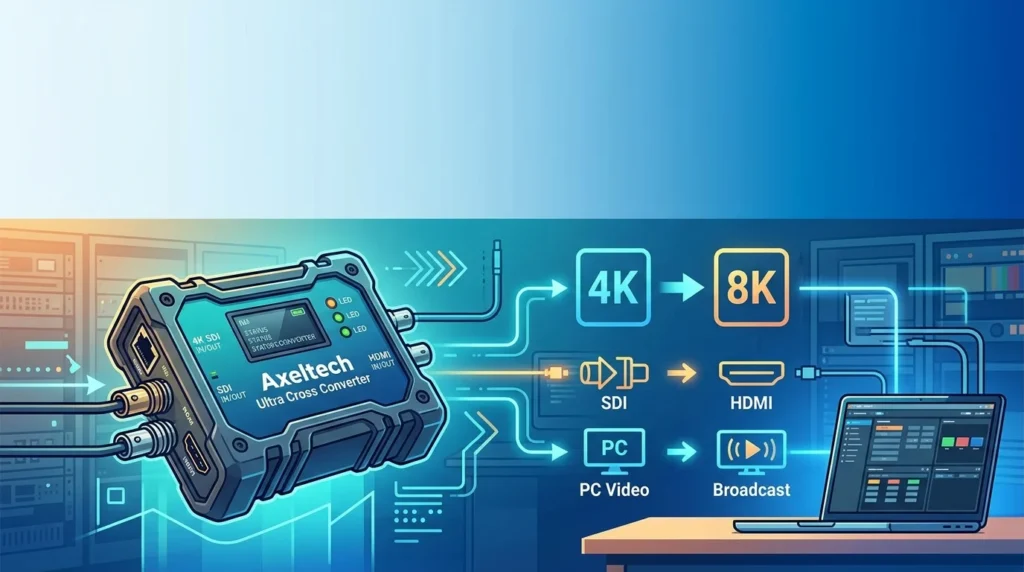
The Axeltech Ultra Cross Converter is a high-performance software application engineered to transform how your PC handles video signals. It serves as a sophisticated digital bridge, allowing you to convert, scale, and route video streams between various input and output formats. Unlike basic conversion utilities, this software utilizes advanced algorithms to process video in real-time with minimal latency, making it a preferred choice for professional broadcasting, live streaming setups, and complex home theater systems.
At its core, the software supports a wide array of video standards, including HDMI, DisplayPort, DVI, VGA, and SDI. This eliminates the need for expensive hardware converters and reduces cable clutter, providing a software-defined solution for your cross-conversion needs. It is an essential tool for anyone who needs to output a PC signal to older projectors, integrate a retro console into a modern monitor, or ensure their presentation is compatible with any display in a conference room.
Key Features
The Axeltech Ultra Cross Converter stands out in the market due to its robust feature set. It is engineered to provide not just compatibility, but also control over your video output.
-
Extensive Format Support: The software supports converting resolutions up to 4K Ultra HD at 60Hz. It handles conversions between all major formats:
-
Input: HDMI, SDI, DVI, VGA, DisplayPort, and Component Video.
-
Output: HDMI, SDI, DVI, VGA, and DisplayPort.
-
-
Real-Time Scaling and Processing: The built-in scaling engine allows you to upscale or downscale any incoming resolution to match your output display perfectly. This is crucial for maintaining image quality on screens with native resolutions.
-
Advanced Color Correction: Professional users will appreciate the ability to adjust brightness, contrast, saturation, and gamma. It also includes support for RGB and YUV color spaces, ensuring accurate color reproduction.
-
Low-Latency Mode: Designed with gamers in mind, the software features an ultra-low latency mode, ensuring that there is minimal delay between input and output, a critical factor for competitive gaming and live music performances.
-
Audio Embedding/De-embedding: The software doesn’t just handle video; it also manages audio streams. Users can embed external audio onto the video signal or de-embed audio for separate routing to sound systems.
-
Intuitive Control Panel: The user interface is designed to be accessible to both beginners and professionals. A comprehensive dashboard provides real-time status of input/output signals, resolution, and frame rate.
What’s New in the Latest Version
The latest version of the Axeltech Ultra Cross Converter software introduces several significant updates designed to improve performance and user experience.
-
Enhanced 4K HDR Support: The new version includes improved support for High Dynamic Range (HDR) metadata, allowing for more vibrant and lifelike colors when converting HDR content between devices.
-
Performance Optimization: The software engine has been optimized to reduce CPU usage by up to 15%, ensuring smooth performance even on older PC hardware, freeing up system resources for other tasks.
-
Custom Preset Manager: Users can now create and save custom configuration presets for specific setups (e.g., “Gaming,” “Presentation,” “Broadcast”), allowing for instant switching between complex settings without reconfiguration.
-
Updated UI and Workflow: The user interface has been streamlined for a more intuitive experience. A new “Quick Setup” wizard is ideal for beginners, guiding them through the configuration process step by step.
System Requirements
Before you begin the installation process, it is essential to ensure your PC meets the minimum system requirements to run the Axeltech Ultra Cross Converter effectively.
| Component | Minimum Requirement | Recommended Requirement |
|---|---|---|
| Operating System | Windows 10 (64-bit) or macOS 10.14 | Windows 11 (64-bit) or macOS 12+ |
| Processor | Intel Core i3 or equivalent | Intel Core i5 or equivalent |
| RAM | 4 GB | 8 GB |
| Storage | 500 MB of free space | 1 GB of free space (SSD) |
| Graphics | DirectX 11 capable GPU | DirectX 12 capable GPU |
| Internet | Required for activation and updates | Required for activation and updates |
Installation Guide
Installing the Axeltech Ultra Cross Converter is a straightforward process. Follow this step-by-step guide to ensure a successful installation.
-
Download the Software: Visit the official Axeltech website or a verified software distribution platform to download the latest version of the installation file. Make sure to choose the correct version for your operating system (Windows or macOS).
-
Run the Installer: Locate the downloaded
.exe(Windows) or.dmg(macOS) file and double-click it to launch the installation wizard. -
User Account Control: If prompted by Windows User Account Control (UAC), click “Yes” to allow the software to make changes to your device.
-
Accept the License Agreement: Carefully read the End-User License Agreement (EULA) and select the “I accept” checkbox to proceed.
-
Choose Installation Directory: The setup will suggest a default installation directory (e.g.,
C:\Program Files\Axeltech\Ultra Cross Converter). You can change this location if you prefer, but we recommend using the default. -
Select Components: You may be presented with options to create a desktop shortcut or associate specific file types with the software. Make your selections and click “Next.”
-
Install: Click the “Install” button to begin the installation process. This will take a few moments.
-
Complete: Once the installation is complete, click “Finish.” You can now launch the Axeltech Ultra Cross Converter from your Start menu or desktop shortcut.
How to Use the Software
Once you have the software installed, using it to convert video signals is simple. The interface is designed to guide you through the process logically.
-
Launch the Application: Open the Axeltech Ultra Cross Converter from your desktop.
-
Connect Your Hardware: Ensure your input and output devices are connected to your PC via the appropriate cables. The software relies on the hardware ports on your computer or capture card.
-
Select Input Source: The main interface will allow you to select your source. Choose from your connected devices, such as your GPU (for capturing gameplay) or a specific capture card.
-
Select Output: Choose the monitor or device you want to send the video signal to.
-
Configure Conversion Settings:
-
Resolution: Set the desired output resolution (e.g., 1920×1080, 3840×2160).
-
Frame Rate: Match the frame rate (e.g., 30 Hz, 60 Hz) to your output device for the smoothest motion.
-
Color Space: Select between RGB and YUV depending on your output device’s preference.
-
-
Apply Settings: Click the “Apply” button. The software will begin processing and streaming the converted signal to your output device. You will see a preview window confirming the successful connection.
Best Use Cases
The Axeltech Ultra Cross Converter is not just for one type of user. Its versatility makes it suitable for a wide range of applications.
-
Professional Broadcasting: Video engineers use the converter to integrate various sources into a live broadcast workflow. It ensures that a PC feed is correctly formatted for an SDI broadcast switcher.
-
Gaming: Connect a modern gaming PC to a legacy capture card or a projector that only supports older connections. The low-latency mode ensures your gameplay remains responsive.
-
Digital Signage: Businesses can connect media players to a diverse array of displays, including digital billboards and older TVs, without worrying about compatibility issues.
-
Education and Conferences: Educators and professionals can connect their laptops to any display in a lecture hall, regardless of the available inputs, making presentations seamless.
-
Post-Production: Video editors can use the software to route footage from a timeline to an external monitor for color grading or quality control.
Advantages and Limitations
Understanding the pros and cons of the Axeltech Ultra Cross Converter is crucial for making an informed decision.
Advantages
-
Cost-Effective: Replaces expensive hardware converters with a single software solution.
-
Versatile: Supports a massive range of video formats and resolutions.
-
User-Friendly: A clean interface makes configuration accessible to all skill levels.
-
Performance: Low latency and high-quality scaling ensure minimal signal degradation.
-
Regular Updates: Axeltech frequently releases updates to add new features and maintain compatibility.
Limitations
-
Requires a PC: It is a software solution, so it cannot operate without a host computer.
-
Hardware-Dependent: The quality of the conversion is contingent on the processing power of your PC and the quality of your capture/display devices.
-
Learning Curve: While the interface is easy, advanced features like color correction may require some technical knowledge.
Alternatives to the Software
While the Axeltech Ultra Cross Converter is a leading solution, a few alternatives exist in the market. These options can serve as a comparison point for potential users.
| Software | Key Feature | Best For |
|---|---|---|
| OBS Studio (Open Broadcaster Software) | Open-source video recording and streaming software. | Content creators and streamers on a budget who need basic conversion. |
| AJA Ki Pro | Ultra-low latency and professional-grade scaling hardware. | High-end broadcast professionals requiring hardware reliability. |
| Blackmagic Design ATEM Switchers | Integrated hardware/software switchers with built-in conversion. | Live production and multi-camera setups. |
| VMix Pro | Comprehensive software video mixer with advanced conversion. | Professional live production and virtual studio environments. |
Frequently Asked Questions
1. What is a video cross converter?
A video cross converter is a device or software that converts a video signal from one format or resolution to another, allowing devices with different connection types to communicate.
2. Is the Axeltech Ultra Cross Converter free?
The software is typically a paid application, though it may offer a free trial. You should refer to the official Axeltech website for the latest pricing and licensing options.
3. Does it support 4K video conversion?
Yes, the Axeltech Ultra Cross Converter supports resolutions up to 4K Ultra HD (3840×2160) at 60Hz, making it suitable for modern high-definition displays.
4. Can I use this for gaming?
Absolutely. The software includes an ultra-low latency mode designed to ensure responsive gameplay when converting video signals for capture or display.
5. What is the difference between a software converter and a hardware one?
Software converters leverage your computer’s processing power to convert signals, making them more cost-effective and flexible. Hardware converters are dedicated devices that provide standalone operation but are often more expensive.
6. Is the software compatible with macOS?
Yes, the latest version of the Axeltech Ultra Cross Converter is compatible with both Windows and macOS operating systems.
7. How do I update the software to the latest version?
You can update the software by downloading the latest version from the official website or by using the built-in update checker in the application, which will notify you when an update is available.
Final Thoughts
The Axeltech Ultra Cross Converter is a powerful and versatile solution for anyone needing to manage video signals on their PC. By offering a software-defined path for video cross-conversion, it eliminates the need for expensive hardware and provides a flexible, user-friendly experience. Its support for modern formats like 4K HDR, combined with a robust set of professional features, ensures it is a valuable tool for both home users and industry professionals. If you are looking to unlock the full potential of your display setup and bridge the gap between incompatible devices, this PC video cross converter is an excellent choice.
Our Paid Service
“We do not sell or provide any software. We only offer professional support services. If any software on your system is not working properly, or you are facing installation errors, crashes, or any other technical issue — just contact us. We will help you fix the problem quickly and remotely via AnyDesk. No software will be provided from our side — only expert troubleshooting and support.”