
Overview of Elements Elite Playout
Table of Contents
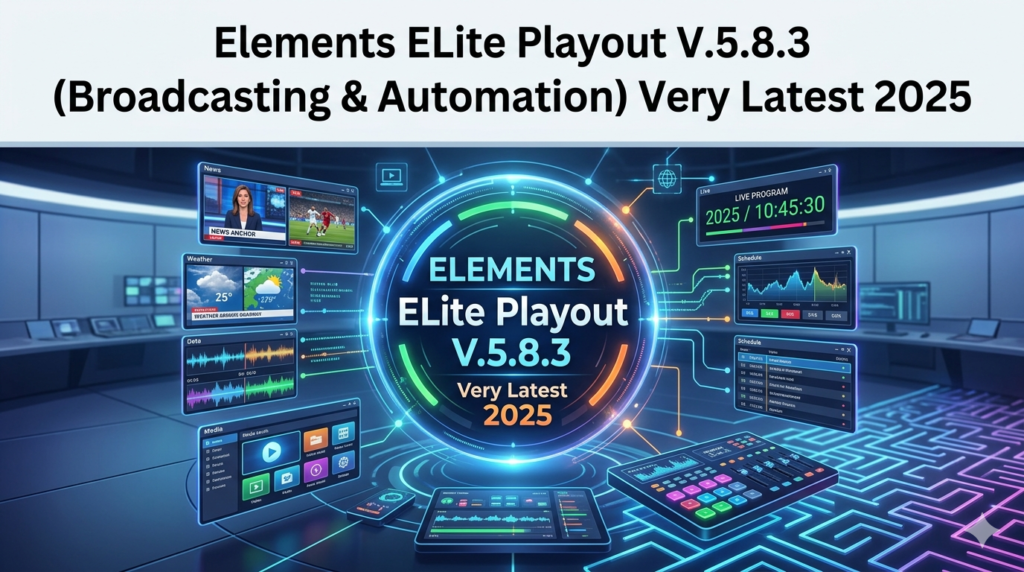
Elements Elite Playout V.5.8.3 is a powerful broadcast automation solution designed for professional radio and television environments. Developed by Elements, this software provides a comprehensive toolkit for managing and scheduling content, streamlining daily operations, and ensuring a high-quality broadcast signal. It serves as the central hub for media management, allowing broadcasters to focus on creative content while the system handles the complex logistics of playout.
The software is known for its intuitive user interface, robust engine, and flexible architecture. Whether you are managing a small community radio station or a large network operation, Elements Elite Playout scales to meet your needs. The latest update reinforces its position as an industry leader by focusing on user-requested features and performance optimizations.
Key Features of Elements Elite Playout
This broadcast automation software is packed with features designed to enhance efficiency and output quality.
Intuitive User Interface
The software’s clean, modern interface ensures that operators can navigate the system with ease. The main dashboard provides a real-time overview of the playlist, active audio and video files, and broadcast status, making it simple to manage a live show or an automated playout schedule.
Advanced Scheduling Engine
At the heart of the software is a sophisticated scheduling engine. It allows users to create complex rules for playlists, ensuring that content is aired at the right time. This feature is critical for maintaining a consistent and professional broadcast, automating the process of what to play and when.
Comprehensive Media Management
Elements Elite Playout offers a powerful media management system. Users can easily import, categorize, and store audio and video files. The integrated database supports fast searching and filtering, allowing operators to find the right content in seconds. This makes it an efficient tool for managing large media libraries.
Audio and Video Processing
The software supports a wide range of audio and video codecs and formats. It provides built-in tools for audio level normalization, video scaling, and other processing tasks, ensuring that all content meets broadcast standards for quality.
Automation and Logging
A key feature of this playout automation software is its ability to run 24/7 without constant manual intervention. The software creates detailed logs of all on-air activities, which is essential for reporting, compliance, and generating invoices for advertisers.
What’s New in Elements Elite Playout Version 5.8.3
The latest version of Elements Elite Playout has been refined based on user feedback and technological advancements. Below are some of the key updates in this release.
Performance Optimizations
Version 5.8.3 includes significant performance improvements. Users can expect faster loading times for playlists and media files, as well as more responsive controls during live operations.
Enhanced Database Management
The database engine has been updated to handle even larger libraries with better stability. This ensures that the software remains responsive even when managing thousands of media assets, making database management smoother and more reliable.
Improved User Interface
The UI has received subtle but impactful tweaks to improve the user experience. From resizable panels to clearer visual indicators of broadcast status, these changes aim to make the operator’s job more straightforward.
Stability and Bug Fixes
As with any professional software update, version 5.8.3 focuses heavily on stability. Numerous bug fixes have been implemented to ensure a reliable broadcast environment, minimizing the risk of downtime or technical interruptions.
System Requirements
Before installing Elements Elite Playout V.5.8.3, it is crucial to ensure your system meets the minimum requirements for optimal performance.
Operating System
-
Windows 10 (64-bit) or later
-
Windows Server 2019 or later
Hardware
-
Processor: Intel Core i5 or equivalent (Intel Core i7 recommended)
-
RAM: 8 GB minimum (16 GB recommended for video and heavy usage)
-
Storage: 250 GB SSD for OS and Software (additional storage for media library)
-
Graphics: Dedicated graphics card with at least 2 GB VRAM (for video playout)
-
Sound: Professional sound card or built-in audio device
Network
-
Stable internet connection for updates and network-based features
Installation Guide
Installing Elements Elite Playout is a straightforward process if you follow the steps carefully.
Step 1: Download the Installer
Obtain the official software installer from the Elements website. Ensure you have a valid license key ready for activation. Always download the software from the official source to avoid security risks.
Step 2: Run the Installer
-
Close all other applications to avoid conflicts.
-
Run the installer file as an administrator. Right-click the file and select “Run as administrator.”
-
If prompted by Windows, click “Yes” to allow the app to make changes to your device.
Step 3: Follow the Setup Wizard
-
The installer will guide you through the process.
-
Read the license agreement carefully and accept the terms to continue.
-
Select the installation directory (the default location is recommended for most users).
-
Choose the components you want to install (typically, all components are recommended).
Step 4: Installation and Activation
-
Click the “Install” button to begin the installation process.
-
Once the installation is complete, launch the software.
-
A prompt will appear to enter your license key and activate the product.
Step 5: Post-Installation Setup
-
After activation, you will be guided through an initial setup to configure your audio and video devices.
-
Follow the on-screen prompts to calibrate your system for optimal performance.
How to Use Elements Elite Playout
Once installed and activated, using the software effectively involves a few key workflows.
Building a Playlist
The primary action in Elements Elite Playout is creating a playlist. You can drag and drop files from the media library into the main playlist window. Alternatively, you can use the software’s scheduler to create automated playlists based on rules.
Voice Tracking
Many broadcasters use Elements Elite Playout for voice tracking. This process lets you record announcements that are automatically inserted between songs or programs, giving an automated show a live feel. Simply open the voice tracking tool, record your segment, and the software will insert it into the playlist at the designated time.
Using the Scheduler
The scheduler is a powerful tool for planning your broadcast days in advance. You can set up recurring schedules, import shows, and create rules for how different types of content should be handled. For example, you can schedule news bulletins to play at the top of every hour.
Monitoring Live Output
During a live broadcast, the software provides a visual display of the audio and video signal. This allows operators to monitor levels and ensure the output is clean and uninterrupted. Any errors or warnings are prominently displayed, allowing for quick troubleshooting.
Best Use Cases for Elements Elite Playout
This broadcast automation tool is versatile and supports a wide range of applications.
-
Radio Broadcasting: For music stations, talk shows, and news networks, the software efficiently manages large playlists and automates transitions, ensuring a polished and professional sound.
-
Television Broadcasting: Its video playout capabilities make it suitable for TV stations, allowing for the seamless scheduling of TV shows and commercials.
-
Live Event Production: Production teams at concerts or corporate events can use the software to manage background music, transition sequences, and handle audio for video playback.
-
Hospitality Music: Hotels, shopping malls, and retail stores use the software to create music playlists tailored to their specific ambiance. The automation features ensure consistent and compliant music playback.
Advantages and Limitations
Like any software, Elements Elite Playout has specific strengths and areas where it may not be the perfect fit for every user.
Advantages
-
Highly Reliable: The software is known for its stability, which is critical for any broadcaster.
-
Flexibility: Scales from a single station to a complex network setup.
-
Feature-Rich: Offers a comprehensive suite of tools for playout, scheduling, and media management.
-
User-Friendly Interface: The intuitive design makes it accessible to both beginners and experienced operators.
Limitations
-
Operating System Dependency: It is a Windows-only application, which could be a limitation for studios that prefer macOS or Linux environments.
-
Initial Cost: The professional features come at a premium price, which may be a barrier for very small operations with minimal budgets.
-
Learning Curve for Advanced Features: While the basics are simple, mastering the more complex scheduling and automation tools requires time and training.
Alternatives to Elements Elite Playout
The broadcasting software market offers several competitors. Here are a few notable alternatives.
-
Radiologik DJ: A popular choice specifically for Mac users, offering a streamlined interface and powerful scheduling features. It is a strong alternative for radio stations on a budget.
-
Studio One: Primarily a DAW (Digital Audio Workstation), it is excellent for music production and can also be used with external automation plugins for broadcast.
-
Auto-Play: A highly customizable and affordable tool for beginners and community radio, though it may lack some of the advanced database management features of Elements Elite Playout.
Frequently Asked Questions
What is Elements Elite Playout used for?
It is a broadcast automation software used by radio and TV stations to schedule, manage, and play out audio and video content. It automates the playout process, reducing the need for manual intervention.
What operating system does Elements Elite Playout require?
The software is designed to run on the Windows operating system, specifically Windows 10 (64-bit) or later, and Windows Server 2019 or later.
What’s new in Elements Elite Playout V.5.8.3?
The latest version focuses on performance optimizations, enhanced database management for better stability, an improved user interface, and numerous bug fixes to ensure a more reliable broadcast environment.
Is Elements Elite Playout compatible with video playout?
Yes, Elements Elite Playout fully supports video playout in addition to audio, making it a comprehensive solution for both radio and television broadcasters.
Can I try Elements Elite Playout before buying?
Yes, the developers typically offer a demo version of the software. You can download the trial from the official website to test its features and compatibility with your system.
Can Elements Elite Playout handle 24/7 automated broadcasting?
Yes, one of its core functions is to automate broadcast playouts. The advanced scheduling engine allows users to build playlists, set rules, and create an automation plan that ensures the system can run 24/7.
How does Elements Elite Playout manage large media libraries?
The software features a robust database engine designed to handle large libraries efficiently. This allows for fast searching and instant access to content, which is essential for professional broadcast environments.
Final Thoughts
Elements Elite Playout V.5.8.3 stands out as a top-tier broadcast automation tool for 2025. Its powerful feature set, combined with the latest performance enhancements, makes it an excellent choice for broadcasters who need a reliable, scalable, and user-friendly playout solution. By investing in professional software like Elements Elite Playout, stations can ensure a high-quality on-air experience, optimize their workflows, and focus on what truly matters: creating engaging content for their audience. Whether you are setting up a new radio station or looking to upgrade your existing infrastructure, this latest broadcast software version is definitely worth considering.
Our Paid Service
“We do not sell or provide any software. We only offer professional support services. If any software on your system is not working properly, or you are facing installation errors, crashes, or any other technical issue — just contact us. We will help you fix the problem quickly and remotely via AnyDesk. No software will be provided from our side — only expert troubleshooting and support.”