

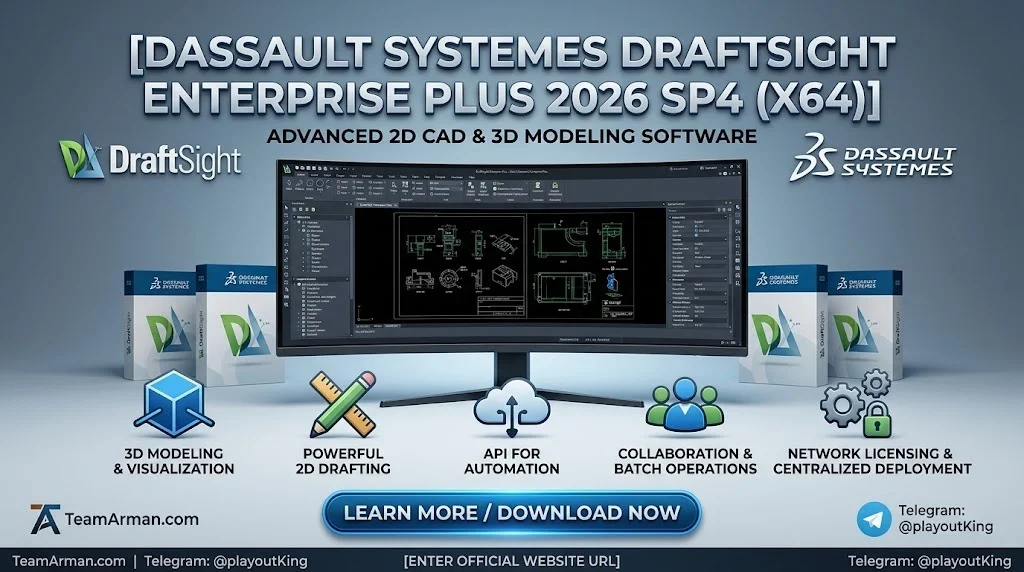
Overview of DraftSight Enterprise Plus 2026 SP4
Table of Contents
DraftSight Enterprise Plus sits at the top of the DraftSight product line, offering everything in the Professional and Enterprise editions alongside advanced 3D modeling capabilities, Power Tools, and a floating network licensing model designed for teams. The software is built on the industry-standard DWG file format, making it fully compatible with AutoCAD drawings and workflows.
Dassault Systèmes positions DraftSight as a cost-effective alternative to subscription-heavy CAD platforms. The Enterprise Plus tier adds floating licenses, a deployment wizard for multi-client installations, and robust technical support via phone and email. The 2026 release introduces several workflow enhancements, including a redesigned Start Page, floating document windows, and expanded 3D modeling tools.
Key Features
DraftSight Enterprise Plus 2026 SP4 includes a comprehensive set of tools for professional CAD work. The following features are available in this edition:
2D Drafting and Documentation
-
Full DWG file support : Open, edit, and save native DWG files without conversion or data loss.
-
PDF Import : Convert geometry, text, and layers from PDF files into editable DWG drawings, eliminating manual redrawing.
-
Layers Manager : Create, organize, and manage drawing layers with full control over color, line type, and visibility.
-
Dynamic Block Support : Interact with adjustable block features such as visibility states, stretching, and rotation.
-
Sheet Set Manager : Organize, rename, renumber, and publish drawing sheets from a centralized interface.
3D Design Integration
-
3D Modeling workspace : Create and modify 3D solids using commands such as Box, Cone, Cylinder, and Push/Pull.
-
ACIS SAT and STL import : Insert existing 3D models into DraftSight drawings for further editing and development.
-
STEP file import : Bring in STEP files for visualization and reference within the DraftSight environment.
-
Export to SAT and STL : Export 3D solids for use in rendering, simulation, or other CAD platforms.
Enterprise and Automation Tools
-
AutoLISP and Visual LISP support : Automate repetitive tasks and customize the CAD environment with LISP routines.
-
DIESEL Expressions : Use built-in string-based macros to dynamically generate text in menus and custom commands.
-
Power Tools : Automate common tasks with commands that echo the functionality of AutoCAD Express Tools.
-
Data Extraction : Extract drawing data with new CSV headers and built-in formula columns for streamlined integration with other applications.
What’s New in DraftSight 2026 SP4
The 2026 release brings several enhancements focused on productivity, visual clarity, and multi-monitor workflows. Service Pack 4 (SP4) represents the latest maintenance update in the 2026 cycle.
New Start Page
The redesigned Start Page (also called the Start tab) appears when the program launches. It centralizes recent files, new drawing creation, template access, and learning resources directly within the interface. This feature is available in DraftSight Premium, Enterprise Plus, and Mechanical editions.
Floating Document Windows
Users can now drag drawing tabs to another monitor, enabling side-by-side viewing and editing of multiple files. This is particularly useful for engineers and designers who work across multiple screens.
Gradient and Pattern Ribbons
Hatch Gradient adds colorful depth to drawings with gradient fills for technical and presentation documentation. The Pattern Ribbon consolidates pattern and array tools into a single, streamlined tab.
ECW File Support
DraftSight 2026 can import and display ECW compressed raster images, such as aerial or satellite maps, without slowing down drawing performance. This feature provides high-quality imagery with minimal file size.
Custom Color Books and Hatch Patterns
Users can access the full Pantone color range or upload personalized color libraries. The HATCHPATTERN command allows defining or inserting custom hatch definitions (.pat files) directly in the drawing environment.
BIM Module Integration
The BIM Module enables importing .ifc, .rvt, and .rva files to integrate 3D building information modeling data into 2D drawings. This feature enhances communication between design and construction teams.
Additional 2026 Enhancements
-
IMPORTBLOCKATTRIBUTES : Update block attributes by importing data from external sources.
-
GETBLOCKINFO : Instantly count block instances within a selected area or across an entire drawing.
-
PCX Print Files : Store page sizes and customize plot settings in external configuration files.
-
DRTEXTRACTION enhancements : Improved data extraction with CSV headers and formula columns.
System Requirements
DraftSight 2026 is available for Windows 11 (64-bit) and macOS. The following specifications are recommended for optimal performance.
Windows Requirements
| Component | Minimum | Recommended |
|---|---|---|
| Operating System | Windows 11, 64-bit | Windows 11, 64-bit |
| Processor | Intel Core i3 (6th gen) or AMD Ryzen 3 (2nd gen) | Intel Core i5/i7/i9 (8th gen or newer) or AMD Ryzen 5/7/9 (2nd gen or newer) |
| RAM | 8 GB | 16 GB |
| Disk Space | 5 GB free on SSD | 5 GB free on SSD |
| Display | 1280 x 768 with True Color | Full HD (1920 x 1080) with True Color |
| Video Card | 3D accelerator with 1 GB GPU memory, DirectX 9 compliant | 3D accelerator with 2 GB GPU memory, DirectX 12 compliant |
Note : ARM processors are not supported.
macOS Requirements
| Component | Minimum | Recommended |
|---|---|---|
| Operating System | macOS v14 (Sonoma) | macOS v15 (Sequoia) or v16 (Tahoe) |
| Processor | Intel Core i5 or better | Apple Silicon (M-series) |
| RAM | 8 GB | 16 GB |
| Disk Space | 5 GB available | 5 GB available |
| Display | 1280 x 768 or better | Retina display or higher |
| Video Card | OpenGL 2.0 | OpenGL 3.3 or better |
Network License Manager Compatibility
For DraftSight 2026 Enterprise, Enterprise Plus, and Mechanical editions, the following license managers are supported:
-
SolidNetWork License Manager (SNL) : Version 2026 is required. SNL 2025 and earlier are not compatible.
-
Dassault Systèmes License Server (DSLS) : R2025x and R2026x are supported. DSLS R2024x and earlier are not compatible.
A minimum of 2 GB of RAM is required for the license server, with 4 GB recommended for a standalone server and 8 GB for failover configurations.
Installation Guide
Installing DraftSight Enterprise Plus 2026 SP4 requires preparation, particularly in network-licensed environments. The following steps outline the standard installation process.
Prerequisites
Before installing DraftSight Enterprise or Enterprise Plus, ensure the following:
-
Your system meets the hardware and software requirements listed above.
-
You have administrative privileges on the computer hosting the license manager.
-
You possess a valid DraftSight serial number from Dassault Systèmes or your support administrator.
-
You have registered a 3DEXPERIENCE account for downloading installation files and activating licenses.
Step-by-Step Installation
-
Download the installer : Navigate to the DraftSight download page and select the Windows or macOS installer. Review and accept the license agreement.
-
Run the installer : Launch the DraftSight64.exe file (Windows) or the appropriate macOS installer.
-
Select installation type : Choose Network for Enterprise or Enterprise Plus editions. You will be prompted to enter the server name and port number for the license manager.
-
Enter license information : Provide the SNL or DSLS server details. Ensure the license manager version matches your DraftSight version (e.g., SNL 2026 for DraftSight 2026).
-
Complete installation : Follow the on-screen prompts to finish the installation.
Deployment to Multiple Computers
For organizations deploying DraftSight Enterprise Plus to multiple client machines, the DraftSight Deployment Wizard provides a streamlined approach. The wizard creates a deployment image that can be distributed across the network. You will need:
-
The DraftSight installation media.
-
A valid serial number or license file.
-
The name and port number of your license server.
Upgrade Considerations
If you are upgrading from a previous version, create backups of all DraftSight files you wish to retain. The installation process preserves existing settings, but backups ensure data safety.
How to Use the Software
DraftSight Enterprise Plus 2026 provides a familiar interface for users coming from AutoCAD or other CAD platforms. The following sections cover essential workflows.
Creating 2D Drawings
-
Launch DraftSight : The Start Page appears with options to open recent files, create new drawings, or access templates.
-
Set up layers : Use the Layers Manager to define colors, line types, and visibility for different drawing elements.
-
Draw geometry : Use the ribbon or command line to create lines, circles, arcs, and other 2D entities.
-
Add annotations : Apply dimensions, text, and leaders to communicate design intent.
-
Save in DWG format : DraftSight saves natively in DWG, ensuring compatibility with other CAD applications.
Working with 3D Models
-
Activate the 3D Modeling workspace : Switch to the 3D workspace from the workspace selector.
-
Create 3D solids : Use commands such as Box, Cone, or Cylinder, or draw a 2D sketch and apply the Push/Pull command.
-
Import existing 3D files : Use the ImportSAT command for ACIS SAT files or ImportSTL for STL files.
-
Edit and modify : Once imported, solid entities can be modified and combined with other geometry.
-
Export for further use : Use ExportSAT or the Export menu to save 3D data in SAT or STL format.
Using Power Tools and Automation
DraftSight Enterprise Plus includes Power Tools that automate common drafting tasks. These commands are accessible from the ribbon and function similarly to AutoCAD Express Tools. For advanced users, AutoLISP and Visual LISP support enables custom routines and workflow automation.
Multi-Monitor Workflows
The Floating Windows feature allows dragging drawing tabs to separate monitors. This enables side-by-side comparison of drawings, cross-referencing of details, and efficient editing across large projects.
Best Use Cases
DraftSight Enterprise Plus 2026 SP4 is suited for a range of professional scenarios where 2D drafting precision and enterprise collaboration are priorities.
Architecture and Construction
Architects use DraftSight to produce construction documents, floor plans, and elevations. The BIM Module allows importing .ifc and .rvt files, enabling coordination between 2D drawings and 3D building models. The Sheet Set Manager simplifies managing large drawing sets for complex projects.
Mechanical Engineering
Mechanical engineers rely on DraftSight for creating and revising part drawings, assembly layouts, and manufacturing documentation. The software’s DWG compatibility ensures seamless collaboration with suppliers and clients using AutoCAD. 3D import capabilities allow referencing existing solid models during the drafting process.
Manufacturing and Fabrication
Manufacturing teams use DraftSight to prepare shop drawings, fabrication details, and assembly instructions. The Data Extraction tool enables generating bills of materials and parts lists directly from drawings, with CSV export for integration with ERP and production systems.
Enterprise CAD Management
Organizations with multiple CAD users benefit from DraftSight Enterprise Plus’s network licensing model. Floating licenses allow more users than purchased seats, optimizing cost allocation. The Deployment Wizard simplifies installation across departments, and centralized license management reduces administrative overhead.
Education and Training
Educational institutions can deploy DraftSight Enterprise Plus in computer labs with network licensing. The Start Page’s learning resources and the software’s AutoCAD-like interface make it accessible for students learning CAD fundamentals.
Advantages and Limitations
Advantages
-
Native DWG compatibility : Work with industry-standard files without conversion or data loss.
-
Familiar interface : Users migrating from AutoCAD experience a short learning curve.
-
Cost-effective licensing : Enterprise Plus starts at $699 USD per year, significantly lower than many competing CAD subscriptions.
-
Network licensing : Floating licenses maximize seat utilization across teams.
-
3D integration : Import, view, and edit 3D models alongside 2D drawings.
-
Automation support : AutoLISP, Visual LISP, and DIESEL expressions enable workflow customization.
-
Comprehensive support : Enterprise editions include phone and email technical support.
Limitations
-
Primarily 2D-focused : While 3D capabilities exist, DraftSight is not a full 3D parametric modeler like SOLIDWORKS or CATIA.
-
No built-in rendering or FEA : Photo-realistic rendering and finite element analysis require exporting to other platforms.
-
Windows and macOS only : Linux users cannot run DraftSight natively.
-
Learning curve for advanced features : Automation tools like LISP require programming knowledge to implement effectively.
-
Subscription-based Enterprise Plus : Perpetual licenses are available through certain resellers, but the primary model is annual subscription.
Alternatives to DraftSight
Several CAD platforms compete with DraftSight Enterprise Plus. The following comparison highlights key differences.
| Software | Focus | Pricing (Approx.) | Key Difference |
|---|---|---|---|
| AutoCAD LT | 2D drafting | ~$499/year | Industry standard, larger ecosystem |
| BricsCAD Lite | 2D drafting | ~$330/year | DWG-compatible, strong LISP support |
| ZWCAD | 2D/3D CAD | ~$399/year | Lower cost, familiar interface |
| LibreCAD | 2D drafting | Free (open source) | Limited DWG fidelity, community support |
| QCAD | 2D drafting | Free (Community) / Paid (Pro) | Open source, basic feature set |
| progeCAD | 2D/3D CAD | Perpetual license available | AutoCAD-compatible, no annual fee |
DraftSight differentiates itself through its Dassault Systèmes backing, SOLIDWORKS integration, and enterprise-focused licensing and deployment tools. For organizations already using SOLIDWORKS, DraftSight provides a complementary 2D solution with a consistent user experience.
Frequently Asked Questions
What is the difference between DraftSight Enterprise and Enterprise Plus?
DraftSight Enterprise Plus includes everything in the Enterprise edition plus advanced 3D modeling capabilities, Power Tools, and additional automation commands. Both editions offer network licensing and deployment tools.
Is DraftSight compatible with AutoCAD DWG files?
Yes. DraftSight reads and writes native DWG files without conversion. This ensures full compatibility with AutoCAD and other DWG-based applications.
Can DraftSight open 3D files?
DraftSight Enterprise Plus supports importing ACIS SAT files and STL files. The 2026 release also supports STEP file import for visualization and reference.
What operating systems does DraftSight 2026 support?
DraftSight 2026 runs on Windows 11 (64-bit) and macOS v14 through v16. Windows 7, 8.1, and 32-bit operating systems are not supported.
How does network licensing work in DraftSight Enterprise Plus?
Enterprise Plus uses floating licenses managed through either SolidNetWork License Manager (SNL) or Dassault Systèmes License Server (DSLS). This allows more users than purchased seats, as licenses are checked out and returned as needed.
Can I automate tasks in DraftSight?
Yes. DraftSight Enterprise Plus supports AutoLISP and Visual LISP for custom automation. DIESEL expressions enable dynamic text and interface customization. Power Tools provide pre-built commands for common tasks.
Is there a free version of DraftSight?
DraftSight offers a free 30-day trial. After the trial period, a paid subscription or license is required for continued use. Free alternatives to DraftSight include LibreCAD and QCAD Community Edition.
What file formats does DraftSight support?
DraftSight supports DWG, DXF, DGN, and CATIA drawing formats. It also imports PDF, ACIS SAT, STL, STEP, and ECW raster image files. Export options include DWG, DXF, SAT, STL, and PDF.
Final Thoughts
DraftSight Enterprise Plus 2026 SP4 represents a mature, enterprise-ready 2D CAD solution that balances professional drafting capabilities with 3D design integration and organization-wide deployment features. The 2026 release builds on Dassault Systèmes’ commitment to DWG compatibility and workflow efficiency, introducing enhancements that benefit both individual drafters and large design teams.
For organizations seeking an AutoCAD-compatible platform without the premium subscription cost, DraftSight Enterprise Plus offers a compelling alternative. The network licensing model, deployment wizard, and comprehensive support options make it particularly attractive for enterprises managing multiple CAD seats. While it is not a replacement for full 3D parametric modeling software, its 3D import and export capabilities provide useful interoperability with SOLIDWORKS and other platforms in the Dassault Systèmes ecosystem.
Whether you are evaluating DraftSight for the first time or considering an upgrade to Enterprise Plus, the 2026 SP4 release delivers a stable, feature-rich environment for professional 2D drafting and documentation.
Our Paid Service