

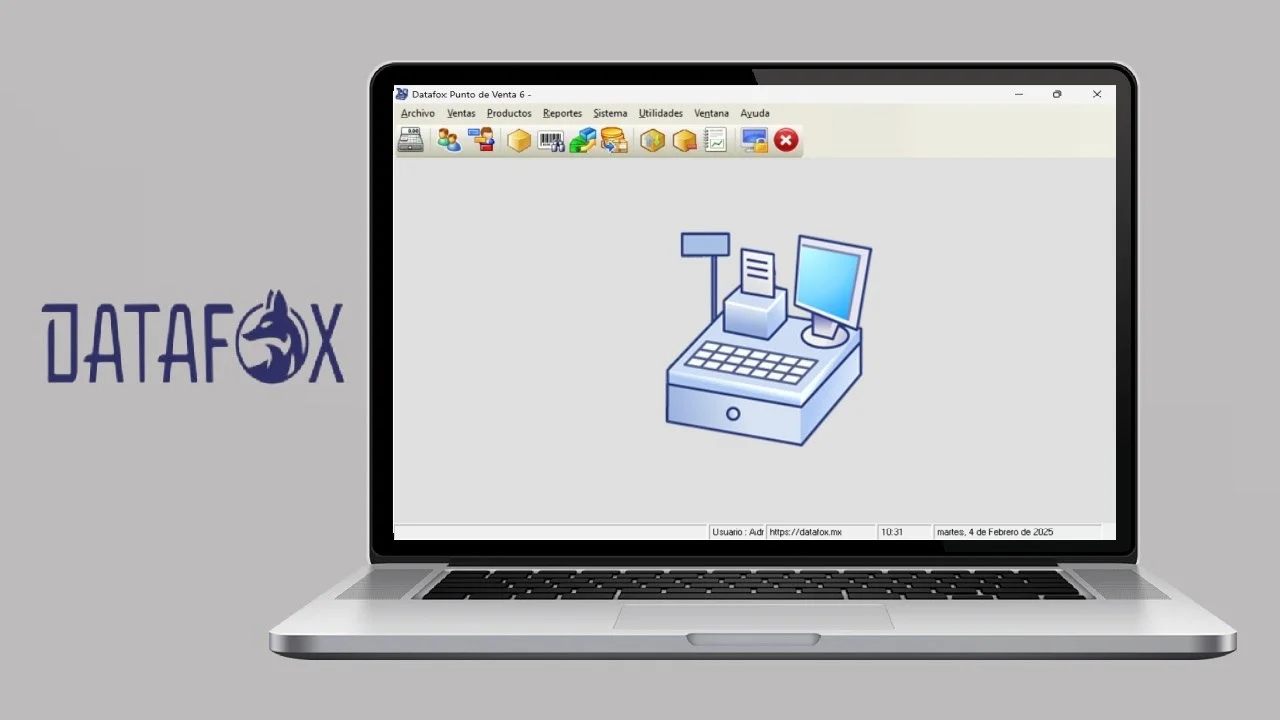
Overview of DataFox 6.0.2
Table of Contents
DataFox is a specialized software platform designed to manage and monitor multiple devices from a single, intuitive console. It is particularly popular in environments that require seamless integration of POS terminals, scales, and other peripheral hardware.
The DataFox 6.0.2 release focuses on enhancing connectivity, stability, and user experience. Its dual operational modes—MonoCaja and MultiCaja—offer flexibility for businesses of all sizes. Whether you are a small retailer with a single checkout lane or a large supermarket chain with dozens of registers, DataFox provides the tools to maintain optimal performance across your entire hardware ecosystem.
Key Benefits at a Glance:
-
Centralized Control: Manage all connected devices from one interface.
-
Increased Uptime: Proactive monitoring helps prevent costly hardware failures.
-
Scalability: Easily expand your system to accommodate new devices as your business grows.
-
Enhanced Security: Enforce uniform security protocols across your network.
Key Features of DataFox 6.0.2
DataFox 6.0.2 is packed with features that simplify complex IT tasks. Here are the core functionalities that make it an indispensable tool for modern application management.
Device Discovery and Auto-Configuration
The software automatically detects new hardware connected to your network. This plug-and-play functionality significantly reduces the time and technical expertise needed to set up new POS terminals or peripherals.
Real-Time Monitoring and Diagnostics
DataFox provides a live dashboard that displays the status of every device in your network. It can identify performance bottlenecks, connection issues, and potential hardware failures before they impact your business, sending alerts to your IT team for proactive intervention.
Dual-Mode Operation (MonoCaja and MultiCaja)
This is the standout feature of this version.
-
MonoCaja Mode: Ideal for single-terminal setups. It offers a focused, streamlined interface for managing a single point of sale.
-
MultiCaja Mode: Designed for large-scale operations, this mode allows for the simultaneous management of multiple POS systems. You can deploy updates, configure settings, and monitor performance across hundreds of devices from a central location.
Remote Configuration and Updates
IT administrators can remotely push configuration files and firmware updates to all connected devices. This eliminates the need for physical access to each terminal, saving time and reducing operational downtime.
Comprehensive Logging and Reporting
DataFox maintains detailed logs of all activities, errors, and system events. These logs are crucial for troubleshooting, auditing, and ensuring compliance with internal policies.
What’s New in DataFox 6.0.2
The latest version of DataFox introduces significant improvements over its predecessors. These updates are designed to enhance performance, security, and user experience.
-
Enhanced API Integration: The updated Application Programming Interface (API) allows for deeper integration with third-party applications, such as inventory management and customer relationship management (CRM) systems.
-
Improved Security Protocols: DataFox 6.0.2 includes strengthened encryption and authentication methods to protect your network and sensitive transaction data.
-
User Interface (UI) Overhaul: The interface is now more intuitive and user-friendly, featuring customizable dashboards that allow users to prioritize the information most relevant to them.
-
Performance Optimizations: Background processes have been optimized to use fewer system resources, resulting in faster load times and a more responsive experience.
-
Extended Hardware Compatibility: The latest version supports a wider range of POS hardware and peripherals, including newer models from leading manufacturers.
System Requirements
To ensure optimal performance and stability, your hardware and operating system must meet the following minimum requirements for DataFox 6.0.2.
Minimal Requirements:
-
Operating System: Windows 10 (64-bit) or Windows 11 (64-bit)
-
Processor: Intel Core i3 or equivalent
-
RAM: 4 GB (8 GB recommended for MultiCaja mode)
-
Storage: 1 GB of available hard disk space
-
Network: Ethernet or Wi-Fi connection
Additional Considerations:
-
Database: The software may require a compatible database server (like Microsoft SQL Server) for advanced reporting and logging functions.
-
.NET Framework: Microsoft .NET Framework 4.8 or later is required.
Installation Guide for DataFox 6.0.2
Installing DataFox 6.0.2 is a straightforward process. Below is a step-by-step guide to help you get started. This guide assumes you are installing on a single terminal that will act as the central management point.
Step 1: Pre-Installation Checklist
-
Backup your system: Ensure you have a full system backup before starting.
-
Verify system requirements: Double-check that your hardware meets the minimum requirements.
-
Acquire the official installer: Download the software from the official DataFox website or your authorized vendor’s portal. Do not use unauthorized sources.
-
Temporarily disable antivirus: Some antivirus software may interfere with the installation. Disable it only for the duration of the setup and re-enable it afterward.
Step 2: Running the Installer
-
Run the
DataFox-6.0.2-Setup.exefile as an administrator (right-click and select “Run as administrator”). -
Follow the on-screen instructions in the setup wizard.
-
Choose the installation directory. The default location is usually
C:\Program Files\DataFox\. -
Select the installation type:
-
Full Installation: Installs all components, suitable for the primary management console.
-
Client Installation: Installs only the agent software to connect to the central server.
-
Step 3: Initial Configuration
-
Launch the DataFox application after installation.
-
You will be guided through a setup wizard to configure your operating mode (MonoCaja or MultiCaja).
-
Define your network settings, including the IP addresses and communication ports for your POS hardware.
-
Configure your user account and security settings.
How to Use DataFox 6.0.2: A Practical Guide
Once installed, DataFox provides a powerful suite of tools for intelligent device management. Here’s a guide to its core workflows.
Adding and Configuring New Devices
-
Navigate to the ‘Devices’ tab in the main dashboard.
-
Click ‘Add Device’ or ‘Auto-Discover’.
-
The software will scan your local network for compatible hardware.
-
Select the detected devices and follow the prompts to assign them to specific POS terminals or locations.
Setting Up Real-Time Monitoring
-
Go to the ‘Dashboard’ to see a visual representation of your active network.
-
Green icons indicate that a device is functioning correctly.
-
Clicking on an individual device will display its real-time metrics, such as connection status, uptime, and resource usage.
-
You can configure email or SMS alerts to notify your IT team of any critical events.
Managing Devices with MultiCaja
-
If you are in MultiCaja mode, you can view a list of all connected POS systems from the ‘Groups’ or ‘Locations’ view.
-
To update software on multiple devices simultaneously, select the relevant devices, navigate to the ‘Actions’ menu, and select ‘Deploy Update’.
-
You can create groups to apply different configurations to POS terminals in different departments or stores.
Best Use Cases for DataFox 6.0.2
DataFox 6.0.2 is versatile and can solve key business challenges across various sectors. Here are some of the most effective use cases.
-
Modernizing a Multi-Chain Retail Network:
A retail chain with multiple locations can use the MultiCaja mode to manage all POS systems from a central headquarters. This ensures consistent software versions, configurations, and security policies across all stores. -
Optimizing a Supermarket Checkout Process:
Supermarkets can use DataFox to monitor the health of hundreds of scales, scanners, and payment terminals. Proactive alerts help reduce checkout line delays caused by hardware malfunctions, improving customer satisfaction. -
Streamlining IT Operations in Hospitality:
Hotels and restaurants with multiple front-desk and POS systems can benefit from DataFox’s remote configuration capabilities. IT staff can quickly troubleshoot issues and apply updates without needing to be physically present at each terminal. -
Enhancing Security in Financial Kiosks:
For businesses running unattended kiosks, DataFox ensures that all devices are secure and functioning correctly. Its logging features provide an audit trail essential for compliance.
Advantages and Limitations
Understanding the strengths and potential drawbacks of DataFox 6.0.2 is crucial for making an informed decision.
Advantages
-
Exceptional Scalability: The software is designed to manage a single device or thousands, making it a future-proof investment.
-
Reduced Downtime: Proactive monitoring and diagnostics minimize the risk of unexpected outages.
-
Operational Efficiency: Remote updates and configuration drastically reduce the workload on IT departments.
-
Centralized View: Provides a comprehensive overview of your entire hardware ecosystem from a single pane of glass.
Limitations
-
Initial Setup Complexity: While the day-to-day use is simple, the initial network configuration for MultiCaja mode can be complex and may require IT expertise.
-
Cost: Depending on the number of devices, the licensing fees for a large-scale deployment can be significant.
-
Hardware Dependence: The software’s effectiveness is tied to the compatibility of your specific POS hardware.
Alternatives to DataFox 6.0.2
While DataFox is a leading solution, several alternatives exist in the market for intelligent device management.
| Software | Primary Use Case | Key Advantage | Key Disadvantage |
|---|---|---|---|
| DataFox 6.0.2 | POS & Peripheral Management | Deep device integration, Dual modes | Can be complex to set up at scale |
| Kaseya VSA | IT & Network Management | Comprehensive IT management suite | Can be overly complex for simple POS needs |
| TeamViewer | Remote Support & Device Management | Excellent for remote troubleshooting | Less specialized for POS hardware |
| Splunk | Data Analytics & Monitoring | Powerful data analysis and visualization | Much more expensive and broader in scope |
| ConnectWise Automate | Managed Services & Automation | Strong automation features | Requires significant training to master |
Frequently Asked Questions (FAQ)
1. What is the difference between MonoCaja and MultiCaja in DataFox 6.0.2?
MonoCaja is designed for single-terminal setups, providing a focused interface for one point of sale. MultiCaja is built for businesses with multiple terminals, allowing centralized management, monitoring, and configuration of dozens or even hundreds of POS systems from a single console.
2. Is DataFox 6.0.2 compatible with cloud-based POS systems?
Yes, while it excels at managing local hardware, DataFox 6.0.2 also provides integration capabilities with various cloud-based POS solutions. It can monitor network connectivity and the performance of local hardware that interfaces with the cloud, ensuring a seamless experience.
3. What are the main system requirements for installing DataFox 6.0.2?
The primary requirements are Windows 10 or 11 (64-bit), an Intel Core i3 processor, and at least 4GB of RAM. For MultiCaja mode, 8GB of RAM is recommended for optimal performance.
4. How does DataFox 6.0.2 improve device security?
DataFox enhances security through strengthened encryption for data transmission, robust authentication protocols, and the ability to enforce uniform security policies across all connected devices and POS terminals.
5. Can I use DataFox 6.0.2 to manage devices remotely?
Absolutely. This is a key feature of the software. Administrators can remotely push updates, change configurations, and troubleshoot issues from any location with network access to the central DataFox server.
6. How do I perform a remote update on multiple POS systems using DataFox?
In MultiCaja mode, you can select the desired terminals from the device list, choose the ‘Deploy Update’ action, and select the software package. The system will distribute and install the update on all selected devices simultaneously.
Final Thoughts
DataFox 6.0.2 stands out as a powerful and versatile solution for intelligent device management, particularly for businesses that rely heavily on POS systems. Its ability to handle everything from a single terminal (MonoCaja) to complex multi-location networks (MultiCaja) makes it a scalable choice for growing enterprises.
By centralizing control, automating monitoring, and simplifying remote management, DataFox 6.0.2 helps businesses reduce operational costs, minimize downtime, and deliver a better customer experience. While the initial setup may require some technical expertise, the long-term benefits in efficiency and system reliability make it a worthwhile investment for any organization serious about modernizing its IT infrastructure.