
Overview of TBarCode Office
Table of Contents
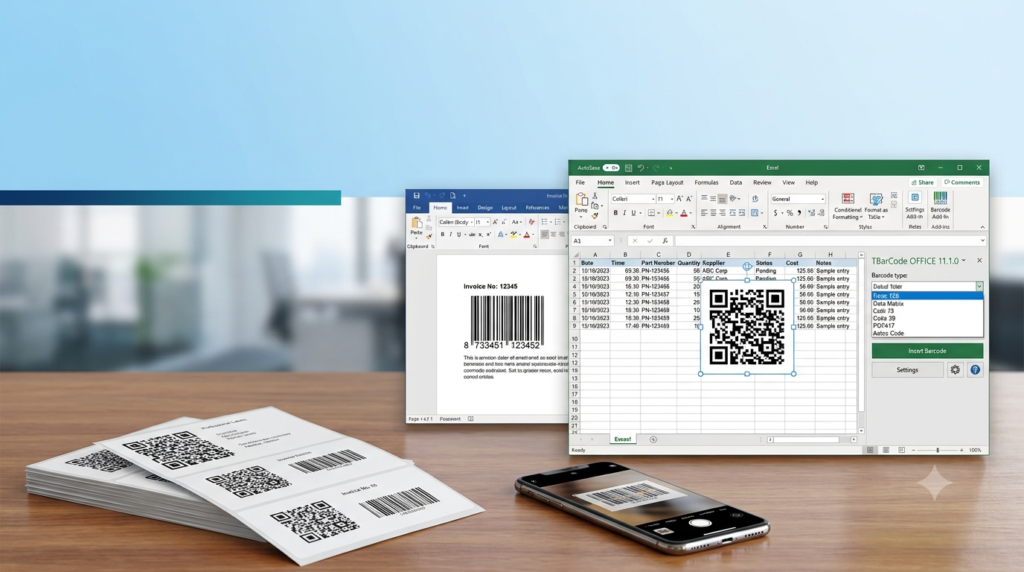
TBarCode Office is a specialized barcode add-in developed by TEC-IT, a leading provider of barcode software solutions . Its primary function is to enable users to insert high-quality barcodes into Microsoft Word documents and Excel spreadsheets directly . This integration streamlines workflows for businesses and individuals who need to generate barcodes for inventory, logistics, retail, and various other applications.
The add-in is designed with an intuitive user interface, making it accessible to beginners while still providing advanced options for professionals who require fine-tuned control over barcode parameters . It supports a comprehensive range of barcode symbologies, including popular linear codes like Code 128 and EAN-13, as well as 2D codes such as QR Code, Data Matrix, and PDF417 .
Key Features
TBarCode Office offers a robust suite of features that make it the most advanced barcode add-in for Microsoft Office. Key capabilities include:
-
Seamless Integration: The add-in embeds directly into the Microsoft Office ribbon, providing a dedicated “TBarCode” tab for quick access to all barcode generation functions .
-
Support for 100+ Barcode Symbologies: Generate a vast array of barcode types, including linear codes (Code 128, EAN-13, UPC-A), 2D codes (QR Code, Data Matrix, PDF417, Aztec Code), and postal codes .
-
Intuitive Barcode Panel: The TBarCode Panel provides a single interface for selecting barcode types, entering data, and adjusting size parameters like height, width, and module width .
-
Excel Cell Linking: Dynamically link barcodes to the content of specific Excel cells. When the cell data changes, the corresponding barcode updates automatically, ensuring accuracy and efficiency for generating barcode lists from product numbers or inventory data .
-
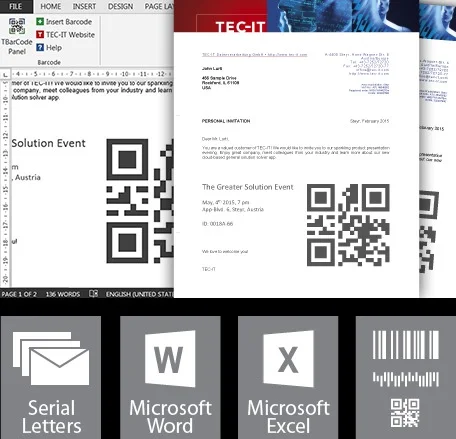
Mail Merge Support for Word: Easily create serial letters or labels by inserting mail merge fields directly into barcodes. This feature is ideal for generating personalized documents with unique barcodes for each recipient .
-
High-Quality Output: Generate barcodes in perfect quality suitable for printing on any printer, including thermal transfer printers and low-resolution devices .
-
Compliance with Industry Standards: Support for GS1 standards and formats like GS1-128 (formerly EAN.UCC) ensures barcodes meet industry requirements for retail and logistics .
What’s New in TBarCode Office 11.1.0
Version 11.1.0 introduces several important bug fixes and enhancements, further improving the add-in’s stability and usability .
-
Excel Cell Centering: A new option allows barcodes inserted into Excel cells to be automatically centered. The barcode remembers this setting and re-centers itself upon redrawing .
-
Excel Add-In Corrections: Fixed an issue where using the “Select All Barcodes” function would sometimes select regular images in addition to all barcodes .
-
Word Add-In Corrections: Addressed multiple issues related to mail merge. Placeholders for mail merge fields are now evaluated case-insensitively, matching Word’s default behavior. Also fixed a bug where barcodes with empty data were not updated in a mail merge label document .
-
Font Style Fix: Resolved an issue where font styles, such as bold, were not being applied when a barcode was updated .
-
Updated VSTO Runtime: The setup package now includes an updated VSTO runtime (version 10.0.60912) for improved compatibility and performance .
-
Updated Barcode Library: This version utilizes TBarCode Library 11.16.0, providing the latest barcode generation engine .
System Requirements
Before installing TBarCode Office 11.1.0, ensure your system meets the following requirements :
-
Operating Systems: Windows 10, Windows 11, or Windows Server 2022/2025 .
-
Microsoft Office Versions: Microsoft Office 2013, 2016, 2019, 2021, or Microsoft 365 Desktop Versions (Word and Excel). Office 2007 and 2010 are supported upon request .
-
Architecture: Both 32-bit and 64-bit systems are supported, but the installer must match the architecture of your Microsoft Office installation .
-
Dependencies:
-
VSTO 4.0 Runtime (included in the TBarCode Office setup) .
-
Microsoft .NET Framework version 4.6.2 or later .
-
-
Hardware: A minimum of 2GB RAM and at least 200MB of free hard disk space are recommended .
Installation Guide
Installing TBarCode Office is a straightforward process. Follow these steps for a successful setup :
-
Download the Installer: Visit the official TEC-IT website and navigate to the TBarCode Office download page. Select the appropriate installer for your Office version (32-bit or 64-bit) .
-
Run the Installer: Double-click the downloaded
.msifile to begin the installation. If a security prompt appears, confirm to proceed. -
Accept the License Agreement: Read and accept the license terms to continue.
-
Choose Installation Type: Select “Typical” for a standard installation with default settings. You may choose “Custom” to change the installation directory.
-
Complete the Installation: Follow the on-screen prompts to finish the setup. Once complete, you can optionally launch the TBarCode Office Configuration Tool.
-
Verify Office Integration: Open Microsoft Word or Excel. The add-in is successfully installed if you see a new “TBarCode” tab in the ribbon. If the tab does not appear, check the Office Add-ins settings (File > Options > Add-ins) and ensure “TBarCode Office Add-in” is active .
How to Use TBarCode Office
The core functionality of TBarCode Office is simple and efficient. Here are common use cases with step-by-step guides.
Inserting a Single Barcode
To insert a barcode into a Word document or Excel spreadsheet, follow these steps :
-
Switch to the Add-Ins tab in the Microsoft Office ribbon.
-
Click the TBarCode button to open the TBarCode Panel.
-
Select your desired barcode type from the list (e.g., Code 128, QR Code).
-
Enter the barcode data in the designated field.
-
Adjust the size and other parameters (height, width, module width) as needed.
-
Click the Insert Barcode button. The barcode will be placed in your document or at the selected cell.
Creating a Barcode List in Excel
This feature is extremely useful for generating lists of product numbers or inventory codes :
-
Open the Excel spreadsheet containing your barcode data (e.g., a column of product IDs).
-
Open the TBarCode Panel.
-
Select the cells containing the data you wish to encode.
-
Choose the appropriate barcode type (e.g., UPC/EAN, Code 128).
-
Click the Insert Barcode button. Each selected cell will be replaced with its corresponding barcode .
Linking Barcodes to Cell Content
Maintain a dynamic link between a barcode and a cell’s value. The barcode updates automatically whenever the cell’s content changes .
-
In Excel, select the cell where you want the barcode to appear, or select an existing barcode.
-
Open the TBarCode Panel.
-
Choose the barcode type.
-
Mark the barcode with the mouse and click “Link to Cell“.
-
Then, select the cell containing the data you want to encode. The barcode is now linked .
Creating Swiss QR Codes for Mail Merge
TBarCode Office V11 supports the creation of Swiss QR Codes, which is particularly useful for payment slips in serial letters :
-
Download the Excel sheet for Swiss QR Bills from TEC-IT. This sheet contains calculated columns that format data correctly for the Swiss QR Code standard .
-
Enter your payment information into the appropriate columns.
-
In your Word document, use this Excel sheet as the data source for the mail merge.
-
Open the TBarCode Panel in Word, select Swiss QR Code, and insert the required mail merge fields (
SwissQRCode_Part1,Part2, etc.) into the barcode data field. The add-in handles the concatenation of these fields to form the complete QR code data string .
Best Use Cases for TBarCode Office
TBarCode Office’s versatility makes it an essential tool across various industries and job functions.
-
Inventory Management: Use Excel to generate barcodes for a list of items, allowing for easy tracking and scanning within a warehouse or retail environment.
-
Logistics and Shipping: Create shipping labels with barcodes containing tracking numbers, addresses, or handling instructions directly within Word documents.
-
Document Automation: Automate the creation of documents like invoices or purchase orders in Word. Insert barcodes that encode order numbers, customer IDs, or other critical reference data .
-
Product Labeling: Design professional product labels in Word or Excel, integrating barcodes that comply with GS1 and other industry standards.
-
Asset Management: Generate unique barcodes for IT assets or office equipment using an Excel list of asset numbers.
-
Marketing and Promotions: Create QR codes in documents or spreadsheets that link to promotional websites, marketing collateral, or contact information (vCard, MeCard) .
Advantages and Limitations
When considering TBarCode Office 11.1.0, it’s helpful to weigh its strengths against its limitations.
Advantages
-
Ease of Use: The intuitive interface and seamless integration with Microsoft Office make it accessible for users of all skill levels .
-
Broad Symbology Support: Generating over 100 different barcode types covers nearly any business requirement .
-
Dynamic Data Linking: The ability to link barcodes to Excel cells ensures data consistency and saves time on updates .
-
High-Quality Output: Barcodes are generated with perfect quality for all printers, including low-resolution thermal printers .
-
Enhanced Mail Merge: Simplifies the creation of personalized documents with barcodes for large-scale mailings .
Limitations
-
VBA Programming Not Supported: The add-in is designed for end-users and does not support VBA programming. For VBA automation, TEC-IT recommends using the TBarCode SDK .
-
Word and Excel Automation Not Supported: The add-in is not designed for unattended server-side automation .
-
Excel GDI Object Limit: There is a maximum number of barcodes that can be inserted into an Excel sheet due to a design limitation of GDI objects .
Alternatives to TBarCode Office
While TBarCode Office is a leading solution, other barcode software options exist in the market, each with different strengths.
-
TBarCode SDK: This is the developer-focused counterpart to TBarCode Office. It provides a comprehensive suite of barcode-generating components (.NET assemblies, ActiveX control, and DLL) for integrating barcode generation into custom applications, web apps, and ERP systems . It is suitable for programmers needing to build barcode functionality into their own software.
-
Barcode Studio: Another TEC-IT product, Barcode Studio is a standalone barcode creator for Windows and macOS. It is ideal for creating barcode graphics visually and exporting them as images or vector graphics for use in design and printing .
-
Free Barcode Generator: Several free and open-source barcode generators exist online. They are suitable for occasional or non-commercial use but often lack the advanced features, symbology support, Office integration, and reliability of TBarCode Office .
Frequently Asked Questions
Q: How do I insert a barcode into an Excel cell?
To insert a barcode, go to the Add-Ins tab and open the TBarCode Panel. Position your cursor in the desired cell, select a barcode type, enter your data, and click “Insert Barcode.” The barcode will be placed in that cell .
Q: Can I generate a QR Code with TBarCode Office?
Yes, TBarCode Office supports the generation of QR Codes, along with many other 2D symbologies like Data Matrix and PDF417 .
Q: What barcode symbologies does TBarCode Office support?
TBarCode Office supports over 100 barcode types. This includes linear codes such as Code 128, EAN-13, and UPC-A, postal codes, and 2D codes like QR Code, Data Matrix, PDF417, Aztec Code, and GS1 DataBar .
Q: Is TBarCode Office compatible with Microsoft Office 365?
Yes, TBarCode Office is compatible with Microsoft Office 365 Desktop Versions, as well as Office 2013, 2016, 2019, and 2021 .
Q: What are the system requirements for TBarCode Office?
The software requires Windows 10/11 or Windows Server 2022/2025. It is compatible with Office 2013 through 2021 and Office 365, requires the VSTO 4.0 Runtime (included in the setup), and Microsoft .NET Framework 4.6.2 or later .
Final Thoughts
TEC-IT TBarCode Office 11.1.0 stands out as an indispensable tool for anyone who needs to create barcodes regularly within Microsoft Office. Its seamless integration, support for over 100 barcode types, and advanced features like dynamic Excel linking and mail merge support make it a powerful yet user-friendly solution . By automating and simplifying barcode generation, the TBarCode Office add-in significantly enhances productivity and accuracy in document and data workflows, from inventory management to direct mail marketing .