
Overview of the Software
Table of Contents
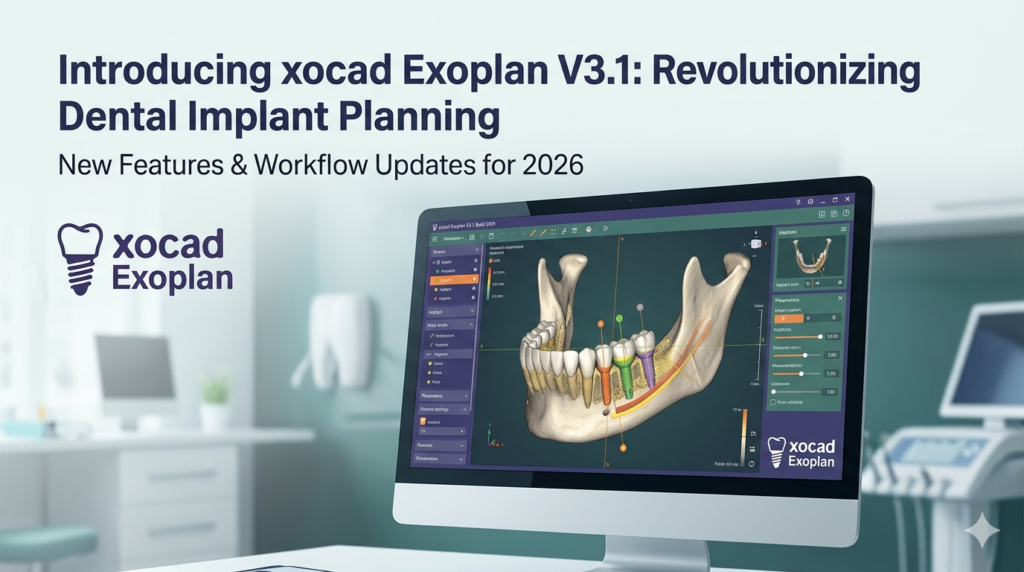
XOCAD Exoplan V3.1 Build 2026 is a specialized, high-precision dental implant planning software designed for oral surgeons, prosthodontists, and restorative dentists. Unlike general CAD tools, Exoplan focuses exclusively on virtual implant placement, surgical guide design, and full prosthetic-driven planning.
This version (V3.1 Build 2026) integrates advanced bone density analysis and AI-assisted nerve positioning, making it a leading solution in digital implantology. The software operates as a module within the exocad dental ecosystem, ensuring seamless data exchange with intraoral scanners (IOS), CBCT machines, and 3D printers.
Key Features
Exoplan V3.1 offers a comprehensive toolset for predictable, minimally invasive implant workflows. Below are its core capabilities:
-
Prosthetic-Driven Implant Planning
Start from the final restoration (tooth shape) and plan the implant position backward. This ensures optimal emergence profile and occlusal contact. -
CBCT and STL Data Fusion
Overlay CBCT (DICOM) data with intraoral scan (STL) files using advanced surface matching algorithms. This improves soft tissue boundary visualization. -
Smart Bone Mapping
Automatic cortical and cancellous bone segmentation with Hounsfield unit (HU) analysis. Visualize bone quality in color-coded maps. -
Nerve Canal Tracing
Semi-automatic inferior alveolar nerve (IAN) and mental foramen detection reduces the risk of iatrogenic injury. -
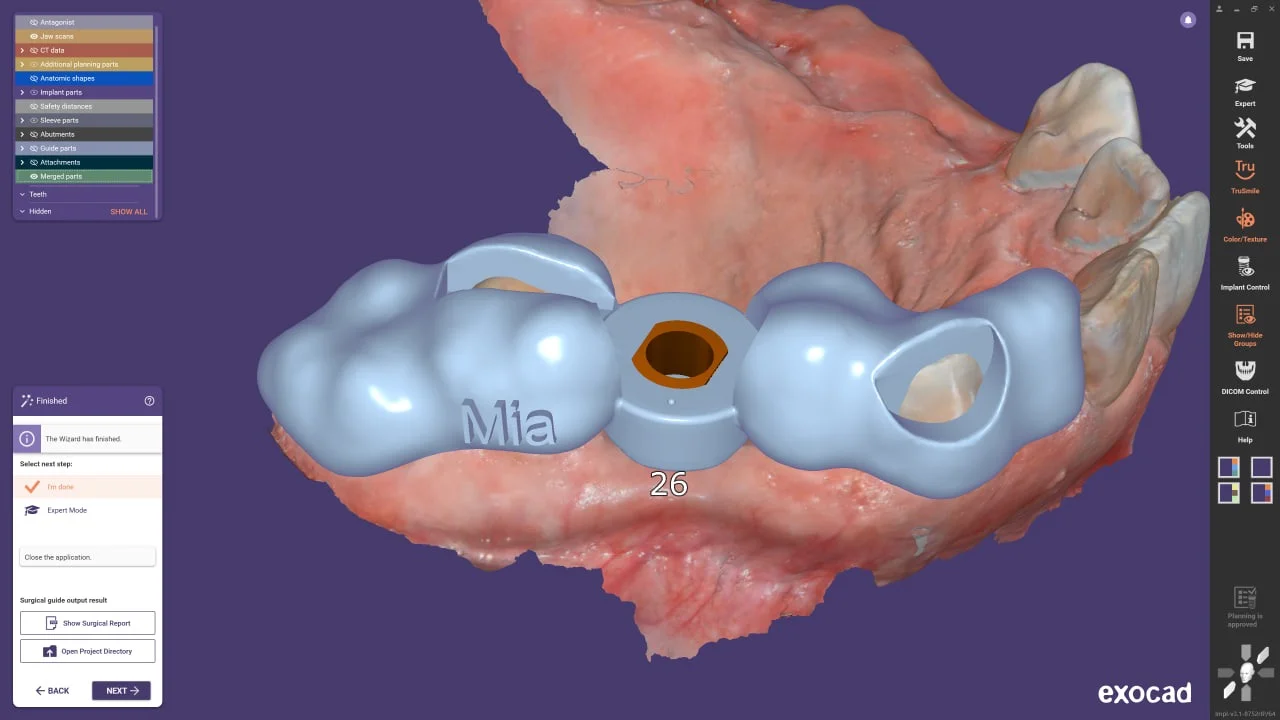
Surgical Guide Export
Design tooth-supported, mucosa-supported, or bone-supported guides. Export as STL for in-house 3D printing or milling. -
Implant Library with 500+ Brands
Native libraries for Straumann, Nobel Biocare, Dentsply, BioHorizons, Zimmer, and others. Users can add custom implant geometries.
What’s New in Exoplan V3.1 Build 2026
This version introduces several clinically relevant updates:
-
AI-Based Landmark Detection – Automatically suggests the mental foramen, mandibular canal, and maxillary sinus floor with 94% reported accuracy.
-
Dynamic Collision Control – Real-time warnings when adjacent implants or anatomical structures violate safety zones.
-
Multi-Implant Parallelism Meter – Visual gauge for measuring and correcting implant angulation in full-arch cases.
-
Improved Guide Retentive Element Design – New parametric sleeve and pin placement tools for surgical guide stabilization.
-
Faster DICOM Import – Optimized handling of large-field CBCT datasets (up to 2GB) with reduced load times.
System Requirements
Before installing, verify your workstation meets these specifications for smooth performance:
| Component | Minimum Requirement | Recommended |
|---|---|---|
| OS | Windows 10 Pro (64-bit) | Windows 11 Pro |
| CPU | Intel Core i5 (8th gen) / AMD Ryzen 5 | Intel Core i7 / AMD Ryzen 7 |
| RAM | 16 GB | 32 GB |
| GPU | NVIDIA GTX 1060 (4GB VRAM) | NVIDIA RTX A2000 or higher |
| Storage | 50 GB free SSD | 100 GB NVMe SSD |
| Display | Full HD (1920×1080) | 4K with dual monitors |
| Other | OpenGL 4.5 compatible | Mouse with 3Dconnexion support |
Installation Guide
Step-by-Step Installation (Legitimate License)
-
Obtain a valid license – Purchase or trial license from an authorized exocad distributor. This software is not available via public download.
-
Download the installer – Access the secure customer portal at my.exocad.com.
-
Disable antivirus temporarily – Some security software may flag dental CAD drivers incorrectly.
-
Run Exoplan_V3.1_Build2026.exe as administrator.
-
Select components – Choose “Exoplan Full + Implant Library.”
-
Activate hardware lock – Insert USB dongle (Sentinel HL) or enter cloud license credentials.
-
Complete installation – Restart your system after installation.
How to Use the Software (Basic Implant Planning Workflow)
This step-by-step guide follows clinical best practices:
1. Import Patient Data
-
Load CBCT (DICOM folder)
-
Load STL from intraoral scan
-
Align datasets using “Surface Matching” tool
2. Segment Anatomical Structures
-
Run automatic mandible/maxilla separation
-
Trace mandibular canal (manual correction recommended for safety)
3. Plan the Implant
-
Select implant from library
-
Place in proposed position (mesio-distal, bucco-lingual)
-
Adjust depth (bone level vs. tissue level)
4. Check Prosthetic Space
-
Import wax-up or scan of provisional restoration
-
Verify adequate interocclusal distance
5. Design Surgical Guide
-
Define anchor teeth or bone support
-
Add guide sleeves (height and diameter)
-
Export final guide as STL
6. Generate Surgical Report
-
PDF report with implant coordinates, angulation, and bone density
Best Use Cases
Exoplan V3.1 is particularly effective in:
-
Single-tooth immediate placement – With flapless guidance to preserve papilla.
-
Full-arch “All-on-X” rehabilitation – Multi-implant parallelism and prosthetic space analysis.
-
Posterior mandible cases – Nerve tracing reduces risk of paresthesia.
-
Maxillary sinus augmentation planning – Measure residual bone height and plan lateral/crestal windows.
-
Teaching and case presentation – 3D visualizations help explain treatment to patients.
Advantages and Limitations
Advantages
Prosthetic-first workflow mimics clinical reality
Deep integration with exocad’s CAD environment
High export flexibility (STL, PLY, DICOM, PDF)
Frequent updates and responsive technical support
No forced cloud subscription (local license option)
Limitations
Steeper learning curve for beginners (requires dental implant knowledge)
Higher cost compared to basic implant planning tools
No native macOS version (Windows only)
Requires separate exocad base license in some configurations
Alternatives to the Software
For readers evaluating dental implant planning software, consider these legitimate competitors:
| Software | Best For | Platform | Starting Price (USD) |
|---|---|---|---|
| coDiagnostiX | Full-arch & orthognathic | Windows | $6,500 |
| BlueSky Plan | Free tier for basic planning | Windows/macOS | Free – $3,000 |
| 3Shape Implant Studio | Integrated with TRIOS scanners | Windows | $7,200 |
| SimPlant (Dentsply) | Complex bone grafting cases | Windows | $8,000 |
| Relu Surgical | AI-based automation | Cloud | Subscription |
Frequently Asked Questions (FAQ)
1. Is XOCAD Exoplan V3.1 compatible with all CBCT machines?
Yes. It accepts standard DICOM 3.0 files from any CBCT or medical CT scanner (e.g., Planmeca, Sirona, Carestream, Vatech).
2. Can I use Exoplan without an exocad DentalCAD license?
No. Exoplan runs as an add-on module and requires exocad DentalCAD (either the full or base version).
3. Does Exoplan support guided surgery with immediate loading?
Yes. You can design surgical guides and export them for 3D printing. Immediate loading protocols depend on clinical judgment, not software limitations.
4. What file formats does Exoplan export for 3D printing?
STL, PLY, and OBJ. The software does not generate G-code directly — you need a separate slicer (e.g., Meshmixer, PreForm, or Netfabb).
5. Is there a free trial of Exoplan V3.1?
Yes. Authorized exocad resellers offer a 14-day fully functional trial with a temporary software license (no dongle required). No cracking or activation bypass methods are legitimate.
6. Does the software include a patient library?
Yes. A built-in patient management system organizes cases by name, date, and treatment status. Data is stored locally for HIPAA/GDPR compliance.
7. Can I import DICOM segmentation from third-party AI tools?
Yes. Exoplan accepts mesh files (STL, PLY) from AI segmentation tools like 3D Slicer, Materialise Mimics, or Relu.
8. How often is Exoplan updated?
Major builds (e.g., V3.1) are annual. Minor patches are released quarterly. A valid maintenance agreement is required for updates.
Final Thoughts
XOCAD Exoplan V3.1 Build 2026 stands as a professional-grade dental implant planning software that prioritizes prosthetic outcomes, anatomical safety, and surgical guide precision. While it requires an initial investment in both licensing and learning, its integration with the exocad ecosystem makes it a reliable choice for digital dentistry practices aiming for reproducible guided surgery workflows.
For clinicians already using exocad for restorations, adding Exoplan is a logical step toward a fully digital implant workflow. New users should start with the official trial, complete the free training modules available on exocad’s learning portal, and always rely on legitimate licensing channels.
Our Paid Service
“We do not sell or provide any software. We only offer professional support services. If any software on your system is not working properly, or you are facing installation errors, crashes, or any other technical issue — just contact us. We will help you fix the problem quickly and remotely via AnyDesk. No software will be provided from our side — only expert troubleshooting and support.”