
Overview of the Software
Table of Contents
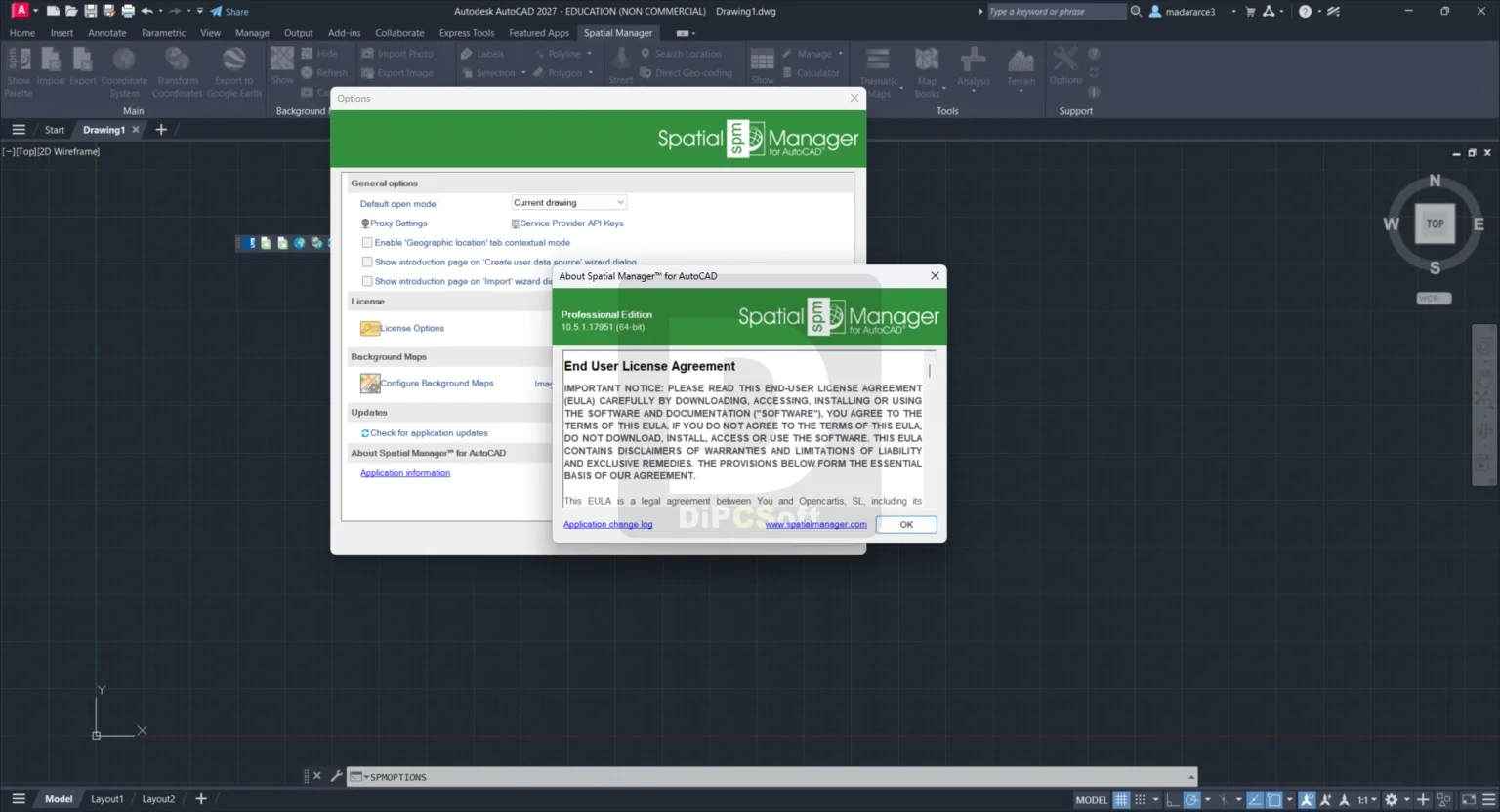
Spatial Manager for AutoCAD Professional 10.5.1 Build 17951 is a specialized third-party plugin (add-on) designed to bridge the gap between AutoCAD and the world of Geographic Information Systems (GIS). While native AutoCAD excels at precise vector drafting, it lacks robust tools for importing, exporting, and managing large spatial datasets like Shapefiles (SHP), KML/KMZ, GeoJSON, or PostGIS.
This version (10.5.1) functions as a powerful BIM (Building Information Modeling) and GIS connector, allowing civil engineers, surveyors, and urban planners to edit geospatial data directly inside the AutoCAD interface without leaving their native drawing environment. It transforms AutoCAD into a functional GIS editor by adding a specific palette and command set for spatial data management.
Key Features
The software distinguishes itself through seamless data handling. Below are the primary functions available in this Professional build:
-
Direct Data Access (Provider List): Connects directly to files (SHP, KML, GML, DXF, MIF/MID, TAB), databases (SQL Server, MySQL, PostgreSQL/PostGIS, Oracle Spatial), and cloud drives (Google Drive, OneDrive).
-
Data Import Tools: Imports spatial objects converting GIS points, lines, polygons, and text data into native AutoCAD entities (Points, Polylines, 3D Faces, MText).
-
Export Functionality: Exports AutoCAD geometry to GIS formats while preserving extended entity data (XData) as attribute tables.
-
Coordinate Transformation (PRJ): On-the-fly reprojection between hundreds of coordinate reference systems (EPSG codes).
-
Background Maps: Integration of WMS (Web Map Service) servers and XYZ Tiles (OpenStreetMap, Google Maps, Bing) as live backgrounds.
-
Data Management Palette: A non-modal window that allows browsing, filtering, and previewing spatial tables before insertion.
What is New in Build 17951 (Version 10.5.1)
This specific maintenance release focuses on stability and performance for AutoCAD 2023 through 2025.
-
Enhanced Gpkg (GeoPackage) Support: Improved read/write speeds for raster and vector GeoPackages, a common format in mobile GIS workflows.
-
AutoCAD 2025 Compatibility: Full certification for the latest AutoCAD release, including the new AutoCAD 2025 engine.
-
Attribute Block Editor: A new “Block Authoring” tool allows users to link imported GIS data directly to Dynamic Block properties.
-
Point Cloud Reference: Minor fixes for referencing LAS/LAZ files during spatial import sessions.
System Requirements
To run Spatial Manager for AutoCAD Professional 10.5.1, your workstation must meet the following specifications:
-
Supported Platforms: AutoCAD, AutoCAD Map 3D, AutoCAD Civil 3D, and AutoCAD LT (Limited functionality for LT).
-
Versions Compatible: 2021, 2022, 2023, 2024, and 2025.
-
Operating System: Windows 10 (64-bit) or Windows 11.
-
Processor: Intel Core i5 or AMD Ryzen 5 minimum (i7/Xeon recommended for large SHP files).
-
RAM: 8 GB minimum (16 GB+ for large aerial imagery background maps).
-
Disk Space: 500 MB for installation (plus cache space for spatial indexes).
Installation Guide
Follow these steps to activate the plugin legally using a licensed key:
-
Download the installer from the official Opencartis website (opencartis.com).
-
Close all AutoCAD instances before running the
.exefile. -
Run the setup with Administrator privileges.
-
Select your AutoCAD version from the list (e.g., AutoCAD 2025).
-
Complete the installation and restart your computer.
-
Open AutoCAD. You will see a new tab named “Spatial Manager” on the ribbon.
-
Enter your license key (provided upon purchase) via the “Settings” > “License Manager” option. Note: This software requires a paid commercial license or trial activation; searching for unauthorized activation tools is unsafe and violates software copyright laws.
How to Use the Software
Importing a Shapefile (SHP) to AutoCAD
-
Click “Import” on the Spatial Manager palette.
-
Browse to your
.SHPfile. -
Review the attribute table (e.g., “Street_Name”, “Water_Main_Depth”).
-
Select Coordinate System (e.g., EPSG:3857 WGS 84).
-
Click “Import” . The GIS polygons will appear as AutoCAD LWPolylines.
-
Use “Label Import” to convert text fields into MText objects.
Exporting AutoCAD Polylines to KML for Google Earth
-
Select the Civil 3D alignment or polylines in your drawing.
-
Open the “Export” wizard.
-
Choose “Google KML/KMZ” as the target format.
-
Map AutoCAD layers to KML folders.
-
Execute the export. Open the resulting file directly in Google Earth Pro.
Best Use Cases
This tool is ideal for professionals who need CAD accuracy with GIS context:
| Use Case | Benefit |
|---|---|
| Site Survey & Layout | Import surveyor GPS points (CSV/TXT) as AutoCAD points with elevation (Z-value). |
| Utility Mapping | Convert water/gas line GIS data from a municipal SHP file into a pipe network. |
| Flood Plain Analysis | Overlay FEMA flood zone Shapefiles onto a site plan to check compliance. |
| Asset Management | Export as-built building footprints to PostGIS for a city asset database. |
| Permitting | Create a KML of your site plan for public review on Google Earth. |
Advantages and Limitations
Advantages
-
Native Performance: Feels like an AutoCAD native command, not a slow script.
-
No Data Loss: Maintains attribute fidelity (Object Data vs. XData).
-
Batch Processing: The Professional version allows processing of multiple files via scheduled tasks.
-
Coordinate Accuracy: Automatic reprojection prevents “drift” when merging data from Google Maps (Web Mercator) with State Plane coordinates.
Limitations
-
No Raster Editing: While it views GeoTIFFs and ECW files, it cannot georeference or crop rasters. Use QGIS or ArcGIS for that.
-
AutoCAD LT Restrictions: The LT version cannot use Visual LISP (VL) functions; therefore, complex data links are slower.
-
3D Faces: While it imports 3D GIS data, editing multi-patch geometries is limited inside standard AutoCAD.
Alternatives to the Software
Depending on your budget and workflow, consider these spatial data connectors:
| Software | Target Format | Best For | Key Difference |
|---|---|---|---|
| AutoCAD Map 3D | ESRI File Geodatabase (FGDB) | Infrastructure & Planning | Full GIS engine built-in (Costly) |
| CIVILCAD | CSV / SHP | Civil Engineering | Focuses on surfaces, not just import/export |
| DotSoft MapWorks | SHP / SDF | Drafting automation | Cheaper but poor coordinate transformation |
| FME Desktop (Safe Software) | 450+ formats | Enterprise data conversion | Not an AutoCAD plugin; external ETL tool |
| QGIS (Free) | SHP / GeoPackage | Budget-friendly | Free, but requires manual copy/paste of coordinates |
Frequently Asked Questions (FAQ)
Q1: Is Spatial Manager for AutoCAD Professional functional with AutoCAD 2028?
A: No. Build 17951 is validated up to AutoCAD 2025. You must wait for version 11.0 for support beyond 2026.
Q2: Does this tool work with .DWG files saved in the cloud?
A: Yes. The Professional version supports direct reading/writing to Google Drive and OneDrive mapped drives, though local processing is faster.
Q3: Can I edit the GIS attributes inside AutoCAD after import?
A: Yes. Use the “Data Table” view (Right-click > Edit attribute set). You can add, delete, or modify property fields exactly like an Excel spreadsheet.
Q4: What is the difference between “Standard” and “Professional” versions?
A: Professional includes background map streaming (WMS/TMS), batch file translation, and direct database connections (PostGIS). Standard is limited to file-based formats.
Q5: How do I convert a drawing from EPSG:4326 (Lat/Lon) to EPSG:3857 (Meters)?
A: Use the “Coordinate Transformation” tool under the Utilities menu. Select the source drawing CRS and the target CRS; the tool will apply a geometric shift to all entities.
Q6: Is there a free trial without a license key?
A: Yes. Opencartis offers a fully functional 15-day trial. No credit card is required, and no features are blocked during the evaluation period.
Q7: Why does my imported Shapefile look tiny or huge?
A: This is a CRS mismatch. Ensure the “Input Units” in the import wizard match the units of the SHP (e.g., meters). If wrong, use “Rescale” after import.
Final Thoughts
Spatial Manager for AutoCAD Professional 10.5.1 Build 17951 is a mission-critical utility for any CAD technician working with municipal GIS data. While native AutoCAD handles vector precision beautifully, it fails at spatial indexing and reprojection. This plugin resolves that friction.
Our Paid Service
“We do not sell or provide any software. We only offer professional support services. If any software on your system is not working properly, or you are facing installation errors, crashes, or any other technical issue — just contact us. We will help you fix the problem quickly and remotely via AnyDesk. No software will be provided from our side — only expert troubleshooting and support.”