
Overview of the Software
Table of Contents
SCIA Engineer is a professional structural design and analysis software developed by Nemetschek Group. It operates as a comprehensive tool for civil and structural engineers, supporting workflows from initial modeling to final documentation.
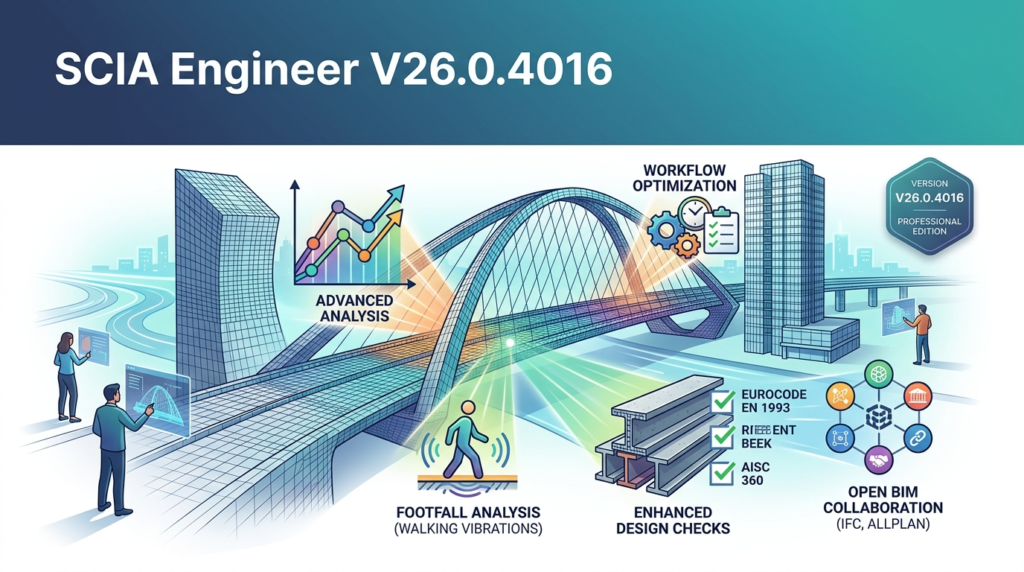
Version 26.0.4016 represents a significant update focused on improving steel connection design, concrete reinforcement, and Eurocode compliance. Unlike basic structural calculators, SCIA Engineer utilizes a powerful FEM engine to simulate real-world behavior of buildings, bridges, and industrial structures.
The software prioritizes an open BIM workflow. This allows users to import IFC files, DWG drawings, and exchange data seamlessly with Revit, Tekla Structures, and Allplan.
Key Features
The latest iteration includes several core capabilities that define its role as a high-end engineering tool.
-
Finite Element Analysis (FEA): Accurate meshing for 2D and 3D structures, including non-linear material behavior.
-
Steel Design: Automated cross-section checks, stability analysis, and connection design according to global standards (AISC, Eurocode, etc.).
-
Concrete Design: Reinforcement generation, crack width control, and punching shear verification.
-
Dynamic Analysis: Modal, seismic, and vibration calculations for complex loading scenarios.
-
Open BIM Interface: Direct synchronization with Revit using the SCIA Engineer Revit Link and IFC 4.0 export.
What’s New in SCIA Engineer v26.0.4016
This specific version focuses on user experience and regulatory compliance.
-
Code Compliance Update: Full support for the newest Eurocode amendments (EN 1992-1-1 and EN 1993-1-1).
-
Enhanced Steel Connection Library: A new parametric library allows for faster modeling of bolted and welded connections.
-
Performance Boost: The solver engine now processes large models (5000+ members) up to 30% faster than previous versions.
-
UI Modernization: The ribbon interface has been streamlined to reduce clicks for frequent actions like load combinations and mesh generation.
System Requirements
Before installing the SCIA Engineer v26.0.4016 setup, ensure your workstation meets these specifications for optimal performance.
| Component | Minimum Requirement | Recommended Specification |
|---|---|---|
| Operating System | Windows 10 Pro (64-bit) | Windows 11 Pro (64-bit) |
| Processor (CPU) | Intel Core i5 / AMD Ryzen 5 | Intel Core i7 / AMD Ryzen 7 (8+ cores) |
| Memory (RAM) | 8 GB | 32 GB (or higher for large FEM models) |
| Graphics (GPU) | 2 GB VRAM (DirectX 11) | 4 GB VRAM (NVIDIA Quadro or RTX series) |
| Storage | 10 GB free SSD space | 20 GB free NVMe SSD space |
| License | USB dongle or Cloud subscription | Online Network License Manager |
Installation Guide
Follow this step-by-step guide to install the software legally and correctly.
Step 1: Obtain the official installer.
Download SCIA Engineer v26.0.4016 exclusively from the official SCIA portal or your authorized distributor. You must have a valid subscription or perpetual license to activate the software.
Step 2: Run the launcher.
Right-click the Setup_SCIA_Engineer_v26.exe file and select “Run as Administrator” to ensure registry keys are written correctly.
Step 3: Select components.
Choose between “Full Installation” (all modules) or “Custom Installation” (select only Steel or Concrete modules).
Step 4: License activation.
Once installed, launch the application. Enter your license key or connect to your corporate License Server. (Note: Do not search for unauthorized activation methods; use only the official subscription key).
Step 5: Install updates.
Run the “SCIA Update Manager” to download any minor patches for v26.0.4016.
How to Use the Software
For new users, understanding the workflow reduces the learning curve.
1. Project setup:
Define project units, national annex (e.g., NA for Germany, UK, or France), and material libraries.
2. Geometry creation:
Use the “Frame” tool to draw beams/columns. Alternatively, import a .IFC file from an architect.
3. Load application:
Apply dead loads, live loads, wind (via load generators), and snow loads.
4. Mesh generation:
For 2D elements (walls/slabs), the software automatically creates an FEA mesh.
5. Analysis and code check:
Run the “Linear Analysis” for serviceability, then “Code Check” for ULS (Ultimate Limit State).
6. Reporting:
Generate a PDF calculation report with drawings and formulas for submission.
Best Use Cases
SCIA Engineer is not a general drafting tool; it excels in specific scenarios.
-
Multi-material bridges: Combining steel trusses with concrete decks.
-
High-rise structures: Managing wind sway and inter-story drift.
-
Industrial halls: Analyzing crane loads and tapered built-up sections.
-
Stadium roofs: Complex geometry and nonlinear supports.
Advantages and Limitations
Advantages
-
BIM integration: Best-in-class IFC handling for clash detection.
-
Design automation: Automatic generation of reinforcement drawings.
-
Scripting: PowerPlatform automation via C# and Python API.
-
Global standards: Support for 30+ international design codes.
Limitations
-
Hardware dependent: Requires high-end workstation for large models.
-
Learning curve: Advanced FEA settings require structural engineering knowledge.
-
Price point: Higher initial cost compared to basic CAD plugins.
Alternatives to the Software
If SCIA Engineer v26.0.4016 does not fit your budget or workflow, consider these industry-respected alternatives.
| Software | Best For | Key Difference |
|---|---|---|
| Autodesk Robot Structural Analysis | Revit users needing native integration | Subscription-based, tied to Autodesk ecosystem. |
| Tekla Structural Designer | Multi-material building design | Better for North American codes (AISC/ACI). |
| Dlubal RFEM 6 | Non-linear analysis and tensile structures | Superior for glass and membrane design. |
| Trimble Nova | Heavy civil and infrastructure projects | Prestressed concrete bridge focus. |
Frequently Asked Questions
Q1: Is SCIA Engineer v26 compatible with Revit 2025?
Yes. The SCIA Engineer Revit Link supports bi-directional synchronization with Revit 2022 through 2025.
Q2: Can I open a V25 file in V26.0.4016?
Yes. The software offers a project migration tool that converts older files to the new database format, though backup is advised.
Q3: Does this version include timber design?
The standard license includes basic timber verification, but advanced cross-laminated timber (CLT) requires the “Wood” extension module.
Q4: What is the difference between SCIA Engineer and SCIA Designer?
SCIA Engineer is the full FEM suite, while SCIA Designer is a limited, component-based tool for simple steel beams and columns.
Q5: How do I obtain a student license for SCIA Engineer?
Nemetschek offers a free Educational License valid for 12 months to verified university students. Apply directly via the SCIA Academic Portal.
Q6: Does the software support cloud calculation?
Yes. v26.0.4016 features integrated “Solver on Cloud” , allowing you to offload heavy FEM calculations to remote servers.
Q7: How do I legally move a license to a new computer?
Use the SCIA License Manager tool to “Return” the license to the cloud server, then activate it on your new machine.
Final Thoughts
SCIA Engineer v26.0.4016 is a powerful, code-compliant tool for professional structural engineers. While the software requires a significant hardware investment and technical knowledge, its open BIM workflow and solver speed make it a top-tier choice for complex infrastructure projects.
For teams already using the Nemetschek ecosystem or requiring strict Eurocode compliance, upgrading to v26 is a logical step. Always ensure you obtain the software through official channels (SCIA network) to maintain security and compliance.
Our Paid Service
“We do not sell or provide any software. We only offer professional support services. If any software on your system is not working properly, or you are facing installation errors, crashes, or any other technical issue — just contact us. We will help you fix the problem quickly and remotely via AnyDesk. No software will be provided from our side — only expert troubleshooting and support.”