
Overview of the Software
Table of Contents
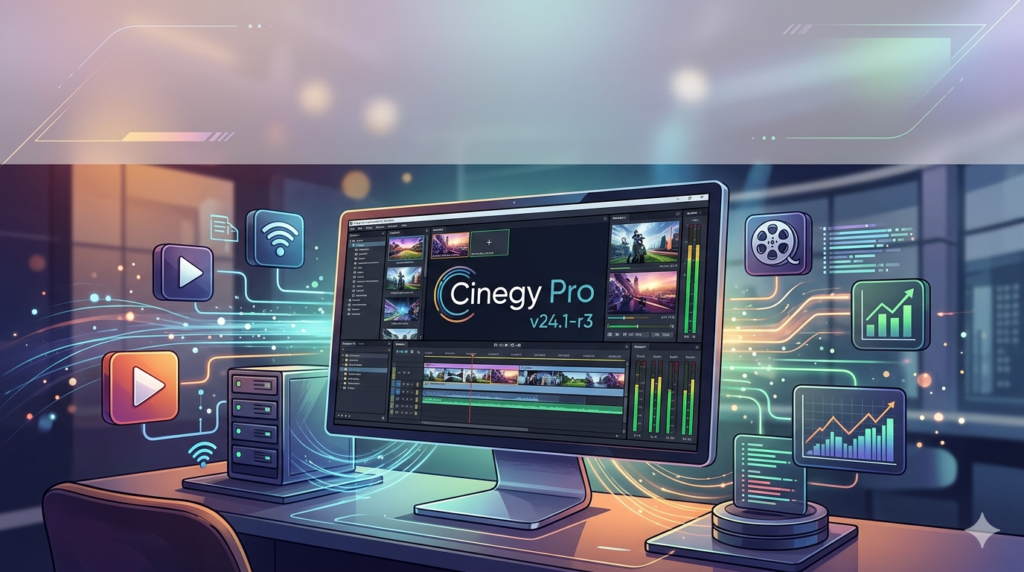
Cinegy Pro is the flagship desktop client of the Cinegy broadcast platform. Version 24.1-r3 focuses on streamlining news production, sports broadcasting, and digital archiving. The software combines nonlinear editing (NLE), ingest servers, and playout automation into a unified workflow.
Key capabilities include:
-
Real-time 8K and 4K video processing.
-
Native support for SDI, NDI, and IP video sources.
-
Integration with Cinegy Archive for database-driven media management.
-
GPU-accelerated rendering using NVIDIA CUDA and AMD technologies.
Professionals choose Cinegy Pro for its ability to handle high-bitrate mezzanine codecs (like Cinegy HD and Grass Valley HQX) without transcoding, which preserves original quality.
Key Features
Broadcast-Quality Ingest and Capture
Cinegy Pro V24.1-r3 includes an advanced capture module. You can ingest from multiple SDI, HDMI, or NDI sources simultaneously. The software supports VTR control via RS-422 and batch capture with timecode accuracy.
Nonlinear Video Editing
The timeline editor supports unlimited tracks, keyframeable effects, and real-time color correction. Editors can apply transitions, chroma key (green screen), and audio mixing without pre-rendering.
Media Asset Management (MAM) Integration
Unlike standalone NLEs, Cinegy Pro connects directly to Cinegy Archive. This turns the software into a MAM client, allowing users to search metadata, check in/out clips, and manage version control across a network.
GPU-Accelerated Encoding
Export jobs leverage GPU processing for H.264, H.265 (HEVC), and Cinegy’s proprietary codecs. This reduces render times significantly compared to CPU-only solutions.
Multiviewer and Playout Automation
The software includes a multiviewer for monitoring up to 16 sources. Users can also create playlists for automated playout to air servers or streaming platforms.
What’s New in Cinegy Pro V24.1-r3
The latest version introduces several workflow enhancements:
-
Improved NDI 5 Support: Lower latency and better discovery of NDI sources on managed networks.
-
Audio Loudness Normalization: Automatic compliance with EBU R128 and ITU-R BS.1770 standards.
-
Enhanced Metadata Panel: Users can now edit custom schema fields directly within the Pro interface.
-
Background Rendering Queue: Render multiple timelines while continuing to edit new projects.
-
Native Apple M1/M2 Optimization: Improved performance on macOS systems running via Boot Camp or virtualization.
System Requirements
To run Cinegy Pro V24.1-r3 effectively, your workstation should meet these specifications:
| Component | Minimum Requirement | Recommended for 8K/Real-time |
|---|---|---|
| OS | Windows 10 Pro (64-bit) | Windows 11 Pro for Workstations |
| CPU | Intel Core i7 (8th gen) or AMD Ryzen 7 | Intel Xeon or AMD Threadripper (16+ cores) |
| GPU | NVIDIA GTX 1060 (4GB VRAM) | NVIDIA RTX 4080 or A-series (8GB+ VRAM) |
| RAM | 16 GB | 64 GB (or 128 GB for complex timelines) |
| Storage | 1x SSD for OS/Software; 1x RAID 10 for media | NVMe M.2 RAID 0 for 8K raw footage |
| Network | 1 GbE for MAM access | 10 GbE for multi-editor collaboration |
Supported file formats: MXF, MOV, MP4, AVI, DPX, EXR, WAV, and native formats from ARRI, RED, Sony, and Canon.
Installation Guide
Follow these steps to install Cinegy Pro V24.1-r3 legally and safely.
Step 1 – Obtain a Valid License
Download the installer from the official Cinegy website. Licenses are sold per workstation or as part of a broadcast bundle. No cracked or unauthorized versions are required for testing—Cinegy offers time-limited trial licenses.
Step 2 – Prepare Your Operating System
-
Disable antivirus temporarily (re-enable after install).
-
Install latest NVIDIA/AMD Studio Drivers.
-
Ensure Windows is updated to at least version 22H2.
Step 3 – Run the Installer
-
Right-click
Cinegy_Pro_24.1-r3.exeand select Run as Administrator. -
Accept the EULA and choose Complete Installation.
-
When prompted, select components: Pro Editor, Capture Tools, and Archive Client.
-
Wait for the SQLite and codec packs to install.
Step 4 – Activate the Software
-
Launch Cinegy Pro. Enter your license key or click Start Trial.
-
If using a floating license, enter the license server IP address.
-
Restart the application to load all modules.
How to Use the Software
This guide assumes you have installed the software and want to create a broadcast-ready clip.
Capturing Live Video
-
Connect an SDI source to your Blackmagic or AJA card.
-
Open the Capture panel. Select your input device.
-
Choose a codec (e.g., Cinegy HD 422) and set timecode source to External LTC.
-
Click Record to ingest. Files save directly to your Cinegy Archive database.
Editing a News Segment
-
In the Archive panel, search for clips using metadata keywords.
-
Drag clips to the timeline. Use the razor tool (shortcut: C) to trim.
-
Add transitions: Right-click between clips → Add Dissolve.
-
Apply audio ducking: Select voice track → Audio Effects → Ducking → set music attenuation to -12dB.
-
Export: Click Render → choose H.264 MXF preset → Queue to Background.
Best Use Cases
Cinegy Pro V24.1-r3 excels in specific professional environments.
Live News Production
Newsrooms use Cinegy Pro to ingest satellite feeds, edit same-day footage, and push segments to playout servers in under two minutes. The integration with Cinegy Air (automation) removes manual file transfers.
Sports Broadcasting Replay
With GPU decoding for high-frame-rate (HFR) video, producers can quickly mark goal or foul replays, add telestration, and output to slow-motion servers.
Corporate Media Archives
Companies digitizing legacy tapes (BetaCam, DVCAM) use the batch capture tool with timecode logging. All clips are indexed by metadata (date, speaker, location) for future retrieval.
Advantages and Limitations
Advantages
-
Speed: GPU acceleration enables real-time 4K/8K editing on modest hardware.
-
Scalability: Works as a standalone editor or part of a 50-seat broadcast network.
-
No Transcoding: Native editing of mezzanine codecs preserves generation quality.
-
MAM Inside: Built-in asset management eliminates separate database tools.
Limitations
-
Windows Only: No native Linux or macOS version (though works via virtualization).
-
Learning Curve: Operators familiar with Adobe Premiere or DaVinci Resolve will need 2–3 weeks to adapt to the database-driven workflow.
-
Price: Professional licensing starts higher than consumer editors (contact Cinegy for precise quotes).
-
Hardware Specific: Requires compatible I/O cards for SDI capture (Blackmagic, AJA, or Deltacast).
Alternatives to Cinegy Pro V24.1-r3
Depending on your workflow, consider these professional tools.
| Software | Best For | Key Difference from Cinegy Pro |
|---|---|---|
| Adobe Premiere Pro | Individual creators & agencies | No built-in MAM; requires third-party panels |
| Grass Valley Edius 11 | Fast editing for news/sports | Less robust archive management |
| DaVinci Resolve 19 | Color grading & VFX | Limited broadcast playout automation |
| Sony Catalyst Prepare | Sony RAW processing | No multi-user database support |
| ToolsOnAir Just:Edit | Mac-based broadcast | Lower resolution support (max 4K) |
If your priority is database-driven asset management plus editing, Cinegy Pro is superior. If you only need color grading, DaVinci Resolve may suffice.
Frequently Asked Questions
Q1: Is Cinegy Pro V24.1-r3 suitable for 8K video editing?
Yes. The software supports resolutions up to 8K DCI (8192×4320) with GPU decoding for REDCODE RAW and XAVC H.265. However, you need an NVIDIA RTX 4090 or A6000 for real-time playback without dropped frames.
Q2: Can I use Cinegy Pro without a Cinegy Archive server?
Absolutely. The Pro edition includes a local SQLite database. You lose multi-user check-in/check-out, but all metadata and logging functions remain available.
Q3: Which capture cards are officially supported?
Cinegy tests drivers for Blackmagic Design DeckLink (8K Pro, 4K Extreme), AJA Kona (5, LHi), and Deltacast DELTACapture.
Q4: Does V24.1-r3 support HDR workflows?
Yes. It handles PQ (ST.2084) and HLG transfers. You can monitor HDR via SDI to reference-grade displays or via NDI HDR.
Q5: How does Cinegy Pro compare to Avid Media Composer?
Avid is stronger for long-form narrative editing (films, dramas). Cinegy Pro is faster for live ingest, sports replays, and news turnarounds due to its database-first architecture.
Q6: Can I try Cinegy Pro before buying a license?
Yes. Cinegy offers a fully functional 30-day trial. The trial only adds a watermark on exports and limits sessions to 8 hours. No crack or keygen is needed.
Q7: Is training available for broadcast teams?
Cinegy provides official certification courses (online and in-person at Berlin HQ). Several YouTube channels also offer free starter tutorials.
Final Thoughts
Cinegy Pro V24.1-r3 is not a typical video editor—it is a broadcast production platform compressed into a desktop application. Its strengths lie in real-time collaboration, media asset management, and GPU-accelerated codecs.
Choose this software if your team needs to ingest, log, edit, and air content from a single interface. Avoid it if you edit alone and prefer a subscription-free creative tool like Resolve.
For broadcast professionals seeking legal, licensed software that meets EBU and SMPTE standards, Cinegy Pro remains a top contender in 2026. Download the official trial to test its 8K performance and MAM workflow on your hardware.
Our Paid Service
“We do not sell or provide any software. We only offer professional support services. If any software on your system is not working properly, or you are facing installation errors, crashes, or any other technical issue — just contact us. We will help you fix the problem quickly and remotely via AnyDesk. No software will be provided from our side — only expert troubleshooting and support.”