
Overview of the Software
Table of Contents
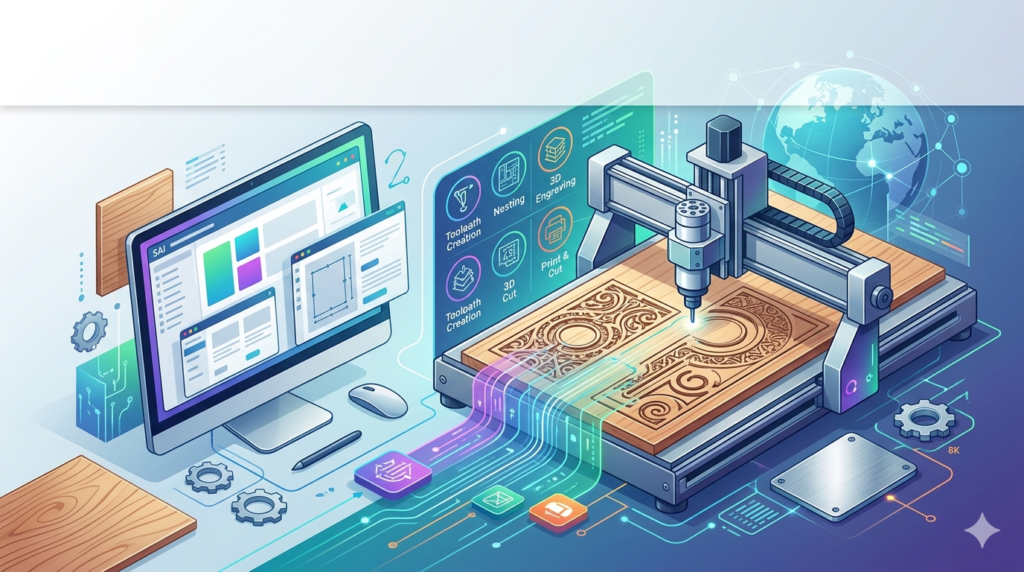
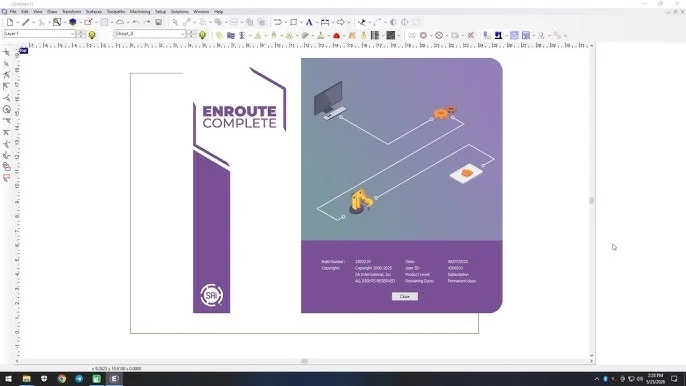
SAi EnRoute 25 is a professional-grade CNC software solution designed for sign makers, woodworkers, and digital fabricators. Unlike basic CAD tools, EnRoute specializes in converting 2D vector artwork and 3D models into efficient, production-ready toolpaths.
This software bridges the gap between design and machining. It allows users to create decorative carvings, cabinets, foam letters, and aluminum signs from a single interface. Version 25 builds on this legacy with enhanced nesting, faster calculation engines, and improved texture modeling.
For professionals seeking precise CNC routing software, EnRoute 25 eliminates the need to switch between separate design and manufacturing platforms. Its native workflow supports both subtractive manufacturing and artistic relief carving.
Key Features
SAi EnRoute 25 includes a comprehensive set of tools that cater to both entry-level operators and seasoned machinists.
2D Design and Vector Editing
-
Create rectangles, circles, and polygons with precision dimensions.
-
Use node editing to fine-tune bezier curves and arcs.
-
Import common vector formats including AI, EPS, PDF, SVG, and DXF.
3D Modeling and Textures
-
Generate raised bevels, domes, and faceted shapes.
-
Apply texture brushes to create wood grain, stone, or stippled effects.
-
Use the “Texture Weaver” for seamless repeating patterns.
Toolpath Generation
-
Profile toolpaths for cutting outlines.
-
Pocket toolpaths to clear material inside closed vectors.
-
V-Carving for engraved text and signs using v-bits.
-
3D finishing passes for smooth contours on organic models.
Nesting and Material Optimization
-
Automatic true-shape nesting reduces material waste by up to 15%.
-
Manual nesting controls for grain matching on premium wood.
-
Common line cutting to reduce tool wear and cycle time.
Post-Processors
-
Includes over 150 post-processors for brands like Biesse, ShopBot, AXYZ, Multicam, and Laguna.
-
Custom post-processor builder for non-standard controllers.
What’s New in SAi EnRoute 25
The latest version introduces several productivity-focused upgrades.
-
Improved 3D Rendering Engine: Real-time shadows and material previews reduce guesswork before cutting.
-
Smart Toolpath Templates: Save and reuse your cutting parameters (feeds, speeds, stepover) across multiple jobs.
-
Layer-Based Texturing: Apply different textures to distinct layers without merging geometry.
-
Enhanced DXF Import: Better handling of splines and polylines from AutoCAD 2024 and newer.
-
Batch Nesting Reports: Export nest layouts and cutting time estimates as PDF or CSV for quoting.
System Requirements
Ensure your workstation meets these specifications for optimal performance with SAi EnRoute 25.
Minimum Requirements
-
OS: Windows 10 (64-bit) Version 21H2 or newer
-
CPU: Intel Core i5 or AMD Ryzen 5 (2.5 GHz or faster)
-
RAM: 8 GB (16 GB recommended for 3D modeling)
-
GPU: Dedicated card with 2 GB VRAM, OpenGL 4.5 support
-
Storage: 10 GB free SSD space
-
Display: 1920 x 1080 resolution
Recommended Requirements
-
OS: Windows 11 Pro (64-bit)
-
CPU: Intel Core i7/i9 or AMD Ryzen 7/9 (3.2 GHz+)
-
RAM: 32 GB
-
GPU: NVIDIA Quadro or GeForce RTX with 6 GB VRAM
-
Storage: 500 GB NVMe SSD
Installation Guide
Step 1 – Obtain a Legal License
Purchase SAi EnRoute 25 directly from SAi’s website or an authorized reseller. The software requires a hardware-locked USB dongle or a software-based license tied to your computer’s ID.
Step 2 – Download the Installer
Log into your SAi customer portal. Download the full installer (approximately 4.5 GB).
Step 3 – Run the Setup
-
Right-click the installer and select “Run as Administrator.”
-
Accept the license agreement.
-
Choose “Complete Installation” to install all modules and post-processors.
Step 4 – Activate
-
Insert your USB dongle (if applicable) before launching.
-
Open EnRoute. For a soft license, enter your activation key from the purchase email.
-
Register the software online once.
Step 5 – Configure Your Machine
-
Go to Tools → Machine Setup.
-
Select your CNC router’s brand and model from the post-processor list.
-
Enter your machine’s working envelope (X, Y, Z limits).
How to Use the Software
From Vector to Cut – A Basic Workflow
-
Import or Draw: Start a new job. Import a company logo (AI or EPS) or draw a simple sign using the rectangle and text tools.
-
Clean the Geometry: Use Vector Doctor to remove duplicates, close open paths, and reduce node count.
-
Create a Toolpath: Select your outer vector. Click Profile Toolpath. Choose an end mill (e.g., ¼” downcut). Set depth (0.25”) and tabs to hold the part.
-
Simulate: Press the 3D Simulation button. Watch the virtual tool cut the material. Check for gouges or missed areas.
-
Save Toolpath: Click Save Toolpath. Choose your CNC’s post-processor (e.g., G-code mm or inch).
-
Transfer to CNC: Load the file onto a USB drive or send it over your network to the CNC controller.
Pro Tip – V-Carving Text
Select your text. Click V-Carve Toolpath. Choose a 60-degree or 90-degree v-bit. EnRoute will automatically calculate varying depths based on letter width.
Best Use Cases
Sign Making
-
Dimensional lettering (raised plastic or foam).
-
Routed HDU (High-Density Urethane) signs with painted finishes.
-
Sandblasted redwood or cedar signs using rubber mask toolpaths.
Woodworking and Cabinetry
-
Cabinet door profiles (raised panel, shaker, arched).
-
Inlays for cutting boards and tabletops.
-
Dovetail and box joint templates.
Mold Making and Foam Cutting
-
EPS foam for theme park props or architectural elements.
-
Lost foam casting patterns for metal foundries.
Engraving and Awards
-
Brass and aluminum plaques.
-
Acrylic edge-lit signs with prismatic toolpaths.
-
Rotary engraving for cylindrical objects (with optional rotary module).
Advantages and Limitations
Advantages
-
Unified Workflow: No need to export/import between Illustrator and CAM software.
-
Superior V-Carving: The algorithm handles letter spacing better than generic CAD.
-
Training Resources: SAi offers certified training, a YouTube channel, and free webinars.
-
Customer Support: US-based phone and email support with remote desktop assistance.
Limitations
-
Price Point: EnRoute 25 is a premium tool ($1,995+ for a perpetual license). It is not for hobbyist budgets.
-
Windows Only: No native macOS version. Mac users need Parallels or Boot Camp.
-
Learning Curve: Beginners need 10–20 hours to master 3D texturing and toolpath strategies.
-
No 4th Axis Standard: Full continuous rotary machining requires an add-on module.
Alternatives to SAi EnRoute 25
| Software | Best For | Price Model | Learning Curve |
|---|---|---|---|
| VCarve Pro | Hobbyists and small sign shops | One-time ($699) | Low to Medium |
| Aspire | High-end 3D carving and modeling | One-time ($1,995) | Medium |
| Fusion 360 | Mechanical parts and 2.5D milling | Subscription ($545/yr) | High |
| LightBurn | Laser cutters (not routing) | One-time ($60) | Low |
| SolidWorks CAM | Integrated mechanical design | Subscription ($2,500+/yr) | Very High |
Comparison Note: VCarve Pro is the closest direct competitor. EnRoute 25 offers superior texture tools and DXF handling, while Aspire provides better free-form 3D sculpting. For pure sign making, EnRoute is often faster.
Frequently Asked Questions
1. Is SAi EnRoute 25 compatible with Windows 11?
Yes. SAi EnRoute 25 is fully certified for Windows 11 Pro (64-bit) and Windows 10 64-bit. It does not support Windows 7 or 8.
2. Can EnRoute 25 import 3D STL files?
Absolutely. It imports STL, OBJ, 3DM (Rhino), and SKP (SketchUp) files. You can then re-texture or modify these models before generating 3D finishing toolpaths.
3. Does this software work with my Chinese CNC router (e.g., Omio, Genmitsu)?
Yes, if your controller accepts standard G-code. Choose the “Generic G-code (inch or mm)” post-processor. You may need to manually edit the header for your specific controller’s startup commands.
4. What is the difference between SAi EnRoute and SAi Flexi?
EnRoute is for CNC routing (cutting, carving, milling). Flexi is for wide-format printing and cutting (vinyl cutters, print-and-cut). For a CNC router, you need EnRoute.
5. Can I upgrade from EnRoute 6 or 12 to version 25?
Yes. SAi offers upgrade pricing for customers with active maintenance or older perpetual licenses. Contact your reseller with your USB dongle number to check eligibility.
6. Does EnRoute 25 include a nesting feature for sheet goods?
Yes. The Auto-Nest module (included in standard license) provides true-shape nesting, part arrays, and common line cutting to maximize sheet yield.
7. How do I get post-processor for a custom CNC machine?
Use the included Post-Processor Editor (PPE). You can modify an existing G-code post by changing the file header, footer, and tool change syntax. SAi support can help verify the logic.
8. Is training included with the purchase?
A perpetual license includes 30 days of phone/email support. Comprehensive training (online courses, live virtual classes) is available for purchase separately from SAi Learning.
Final Thoughts
SAi EnRoute 25 remains a top-tier choice for professionals who need dedicated CNC routing software that prioritizes sign making, woodworking, and 3D relief carving. Its strength lies in eliminating the design-to-manufacturing friction common with generic CAD/CAM tools.
If your work involves V-carved lettering, textured foam molds, or nested cabinet parts, EnRoute 25 pays for itself through reduced waste and faster programming. However, hobbyists or those on tight budgets should consider VCarve Pro.
For legal compliance: Always purchase SAi EnRoute 25 directly from an authorized distributor. Using unauthorized copies violates copyright law and deprives you of critical updates, post-processors, and technical support. Invest in a legitimate license to keep your production safe and efficient.
Our Paid Service
“We do not sell or provide any software. We only offer professional support services. If any software on your system is not working properly, or you are facing installation errors, crashes, or any other technical issue — just contact us. We will help you fix the problem quickly and remotely via AnyDesk. No software will be provided from our side — only expert troubleshooting and support.”