
Overview of the Software
Table of Contents
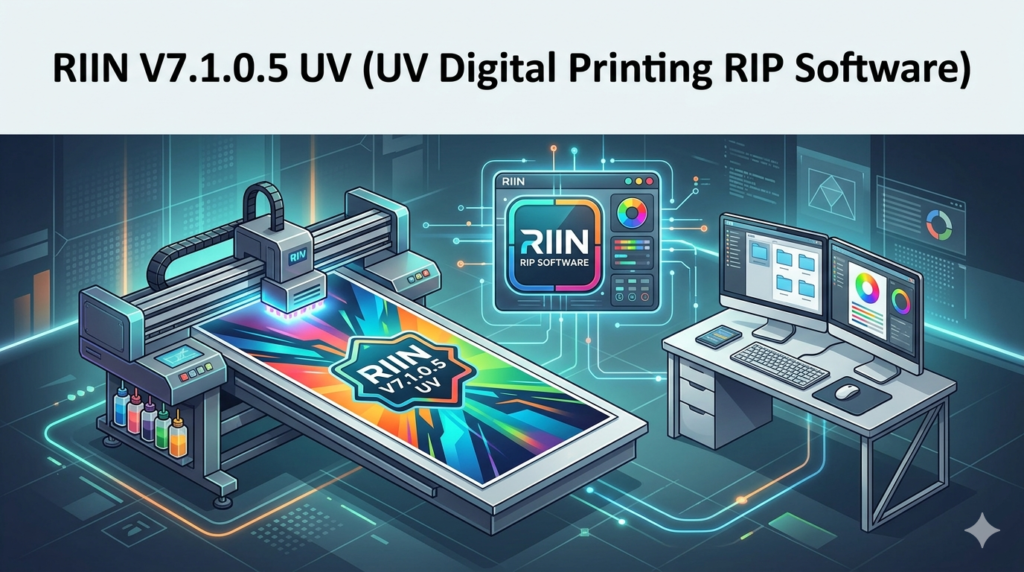
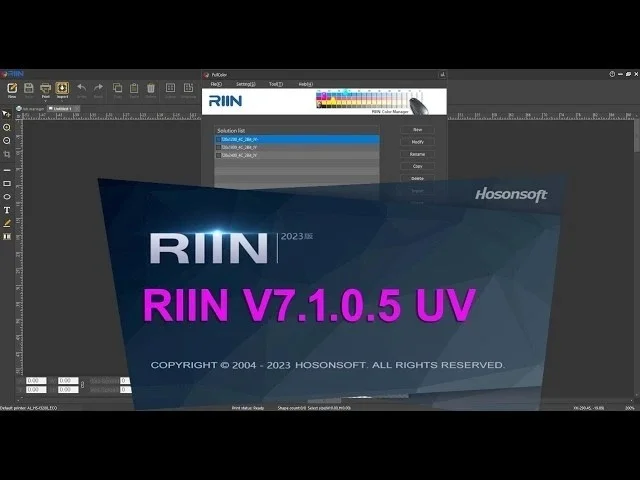
RIIN V7.1.0.5 UV is a specialized Raster Image Processor (RIP) software designed specifically for the UV digital printing industry. Unlike standard printing drivers, this software converts complex digital designs into machine-readable instructions, optimizing ink placement, color accuracy, and curing times for UV-curable inks.
This version (7.1.0.5) focuses on enhancing throughput for flatbed and hybrid UV printers. Whether you are operating a small signage shop or an industrial production line, RIIN V7.1.0.5 UV serves as the critical bridge between your design software (like Adobe Illustrator or CorelDRAW) and your physical output. It manages variables such as pass frequency, lamp intensity, and vacuum power to ensure that prints on rigid substrates like acrylic, glass, metal, or wood are sharp, durable, and vibrant.
Key Features
RIIN V7.1.0.5 UV distinguishes itself from general-purpose printing software through several technical capabilities.
-
Ink Management Algorithms: The software uses variable droplet control to place 6-picoliter to 42-picoliter drops, reducing graininess in highlights while flooding solids efficiently.
-
Multi-Layer White Ink Support: It supports standard White-Flash-Color, Color-White-Color, and triple-layer configurations, which are essential for printing on transparent or dark UV substrates.
-
ICC Color Profiling: The engine includes advanced ICC (International Color Consortium) profile generation for CMYK, CMYKLcLm, and White+CMYK configurations, ensuring Pantone matching on materials like polycarbonate and aluminum dibond.
-
Step & Repeat Tiling: Users can automatically nest multiple jobs across large boards up to 4×8 feet, reducing material waste by an average of 15%.
-
Variable Data Printing (VDP): The software links to external CSV or TXT databases to print unique serial numbers, QR codes, or barcodes on each sheet without reprocessing the static background.
What’s New in the Latest Version (v7.1.0.5)
Version 7.1.0.5 introduces updates focused on automation and new printhead compatibility.
-
Grayscale Printhead Support: Native drivers for Ricoh GH2220 and Seiko 508GS printheads allow grayscale printing, which produces smoother gradients than binary head firing.
-
Automated Bleed Correction: A new pre-flight tool automatically detects and corrects white edges on transparent PNG or TIFF files before tiling begins.
-
Remote Job Monitoring: Administrators can now view ink levels, lamp status, and job completion times via a local network dashboard without sitting at the production terminal.
-
Enhanced Nesting Algorithm: The updated “True Shape” nesting reduces rotation restrictions, fitting irregular vector shapes into gaps automatically to maximize board usage.
System Requirements
To run RIIN V7.1.0.5 UV effectively, your workstation must meet specific hardware criteria.
Minimum Specifications:
-
OS: Windows 10 Pro (64-bit) or Windows 11
-
Processor: Intel Core i5 (11th generation) or AMD Ryzen 5
-
RAM: 16 GB DDR4
-
Storage: 256 GB SSD (for software and active job cache)
-
GPU: Dedicated NVIDIA GeForce GTX 1650 with 4GB VRAM
-
Connectivity: 1 Gigabit Ethernet port for printer communication
Recommended Specifications:
-
OS: Windows 11 Pro for Workstations
-
Processor: Intel Core i7 (13th gen) or AMD Ryzen 7/9
-
RAM: 32 GB DDR5
-
Storage: 512 GB NVMe SSD + 1TB SATA SSD for job archiving
-
GPU: NVIDIA RTX A2000 or RTX 3060 (12GB VRAM)
-
Connectivity: 2.5 Gigabit Ethernet or direct Thunderbolt 4 connection
Installation Guide
Follow this step-by-step process to install the RIP software correctly.
Pre-Installation Checklist
-
Disable Windows User Account Control (UAC) temporarily.
-
Exclude the installation folder from your antivirus software to prevent false-positive blocking on network communication.
-
Ensure your UV printer firmware is updated to the version recommended by the manufacturer.
Installation Steps
-
Run
RIIN_Uv_7.1.0.5_Setup.exeas Administrator. -
Select “Custom Installation” and choose the components:
-
Core RIP Engine (Required)
-
ICC Profiler Utility (Recommended)
-
Network Spooler (Required for multi-PC setups)
-
-
Enter your valid software license key provided upon purchase.
-
When prompted, select your UV printer model from the built-in driver database (supports 400+ models from Ricoh, Epson, and Roland DG).
-
Configure the output folder for temporary files (use an SSD, not a network drive).
-
Restart your workstation to finalize driver registration.
How to Use the Software
Effective use of RIIN V7.1.0.5 UV requires understanding its unique workflow.
Basic Workflow (5 Steps)
-
Import: Drag PDF, EPS, TIFF, or JPEG files directly into the “Hot Folder” or the main queue.
-
Preflight: The software automatically checks resolution (minimum 300 DPI recommended) and color spaces. Convert all RGB images to CMYK+White.
-
Configure Layers: For dark acrylic:
-
Layer 1: White (100% density, 120% ink limit)
-
Layer 2: CMYK color
-
Layer 3: Optional gloss varnish
-
-
Set Curing Parameters: Adjust UV lamp power (60%-100%) based on ink thickness and substrate heat sensitivity.
-
RIP & Print: Click “Process All” to generate the machine code, then “Send to Printer.”
Advanced Tip – White Ink Chasing
To prevent white ink from bleeding under dark colors, enable the “Shrink Wrap” feature. This shrinks the white underbase by 0.5 pixels to 1.5 pixels, eliminating visible white edges on text and logos.
Best Use Cases
RIIN V7.1.0.5 UV excels in specific production environments.
-
Rigid Signage Production: Printing directly onto 4mm PVC foam board, Coroplast, and ACM (Aluminum Composite Material) for outdoor signs.
-
Promotional Product Decoration: High-resolution printing on phone cases, power banks, and metal water bottles where the irregular surface height requires z-axis compensation.
-
Industrial Membrane Switch Prototypes: UV printing on polycarbonate and polyester films for control panels, requiring abrasion resistance of over 500 cycles.
-
Direct-to-Object Printing: Bottles, golf balls, and skateboard decks benefit from the software’s multi-point height mapping.
Advantages and Limitations
Advantages
-
Substrate Versatility: Cures instantly on non-porous materials where aqueous or eco-solvent inks cannot adhere.
-
Cost Efficiency: Reduces setup waste compared to screen printing for short runs (1-50 units).
-
Texture Mapping: Allows printing of raised effects (2D embossing) by stacking up to 8 layers of clear varnish.
-
Batch Processing: The “Night Shift” mode automatically processes a queue of 200+ jobs with different media types sequentially.
Limitations
-
Learning Curve: Novice users require 5–10 hours to master white ink underbase settings and lamp intensity adjustments.
-
Hardware Dependency: Requires a UV printer with a vacuum platen and LED or Mercury arc lamps to function.
-
File Size: Ripping a 4×8 foot board at 1200 DPI can generate temporary files exceeding 50 GB.
-
No Native macOS Support: The software runs exclusively on Windows 10/11 environments.
Alternatives to the Software
Depending on your printer brand and budget, consider these alternatives.
| Software | Best For | Key Difference from RIIN V7.1.0.5 | Typical Use Case |
|---|---|---|---|
| Caldera PrimeCenter | Large format & textile | Subscription-based with cloud job ticketing | Enterprises needing web-to-print integration |
| Onyx Thrive | Sign & display shops | Stronger PDF interpretation for vector logos | Printing on roll-fed UV materials like vinyl |
| SAi PhotoPRINT | Epson & Mutoh users | Simpler white ink workflow (1-click setup) | Beginners printing on clear substrates |
| RasterLink (Mimaki) | Mimaki printer owners | Hardware-locked to Mimaki devices only | Single-brand workshops |
| SharpPrint | Budget-conscious shops | Lower cost but fewer grayscale printhead controls | Small workshops with older UV flatbeds |
Frequently Asked Questions
1. Can RIIN V7.1.0.5 UV handle white ink and varnish in the same pass?
Yes. The software supports multi-layer configurations. You can assign white ink to channel 7 and varnish to channel 8, printing them in the same physical pass using the “Print & Cure” mode.
2. Does this software work with Epson printheads (i3200, S3200)?
Absolutely. Version 7.1.0.5 includes native waveform tables for Epson i3200-U1 (UV-specific) heads, allowing for variable dot sizes between 6 and 21 picoliters.
3. What file formats are optimized for transparency handling?
The software prefers 8-bit or 16-bit TIFF files with embedded alpha channels. PNG files are supported, but PDF/X-4 is recommended for vector graphics with overlapping transparencies.
4. How do I fix banding on solid color panels?
Banding typically occurs from low passes or incorrect bidirectional calibration. Increase passes to 8 or 12 in the “Quality” tab, then run the automatic “Uni-directional Print Mode” calibration found under the Maintenance menu.
5. Is a subscription required, or is it a perpetual license?
RIIN V7.1.0.5 UV is available as a perpetual license per printhead set (e.g., one license for a 4-head printer). Annual maintenance contracts for updates are optional but recommended for new printhead drivers.
6. Can I control the software remotely via mobile?
Direct mobile control is not available. However, the “Web Monitor” feature allows any device on the same local network to view job progress and receive ink refill alerts via browser.
Final Thoughts
RIIN V7.1.0.5 UV delivers professional-grade RIP processing for UV digital printing environments that require precision, speed, and material flexibility. While the initial setup requires attention to ICC profiling and ink layer configuration, the resulting output quality—particularly on dark or transparent rigid substrates—justifies the learning investment.
For shops running Ricoh, Epson, or Seiko-based flatbeds, this version provides the most stable white ink handling and nesting algorithms currently available outside of enterprise-tier software (which costs 3x more). Download the 30-day trial from the developer’s portal to verify compatibility with your specific UV printer model before purchasing a full license.
Our Paid Service
“We do not sell or provide any software. We only offer professional support services. If any software on your system is not working properly, or you are facing installation errors, crashes, or any other technical issue — just contact us. We will help you fix the problem quickly and remotely via AnyDesk. No software will be provided from our side — only expert troubleshooting and support.”