
Overview of RadioBOSS 7 Pro
Table of Contents
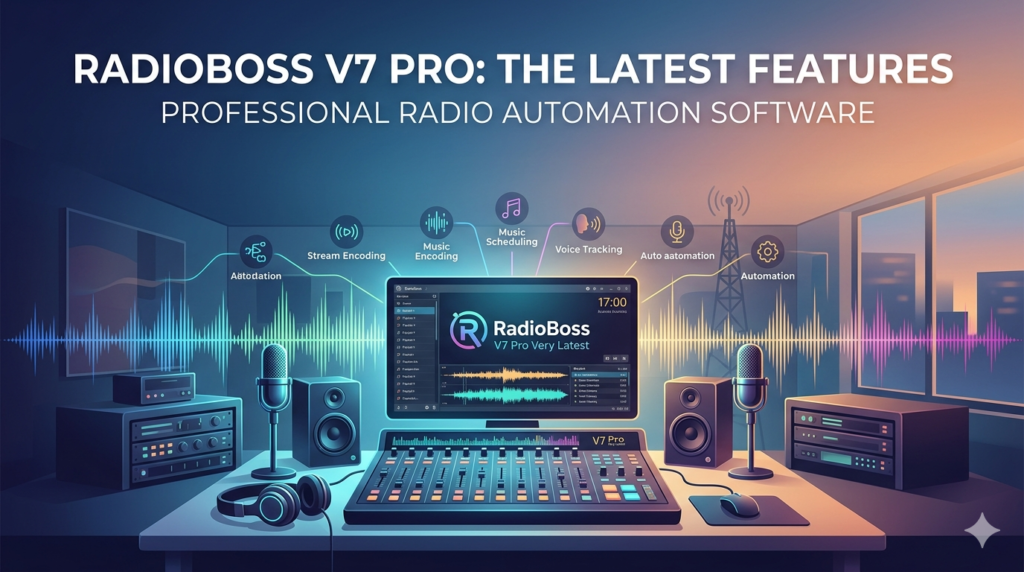
RadioBOSS 7 Pro is a professional-grade radio automation and playout system designed for internet radio stations, FM broadcasters, and live event producers. Unlike basic media players, RadioBOSS functions as a complete broadcast console, offering scheduling, voice tracking, remote control, and real-time audio processing. The software is developed by DJSoft and is widely recognized for balancing powerful automation with an intuitive interface.
For broadcasters seeking reliability without monthly subscription fees, RadioBOSS 7 Pro provides a perpetual license option, making it a cost-effective alternative to cloud-based competitors. The “Pro” edition unlocks advanced features such as dual playback decks, automatic gain control, and crossfading algorithms optimized for seamless transitions.
Key Features
RadioBOSS 7 Pro includes a comprehensive set of broadcasting tools:
-
Playlist Generator Pro (PGP) – Creates dynamic playlists based on rules, rotation settings, and music styles. Supports category-based scheduling.
-
Voice Tracking – Record and insert prerecorded announcements between tracks without re-editing audio files.
-
Remote Control API – Manage playback, volume, and track lists via TCP/IP, HTTP, or third-party automation systems.
-
Dual Playback Decks – Preload two tracks simultaneously for instant switching, ideal for live assist broadcasting.
-
Automatic Gain Control (AGC) – Normalizes volume across diverse audio sources including MP3, FLAC, WAV, and streaming inputs.
-
Crossfading & Silence Detection – Customizable overlap curves plus automatic alerts for dead air.
-
Streaming Support – Broadcast to Icecast and Shoutcast servers with built-in encoder (MP3, AAC, Ogg Vorbis).
-
Tag Editor & Cart Wall – Manage metadata quickly and trigger jingles, sound effects, or ads via customizable hotkeys.
What’s New in the Latest Version (7.0.x)
The latest iteration of RadioBOSS 7 Pro introduces several enhancements over previous builds:
-
Updated Audio Engine – Lower latency and improved stability when switching between live microphones and pre-recorded content.
-
Video Playback Support – Play video files (MP4, AVI) alongside audio for web TV or simulcast environments.
-
MIDI Controller Mapping – Assign physical faders and buttons on devices like the Behringer X-Touch.
-
Enhanced Reporting – Export playlist logs and artist rotation statistics to CSV for royalty reporting.
-
Dark Theme UI – Full dark mode support to reduce eye strain during long broadcast shifts.
System Requirements
To run RadioBOSS 7 Pro efficiently, your broadcast PC should meet these specifications:
| Component | Minimum | Recommended |
|---|---|---|
| OS | Windows 10 (64-bit) | Windows 11 or Windows Server 2022 |
| Processor | Intel Core i3 / AMD Ryzen 3 | Intel Core i7 / AMD Ryzen 7 |
| RAM | 4 GB | 8 GB or more |
| Storage | 200 MB for software + music library space | SSD drive for fast playlist loading |
| Sound Card | Any Windows-compatible | ASIO-compatible for low latency |
| Internet | Required for streaming and activation | 10 Mbps upload for high-quality streams |
Note: RadioBOSS is Windows-only. Mac or Linux users require a virtual machine or Wine compatibility layer (not officially supported).
Installation Guide
Follow these steps to install RadioBOSS 7 Pro legally and securely:
-
Download – Visit the official DJSoft website (
djsoft.net) and navigate to the RadioBOSS download section. -
Purchase/Activate – Obtain a license key from the official store. The Pro edition requires a paid license; there is no legal crack or keygen.
-
Run Installer – Execute the downloaded
.exefile. Accept the User Account Control prompt. -
Choose Components – Select standard installation (includes Playlist Generator, Tag Editor, and Streaming Encoder).
-
License Activation – On first launch, enter your name and the serial number received via email.
-
Audio Device Setup – Go to Settings → Playback → Devices and select your output sound card.
-
Add Media – Drag and drop music folders into the Media Library or use the Auto-Import function.
How to Use the Software
Building Your First Playlist
-
Open RadioBOSS and click Add or drag audio files into the main playlist window.
-
Right-click any track → Track Properties to adjust gain, intro time, or segue markers.
-
Enable Auto Crossfade from the toolbar – the software will analyze BPM and amplitude to create smooth transitions.
Scheduling Events
-
Navigate to Tools → Scheduler.
-
Click Add → Choose event type (Play file, Run command, Streaming switch).
-
Set start time and recurrence (hourly, daily, weekly).
-
Assign priority levels – higher priority events interrupt lower ones.
Voice Tracking Workflow
-
Play a music track → While it plays, click Voice Track → Record your announcement.
-
The software automatically ducks background volume if configured.
-
Inserted voice tracks appear as separate playlist entries with a microphone icon.
Best Use Cases
RadioBOSS 7 Pro excels in five primary scenarios:
| Use Case | Why RadioBOSS Fits |
|---|---|
| 24/7 Internet Radio | Reliable scheduler with failover tracks if music library empties. |
| Community FM Stations | Low-cost license compared to cloud SaaS models. |
| Sports & Event Venues | Cart wall for immediate goal horns or announcements. |
| College Radio Training | Simple UI for beginners with advanced options for experienced students. |
| Podcast Networks | Voice tracking for consistent episode intros/outros across shows. |
Advantages and Limitations
Advantages
-
No subscription – One-time payment with free minor updates.
-
Low CPU usage – Runs on older PCs (tested on Core 2 Duo with 5000+ tracks).
-
Flexible output – Simultaneously stream online and send audio to FM transmitter.
-
Comprehensive logging – Every user action can be logged for audit trails.
Limitations
-
Windows only – No native macOS or Linux version.
-
Outdated UI elements – Some dialogs retain early-2000s design patterns.
-
Steep learning curve for advanced features – Voice tracking and SQL-based scheduler queries require reading the manual.
-
No built-in remote browser – Third-party apps needed to let DJs connect from home.
Alternatives to RadioBOSS 7 Pro
Depending on your broadcasting needs, consider these legitimate alternatives:
| Software | Best For | Pricing Model |
|---|---|---|
| StationPlaylist Studio | Advanced rotation rules | Perpetual license |
| Mixxx | Live DJ mixing (open source) | Free (GPL) |
| Airtime Pro | Cloud-based radio (no local PC required) | Monthly subscription |
| Rivendell | Large-scale radio automation (Linux only) | Free, enterprise support available |
| Traktor Pro | Nightclub DJs (not radio automation) | Perpetual license |
For internet radio beginners – Start with Mixxx or RadioBOSS Basic (free, limited to 30 days). Upgrade to Pro once scheduling and voice tracking become essential.
Frequently Asked Questions
1. Is RadioBOSS 7 Pro free for nonprofit or community radio stations?
No. RadioBOSS requires a paid license for commercial and nonprofit use. The free trial runs for 30 days with full functionality, after which the software enters a limited mode (playlist restricted to 50 tracks).
2. Can I use RadioBOSS to stream to Facebook Live or YouTube?
Yes, but indirectly. Use virtual audio routing software (e.g., VB-Cable or VoiceMeeter) to send RadioBOSS output to streaming tools like OBS Studio. RadioBOSS itself does not natively support RTMP streaming to social platforms.
3. Does RadioBOSS support remote access for multiple DJs?
RadioBOSS has a built-in web server that provides a basic remote playlist view, but full control requires third-party add-ons like RadioBOSS Remote (paid, unofficial). For multiple remote DJs, consider cloud alternatives.
4. How do I migrate from RadioBOSS 6 to version 7 Pro?
Backup your RadioBOSS.settings and PlaylistGenerator folders from Documents\RadioBOSS. Uninstall version 6, install version 7, then restore the folders. Licenses from v6 do not automatically upgrade – check the official upgrade policy.
5. Can I run RadioBOSS without an internet connection?
Yes. The license activation checks online initially but operates fully offline afterward. Streaming to Icecast/Shoutcast obviously requires internet, but local FM broadcasting or personal listening does not.
6. What audio formats are supported?
RadioBOSS 7 Pro plays MP3, WAV, FLAC, AAC, Ogg Vorbis, WMA, and APE. Playlists can be saved as M3U, PLS, or XML. It also reads cue sheets (CUE) for album track splitting.
7. Does RadioBOSS comply with DMCA and royalty reporting?
The software generates detailed logs (artist, song title, timestamp) that can be exported for SoundExchange or local PRO reporting. However, obtaining performance licenses is the user’s responsibility.
8. Is there a version for radio automation in non-English languages?
Yes. The interface supports English, German, Spanish, French, Italian, Russian, and Portuguese. Voice recognition for track announcements remains English-only.
Final Thoughts
RadioBOSS 7 Pro stands out as a reliable, one-time-purchase radio automation solution for broadcasters who prefer local software over cloud dependence. Its combination of a powerful scheduler, voice tracking, and low system requirements makes it especially suitable for small to medium FM stations, internet broadcasters, and venue operators.
While the user interface lacks modern polish, the underlying engine is exceptionally stable – many stations report uptimes of 3+ months without restart. For those needing multi-user remote access or native video streaming, explore alternatives. But for traditional radio automation with professional logging and control, RadioBOSS 7 Pro remains a top-tier choice in 2026.
Our Paid Service
“We do not sell or provide any software. We only offer professional support services. If any software on your system is not working properly, or you are facing installation errors, crashes, or any other technical issue — just contact us. We will help you fix the problem quickly and remotely via AnyDesk. No software will be provided from our side — only expert troubleshooting and support.”