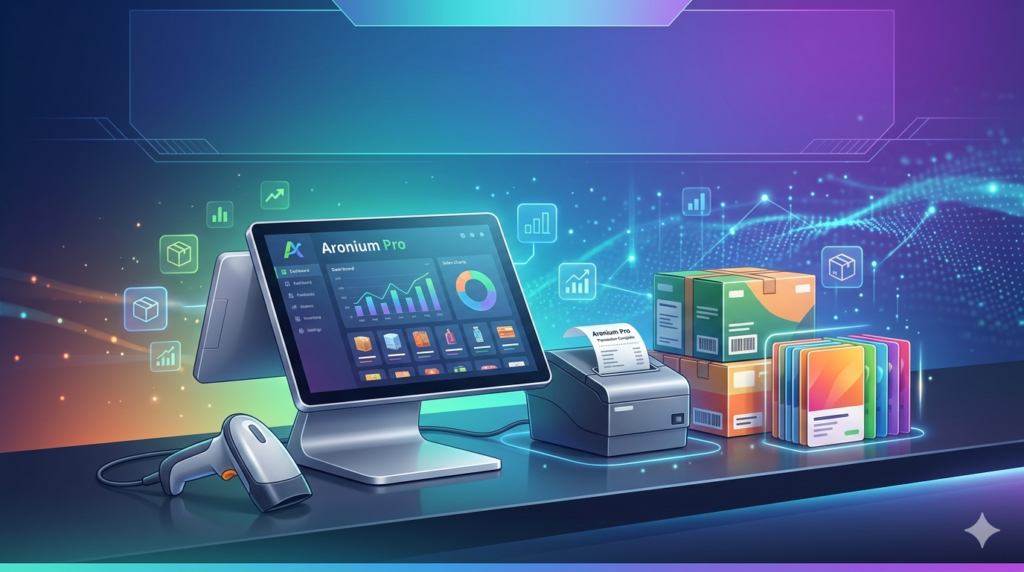

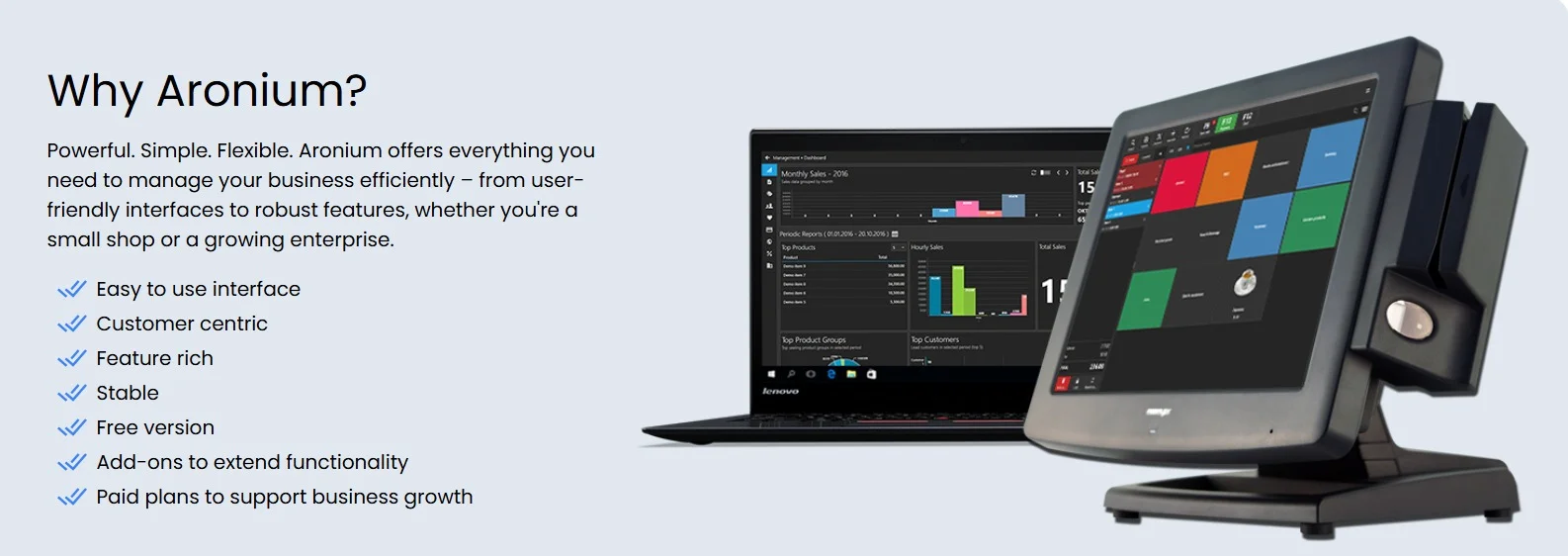
Managing a retail or hospitality business requires reliable point-of-sale (POS) software and real-time inventory tracking. Aronium Pro V1.49.2.1 delivers a hybrid solution that combines an intuitive POS interface with powerful back-end stock control. This latest 2026 release focuses on database stability, faster transaction processing, and improved multi-store synchronization.
Overview of Aronium Pro
Table of Contents
Aronium Pro is a cloud-connected yet locally installed POS and inventory management system designed for small to medium-sized retailers, cafes, restaurants, and service businesses. Unlike purely cloud-based systems, Aronium Pro works offline while synchronizing data when the internet reconnects.
The V1.49.2.1 update refines the 2026 edition with enhanced reporting filters, a more responsive customer display, and improved barcode scanning logic. The software supports touchscreen, mouse, or keyboard input, making it adaptable for busy checkout environments.
Who Should Use Aronium Pro?
-
Independent retail stores (clothing, electronics, gifts)
-
Quick-service restaurants and coffee shops
-
Liquor stores requiring age verification prompts
-
Pop-up shops and market stalls (works on Windows tablets)
-
Multi-location businesses needing centralized inventory
Key Features of Aronium Pro
Aronium Pro balances ease of use with depth. Below are its core capabilities:
-
Point of Sale (POS) Interface
Customizable tile-based layout for products, modifiers, and discounts. Supports cash, card, gift card, and split-tender payments. -
Real-Time Inventory Management
Automatic stock deduction on each sale. Low-stock alerts and purchase order generation. -
Multi-Store Support
Transfer stock between locations, view consolidated reports, and manage unique pricing per store. -
Customer Management
Track purchase history, create loyalty programs, and store contact information. -
Supplier & Purchase Orders
Generate POs from reorder points, receive stock against POs, and track supplier performance. -
Reporting & Analytics
Sales summaries, profit margins, tax reports, employee performance, and inventory valuation. -
Barcode & Label Printing
Design and print product barcodes directly from the software. -
Offline Mode
Continue selling during internet outages; data syncs automatically once restored.
What’s New in Aronium Pro V1.49.2.1 (2026)
This version is not a cosmetic update. The development team focused on performance and usability:
-
Faster database queries – Inventory searches and report generation are up to 30% quicker.
-
Enhanced touchscreen gestures – Swipe to add items or void lines.
-
Improved receipt templating – New variables for loyalty points and QR codes.
-
Automated tax grouping – Handles Canadian GST/HST and European VAT more accurately.
-
Security patch – User role permissions now include “view cost” restrictions.
Note: Aronium Pro V1.49.2.1 remains compatible with Windows 10 and Windows 11 (64-bit). No macOS version is available.
System Requirements
Before installing, ensure your hardware meets these specifications:
| Component | Minimum Requirement | Recommended |
|---|---|---|
| OS | Windows 10 (64-bit) | Windows 11 Pro |
| Processor | Intel Celeron or AMD equivalent | Intel i3 or higher |
| RAM | 4 GB | 8 GB |
| Storage | 500 MB free space | SSD with 1 GB |
| Display | 1024×768 | 1920×1080 (touchscreen) |
| .NET Framework | 4.8 or later | 4.8 or later |
| Internet | For activation & cloud sync (optional) | Broadband |
Installation Guide
Follow these steps to install Aronium Pro V1.49.2.1 legally and securely:
-
Download from official source – Visit the developer’s website (Aronium Software) and download the installer. Avoid third-party file hosts.
-
Verify the file – Check that the filename includes
v1.49.2.1and the digital signature is valid. -
Run as administrator – Right-click the installer and select “Run as administrator”.
-
Accept the license agreement – Read the EULA carefully.
-
Choose installation type
-
Standalone – Single computer with local database.
-
Network (Server) – For multiple terminals sharing one database.
-
-
Complete setup – Launch Aronium Pro and activate using your purchased license key.
-
First-time database setup – Create a master login and configure your business details.
How to Use Aronium Pro (Beginner to Intermediate)
Once installed, follow this workflow to start selling and managing stock.
Step 1: Configure Your Business Settings
-
Go to
Settings > Business Info– Enter tax rates, currency, and receipt header. -
Set up payment methods (cash, card, gift card, etc.).
Step 2: Add Products and Inventory
-
Navigate to
Inventory > Products. -
Add product name, SKU, barcode, cost, selling price, and initial stock quantity.
-
Create categories (e.g., “Beverages”, “Apparel”) for easier POS organization.
Step 3: Customize Your POS Layout
-
Go to
POS > Layout Editor. -
Drag product tiles, modifiers (e.g., “Extra cheese”), and discount buttons.
-
Save different layouts for different staff or shifts.
Step 4: Process a Sale
-
On the POS screen, tap or click a product tile.
-
Add modifiers if applicable.
-
Apply discounts or loyalty points.
-
Select payment method and complete the transaction.
-
The inventory automatically updates.
Step 5: Run Reports
-
Go to
Reports > Sales Summary. -
Filter by date, employee, or payment type.
-
Export to CSV for accounting software (QuickBooks, Xero).
Best Use Cases for Aronium Pro
Aronium Pro is not a one-size-fits-all tool. It excels in specific scenarios:
| Use Case | Why Aronium Pro Fits |
|---|---|
| Boutique retail | Low-cost entry with professional inventory control. |
| Coffee shop with food | Modifiers for milk type and size; offline mode during Wi-Fi drops. |
| Liquor store | Age verification prompt before sale; track high-value items. |
| Multi-location hardware store | Transfer stock between branches; see combined margins. |
| Pop-up event vendor | Runs on a Windows tablet; fast setup and teardown. |
For large grocery chains or restaurants requiring kitchen display systems (KDS), consider enterprise solutions like LS Retail or Toast.
Advantages and Limitations
Advantages
-
One-time payment – No monthly subscription fee after purchase (major differentiator from Square or Shopify POS).
-
Offline capable – Critical for areas with unstable internet.
-
Deep inventory features – Serial number tracking, FIFO costing, and assembly management.
-
Fast support – Email-based support with 24-hour average response.
Limitations
-
Windows only – No iPad, Android, or macOS POS client.
-
Learning curve for advanced reports – Customizing profit/loss statements requires tutorial viewing.
-
Limited ecommerce integration – No native WooCommerce or Shopify sync (requires third-party tools).
-
UI feels dated – Interface resembles early Windows 10 era applications.
Alternatives to Aronium Pro
Depending on your budget and platform needs, consider these alternatives:
| Software | Best For | Pricing Model | Offline Mode |
|---|---|---|---|
| Loyverse POS | Small cafes and kiosks | Free (paid add-ons) | Yes |
| Square for Retail | Integrated payments + online store | Monthly + transaction fees | Limited |
| ERPLY | Mid-sized retail with barcode focus | Monthly subscription | Yes |
| Odoo POS | Businesses already using Odoo ERP | Monthly per user | No |
| Openbravo | Larger retail chains | Quote-based | Yes |
Verdict: Choose Aronium Pro if you prefer a perpetual license and need robust offline inventory. Choose Loyverse for free basic POS or Square for payment integration.
Frequently Asked Questions
1. Is Aronium Pro V1.49.2.1 truly a one-time purchase?
Yes. Aronium Pro uses a perpetual license model. You pay once for the version you install. Major version upgrades (e.g., V2.0) may require an upgrade fee.
2. Can I use Aronium Pro on multiple computers without a subscription?
Yes, but each terminal requires its own license key. Aronium offers multi-station discounts. Data is shared via a network database or cloud sync (paid add-on).
3. Does Aronium Pro support electronic payments (credit card terminals)?
It integrates with select payment gateways via the “Payment Link” feature. For direct card terminal integration (e.g., Ingenico, PAX), you may need a middleware like PAX S300.
4. How do I migrate from another POS to Aronium Pro?
Use the built-in CSV import tool. You can import products, customers, and opening stock. Sales history must be migrated manually or via custom script.
5. Is Aronium Pro GDPR compliant?
Yes, when configured correctly. Customer data can be anonymized or exported upon request. Store data locally by disabling cloud sync.
6. What happens if my internet disconnects during a sale?
The POS continues to work entirely offline. All transactions are queued and synchronized automatically when the connection returns.
7. Can I try Aronium Pro before buying?
Yes. The official website offers a 30-day fully functional trial. No credit card is required.
Final Thoughts
Aronium Pro V1.49.2.1 stands out in 2026 as a reliable, subscription-free POS and inventory management system. It is not the flashiest tool, but it solves real retail problems: working without internet, tracking stock accurately, and keeping costs predictable.
For a solo store or a small chain that values ownership over monthly fees, Aronium Pro delivers solid value. The latest version improves speed and security without introducing bloat. Before committing, install the free trial, test your barcode scanner and receipt printer, and confirm that the Windows-only limitation fits your hardware roadmap.
If you prioritize native iPad mobility or deep ecommerce integration, explore Square or Loyverse instead. But if you want a perpetual license with powerful back-office inventory controls, Aronium Pro remains a smart investment for 2026 and beyond.
Our Paid Service
“We do not sell or provide any software. We only offer professional support services. If any software on your system is not working properly, or you are facing installation errors, crashes, or any other technical issue — just contact us. We will help you fix the problem quickly and remotely via AnyDesk. No software will be provided from our side — only expert troubleshooting and support.”