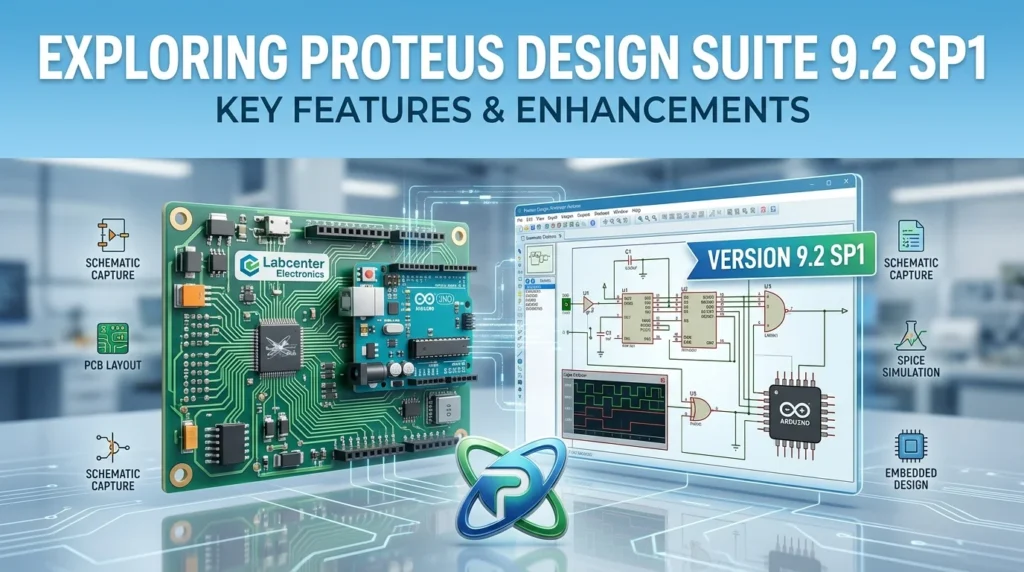

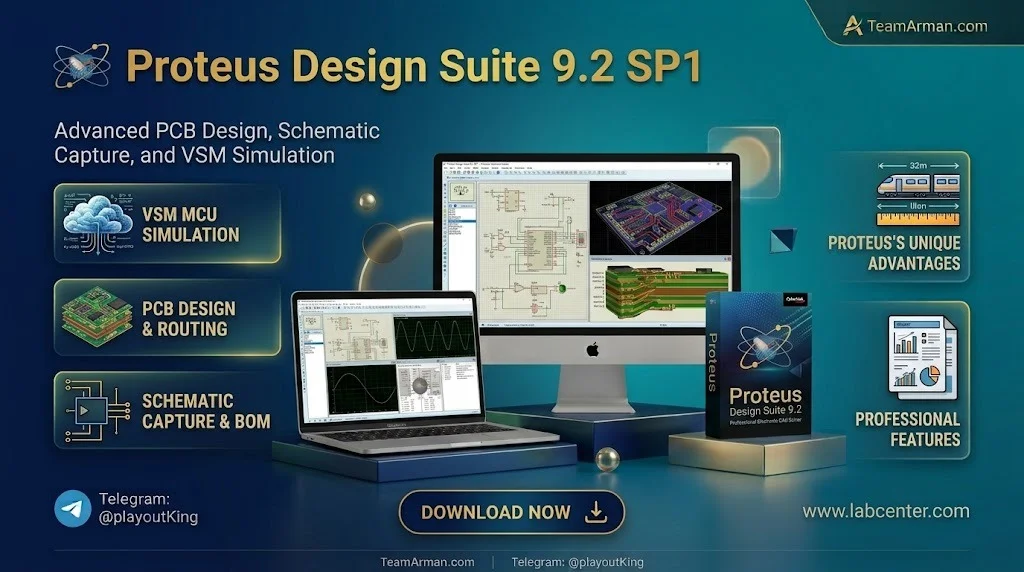
Overview of Proteus Design Suite 9.2 SP1
Table of Contents
Proteus Design Suite is a proprietary EDA tool suite developed by Labcenter Electronics, a UK-based software company that has been producing electronic design software for over 35 years. The software is widely used in both industry and academia for circuit simulation, embedded systems development, and printed circuit board design.
The 9.x generation represents a fundamental architectural shift from the 8.x series. Proteus 9 introduced a native 64-bit framework, replacing the legacy 32-bit codebase. This change delivers significantly faster processing for large schematic files, complex PCB layouts, and intensive VSM simulation sessions. The application framework also supports high-DPI displays, dockable widgets, light and dark themes, and international character sets.
Proteus 9.2 SP1 is a service pack update that consolidates bug fixes and minor enhancements on top of the 9.2 feature release. In Labcenter’s versioning convention, a service pack (SP) designation indicates reliability improvements and minor feature refinements rather than a major upgrade. The core feature set of 9.2 SP1 is therefore identical to 9.2, but with improved stability across the PCB design, simulation, and library management modules.
The suite is organised into three principal workflows:
-
Schematic Capture and Circuit Simulation — Design and test analogue, digital, and mixed-signal circuits before committing to hardware.
-
PCB Layout and Manufacturing Output — Translate validated schematics into production-ready board files.
-
Embedded Systems Co-Simulation (VSM) — Run firmware from compilers such as Keil, GCC, and STM32CubeIDE against virtual microcontroller models directly inside the schematic.
For engineering teams and educators evaluating Proteus 9.2 SP1, the service pack represents the most stable iteration of the 9.x line to date.
Key Features of Proteus 9.2 SP1
The feature set of Proteus 9.2 SP1 spans four primary domains: PCB design, simulation, library management, and the application framework. The following sections detail the most significant capabilities.
PCB Design Features
Measure and Move Tool. Proteus 9.2 introduces a dedicated Measurement Mode within the PCB layout environment. This tool allows engineers to measure the distance between any two objects on the board in real time, with the cursor automatically snapping to pad edges, trace edges, component courtyards, copper zones, and 2D graphics. The Measure Panel displays live total, horizontal, and vertical readings, and supports measurement modes including Closest Points, Nearby Closest Points, and Octo-linear alignment. Once a measurement is established, the same panel can reposition an object to a precise new distance from its neighbour, eliminating the need to set false origins or switch to fine grids for tasks such as connector spacing, fiducial placement, and heatsink clearance.
Output Job Manager. The Output Job Manager assembles all manufacturing and documentation outputs into a reusable profile executed as a single batch operation. Task types include Gerber, Pick and Place, Bill of Materials, 3D MCAD, Schematic PDF, Layout PDF, Bitmap, SVG, and DXF, each retaining its full configuration inside the profile. Profiles are stored as portable .poprof files that can be shared between projects and colleagues. Field codes such as {{REV}} and {{BOARD}} automatically organise output files by revision and board name, while each run can include a pre-production check, automatic zone regeneration, and an output log.
HDI Micro-Via Support. Proteus 9.2 introduces full high-density interconnect (HDI) support with a 1+n+1 board style in the Stackup Wizard, alongside refined internal- and external-layer pair constructions. The layer stack now formally distinguishes mechanically drilled spans from laser-drilled micro-via spans, with appropriate aspect ratio and minimum hole size constraints applied automatically. Micro-via spans integrate correctly with manual routing, smart vias, the via inspector, length matching, and design rule checking (DRC).
Object Grouping. Object groups provide persistent logical collections of objects on the PCB layout that move, rotate, mirror, and copy as a single unit. Unlike a temporary tag-box selection, a group is saved with the design and remains in effect until explicitly ungrouped. This is particularly useful for keeping a connector together with its mounting holes and keep-out graphics, or for binding a DRC room permanently to a component to enforce clearance requirements from a datasheet.
Simulation and VSM Features
System Meter. The VSM simulation engine gains a new System Meter tool that provides live simulation probing of voltage, current, and power at any point in the circuit. This complements the existing virtual instruments (oscilloscope, logic analyser, signal generator) and provides a simpler workflow for quick measurements during debugging.
Expanded Simulation Support. Proteus 9.2 adds simulation models for Bluetooth Low Energy (BLE) and RFID technologies, enabling engineers to prototype wireless communication protocols alongside their microcontroller firmware. The release also introduces integration with STM32CubeIDE via the GNU Debugger (GDB) protocol, allowing STM32 developers to compile and debug code in their preferred IDE while running the simulation inside Proteus.
AI-Assisted Library Part Creation (ProPilot). ProPilot, the AI tool integrated into Proteus, now supports AI-assisted library part creation from datasheets. Engineers can upload a component datasheet and receive a schematic symbol and PCB footprint draft, which can then be refined manually.
Application Framework Enhancements
Proteus 9.2 SP1 inherits the 64-bit native framework introduced in Proteus 9. Key framework features include:
-
Fully DPI-aware multiple screen support with adaptive icon resolution
-
Dockable widgets for uncluttered editing windows
-
Light and dark theme options as standard
-
Support for international character sets
-
Redesigned object selectors with localised information and grouped icons
-
Status bars with a history of warning messages
What’s New in Proteus 9.2 SP1
The SP1 service pack focuses on stability and refinement rather than new feature introduction. The following table summarises the changes between the base 9.2 release and the 9.2 SP1 update:
| Area | Change in SP1 |
|---|---|
| PCB Design | Bug fixes for Measure and Move snapping behaviour on complex padstacks |
| Output Job Manager | Improved .poprof file portability across workstations |
| HDI Micro-Via | Refined DRC rules for micro-via-to-trace clearance |
| VSM Simulation | Stability improvements for STM32CubeIDE GDB integration |
| Application Framework | Fixed theme switching artefacts on high-DPI displays |
| Library Management | Corrected part search indexing for large library databases |
Engineers already running Proteus 9.2 should apply the SP1 update through the standard update mechanism. The service pack is cumulative and includes all fixes released since the base 9.2 build.
System Requirements for Proteus 9.2 SP1
Proteus 9.2 SP1 is a Windows-native application. The following specifications are based on Labcenter Electronics’ official guidance and verified community documentation.
Minimum Requirements
| Component | Minimum Specification |
|---|---|
| Operating System | Windows 10 (64-bit, version 1809 or later) |
| Processor | Intel or AMD dual-core, 2.0 GHz or higher |
| RAM | 4 GB (2 GB for schematic only) |
| Hard Disk Space | 1 GB free space (5 GB recommended for full installation) |
| Graphics | DirectX 11 compatible card with 1 GB VRAM |
| Display | 1280 × 720 resolution |
Recommended Requirements
| Component | Recommended Specification |
|---|---|
| Operating System | Windows 11 (21H2 or later) |
| Processor | Intel Core i5 or i7 (8th generation or newer) or AMD Ryzen 5/7 |
| RAM | 16 GB (8 GB minimum for PCB design) |
| Hard Disk Space | 5 GB free space on SSD |
| Graphics | Discrete GPU from NVIDIA or AMD (integrated Intel graphics may use a reduced feature set) |
| Display | 1920 × 1080 or higher, DPI-aware |
Labcenter Electronics explicitly notes that discrete graphics cards from AMD (ATI) and NVIDIA satisfy the graphics requirements, while chipset graphics such as those supplied by Intel will use slower software rendering with a reduced feature set.
Important note on licensing: Proteus is commercial software. A valid licence from Labcenter Electronics or an authorised distributor is required for full functionality. A free demonstration version is available from the official Labcenter website for evaluation purposes.
Installation Guide for Proteus 9.2 SP1
The following steps describe the standard installation workflow for Proteus 9.2 SP1 on a Windows system. Always obtain the installer from the official Labcenter Electronics website or an authorised distributor.
Step 1: Pre-Installation Checks
-
Confirm that your system meets the minimum requirements listed above.
-
Ensure you have administrative privileges on the target machine.
-
Close all running applications, particularly any other EDA tools.
-
If a previous version of Proteus is installed, decide whether to upgrade in place or perform a clean installation.
Step 2: Download the Installer
Download the Proteus 9.2 SP1 installer package from the official Labcenter Electronics website. The installer is a self-contained executable that includes the application framework, simulation engines, and the standard component libraries.
Step 3: Run the Installer
-
Locate the downloaded installer file.
-
Right-click the file and select Run as administrator.
-
The installation wizard will launch. Follow the on-screen prompts to proceed.
Step 4: Select Installation Options
-
Choose the installation directory. The default path is
C:\Program Files\Labcenter Electronics\Proteus 9 Professional. -
Select the components you wish to install. A full installation includes Schematic Capture, PCB Layout, VSM Simulation, and all standard libraries.
-
If you have a licence key, enter it when prompted. If you are evaluating the demonstration version, the wizard will configure the trial limitations automatically.
Step 5: Complete the Installation
-
Click Install and wait for the wizard to copy the files and register the application components.
-
When the installation completes, click Finish to exit the wizard.
Step 6: Post-Installation Configuration
-
Launch Proteus from the Start menu or desktop shortcut.
-
On first launch, the application may prompt you to configure the default library paths and simulation settings. Accept the defaults unless you have specific requirements.
-
If you are using an external compiler for VSM (such as Keil or STM32CubeIDE), configure the toolchain path in the System Settings dialogue.
-
Verify that the graphics card is detected correctly by checking the Display section in the application preferences.
Step 7: Licence Activation
For licensed users, open the Licence Manager utility and enter the licence key provided with your purchase. The Licence Manager is accessible from the Start menu under the Proteus program group. Follow the on-screen instructions to complete activation. The demonstration version does not require a licence key but imposes limitations on design size and simulation duration.
How to Use Proteus 9.2 SP1
This section provides a practical walkthrough of the core workflows in Proteus 9.2 SP1. The following subsections cover schematic capture, circuit simulation, and PCB layout.
Schematic Capture Workflow
-
Create a new project. Launch Proteus and select File → New Project. Choose a project name and location, then select the schematic capture template.
-
Place components. Use the Component Mode tool (the “P” icon in the toolbar) to open the component library browser. Search for components by name (e.g., “ATmega328P”, “LM358”, “1k resistor”) and place them on the schematic canvas.
-
Wire the circuit. Switch to Wire Mode (the pen icon) and click on component pins to draw connections. Proteus automatically routes wires around obstacles.
-
Add power and ground. Use the Terminals Mode to place VCC, GND, and other power symbols. Assign net names as required.
-
Annotate and save. Run Tools → Annotate to assign reference designators to all components. Save the schematic with Ctrl+S.
Running a Circuit Simulation
-
Attach virtual instruments. For analogue circuits, place an oscilloscope or signal generator from the Virtual Instruments toolbar. For digital circuits, use the logic analyser.
-
Configure simulation parameters. Open the Simulation → Edit Properties dialogue to set the simulation duration, time step, and analysis type (DC, AC, transient, or mixed-mode).
-
Start the simulation. Click the Play button in the simulation toolbar. The schematic will enter simulation mode, and virtual instruments will display live data.
-
Probe circuit nodes. Use the System Meter tool to probe voltage, current, or power at any node or component pin. The meter displays live readings in the simulation panel.
-
Debug and iterate. Modify component values or circuit topology and re-run the simulation. Proteus allows interactive changes without restarting the simulation session.
Microcontroller Co-Simulation with VSM
-
Write firmware. Compile your firmware in an external IDE (Keil, GCC, STM32CubeIDE, or MPLAB) to produce a
.hexor.elffile. -
Load firmware into the virtual MCU. Double-click the microcontroller symbol on the schematic and browse to the compiled firmware file. Proteus loads the code into the virtual MCU model.
-
Configure the debug interface. For STM32CubeIDE integration, enable the GDB server in Proteus and connect the IDE to the local GDB port.
-
Run the simulation. Start the simulation and observe the interaction between the firmware and the surrounding circuit. Use breakpoints and watch variables in the IDE while the simulation runs.
-
Validate and iterate. Test peripheral interactions (UART, SPI, I2C, ADC) by adding virtual instruments and monitoring the communication buses.
PCB Layout Workflow
-
Transfer the schematic to PCB. In the schematic editor, select Tools → Design Explorer or press Ctrl+Shift+P to launch the PCB layout module with the netlist from the current schematic.
-
Define board outline. Use the Board Edge layer to draw the physical outline of the PCB. Proteus will constrain component placement and routing to this boundary.
-
Place components. Drag components from the placement list onto the board. Use the Measure and Move tool to position connectors, ICs, and mounting holes with precise spacing.
-
Route traces. Switch to Track Mode and manually route connections. Proteus supports both manual routing and an autorouter for less critical nets. Use the Via tool to switch between layers.
-
Run design rule checks. Execute Tools → Design Rule Check to verify clearance, trace width, and manufacturing constraints. The DRC report lists any violations that require correction.
-
Generate manufacturing output. Open the Output Job Manager and select a predefined profile (or create a new one). Execute the profile to generate Gerber files, Excellon drill files, a Bill of Materials, and a Pick and Place file in a single batch operation.
Best Use Cases for Proteus 9.2 SP1
Proteus 9.2 SP1 is particularly well-suited to the following application scenarios:
Embedded Systems Development
Proteus is widely recognised for its microcontroller co-simulation capabilities. Engineers developing firmware for 8051, PIC, AVR, Arduino, ARM Cortex-M, and STM32 platforms can validate code against a virtual circuit before hardware is available. The STM32CubeIDE integration in 9.2 SP1 makes this workflow particularly efficient for STM32 developers.
Educational Environments
The software is extensively used in university electronics and embedded systems courses. Students can design, simulate, and debug circuits without the cost and risk of physical components. The ProTutor AI tool provides schematic-aware guidance designed to build understanding without giving away answers.
Prototyping and Proof-of-Concept Design
For design teams evaluating a new circuit topology, Proteus allows rapid simulation of analogue, digital, and mixed-signal behaviour. The Measure and Move tool and Output Job Manager streamline the transition from validated schematic to manufacturing-ready PCB.
IoT and Wireless Device Development
The addition of BLE and RFID simulation models in 9.2 makes Proteus suitable for early-stage IoT device development. Engineers can test wireless protocol interactions alongside sensor circuits and microcontroller firmware.
PCB Design for Manufacturing
The Output Job Manager in Proteus 9.2 SP1 provides a repeatable, traceable release procedure for PCB manufacturing. The ability to batch-generate Gerber, drill, BOM, and Pick and Place outputs from a single profile reduces manual errors and ensures consistency across revisions.
Advantages and Limitations of Proteus 9.2 SP1
Advantages
-
Integrated workflow. Schematic capture, simulation, and PCB layout are handled in a single application, eliminating the need to export netlists between separate tools.
-
Microcontroller co-simulation. Proteus VSM can simulate firmware from major compilers while the code interacts with analogue and digital circuitry, a capability that many competing EDA tools lack.
-
Native 64-bit performance. The 9.x framework handles large designs more efficiently than the 8.x series.
-
AI-assisted features. ProPilot and the AI library part creation tools reduce manual effort in component library management.
-
HDI support. The 1+n+1 Micro-Via Stackup Wizard and formal laser-drill span modelling make Proteus suitable for advanced HDI board design.
-
Educational resources. Extensive documentation, tutorials, and a large user community support learning and troubleshooting.
Limitations
-
Windows-only. Proteus does not run natively on macOS or Linux. Users on those platforms require a virtual machine or compatibility layer.
-
Licence cost. The Professional and Platinum editions are commercial products with pricing that may be prohibitive for individual hobbyists. The Starter Kit editions offer a lower entry point but with reduced design capacity.
-
Simulation accuracy trade-offs. While Proteus provides satisfactory accuracy for most mixed-signal and microcontroller applications, it may be less accurate than dedicated SPICE simulators for high-frequency RF or precision analogue circuits.
-
Learning curve for PCB design. Engineers transitioning from simpler tools may find the full PCB layout environment complex, particularly the design rule configuration and layer stack management.
-
Limited third-party integration. While Proteus supports STEP and IGES export for MCAD collaboration, it does not integrate as deeply with enterprise PLM systems as platforms such as Altium 365.
Alternatives to Proteus 9.2 SP1
Several EDA tools compete with Proteus in the circuit simulation and PCB design space. The following comparison highlights the key differences.
KiCad EDA
KiCad is a free, open-source EDA suite with an active development community. It offers schematic capture, PCB layout, and 3D visualisation, but its SPICE simulation capabilities are more limited than Proteus VSM. KiCad is recommended for beginners and students who need a zero-cost entry into professional PCB design.
Altium Designer
Altium Designer is a premium PCB design platform used extensively in industry. It offers advanced routing, real-time collaboration through Altium 365, and deep supply chain integration. However, it does not provide microcontroller co-simulation comparable to Proteus VSM.
Autodesk EAGLE / Fusion Electronics
EAGLE (now integrated into Autodesk Fusion) is a widely used PCB design tool with a large library ecosystem. It is suitable for integration with CAD and automation systems but lacks the embedded simulation capabilities that distinguish Proteus.
Cadence OrCAD X
OrCAD X is a professional PCB design platform from Cadence Design Systems. It includes PSpice simulation, which offers high accuracy for analogue and mixed-signal circuits. OrCAD X is positioned at the enterprise level and is priced accordingly, with plans starting at approximately $107 USD per month.
LTspice
LTspice is a free, high-performance SPICE simulator from Analog Devices. It is excellent for analogue circuit simulation but does not include PCB layout or microcontroller co-simulation features. LTspice is often used in combination with a separate PCB design tool.
Multisim
Multisim is an education-focused circuit simulation tool from National Instruments. It is suitable for learning circuit theory and analogue electronics, but its PCB design capabilities are less advanced than Proteus, and it does not offer the same level of microcontroller co-simulation.
Comparison Summary
| Tool | Simulation | PCB Layout | MCU Co-Simulation | Licence |
|---|---|---|---|---|
| Proteus 9.2 SP1 | Analogue, digital, mixed-signal, VSM | Yes | Yes | Commercial |
| KiCad | SPICE (limited) | Yes | No | Open source |
| Altium Designer | SPICE (limited) | Yes | No | Commercial |
| OrCAD X | PSpice (high accuracy) | Yes | Limited | Commercial |
| LTspice | SPICE (high accuracy) | No | No | Free |
| Multisim | SPICE, education-focused | Limited | No | Commercial |
Frequently Asked Questions
What is new in Proteus 9.2 SP1 compared to Proteus 9.2?
Proteus 9.2 SP1 is a service pack update that provides bug fixes and stability improvements for the features introduced in 9.2, including the Measure and Move tool, Output Job Manager, HDI Micro-Via support, and STM32CubeIDE integration. It does not introduce new major features beyond the base 9.2 release.
Can I run Proteus 9.2 SP1 on Windows 11?
Yes. Windows 11 (21H2 or later) is a recommended operating system for Proteus 9.2 SP1. Windows 10 (64-bit, version 1809 or later) is also supported.
Does Proteus 9.2 SP1 require a dedicated graphics card?
A discrete graphics card from NVIDIA or AMD is recommended for full performance. Integrated Intel chipset graphics will work but may use a reduced feature set with slower software rendering.
How do I update from Proteus 9.2 to 9.2 SP1?
Existing users can apply the SP1 update through the standard update mechanism. The service pack is cumulative and includes all fixes released since the base 9.2 build. Always back up your projects before applying updates.
Is Proteus 9.2 SP1 compatible with STM32CubeIDE?
Yes. Proteus 9.2 introduced GDB-based integration with STM32CubeIDE, allowing developers to compile and debug STM32 firmware in their preferred IDE while running the simulation inside Proteus.
What file formats does the Output Job Manager support?
The Output Job Manager supports Gerber, Pick and Place, Bill of Materials, 3D MCAD, Schematic PDF, Layout PDF, Bitmap, SVG, and DXF outputs. Profiles are stored as portable .poprof files.
Can Proteus 9.2 SP1 simulate Bluetooth Low Energy (BLE) devices?
Yes. Proteus 9.2 added simulation models for BLE and RFID technologies, enabling engineers to prototype wireless communication protocols alongside their microcontroller firmware.
Is there a free version of Proteus 9.2 SP1?
Labcenter Electronics provides a free demonstration version of Proteus for evaluation purposes. The demonstration version imposes limitations on design size and simulation duration. Full functionality requires a commercial licence.
Final Thoughts
Proteus Design Suite 9.2 SP1 represents a mature, stable iteration of Labcenter Electronics’ flagship EDA platform. The 9.x generation’s native 64-bit architecture delivers meaningful performance improvements over the 8.x series, while the 9.2 feature release introduced practical tools — Measure and Move, Output Job Manager, HDI Micro-Via support, and AI-assisted library management — that address real workflow bottlenecks in professional PCB engineering.
The SP1 service pack refines these features with bug fixes and stability improvements, making it the recommended version for production use. For embedded systems developers working with STM32, AVR, PIC, or 8051 platforms, Proteus remains one of the few EDA tools that combines schematic capture, SPICE simulation, microcontroller co-simulation, and PCB layout in a single integrated environment.
Engineers evaluating Proteus for the first time should download the free demonstration version from the official Labcenter Electronics website to assess whether its simulation and PCB design capabilities align with their project requirements.
Our Paid Service
“We do not sell or provide any software. We only offer professional support services. If any software on your system is not working properly, or you are facing installation errors, crashes, or any other technical issue — just contact us. We will help you fix the problem quickly and remotely via AnyDesk. No software will be provided from our side — only expert troubleshooting and support.”