
Overview of Proca Automation
Table of Contents
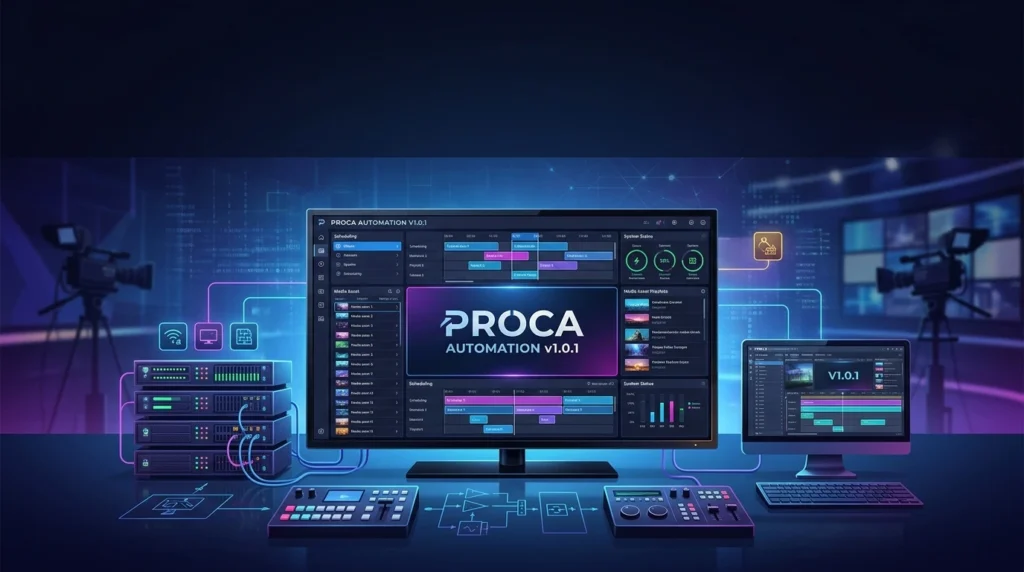
Proca Automation is a dedicated broadcast automation solution tailored for television playout environments. It enables operators to manage video servers, schedule programming, control graphics, and handle live inputs—all from a single, intuitive interface. Version 1.0.1 focuses on stability, improved device compatibility, and enhanced user experience, making it an accessible entry point for smaller stations while offering enough depth for professional workflows.
Developed with the needs of modern broadcasters in mind, Proca Automation supports industry-standard protocols and integrates seamlessly with common hardware found in TV studios. Its primary function is to reduce manual intervention, minimize on-air errors, and ensure continuous, reliable transmission.
Key Features
Proca Automation v1.0.1 includes a robust set of features designed to cover the entire playout chain:
-
Playlist Scheduling and Management – Create, edit, and manage playlists with drag-and-drop simplicity. Schedule content days or weeks in advance.
-
Video Server Integration – Connect to popular video servers (e.g., Harmonic, Imagine, and other industry-standard systems) for reliable media playback.
-
Live Input Switching – Seamlessly switch between pre-recorded content and live sources such as studio feeds or remote broadcasts.
-
Graphics and Overlay Control – Trigger logos, lower-thirds, and tickers via integrated CG (character generator) support.
-
Automated Ingest and Media Management – Watch folders and automated import processes ensure content is always ready for air.
-
As-Run Logging and Reporting – Maintain accurate logs of all broadcast events for compliance and analysis.
-
Failover and Redundancy Options – Built-in mechanisms to safeguard against unexpected interruptions.
-
User-Friendly Interface – A clean, modern UI that reduces training time and operator fatigue.
What’s New in the Latest Version (v1.0.1)
Version 1.0.1 brings several targeted improvements:
-
Enhanced Device Compatibility – Expanded support for newer video server models and protocol updates.
-
Stability Improvements – Bug fixes addressing playlist synchronization and event triggering.
-
Faster Media Indexing – Quicker scanning of large media libraries.
-
Refined User Interface – Minor layout adjustments for better workflow and readability.
-
Improved Logging Detail – More granular as-run logs for troubleshooting and compliance.
These updates make v1.0.1 a more dependable choice for daily broadcast operations.
System Requirements
Before installation, ensure your system meets the following minimum and recommended specifications:
Minimum Requirements
-
Operating System: Windows 10 (64-bit) or Windows Server 2016
-
Processor: Intel Core i5 or equivalent
-
RAM: 8 GB
-
Storage: 256 GB SSD (for OS and software)
-
Graphics: DirectX 11 compatible
-
Network: Gigabit Ethernet
-
Additional: One free USB port for license dongle (if applicable)
Recommended Requirements
-
Operating System: Windows 11 (64-bit) or Windows Server 2019/2022
-
Processor: Intel Core i7 or AMD Ryzen 7
-
RAM: 16 GB or higher
-
Storage: 512 GB NVMe SSD for software plus dedicated media storage
-
Graphics: Dedicated GPU with 2 GB VRAM
-
Network: Dual Gigabit Ethernet for redundancy
Note: Actual requirements may vary based on channel count, media format, and integrated hardware.
Installation Guide
Installing Proca Automation v1.0.1 is a straightforward process:
-
Download the Installer – Obtain the official installer from the Proca Automation website or your licensed vendor.
-
Run the Setup – Double-click the installer and follow the on-screen prompts.
-
Accept License Agreement – Review and accept the end-user license agreement.
-
Choose Installation Directory – Select the destination folder (default recommended).
-
Select Components – Choose optional modules such as device drivers or sample media.
-
Complete Installation – Click “Install” and wait for the process to finish.
-
Launch the Application – After installation, launch Proca Automation from the Start Menu or desktop shortcut.
-
Activate License – Enter your license key or connect your dongle as instructed.
-
Configure Devices – Use the built-in setup wizard to detect and configure connected video servers and peripherals.
For detailed instructions, refer to the official user manual included with the software.
How to Use the Software
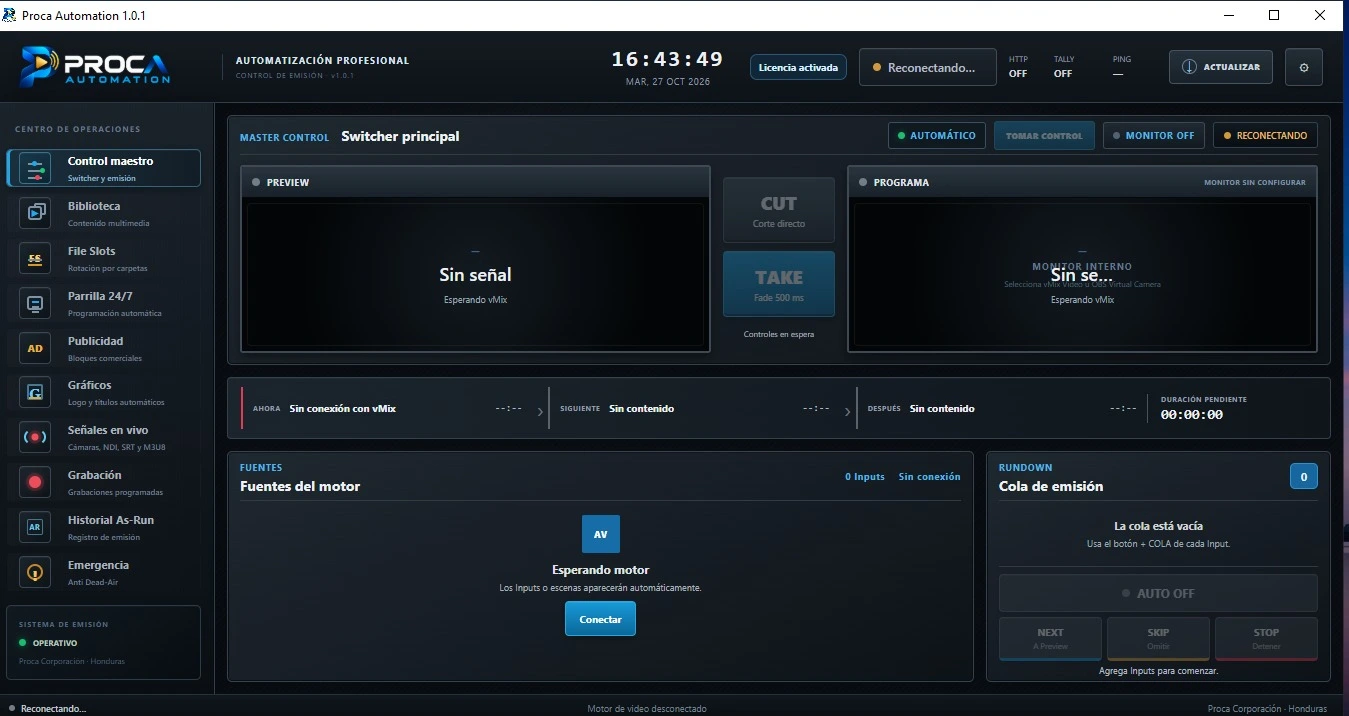
Getting started with Proca Automation involves a few core workflows:
Setting Up Your Channel
-
Create a new channel profile.
-
Assign output devices and video servers.
-
Configure default graphics and branding elements.
Building a Playlist
-
Import media into the library.
-
Drag and drop clips into the playlist timeline.
-
Add live events or graphics triggers at desired points.
-
Save and schedule the playlist for playout.
Going Live
-
Switch to “Playback” mode.
-
Monitor the preview and program windows.
-
Use the “Take” or “Auto” functions to transition between items.
-
Keep an eye on the event log for real-time status.
Managing Media
-
Use the media browser to organize assets.
-
Set up watch folders for automated ingest.
-
Regularly back up playlists and configuration files.
With practice, operators can run a full broadcast day with minimal manual intervention.
Best Use Cases
Proca Automation is ideal for:
-
Community and Local TV Stations – Affordable automation for limited budgets.
-
Educational Institutions – Manage campus broadcasts and instructional content.
-
Live Event Broadcasting – Seamlessly blend pre-recorded and live segments.
-
Multi-Channel Operations – Control multiple playout channels from one system.
-
Content Repurposing – Schedule and automate thematic blocks or reruns.
Its balance of simplicity and power makes it suitable for both small teams and larger broadcast facilities.
Advantages and Limitations
Advantages
-
Intuitive Interface – Reduces training time and operational errors.
-
Broad Device Support – Integrates with many industry-standard video servers.
-
Comprehensive Automation – From ingest to playout, many tasks can be automated.
-
Reliable Performance – Stable playout with failover options.
-
Cost-Effective – Competitive pricing for smaller broadcasters.
Limitations
-
Windows-Only – Currently limited to Windows environments.
-
Learning Curve for Advanced Features – Some advanced configurations require technical knowledge.
-
Limited Third-Party Plugin Ecosystem – Compared to more established automation platforms.
Understanding these limitations helps set realistic expectations.
Alternatives to Proca Automation
While Proca Automation is a solid choice, other professional TV automation software options exist:
-
Playbox Neo – Comprehensive broadcast automation with strong graphics integration.
-
Broadcast Pix – Integrated live production and automation.
-
Cinegy – Scalable playout and automation for larger operations.
-
Softron OnTheAir Video – Mac-based playout automation.
-
vMix – Live production software with automation features.
Each alternative has its strengths; the best choice depends on budget, platform preference, and specific workflow needs.
Frequently Asked Questions
Q1: Is Proca Automation suitable for small TV stations?
Yes, its pricing and feature set make it accessible for community and local broadcasters.
Q2: Can I control multiple channels with one installation?
Yes, Proca Automation supports multi-channel configurations, though hardware resources should be considered.
Q3: Does Proca Automation support HD and 4K playout?
It supports HD and, with appropriate hardware, 4K workflows. Check official documentation for specifics.
Q4: Is there a trial version available?
A trial may be available through the official website or authorized resellers.
Q5: How often are updates released?
Updates are periodic, focusing on stability, compatibility, and new features.
Q6: What video formats are supported?
Common broadcast formats such as MXF, MP4, and Transport Stream are typically supported. Refer to the manual for the full list.
Q7: Is technical support included?
Support options vary by license type; check with your vendor for details.
Q8: Can I integrate third-party graphics systems?
Yes, Proca Automation supports common CG protocols for graphics integration.
Final Thoughts
Proca Automation v1.0.1 is a capable and approachable professional TV automation software that delivers essential playout automation for broadcasters seeking reliability and simplicity. Its improved compatibility, stable performance, and user-friendly design make it a strong contender in the mid-range automation market. While it may not replace high-end enterprise systems for complex multi-region operations, it excels in providing a solid, no-nonsense automation solution for smaller to medium-sized broadcast environments.
For stations looking to reduce manual workload and ensure consistent, professional playout, Proca Automation v1.0.1 is well worth considering.