
Overview of EasyCut Pro
Table of Contents
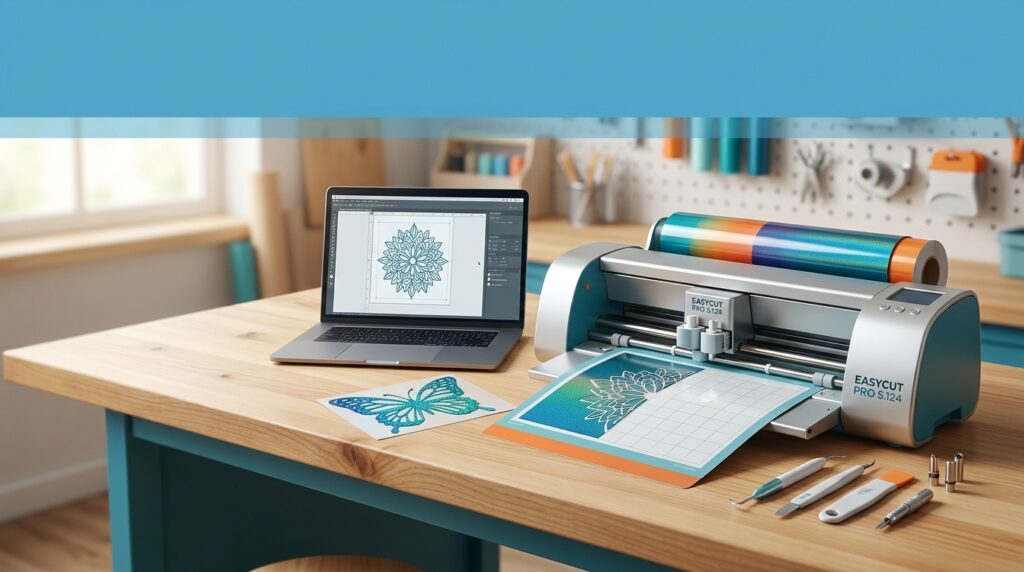
EasyCut Pro (also distributed under the EasyCut Studio brand) is developed by EasyCut Studio and functions as a standalone third-party sign-making tool that runs on both Windows and Mac platforms. Its core purpose is to let users design vector graphics, lay out text, trace bitmap images, and send cutting jobs directly to a vinyl cutter or cutting plotter—all without switching between multiple programs. The software supports a broad ecosystem of cutting devices, with the manufacturer stating compatibility with over 500 models from brands such as Roland, Graphtec, USCutter, Silhouette, GCC, Mimaki, Siser, and LOKLiK.
The tool is particularly relevant for vinyl cutting workflows: sign-making, lettering, logos, stencils, decals, stickers, heat transfer vinyl (HTV) projects, and contour-cut print-and-cut production. Unlike general-purpose vector editors, EasyCut Pro is built around the output side of the workflow—cutting order, blade offset, cutting pressure, test cuts, and device communication are treated as first-class features rather than afterthoughts.
Key Features
Vector Design and Editing
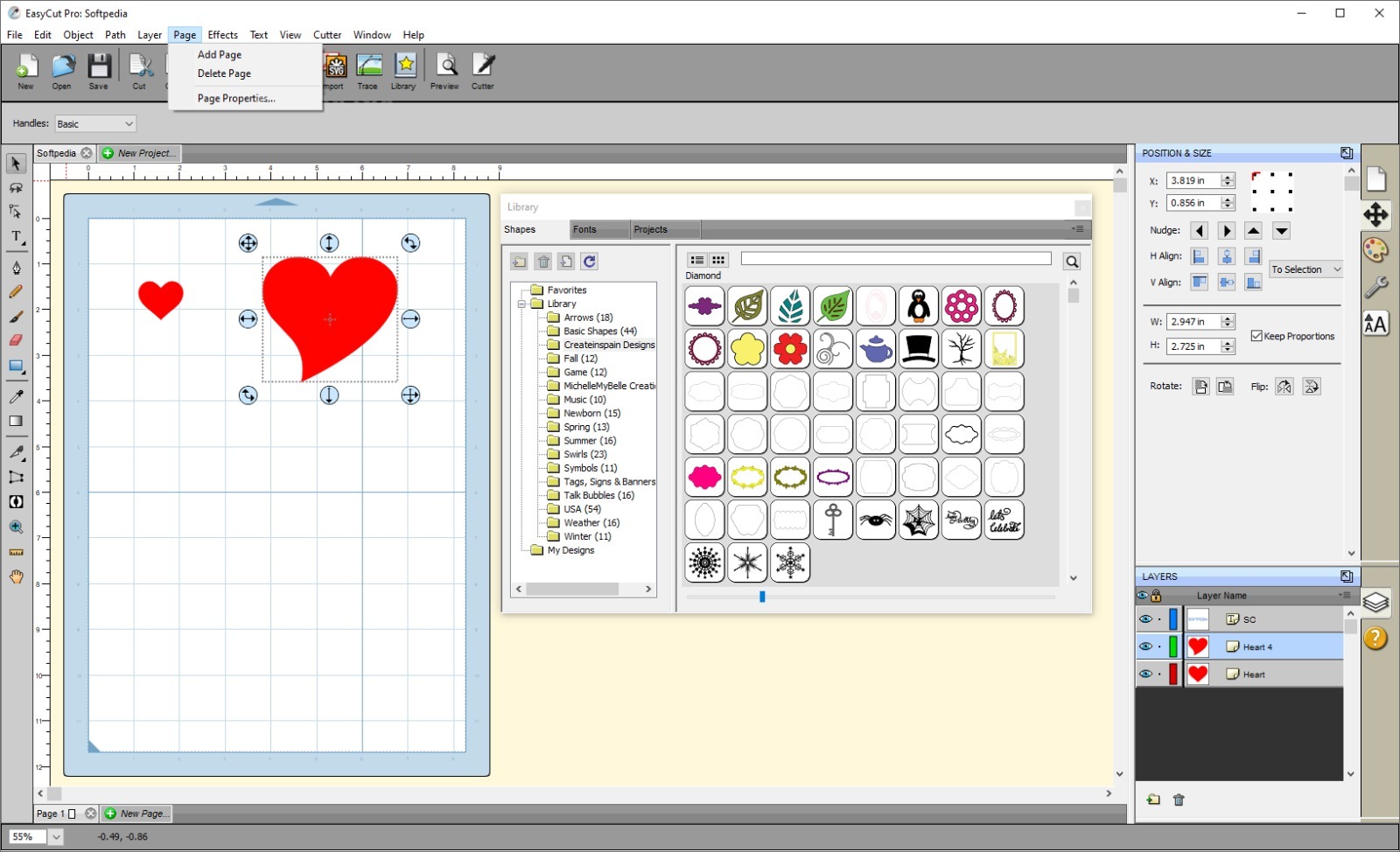
EasyCut Pro includes a native vector editing environment with Bezier curves, shape drawing tools, and advanced node editing for precise manipulation of paths. Users can weld overlapping shapes or text into a single cut path, apply inner and outer contour offsets for layered decals, and trim or intersect objects without leaving the software. A built-in shapes library provides access to over 350 pre-made shapes at no additional cost.
Image Tracing (Raster-to-Vector)
The software includes an auto-tracing engine that converts raster images (JPG, PNG, GIF, BMP, TIFF) into editable, cuttable vector paths. Tracing supports color separation and threshold adjustment, allowing users to isolate specific colors or convert logos and artwork into clean cutting outlines.
Text Layout and Typography
EasyCut Pro offers WYSIWYG text layout using any TrueType or OpenType font installed on the user’s computer. Four different text tools are available, along with effects such as text-on-path, text fitting, and artistic transformations that can be applied directly to lettering objects.
Cutting and Production Controls
A standout feature set is the cutting-specific tooling. Users can preview cutting paths, simulate cutting order, and manually adjust the sequence to optimize production. Cut-by-color separates multi-color artwork into individual jobs, while nesting uses optimization algorithms to minimize material waste. Additional options include cut copies, cut end actions (rewind, do nothing, or advance material), tiling for oversized designs, and a weeding border feature that adds a removal outline around selected shapes.
Special Effects and Rhinestone Creation
Design effects include 3D Rotate, Bulge, Lattice, Shadow, Knockout, 3D Extrude, Wave, and others, which can be applied to shapes and text before cutting. A dedicated rhinestone module lets users specify stone size and spacing to generate rhinestone templates outputtable through a vinyl cutter.
Cutter Compatibility and Connectivity
EasyCut Pro communicates with cutting plotters via USB and serial (COM) connections, with pre-configured driver profiles for a wide range of manufacturers. Version 5.124 inherits the expanded support introduced in 5.123, including official compatibility with Siser Juliet, Siser Romeo, LOKLiK iCraft, and Roland CAMM-1 Pro GX Series cutters. For unlisted devices, a “Plotter Generic” option can be used as a fallback.
What’s New in EasyCut Pro 5.124
Version 5.124 is a maintenance and refinement release that follows the feature-heavy 5.123 update. The 5.123 release was a major compatibility upgrade, adding official support for the Siser Juliet (12-inch high-definition cutter), Siser Romeo (24-inch model with double the cutting width of Juliet), LOKLiK iCraft (13-inch smart craft cutter with 5X cutting force), and the Roland CAMM-1 Pro GX Series (available in 36-, 46-, 54-, and 64-inch widths) along with the Roland CAMM-1 Servo GX-24.
According to the release communications, the update fine-tunes the software to fully leverage the performance of each supported cutter and media type, with the goal of boosting cutting precision, print quality, and overall production efficiency. It also includes a full set of bug fixes, new functional features, and detailed usability improvements intended to streamline daily creative and manufacturing workflows. For users on 5.124, the practical takeaway is improved stability and a more polished experience when working with the newly supported cutter models and their respective media profiles.
System Requirements
EasyCut Pro is available for Windows and macOS. The following minimum and recommended specifications are based on version 5.124 documentation and compatible platform reports:
-
Operating system (Windows): Windows 7, 8, 10, or 11 (32-bit and 64-bit).
-
Operating system (macOS): macOS 13 and later (compatibility noted for recent versions; older macOS releases may also work but are not explicitly listed for 5.124).
-
Processor: 1 GHz or faster.
-
RAM: 2 GB minimum; 4 GB or more recommended for large-format or complex designs.
-
Storage: Approximately 200 MB of available disk space.
-
Display: Standard desktop resolution; a larger or higher-resolution monitor is beneficial for precision node editing.
-
Connectivity: USB port or serial (COM) port for cutter communication.
Users working with very complex artwork, multiple layers, or high-volume nesting should treat the 4 GB RAM figure as a practical floor rather than a luxury recommendation, as performance lag on complex projects has been noted in user feedback.
Installation Guide
EasyCut Pro follows a standard desktop installation process. The steps below reflect the official quick-start guidance and typical Windows/macOS installation behavior.
-
Download the installer from the official EasyCut Pro website or an authorized distribution channel. Avoid third-party “bundled” installers that may include unwanted software.
-
Run the installation file (
.exeon Windows;.dmgor equivalent on macOS) and follow the on-screen prompts. -
Launch EasyCut Pro after installation completes.
-
Configure your cutting machine: From the Cutter menu, select My Cutter > Manage Cutters. Choose your cutter’s brand and model from the drop-down lists, then click Add to list.
-
If your model is not listed, try adding the Plotter Generic option as a starting point. You may need to adjust communication settings manually.
-
Verify the connection by selecting the correct Output Port (USB or COM) in the Cut Settings window.
-
Load material and perform a test cut to confirm cutting pressure and speed before running a production job.
For macOS users, installation follows the typical drag-to-Applications pattern. After installation, the cutter configuration process is identical: select the device profile and confirm the output port before cutting.
How to Use EasyCut Pro
Step 1: Create or Import a Design
Start a new project and either draw shapes directly on the workspace, use the built-in shapes library (350+ shapes), or import vector files in formats including DXF, PLT, PDF, AI, SVG, EPS, WPC, GSD, PNG, SCUT, and FCM. For bitmap artwork, use the Vectorize tool to convert JPG, PNG, GIF, BMP, or TIFF images into editable vector paths.
Step 2: Edit and Prepare the Artwork
Use node editing to clean up paths, weld overlapping objects, apply contour offsets for layered decals, and arrange text using the WYSIWYG text tools. If the design includes multiple colors, use Cut by Color to separate the artwork into distinct cut jobs. For designs wider than the cutter’s maximum width, apply Tiling to split the artwork accurately.
Step 3: Configure Cut Settings
Open the Cut Settings window and specify the number of copies, cutting speed, and cutting pressure. Run a test cut on scrap material to verify that the blade is cutting through the vinyl without cutting through the backing sheet. Select the correct Output Port to ensure communication with the cutter.
Step 4: Preview and Send the Job
Use the cutting simulator to preview the cutting order and catch potential issues before physical output. If necessary, manually reorder the sequence to optimize production or accommodate material constraints. When satisfied, click Cut to send the job to the plotter.
Step 5: Post-Cut Handling
After cutting, EasyCut Pro can be configured to rewind to the origin, do nothing, or advance a specified amount of material, depending on the user’s preference and the cutter’s capabilities. Use the Weeding feature (if applied) to remove excess vinyl from around the cut shapes.
Best Use Cases
Sign Shops and Vinyl Lettering Businesses
EasyCut Pro is well suited for producing storefront lettering, window graphics, banners, and vehicle decals. The combination of text layout, contour cutting, and cut-by-color separation supports multi-layer vinyl applications and production runs of repeated lettering jobs.
Heat Transfer Vinyl (HTV) and Apparel Customization
The software’s text tools, welding capabilities, and cutter compatibility with Siser cutters make it a practical option for HTV workflows—cutting names, numbers, logos, and designs for T-shirts, jerseys, and apparel. Users can mirror designs for transfer application and manage cutting pressure for heat transfer materials.
Hobbyists and Home Craft Cutters
Owners of LOKLiK iCraft, Silhouette, or similar home craft cutters can use EasyCut Pro as a design-and-cut hub. The interface is consistently described as beginner-friendly, with a smoother learning curve than professional vector suites. The rhinestone feature and shapes library add creative options for craft-oriented projects.
Print-and-Cut Sticker and Decal Production
Contour cutting for print-and-cut workflows is a core capability. Users can add registration marks, generate contour outlines around artwork, and output print-and-cut jobs for stickers, decals, and labels. Compatibility with Roland GX series cutters—which include optical registration systems—further supports this use case.
Small-Business and Startup Studios
For studios seeking a lower-cost alternative to high-end sign-making suites, EasyCut Pro offers a broad feature set at a more accessible price point. Its all-in-one workflow reduces the need to license separate vector design software for cutting-related tasks.
Advantages and Limitations
Advantages
-
Broad cutter compatibility: Support for hundreds of cutting plotter models, including brands that are underrepresented in some competing software.
-
All-in-one workflow: Design, trace, layout, and cut output are integrated into a single application, reducing friction between steps.
-
Cutting-focused toolset: Features like nesting, cut-by-color, cutting simulator, tiling, and cut end actions are designed specifically for vinyl cutting production.
-
Beginner-friendly interface: Multiple reviews highlight a clean, navigable interface that is approachable for new users.
-
Rhinestone and specialty features: Dedicated rhinestone template creation and a large shapes library add value for craft and specialty producers.
-
Free trial and relatively lower upfront cost: A free trial is offered, and the paid license is positioned as more affordable than enterprise-grade sign suites.
Limitations
-
Cost can feel high for casual users: The full license starts at approximately $199.95, which may be a barrier for very light or occasional use.
-
Advanced features have a learning curve: While the interface is approachable, mastering production-oriented tools such as nesting optimization, cut-order manipulation, and contour cutting may require practice.
-
Performance lag on complex projects or older hardware: Some users report slow processing or lag when working with complex designs or on older machines.
-
Limited documentation and video resources: User feedback indicates that support documentation may not cover every scenario, and detailed video tutorials are not abundant.
-
No mobile or cloud-native version: EasyCut Pro is a desktop application without mobile apps or extensive cloud collaboration features, which may matter for teams expecting cross-device workflows.
-
Advanced design capabilities are narrower than dedicated vector suites: For highly complex illustration or graphic design work, tools like Adobe Illustrator or Inkscape offer deeper vector editing functionality.
Alternatives to EasyCut Pro
When evaluating EasyCut Pro, it helps to compare it with tools that overlap in vinyl cutting, sign design, or vector editing. The alternatives below represent different trade-offs in price, platform, and workflow focus.
Easy Cut Studio
Easy Cut Studio is closely related to EasyCut Pro and is often described as an easy-to-use vinyl cutting application for TrueType fonts, OpenType fonts, and shapes. It is available for both Mac and Windows and is a natural point of comparison for users exploring the EasyCut product family. The distinction between EasyCut Pro and Easy Cut Studio can vary by version and distribution, so checking the specific feature set of each release is advisable.
XFCut
XFCut is a vinyl cutting plug-in designed for sign makers who already use Adobe Illustrator or CorelDRAW. Rather than providing its own design environment, it extends existing vector design software with cutting output capabilities. This can be attractive for users who are already proficient in Illustrator or CorelDRAW and do not want to switch design tools. XFCut is a paid, proprietary option for Mac and Windows.
Inkscape (with a cutting extension or companion tool)
Inkscape is a free, open-source vector graphics editor with powerful node editing and SVG-native workflow. It does not natively drive vinyl cutters, but it can be paired with cutting plug-ins or export workflows to prepare artwork for cutting. For budget-conscious users with strong vector skills, Inkscape combined with a cutting solution can replace a paid all-in-one sign suite—at the cost of a less integrated workflow and a steeper learning curve for production-specific tasks.
MaxCut
MaxCut is primarily a cut-list optimization tool for cabinet makers, joiners, and woodworking shops, generating optimized 2D cutting layouts for sheet materials. It is not a direct substitute for vinyl cutting software, but it may be relevant for businesses that combine vinyl work with sheet-material cutting and want a dedicated nesting/optimization tool.
Metrix
Metrix is listed as a comparison point on software review platforms for EasyCut Pro. It is another sign-making and cutting software option, though pricing and feature details vary. Users considering Metrix should compare cutter compatibility with their specific plotter model and evaluate the learning curve against EasyCut Pro’s workflow.
General-Purpose Design Tools (e.g., Microsoft Designer, Canva)
Tools like Microsoft Designer and Canva are not vinyl cutting software and do not directly control cutting plotters. However, they may appear in “alternatives” comparisons because they offer accessible design creation. For users whose primary need is cutting output, these tools are not substitutes; they would still require a separate cutting step. EasyCut Pro’s advantage in this comparison is its end-to-end design-to-cut workflow.
Frequently Asked Questions
Is EasyCut Pro 5.124 compatible with my vinyl cutter?
EasyCut Pro supports a large number of cutting plotters, with the manufacturer citing compatibility with over 500 models and brands including Roland, Graphtec, USCutter, Silhouette, GCC, Mimaki, Siser, LOKLiK, and others. Version 5.124 inherits the official support for Siser Juliet, Siser Romeo, LOKLiK iCraft, and Roland CAMM-1 Pro GX Series cutters introduced in 5.123. If your model is not listed, the “Plotter Generic” option can be used as a fallback, though some manual configuration may be required.
Does EasyCut Pro work on macOS?
Yes. EasyCut Pro is available for both Windows and macOS, and recent versions are compatible with macOS 13 and Windows 11. The core workflow—design, configure cutter, send job—is the same across platforms.
Can I try EasyCut Pro before purchasing?
Yes. A free trial is offered, and a free plan is also listed on some review platforms. The paid license starts at approximately $199.95. Users should verify the current trial terms and pricing on the official website, as licensing details can change.
What file formats can I import into EasyCut Pro 5.124?
The software supports import of vector formats including DXF, PLT, PDF, AI, SVG, EPS, WPC, GSD, SCUT, and FCM, as well as raster formats such as PNG, JPG, GIF, BMP, and TIFF for tracing. This allows users to bring in artwork from Illustrator, CorelDRAW, Inkscape, and other design tools.
How do I convert a JPG or PNG into a cuttable design?
Use the Vectorize (auto-tracing) feature. Import the raster image, run the vectorization tool, and adjust color separation or threshold settings as needed. The result is an editable vector path that can be cleaned up with node editing before cutting.
What is the difference between EasyCut Pro and Easy Cut Studio?
The naming can be confusing because both names appear in distribution and reviews. In practice, EasyCut Studio is the brand under which EasyCut Pro is often distributed, and the terms are sometimes used interchangeably in third-party listings. To avoid confusion, confirm the exact product name, version number, and feature list on the official EasyCut website before purchasing.
Can EasyCut Pro handle print-and-cut sticker production?
Yes. The software supports contour cutting for print-and-cut workflows, including registration marks and contour outline creation around objects, shapes, and text. Compatibility with cutters that feature optical registration systems—such as the Roland GX series—further supports alignment for print-and-cut jobs.
Is EasyCut Pro suitable for beginners, or is it only for professionals?
Both. The interface is consistently described as user-friendly and approachable for beginners, while the production features (nesting, cut-order control, tiling, cut-by-color) provide depth for professional sign shops. The learning curve is most noticeable when moving into advanced production workflows, but basic design-and-cut tasks are accessible to new users.
Final Thoughts
EasyCut Pro 5.124 is a focused, production-oriented vinyl cutting and sign design solution that earns its place in the workflow of sign makers, HTV crafters, sticker producers, and small studios. Its strongest differentiators are broad cutter compatibility, an all-in-one design-to-cut environment, and a cutting-specific feature set that includes nesting, cut-by-color, tiling, and a cutting simulator. The 5.123 update that precedes 5.124 expanded hardware support to several popular Siser, LOKLiK, and Roland models, and 5.124 continues that trajectory with stability and usability refinements.
The limitations are equally clear: the license cost may deter casual users, performance can lag on complex projects or older hardware, and documentation may not cover every edge case. For users who need a dedicated vinyl cutting workflow and value cutter compatibility over advanced illustration capabilities, EasyCut Pro remains a compelling option. For those already embedded in Illustrator or CorelDRAW, a plug-in approach like XFCut may be a more natural fit; for budget-first users with strong vector skills, Inkscape paired with a cutting solution is worth exploring. The right choice depends less on raw feature counts and more on how closely the tool’s workflow aligns with the specific production environment.
Our Paid Service
“We do not sell or provide any software. We only offer professional support services. If any software on your system is not working properly, or you are facing installation errors, crashes, or any other technical issue — just contact us. We will help you fix the problem quickly and remotely via AnyDesk. No software will be provided from our side — only expert troubleshooting and support.”