

Overview of CMS IntelliCAD 15.0
Table of Contents
CMS IntelliCAD has long occupied a specific position in the CAD market: deep AutoCAD compatibility at a fraction of the cost. The 15.0 release sharpens that proposition by addressing two persistent friction points in day-to-day drafting—navigation efficiency in large drawings and the speed of programmatic customization.
The software reads and writes native DWG files and supports AutoCAD command syntax, AutoLISP, Visual LISP, VBA, and ADS/DRX development interfaces. That compatibility means existing block libraries, layer standards, and in-house automation routines generally transfer without a full rebuild. Version 15.0 builds on that foundation with engine-level performance improvements, including VBA iteration up to 48 times faster through Model Space and Undo operations with VBA running 12 times faster.
CMS IntelliCAD 15.0 is available as a perpetual desktop license with a free trial; reported starting prices place the perpetual license in the range of roughly $249.95 one-time, with subscription and cloud options also offered depending on the region and edition. The software runs locally on Windows and is also offered in a cloud-hosted configuration that preserves the full desktop interface.
Key Features
Native DWG Compatibility
CMS IntelliCAD 15.0 opens and edits DWG files directly, from older format revisions through DWG 2020, without conversion or data loss. This is the foundational feature for teams collaborating with AutoCAD-based consultants, contractors, or clients.
2D Drafting and 3D Modeling
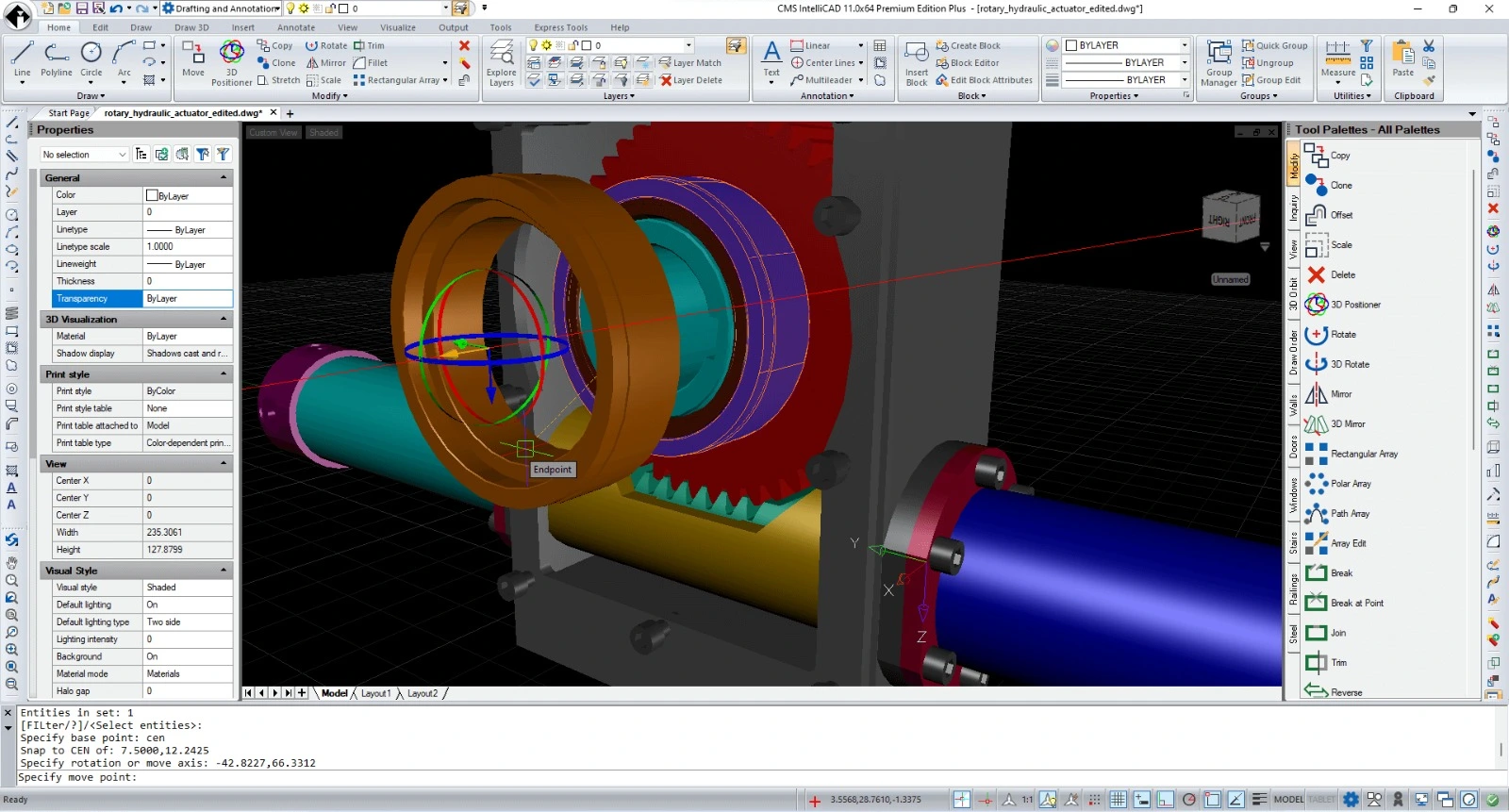
The software includes a full 2D drafting toolset—lines, polylines, arcs, circles, dimensions, text, blocks, and layer management—alongside 3D solid modeling via ACIS, surface modeling, and professional rendering workflows. The interface follows the familiar ribbon and command-line paradigm, which shortens the learning curve for users migrating from AutoCAD.
Built-In Programming Environments
CMS IntelliCAD 15.0 supports AutoLISP, Visual LISP (including compiled FAS and VLX formats), VBA, and ADS/DRX interfaces. The modernized LISP engine in 15.0 is one of the release’s headline changes, making it more practical to maintain and execute legacy LISP routines without performance penalties.
BIM and Geospatial Data Handling
Version 15.0 extends interoperability beyond DWG: it includes Revit 2025 RVT import, Esri image mapping integration, and support for DGN backgrounds and PDF underlays. These capabilities matter for AEC workflows where CAD drawings sit alongside BIM models and georeferenced imagery.
Drawing Compare
The new Drawing Compare command allows side-by-side comparison of two drawing revisions, with differences highlighted visually so changes are easy to spot and review. This is a feature-preview addition in 15.0 and is aimed at design review and quality-check cycles.
What’s New in CMS IntelliCAD 15.0
Lookout PAN: Faster, More Ergonomic Navigation
The most distinctive addition to 15.0 is the Lookout pan method, a patent-pending navigation technology. Traditional panning requires a “dead-stroke”—lifting and repositioning the mouse when it reaches the edge of the desk or screen. Lookout captures mouse movement between active pan inputs and applies an inverse translation to the workspace, effectively doubling navigational efficiency. CMS reports that users can traverse large drawings in roughly half the time, with correspondingly less repetitive strain.
AI Photorealistic Rendering
Version 15.0 introduces AI photorealistic rendering powered by Google’s Gemini. This feature targets users who need presentation-quality visuals without exporting to a separate rendering engine. The rendering workflow is integrated into the CAD environment, reducing the handoff friction between design and visualization.
Modernized LISP Engine
The LISP engine has been overhauled over several release cycles. Version 14.1 introduced loading of protected FAS and VLX formats; version 15.0 completes the modernization, enabling developers to compile and run LISP routines with improved speed and stability.
Performance and Workflow Enhancements
Beyond Lookout, 15.0 includes ergonomic navigation improvements, a ribbon dark theme, enhanced block management and drafting tools, and UI/API refinements. The cumulative effect is a release oriented toward reducing time-per-task rather than adding surface-level features.
System Requirements
CMS IntelliCAD 15.0 is a Windows-native application. The minimum requirements are modest by modern CAD standards, but the recommended configuration is meaningfully higher for large drawing files and 3D work.
| Component | Minimum | Recommended |
|---|---|---|
| Operating System | Windows 10, 8.x, or 7, 64-bit | Windows 10 or 11, 64-bit, current updates |
| Processor | Intel Pentium 4 or comparable | Intel Core i5 or faster |
| RAM | 2 GB (64-bit) | 8 GB or more |
| Hard Disk | 500 MB free for typical installation | 7 GB or more free |
| Display | 1024 × 768 VGA or higher | Higher resolution; dedicated graphics memory recommended |
| Graphics | OpenGL 1.4 compatible | OpenGL ES or OpenGL with dedicated GPU |
Source: CMS system requirements documentation and regional distributor listings.
A few practical notes: the 64-bit build can address all available system memory and is the better choice for large DWG files, while the 32-bit build is capped at roughly 3–4 GB of RAM depending on the host OS. Users running Windows on Mac hardware via virtualization should confirm USB dongle licensing requirements with the vendor before purchasing.
Installation Guide
Step 1: Obtain the Installer
Download the CMS IntelliCAD 15.0 installer from the official CMS IntelliCAD download page. The vendor provides both perpetual-license and subscription/cloud installation paths.
Step 2: Run with Administrator Privileges
A recurring installation issue in the CMS support forum involves Windows blocking the installer or the application with a “cannot access the specified device, path, or file” error. The official resolution is to run the installer and the application with administrator privileges. Right-click the installer and select Run as administrator rather than double-clicking.
Step 3: Complete the Setup Wizard
Follow the on-screen prompts. The typical installation requires approximately 500 MB of disk space, though a fuller installation with sample files and support content may require more.
Step 4: Activate the License
Enter the license information provided at purchase, or start the trial if evaluating the software. Cloud and subscription editions may authenticate differently; refer to the vendor’s licensing documentation for the specific edition.
Step 5: Configure Graphics and Workspace
After first launch, verify the graphics driver settings. CMS IntelliCAD can switch between OpenGL ES and OpenGL rendering modes; if display anomalies appear, toggling the graphics setting is the first troubleshooting step. Set project units, layer standards, and text styles, then save the configuration as a template for future drawings.
How to Use the Software
Basic Drafting Workflow
New users coming from AutoCAD will recognize the command-line–driven workflow. Start a drawing from a template, set units and layers, and use the Home tab for drawing and editing commands—lines, circles, arcs, layers, text, dimensions, and blocks. Object snaps, ortho mode, and direct distance entry behave in the familiar way, so muscle memory transfers quickly.
Navigating Large Drawings with Lookout
Activate the Lookout pan method through the navigation settings. Unlike conventional pan, Lookout does not require repositioning the mouse when you reach the edge of the input surface. Continuous mouse movement translates into proportional workspace movement, which is particularly useful when reviewing large site plans or complex mechanical assemblies.
Running LISP and VBA Routines
Open the Visual LISP editor or the VBA environment from the development menu. Existing LSP, FAS, and VLX files can be loaded directly; VBA projects benefit from the 15.0 performance improvements in Model Space iteration and Undo operations. For teams with in-house automation, this is the fastest path to recovering the investment in legacy routines.
Comparing Drawing Revisions
Use the Drawing Compare command to open two versions of a drawing side by side. Differences are highlighted in the viewport, making it easier to verify that changes requested in a review cycle have been implemented and that no unintended modifications were introduced.
Best Use Cases
Architecture and AEC documentation. CMS IntelliCAD 15.0 handles floor plans, elevations, sections, and construction details in native DWG, and the Revit RVT import supports coordination with BIM teams.
Engineering and manufacturing drafting. The ACIS solid modeler, 3D surface tools, and precise dimensioning make the software suitable for mechanical parts, assemblies, and fabrication drawings where AutoCAD compatibility is a contractual requirement.
CAD management and legacy workflow preservation. Organizations with substantial AutoLISP or VBA investments can run those routines in 15.0 with improved performance, reducing the cost of maintaining separate automation stacks.
Budget-conscious firms and independent consultants. A perpetual license starting around $249.95 one-time changes the cost calculus compared with annual subscription CAD seats, particularly for small practices and freelancers who need full DWG capability without recurring fees.
Advantages and Limitations
Advantages
-
Native DWG workflow without conversion friction. Files move between CMS IntelliCAD and AutoCAD-based collaborators without translation layers.
-
Measurable navigation productivity gain. Lookout pan reduces the physical effort and time required to traverse large drawings.
-
Deep programmability. AutoLISP, Visual LISP, VBA, and ADS/DRX support preserve existing automation investments.
-
Perpetual licensing option. The one-time purchase model is increasingly rare in the CAD market and appeals to firms with predictable budgets.
-
AI rendering integrated into the drafting environment. Presentation visuals no longer require a separate export-and-render cycle.
Limitations
-
Windows-centric desktop experience. The native desktop application is Windows-only; Mac users must rely on virtualization or the cloud edition.
-
CAD ecosystem breadth. While DWG compatibility is strong, the third-party add-on ecosystem is smaller than AutoCAD’s, which matters for specialized vertical tools.
-
Feature previews carry maturity risk. Drawing Compare and AI rendering are introduced as previews in 15.0; some users may prefer to wait for maintenance builds before relying on them in production.
-
Known regression in the DISTANCE command. Some 15.0 users have reported that the DISTANCE command no longer displays Delta X, Y, and Z components in the command bar. CMS has acknowledged the issue as a minor regression and stated that it will be addressed in a maintenance build.
-
Interface familiarity cuts both ways. The AutoCAD-like interface eases migration but may feel derivative to users seeking a fundamentally different CAD interaction model.
Alternatives to CMS IntelliCAD
| Alternative | Best fit | Key difference from CMS IntelliCAD 15.0 |
|---|---|---|
| AutoCAD | Teams that require the broadest third-party ecosystem and industry-standard workflows | Larger add-on market and Autodesk AI features, but subscription pricing is significantly higher |
| ZWCAD | 2D-focused AEC and manufacturing users seeking a low-cost DWG alternative | Strong 2D compatibility; comparable positioning but a different development community and API stack |
| GstarCAD | Construction and engineering firms needing DWG compatibility at scale | Similar DWG-native approach; performance and interface preferences vary by user |
| ActCAD | Professionals who want an AutoCAD-like interface with flexible licensing | Native DWG/DXF support and LISP/.NET APIs; smaller international support footprint |
| MicroStation | Infrastructure and GIS-heavy projects requiring multi-format interoperability | Excels at DWG, IFC, and SHP integration; positioned at enterprise infrastructure scale rather than general drafting |
| progeCAD | Budget-conscious AutoCAD users | Another IntelliCAD-based option with a comparable value proposition; feature differentiation is incremental |
Source: Comparative listings from Software Advice and SourceForge alternatives rankings.
The choice between these tools usually comes down to three variables: the depth of third-party add-on requirements, the tolerance for subscription versus perpetual pricing, and the specific DWG revision and entity types in the collaboration pipeline.
Frequently Asked Questions
Is CMS IntelliCAD 15.0 compatible with AutoCAD DWG files?
Yes. CMS IntelliCAD 15.0 reads and writes native DWG files and supports AutoCAD command syntax, which means drawings created in AutoCAD generally open and edit without conversion. It also supports AutoLISP and VBA routines commonly used in AutoCAD environments.
What is the Lookout PAN method, and why does it matter?
Lookout is a patent-pending navigation feature introduced in 15.0. It captures mouse movement between active pan inputs and applies an inverse translation to the workspace, eliminating the need to lift and reposition the mouse at the edge of the input surface. CMS reports that this roughly halves the time required to traverse large drawings.
Does CMS IntelliCAD 15.0 include AI rendering?
Yes. Version 15.0 introduces AI photorealistic rendering powered by Google’s Gemini, integrated into the CAD environment for presentation-quality visual output without a separate rendering application.
Why does the installer fail with a “cannot access the specified device, path, or file” error?
This is a Windows permissions issue, not a corrupt installer. Run the CMS IntelliCAD installer and the application with administrator privileges; CMS has confirmed this as the official resolution.
Is the DISTANCE command bug in 15.0 fixed?
CMS has acknowledged that the DISTANCE command in 15.0 does not fully render Delta X, Y, and Z coordinates in the command bar. The vendor has classified it as a minor regression and stated that a fix will be included in the next maintenance build available to all v15 users.
What are the minimum system requirements for CMS IntelliCAD 15.0?
Minimum requirements include a 64-bit Windows 10/8.x/7 operating system, an Intel Pentium 4 or comparable processor, 2 GB of RAM, 500 MB of free disk space for a typical installation, and an OpenGL 1.4–compatible graphics card. For production work with large drawings, 8 GB of RAM and a faster processor are recommended.
Does CMS IntelliCAD 15.0 require a subscription?
No. CMS IntelliCAD 15.0 is available as a perpetual license, with reported starting prices around $249.95 one-time. Subscription and cloud editions are also offered depending on the region and edition.
Can I run CMS IntelliCAD 15.0 on a Mac?
The native desktop application is Windows-only. Mac users can run the software through virtualization or use the cloud-hosted edition, though virtualized environments may require USB dongle licensing—confirm with the vendor before purchasing.
Final Thoughts
CMS IntelliCAD 15.0 is a release defined by targeted productivity engineering. Lookout PAN is a genuinely novel navigation approach rather than a re-skinned existing tool, and the modernized LISP engine plus VBA speed improvements directly benefit teams carrying legacy automation into a DWG-compatible environment. The AI rendering and Drawing Compare previews signal where CMS is investing for future releases, though their preview status means production users should validate stability against their specific workflows.
The software is not a universal AutoCAD replacement. Organizations with deep dependencies on AutoCAD-specific third-party verticals, or Mac-first design teams, will find the fit imperfect. But for firms and independent professionals who need reliable native DWG editing, a perpetual licensing option, and a familiar drafting interface, CMS IntelliCAD 15.0 delivers measurable efficiency gains—particularly on large drawings—at a cost structure that remains one of the most accessible in professional CAD. The known DISTANCE command regression is a reminder to check maintenance-release notes before standardizing, but it is a narrow issue in an otherwise solid release.
Our Paid Service