

Overview of PCCTools for Revit
Table of Contents
PCCTools for Revit is a specialized point cloud plugin for Autodesk Revit, developed by CADTools.pro (SPM3D) and distributed by DiPCSoft. This powerful BIM (Building Information Modeling) tool enables architects, engineers, and construction professionals to work directly with laser scan data and point-cloud data inside their Revit models.
As part of the broader PCCTools family, which includes dedicated editions for AutoCAD and BricsCAD, this version focuses on Autodesk Revit 2024 through 2027 compatibility. The plugin addresses a critical workflow need: efficiently managing and utilizing large point cloud datasets within Revit’s environment. Point cloud data, generated through 3D laser scanning of existing structures, can be cumbersome to handle using native Revit tools. PCCTools for Revit 0.31.4 streamlines this process, transforming bulky point clouds into actionable BIM data.
Key Features
PCCTools for Revit 0.31.4 offers a comprehensive suite of features designed to enhance point cloud management. Here are the core capabilities:
-
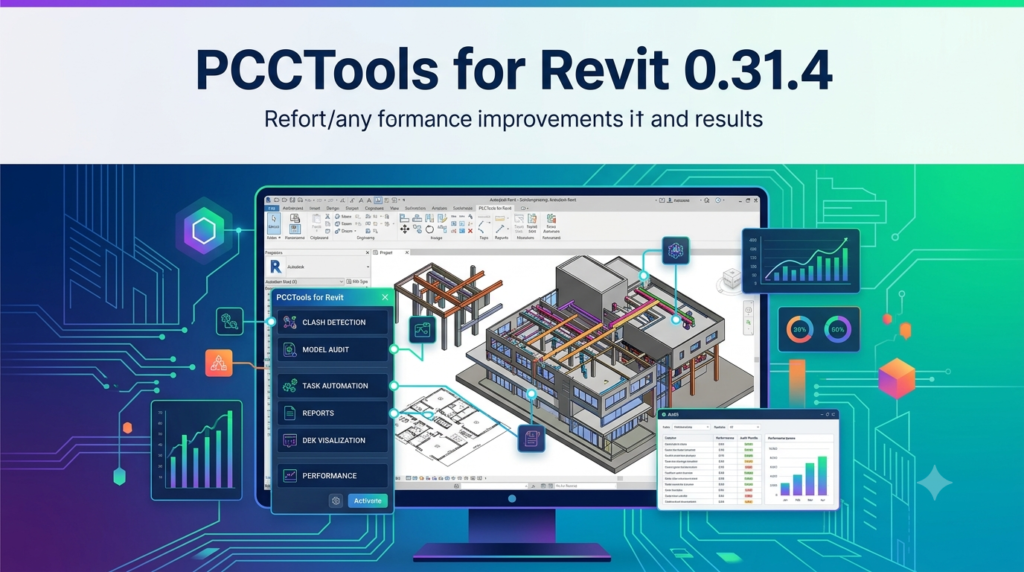
Reversible Quick Crops: Stack screen-aligned rectangular crops on a linked point cloud. This feature allows you to focus on specific areas, undo the last crop, or restore the full cloud with the “Uncrop All” command.
-
Quick Hide/Show Point Cloud: Instantly toggle a linked scan’s visibility without navigating through Revit’s complex view settings. This saves time and improves workflow efficiency.
-
Editable Cropboxes: Fit Revit’s native 3D section box to the full or cropped point cloud. Adjust the box using standard Revit grips for precise control.
-
Point and Object Crops: Generate a crop box around a picked scan surface or automatically align one around a model element such as a pipe, duct, or beam.
-
Named Crop States: Save quick-crop history and Cropbox transforms directly inside the RVT file. This enables repeatable, reusable project views across your team.
-
Sections and Slices: Create horizontal and vertical sections, view-oriented slices, and level-based slabs through your point cloud data.
-
Point-Cloud Display Styles: Switch between RGB, fixed color, intensity, elevation, normal-direction, and custom styles directly in your Revit view for better visualization and analysis.
These features significantly reduce the time required to clean and process point cloud data compared to using Revit’s built-in tools.
What’s New in PCCTools for Revit 0.31.4
Version 0.31.4 represents the latest iteration of the PCCTools for Revit plugin. While specific changes in this point release include performance optimizations and bug fixes, the broader focus of the PCCTools development team remains on:
-
Enhanced Revit Compatibility: Full support for Autodesk Revit versions 2024 through 2027, ensuring you can use the plugin with the latest software releases.
-
Improved Stability: Ongoing refinement to handle larger and more complex point cloud datasets without crashing or slowing down Revit.
-
User Interface Refinements: Minor adjustments to make the plugin’s tools more intuitive and accessible within the Revit ribbon.
For detailed release notes, users should consult the official PCCTools documentation.
System Requirements
To run PCCTools for Revit 0.31.4 effectively, your system should meet or exceed the following requirements:
Operating System
-
64-bit Microsoft Windows 10 or Windows 11
Autodesk Revit
-
Autodesk Revit 2024, 2025, 2026, or 2027
Hardware Recommendations
-
CPU: Intel i-Series, Xeon, or AMD Ryzen processor, 2.5 GHz or higher. Revit products utilize multiple cores for many tasks, so higher core counts improve performance.
-
RAM: 16 GB minimum. For large or complex models with extensive point cloud data, 32 GB or 64 GB is strongly recommended.
-
Storage: SSD (Solid State Drive) is highly recommended for point cloud interactions to ensure faster loading times.
-
Graphics: DirectX 11 capable graphics card with Shader Model 5 and a minimum of 4 GB of video memory for advanced graphics performance.
Note that PCCTools for Revit works with linked point clouds, and performance will depend on the size and density of your scan data.
Installation Guide
Follow these steps to install PCCTools for Revit 0.31.4 on your system:
-
Download the Installer: Visit the official DiPCSoft or CADTools.pro website to download the latest PCCTools for Revit installer. Ensure you choose the correct version for your Revit release (2024-2027).
-
Close Revit: Before installation, close all instances of Autodesk Revit. This prevents conflicts during the installation process.
-
Run the Installer: Right-click the downloaded installer file and select “Run as administrator” to ensure proper permissions.
-
Follow the Prompts: The installer will guide you through the setup process. Accept the license agreement and choose the installation directory (the default is recommended).
-
Select Revit Versions: If you have multiple versions of Revit installed, the installer will prompt you to select which versions should receive the plugin.
-
Complete Installation: Click “Finish” to complete the installation. The plugin will appear as a new tab in the Revit ribbon.
-
Verify Installation: Launch Revit and check for the PCCTools tab in the ribbon to confirm successful installation. If you don’t see it, you may need to enable the add-in in Revit’s add-in manager.
How to Use PCCTools for Revit
Working with Point Clouds in Revit
-
Link a Point Cloud: In Revit, use the “Insert” tab to link a point cloud file (typically .RCP or .RCS format).
-
Open the PCCTools Tab: Navigate to the PCCTools tab in the Revit ribbon to access the plugin’s tools.
-
Apply Quick Crops: Use the Quick Crop tool to draw a rectangular selection on your view. This focuses Revit’s rendering on a specific area of the point cloud, improving performance.
-
Save Named Crop States: Once you have the view you want, use the Named Crop States feature to save it for future reference.
-
Generate Sections: Use the Sections and Slices tools to cut horizontal or vertical planes through the point cloud data, helping you create accurate BIM models.
-
Change Display Styles: To better visualize the data, select a display style from the available options: RGB (for color scans), intensity, elevation, or normal-direction.
Pro Tips for Efficient Workflows
-
Plan Your Crops: Before cropping, identify the key areas of interest in your point cloud to minimize unnecessary processing.
-
Use Object Crops: For MEP modeling, the Object Crops tool can automatically generate a crop box around pipes or ductwork, saving you manual adjustment time.
-
Leverage Named Crops: Save crop states for different disciplines (architectural, structural, MEP) to quickly switch between views during multi-discipline coordination.
Best Use Cases
PCCTools for Revit is valuable across multiple BIM workflows. Here are the most common use cases where it excels:
1. Existing Building Documentation
When renovating or retrofitting existing structures, laser scanning captures the “as-built” condition. PCCTools for Revit allows you to efficiently model from this point cloud data, reducing the need for manual field measurements and minimizing errors.
2. Clash Detection and Coordination
Point cloud data can be used to verify that new design elements fit within the existing structure. By overlaying your BIM model on the point cloud, you can identify clashes between proposed elements and the real-world condition. This is particularly important for MEP (Mechanical, Electrical, Plumbing) coordination in tight spaces.
3. Quality Assurance/Quality Control
For construction projects, compare the completed work against the design model. Use PCCTools to align the as-built point cloud with your BIM model and identify deviations that require corrective action.
4. Historic Preservation
For heritage structures where accurate documentation is critical, point cloud data provides a permanent record. PCCTools for Revit enables preservation specialists to create precise models for restoration work.
5. Infrastructure Projects
For bridges, tunnels, and other infrastructure assets, point cloud data from LiDAR scanning can be processed and integrated into Revit models for maintenance and rehabilitation planning.
Advantages and Limitations
Advantages
-
Efficiency: Dramatically reduces the time needed to work with point clouds compared to native Revit tools.
-
User-Friendly: Tools are designed to be intuitive for Revit users, with familiar grips and controls.
-
Flexibility: Supports multiple display styles, saving crop states, and creating sections/slices for comprehensive analysis.
-
Integration: Seamlessly integrates as a plugin within the Revit environment without needing external software.
-
Compatibility: Supports the latest Revit versions (2024-2027), ensuring long-term usability.
Limitations
-
Revit Dependency: Requires a licensed version of Autodesk Revit to operate.
-
Performance: Large point clouds may still experience performance issues, depending on your hardware specifications.
-
Learning Curve: While intuitive, new users may need time to learn the workflow, especially if they are unfamiliar with point cloud processing.
-
Lack of Advanced Editing: PCCTools focuses on cropping, sectioning, and display; it does not provide advanced point cloud editing capabilities like noise removal or registration.
Alternatives to PCCTools for Revit
While PCCTools for Revit is a strong solution for point cloud management, several alternatives exist depending on your workflow and budget:
Revit Native Tools
Autodesk Revit includes basic point cloud functionality, allowing users to link scans, crop, and adjust visibility. However, the capabilities are more limited compared to PCCTools, making it suitable for small projects only.
CloudCompare
An open-source point cloud processing software. While not a Revit plugin, CloudCompare offers advanced editing capabilities (noise removal, alignment, and filtering). It can be used in conjunction with Revit’s native tools.
Leica Cyclone
A comprehensive point cloud processing solution from Leica Geosystems. Cyclone offers professional-level editing, registration, and modeling tools, but comes with a higher price tag and is more complex to learn.
Faro Scene
Similar to Leica Cyclone, Faro Scene is designed for processing scans from Faro laser scanners. It offers robust tools but requires dedicated time to master.
Recap Pro
Autodesk’s own point cloud processing software, Recap Pro, offers more advanced editing and cleaning capabilities than Revit native tools. It integrates directly with Revit workflows.
Comparison Overview
| Feature | PCCTools for Revit | Revit Native | Recap Pro |
|---|---|---|---|
| Integration | Direct plugin | Built-in | Standalone/Integration |
| Crop Control | Advanced (Quick Crops, Object Crops) | Basic | Basic |
| Display Styles | Multiple (RGB, Intensity, Elevation) | Limited | Multiple |
| Named Crops | Yes | No | No |
| Section/Slice Tools | Yes | Limited | Limited |
| Data Editing | No | No | Yes |
Frequently Asked Questions
What is PCCTools for Revit used for?
PCCTools for Revit is a point cloud plugin that enables BIM professionals to work with laser scan data directly inside Autodesk Revit. It simplifies cropping, visualization, and sectioning of point cloud data to support as-built modeling and renovation projects.
Which versions of Revit are compatible with PCCTools 0.31.4?
PCCTools for Revit 0.31.4 is compatible with Autodesk Revit versions 2024, 2025, 2026, and 2027, running on 64-bit Windows 10 or Windows 11 systems.
Is PCCTools for Revit free to use?
PCCTools for Revit is a commercial plugin that requires a paid license. Pricing details are available from the developer’s official website. A trial version may be available for evaluation.
How do I install PCCTools for Revit?
To install PCCTools for Revit, download the installer from the official website, close all instances of Revit, run the installer as administrator, and follow the on-screen prompts. The plugin will appear as a new tab in your Revit ribbon after installation.
Can PCCTools handle large point clouds without slowing down Revit?
PCCTools includes features like Quick Crops and Editable Cropboxes to help manage performance when working with large point clouds. However, performance ultimately depends on your system specifications, particularly RAM and storage speed.
What’s the difference between PCCTools for Revit and Recap Pro?
Recap Pro is a standalone point cloud processing software that offers advanced data editing and cleaning capabilities, while PCCTools for Revit is a plugin focused on improving point cloud manipulation within Revit. Many professionals use both: Recap Pro for data preparation and PCCTools for efficient Revit-based workflows.
Does PCCTools support all point cloud formats?
PCCTools for Revit works with linked point clouds in Revit’s native formats (RCP and RCS). It relies on Revit’s indexing and visualization engine, so it supports any point cloud format that Revit can read.
How do I update PCCTools to the latest version?
Check the official DiPCSoft or CADTools.pro website for updates. Download the latest installer and run it, which will automatically update your existing installation while preserving your settings.
Final Thoughts
PCCTools for Revit 0.31.4 is a valuable addition to any BIM professional’s toolkit who regularly works with laser scan data. By addressing the limitations of Revit’s native point cloud tools, the plugin significantly improves workflow efficiency for renovation projects, as-built modeling, quality assurance, and historic preservation.
The combination of reversible quick crops, editable cropboxes, named crop states, and multiple display styles gives users the flexibility to manage and visualize point cloud data in ways that would be cumbersome or impossible using native Revit tools alone. Its compatibility with the latest Revit versions (2024-2027) ensures that it remains relevant as software evolves.
For architects, structural engineers, MEP designers, and construction professionals dealing with existing building conditions or laser scan data, PCCTools for Revit offers a practical balance of functionality and ease of use. While it doesn’t replace dedicated point cloud processing software like Recap Pro or Leica Cyclone, it serves as an essential bridge between point cloud data and Revit-based BIM workflows.
When combined with a high-performance workstation (fast CPU, ample RAM, SSD storage, and a capable graphics card), PCCTools for Revit can dramatically reduce project turnaround time and improve accuracy in complex building documentation projects.
Our Paid Service
“We do not sell or provide any software. We only offer professional support services. If any software on your system is not working properly, or you are facing installation errors, crashes, or any other technical issue — just contact us. We will help you fix the problem quickly and remotely via AnyDesk. No software will be provided from our side — only expert troubleshooting and support.”