
Overview of OptiNest 3.05
Table of Contents
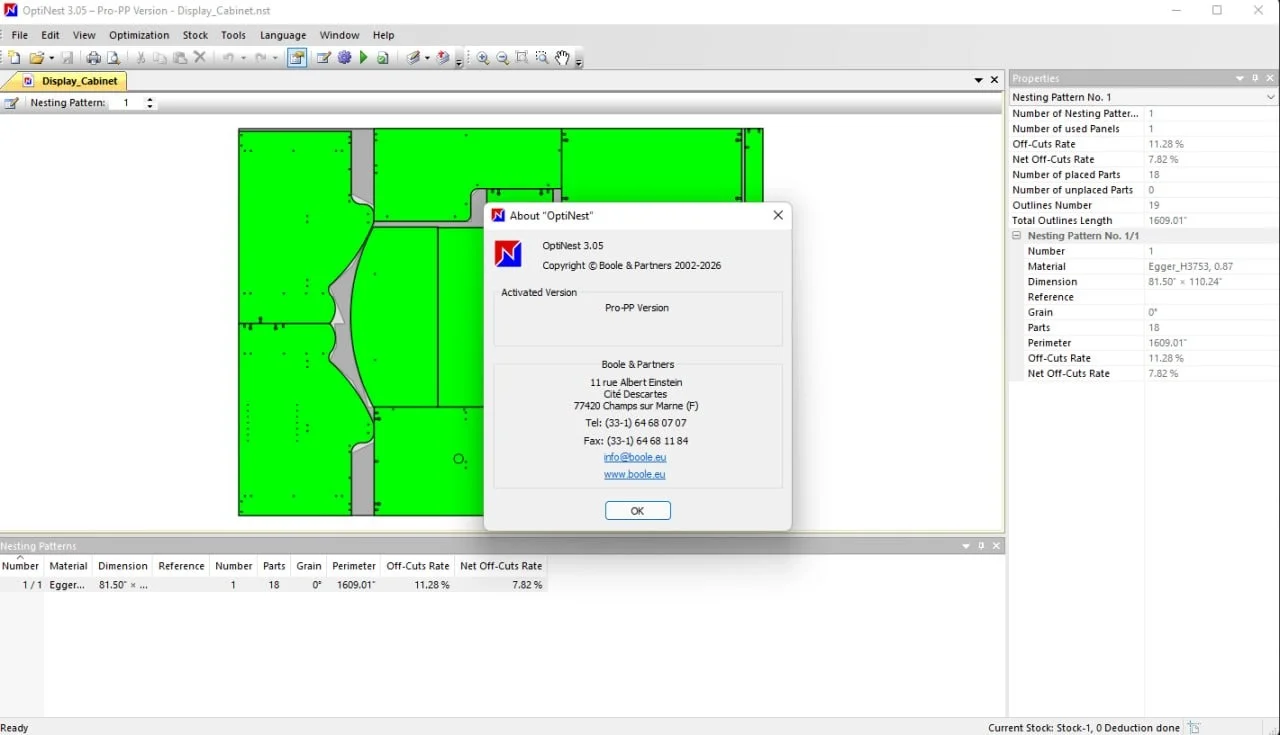
OptiNest is a specialized software application developed to solve the complex challenge of nesting—arranging 2D parts on a sheet of material to minimize waste. The 3.05 version represents a significant update, offering enhanced algorithms and improved workflow integration for CNC machining. Nesting software like OptiNest is essential for industries where material costs represent a significant portion of production expenses. By automating the layout process, OptiNest eliminates guesswork and delivers optimized cutting plans that can save substantial amounts of material over time.
The software is particularly valuable for businesses using CNC routers, laser cutters, plasma cutters, and waterjet cutting machines. It bridges the gap between design and manufacturing, allowing users to take digital part geometries and generate efficient cutting paths. OptiNest 3.05 supports a range of manufacturing environments, from small workshops to large-scale industrial operations. Its ability to handle both rectangular and true-shape nesting makes it a versatile solution for diverse cutting applications.
Key Features of OptiNest 3.05
OptiNest 3.05 provides a comprehensive suite of features aimed at maximizing efficiency and accuracy in cutting operations. These capabilities are designed to make the nesting process intuitive while delivering professional results.
Advanced Nesting Algorithms
The core strength of OptiNest lies in its powerful nesting algorithms. The software utilizes advanced computational methods to find the most efficient arrangement of parts on a sheet. This includes both traditional rectangular nesting and more sophisticated true-shape nesting for irregular parts. The algorithms consider part geometry, grain direction requirements, and material constraints to produce a layout that minimizes waste. Users can fine-tune the optimization parameters to balance speed and material efficiency according to their specific needs.
True-Shape Nesting for Irregular Parts
Unlike basic nesting tools that only handle rectangles, OptiNest excels at true-shape nesting. This feature allows the software to position irregularly shaped parts closely together, often “interlocking” them to achieve significantly higher material utilization. This capability is essential for industries working with complex contours, such as furniture manufacturing with curved components or metal fabrication with custom profiles.
Comprehensive Material and Stock Management
OptiNest provides robust tools for managing materials and inventory. Users can define their stock in terms of material type, panel size, and available quantity. The software supports multi-stock management, enabling users to work with different materials or sheet sizes within a single project. Additionally, the system tracks remnant pieces, allowing for the reuse of offcuts in future optimizations—a feature that further enhances material efficiency and cost savings.
Seamless File Import and Export
The software supports a range of industry-standard file formats to ensure smooth integration with existing CAD and design workflows. OptiNest 3.05 can import part geometries from DXF files, the primary format for 2D part geometry, as well as DWG and AI files. It also integrates directly with other design software like PolyBoard, a popular cabinet design program, allowing for a streamlined workflow from design to production. For export, OptiNest generates reports and CNC-ready code through post-processor configuration, ensuring compatibility with various machine types.
Automatic Labeling and Reporting
To improve shop floor efficiency, OptiNest features automatic labeling capabilities. The software can generate labels for each cut part, helping operators identify pieces during assembly. Users can customize the data fields on these labels to include part names, dimensions, or other relevant information. The software also produces detailed optimization reports, both on-screen and printable, documenting material usage, waste, and part placement for quality control and production planning.
What’s New in OptiNest 3.05
The 3.05 release of OptiNest brings several improvements designed to enhance user experience and nesting performance. While detailed patch notes are primarily available from the developer, key updates often focus on algorithm refinement, stability improvements, and better hardware compatibility. Version 3.05, including the specific 3.05d sub-version, addresses known issues and improves support for modern operating systems like Windows 11. Users upgrading from older versions can expect a more reliable experience and potential gains in nesting speed and material efficiency. The update continues the developer’s commitment to providing a cutting-edge solution for CNC nesting challenges.
OptiNest 3.05 System Requirements
Before installing OptiNest 3.05, it is crucial to ensure your hardware meets the minimum system requirements for optimal performance. Complex nesting jobs can be computationally intensive, so a capable system is recommended.
Minimum System Requirements
-
Operating System: Windows 7, 8, 10, or 11
-
RAM: 8 GB minimum
-
Processor: Multi-core processor recommended
-
Storage: Sufficient space for software installation and project files
-
Display: Monitor with adequate resolution for viewing nesting layouts
For users handling particularly complex projects or large batches of parts, a system with 16 GB of RAM and a high-performance processor will provide a smoother experience.
Supported File Formats
OptiNest 3.05 supports the following file formats for importing part geometries:
-
DXF: Primary format for part geometry
-
DWG
-
AI
Installation Guide for OptiNest 3.05
Installing OptiNest 3.05 is a straightforward process. Follow these steps to get started:
-
Obtain the Software: Download the official OptiNest 3.05 installer from the developer’s website or authorized distributors. Always use legitimate sources to ensure software integrity and security.
-
Run the Installer: Locate the downloaded installer file (typically a
.exefile) and run it with administrator privileges. -
Follow the Setup Wizard: The installation wizard will guide you through the process. Accept the license agreement and choose the destination folder.
-
Select Components: Choose the installation type, such as “Full Installation” or “Custom,” to select specific components.
-
Complete the Installation: Once the installation is complete, you may be prompted to restart your computer.
After installation, you will need to activate the software using a valid license key. This process confirms your legal right to use the software and unlocks its full functionality.
How to Use OptiNest 3.05: A Step-by-Step Workflow
Understanding the core workflow of OptiNest will help you quickly become productive. The process generally follows these steps:
-
Configure Settings: Begin by setting up your language, units, and company name for reports.
-
Define Stock: Add the materials you will be cutting, specifying material type, dimensions, and quantity in stock.
-
Import Parts: Import your part geometries. Parts can be imported as DXF or DWG files, or directly from compatible design software like PolyBoard.
-
Set Optimization Parameters: Choose nesting parameters, such as priority on material savings, grain direction, or part quality.
-
Run Optimization: Execute the nesting process. The software will compute the best layout and display the results.
-
Review and Export: Review the nesting report to check material usage. Export the optimized layout as a report or as CNC code using the post-processor for your specific machine.
Best Use Cases for OptiNest 3.05
OptiNest is a versatile tool applicable to a wide range of industries and materials. Its true-shape nesting and advanced algorithms make it ideal for complex cutting jobs.
-
Woodworking and Cabinet Making: Nesting is essential for cutting cabinet parts, furniture panels, and custom joinery. Integration with software like PolyBoard makes OptiNest a powerful tool for this industry.
-
Metal Fabrication: From steel to aluminum, OptiNest helps optimize cutting paths for laser cutters, plasma cutters, and waterjets, reducing expensive metal waste.
-
Signage and Displays: For cutting irregular letters and shapes, the true-shape nesting feature ensures the highest possible yield from acrylic, aluminum, and other sign-making materials.
-
Composites and Plastics: The software effectively optimizes cutting for high-cost composite materials used in aerospace and automotive manufacturing.
OptiNest 3.05: Advantages and Limitations
Understanding the strengths and weaknesses of OptiNest helps in making an informed decision about its suitability for your needs.
Advantages
-
High Material Utilization: Advanced algorithms significantly reduce waste, saving on material costs.
-
True-Shape Nesting: Efficiently nests irregularly shaped parts, outperforming simpler nesting tools.
-
Professional Features: Includes robust stock management, automatic labeling, and report generation.
-
Integration: Seamless integration with other software like PolyBoard and output support for various CNC machines.
Limitations
-
Resource Intensive: Complex optimizations require a powerful computer with ample RAM and a strong processor.
-
Learning Curve: Full mastery of advanced parameters and post-processor configuration requires time and experience.
-
Cost: As professional-grade software, it requires a paid license, making it a significant investment.
Alternatives to OptiNest 3.05
While OptiNest is a market-leading solution, several other nesting software options exist. Choosing the right one depends on your specific needs and budget.
-
OptiCoupe: A related software solution focusing more on optimizing cutting operations for standard panels rather than true-shape nesting.
-
SigmaNEST: A well-known competitor offering a comprehensive suite of CAD/CAM and nesting solutions, particularly for the metal fabrication industry.
-
SolidWorks Nesting: An integrated nesting extension for SolidWorks users, providing a seamless workflow within the CAD environment.
-
Lantek Expert: A powerful nesting system designed for sheet metal cutting, with a strong focus on automation and integration.
Frequently Asked Questions
Q: What is OptiNest 3.05 used for?
OptiNest 3.05 is a professional nesting software used to optimize material usage for CNC cutting operations. It arranges 2D parts on sheets of material to minimize waste and is widely used in woodworking, metal fabrication, and similar industries.
Q: What are the system requirements for OptiNest 3.05?
OptiNest 3.05 requires a computer running Windows 7, 8, 10, or 11, with a minimum of 8 GB of RAM and a multi-core processor. 16 GB of RAM is recommended for complex jobs.
Q: What file formats does OptiNest 3.05 support?
OptiNest supports importing parts from DXF, DWG, and AI files, as well as direct integration from design software like PolyBoard.
Q: Can OptiNest handle irregularly shaped parts?
Yes, OptiNest excels at true-shape nesting, allowing it to efficiently position irregular parts closely together to maximize material utilization.
Q: Does OptiNest work with my CNC machine?
OptiNest can generate CNC code for a wide variety of machines. The software uses a post-processor system that can be configured to match the specific G-code requirements of your CNC router, laser, or plasma cutter.
Final Thoughts
OptiNest 3.05 is a powerful and essential tool for any manufacturing operation looking to reduce material waste and increase productivity. Its advanced true-shape nesting algorithms and seamless workflow integration make it a top choice for professionals in woodworking, metal fabrication, and related fields. By leveraging the features of OptiNest, businesses can achieve significant cost savings, improve part quality, and streamline their entire production process. The investment in high-quality nesting software like OptiNest often pays for itself quickly through material savings alone.
Our Paid Service
“We do not sell or provide any software. We only offer professional support services. If any software on your system is not working properly, or you are facing installation errors, crashes, or any other technical issue — just contact us. We will help you fix the problem quickly and remotely via AnyDesk. No software will be provided from our side — only expert troubleshooting and support.”