

Download the Next4Play Playout Automation With CG 2.1 (Complete Broadcast Software Guide) from this link…

Overview of Next4Play Playout Automation Software
Table of Contents
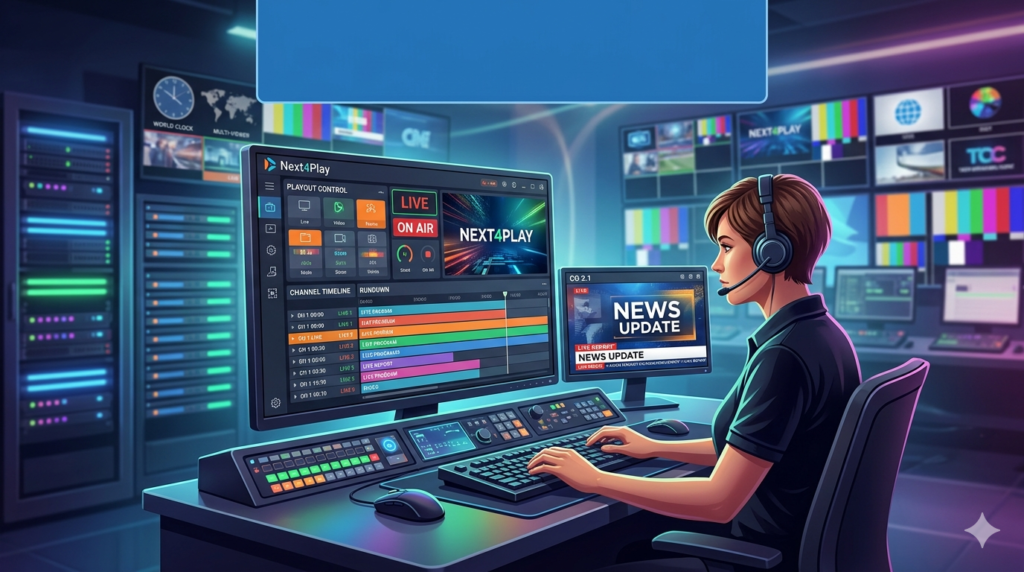
Next4Play Playout Automation With CG 2.1 is a professional-grade broadcast playout solution designed for television channels, radio stations, online streaming platforms, and corporate media departments. This software automates the playback of video files, audio clips, graphics, advertisements, and live feeds, replacing manual switching with precise, scheduled execution.
Unlike basic media players, Next4Play functions as a complete broadcast automation system, supporting real-time character generator (CG) overlays, logo insertion, and multi-format playlist management. It serves both traditional SDI broadcast chains and modern IP-based streaming workflows.
The latest version (2.1) introduces enhanced graphics rendering and improved playlist stability, making it a reliable choice for 24/7 broadcasting environments.
Screenshot


Key Features of Next4Play With CG 2.1
Next4Play includes a robust set of automation tools. Below are the core functionalities:
-
Automated Playout Engine – Schedule and play video, audio, image sequences, and live inputs without manual intervention.
-
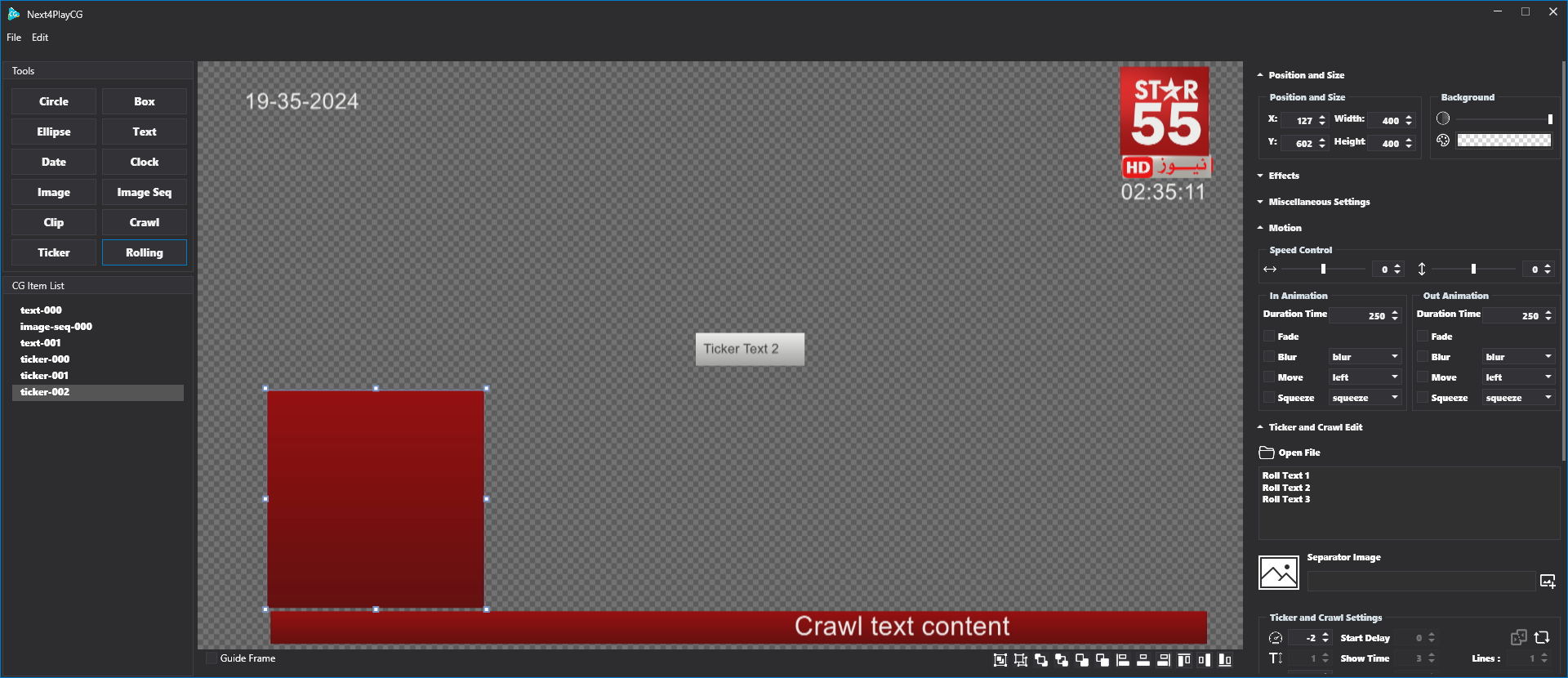
Character Generator (CG) – Add real-time text overlays, tickers, lower thirds, and weather or news updates.
-
Logo and Bug Insertion – Overlay station logos, timecodes, or graphical watermarks on video output.
-
Multi-Format Playlist Management – Support for MP4, MOV, AVI, MXF, MP3, WAV, JPEG, PNG, and broadcast codecs like ProRes and DNxHD.
-
GPI Triggers – Interface with external hardware (routers, switchers, tally systems) using General Purpose Interface triggers.
-
Live Input Switching – Seamlessly transition between pre-recorded content and live camera or satellite feeds.
-
Audio Crossfade and Volume Normalization – Prevent loudness jumps between clips.
-
Emergency Playout Mode – Automatically fall back to a backup playlist if primary content fails.
These features position Next4Play as a broadcast-grade automation tool suitable for community TV, religious networks, educational channels, and digital signage applications.
What’s New in Next4Play Playout Automation 2.1
Version 2.1 introduces several improvements over previous releases:
-
Improved CG Rendering Engine – Smoother animations and reduced CPU load when running scrolling text or complex graphics.
-
Enhanced Codec Support – Added compatibility with H.265 (HEVC) and VP9 for modern streaming workflows.
-
Playlist Recovery Tool – Automatically restores scheduled playlists after an unexpected shutdown.
-
Timecode Accuracy – Frame-accurate playout for professional broadcast compliance.
-
User Interface Refresh – Dark mode theme and resizable panels for multi-monitor setups.
These updates make version 2.1 more stable and feature-rich than earlier iterations.
System Requirements
Before installing Next4Play Playout Automation With CG 2.1, ensure your hardware meets these specifications:
| Component | Minimum Requirement | Recommended Requirement |
|---|---|---|
| Operating System | Windows 10 Pro (64-bit) | Windows 11 Pro or Server 2022 |
| Processor | Intel Core i5 (7th gen) | Intel Core i7 / Xeon or AMD Ryzen 7 |
| RAM | 8 GB | 16 GB or more |
| GPU | Intel HD Graphics 630 | NVIDIA Quadro or GeForce GTX 1660+ |
| Storage | 256 GB SSD (for OS + software) | 512 GB NVMe SSD + separate media drive |
| Network | 1 Gbps Ethernet | 10 Gbps or dual NIC for streaming |
| Output | HDMI or SDI (via DeckLink/AJA card) | Blackmagic DeckLink 8K Pro |
Note: For 24/7 operation, a dedicated broadcast server with redundant power and RAID storage is strongly advised.
Installation Guide
Follow these steps to install Next4Play Playout Automation With CG 2.1 legally and safely.
Step 1: Obtain the Software
Download the official installer from the developer’s website or authorized reseller. Do not use third-party download sites.
Step 2: Prepare Your System
-
Disable antivirus temporarily (false positives may occur with automation software).
-
Run Windows Update to ensure all system dependencies are current.
-
Install Microsoft Visual C++ Redistributables (2015–2022).
Step 3: Run the Installer
-
Right-click the installer and select Run as Administrator.
-
Accept the license agreement.
-
Choose installation directory (default:
C:\Program Files\Next4Play). -
Select components: Core Engine, CG Module, and GPI drivers.
-
Complete installation and restart your system.
Step 4: Activate License
Enter your purchased license key. If you are using the trial version, request a time-limited key from the vendor. No activation bypass, crack, or keygen is required or supported.
How to Use Next4Play Playout Automation
This section explains the basic workflow for operating Next4Play version 2.1.
Creating a Playlist
-
Launch Next4Play and open the Playlist Editor.
-
Drag and drop media files from your storage into the timeline.
-
Arrange items using drag-and-drop or right-click options.
-
Set transition effects (cut, fade, dissolve) between clips.
-
Insert CG events (e.g., lower third or ticker) at specific timecodes.
Scheduling Automated Playback
-
Switch to the Schedule View.
-
Assign each playlist to a specific date and start time.
-
Enable Loop Mode for continuous playback (e.g., overnight operation).
-
Save the schedule and activate the automation engine.
Using the Character Generator (CG)
-
Click CG Manager to create text overlays.
-
Customize font, color, size, position, and scroll speed.
-
Trigger CG manually during live playback or embed triggers in the playlist.
-
For advanced users: Link CG text to external data sources (RSS, XML, or text files).
Monitoring Live Output
-
Watch the Preview and Program windows simultaneously.
-
Use the Log Panel to track errors (e.g., missing files or codec issues).
-
Override automation at any time by clicking Take or Next.
Best Use Cases for Next4Play
| Use Case | Why Next4Play Fits |
|---|---|
| Community TV Channel | Low-cost automation with CG for local announcements. |
| Church or Religious Broadcasting | Schedule weekly services; insert hymn lyrics via CG. |
| Corporate Internal TV | Loop training videos with scrolling news tickers. |
| Digital Signage Network | Play ads and info slides on multiple screens. |
| Web Radio with Video Feed | Synchronize audio playout with static or looping visuals. |
| Sports Venue Replay | Trigger instant replays using GPI inputs. |
Advantages and Limitations
Advantages
-
Cost-effective – Significantly cheaper than enterprise solutions like Harmonic or Imagine Communications.
-
User-friendly interface – Operated by non-engineers after minimal training.
-
CG integration built-in – No need for separate titling software.
-
Runs on standard Windows hardware – No proprietary servers required.
-
Supports emergency fallback – Critical for 24/7 uptime.
Limitations
-
Windows-only – No native macOS or Linux version.
-
Limited to two video outputs – Advanced multi-channel playout requires multiple licenses.
-
No cloud-native version – On-premises only.
-
CG effects are 2D only – 3D animations require external software.
Alternatives to Next4Play Playout Automation
If Next4Play does not meet your requirements, consider these alternatives:
| Software | Best For | Key Difference |
|---|---|---|
| OBS Studio | Free streaming and basic playout | No advanced scheduling or GPI support. |
| vMix | Live production + playout | Better for live switching; weaker long-form automation. |
| PlayBox Neo | Enterprise broadcast | More expensive; supports multi-channel. |
| Cinegy Playout | High-end SDI/NDI workflows | Steeper learning curve; more expensive. |
| Mitti | macOS-based playout | No CG; focused on cinema and events. |
Frequently Asked Questions
1. Is Next4Play Playout Automation With CG 2.1 free?
No, Next4Play is commercial software. A time-limited trial may be available from the developer. There is no legal free version.
2. Can I use Next4Play for live streaming to YouTube or Facebook?
Yes, but you will need streaming encoder software (e.g., OBS or vMix) to capture the program output and send it to RTMP destinations.
3. What video formats does Next4Play support?
It supports MP4 (H.264, H.265), MOV, AVI, MXF, and image sequences. For audio: MP3, WAV, AAC, and PCM.
4. Does Next4Play work with Blackmagic DeckLink cards?
Yes, Next4Play natively supports DeckLink, AJA, and BlueFish444 capture/playback cards for SDI output.
5. Can I run Next4Play on a virtual machine?
Not recommended for live playout due to GPU passthrough and real-time timing issues. Testing only.
6. How do I add scrolling news tickers?
Use the CG module. Create a text box, enable horizontal scroll, and link to an RSS feed or manually update text.
7. What is the difference between Next4Play Basic and With CG?
The “With CG” version includes the full character generator and graphics overlay engine. Basic version supports only video and audio playback.
8. Is technical support available?
Yes, the developer offers email and remote support for licensed users. Check your purchase agreement for support terms.
Final Thoughts
Next4Play Playout Automation With CG 2.1 delivers a compelling balance of affordability and professional features for broadcasters who need reliable, scheduled playback with real-time graphics. While it does not compete with multi-million-dollar enterprise systems, it excels in the mid-tier market: community TV, house of worship, education, corporate media, and digital signage.
The addition of improved CG rendering and H.265 support in version 2.1 makes it a future-ready choice for broadcasters transitioning to IP and streaming workflows. For teams seeking a legal, stable, and user-friendly automation tool without recurring cloud fees, Next4Play remains a strong contender.
Premium Software Support Service
If you need professional help with software installation, setup, or technical configuration, our team is available to assist you.
Contact & Support
For quick assistance and latest updates, connect with us using the links below:
🔹 Direct Telegram Support
https://t.me/PlayoutKing
🔹 Official Telegram Updates Group
https://t.me/yourgroup
Service Policy
- Remote testing available through AnyDesk before confirmation.
• Verify the setup and performance before completing the order.
• Support available for single or multiple systems.
• Step-by-step guidance to ensure smooth installation and working environment.
Our goal is to provide reliable technical assistance so your software runs smoothly without interruptions.