
Overview of the Mividi Videowall Software
Table of Contents
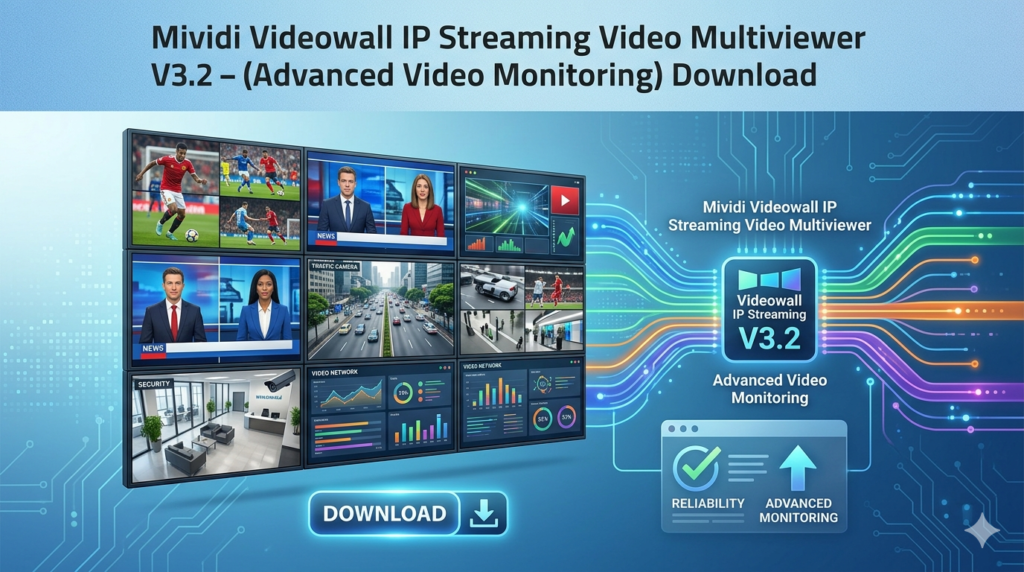
The Mividi Videowall, specifically the WSM120 model detailed in its documentation, is a professional software-based multiviewer monitoring system . Its primary function is to ingest multiple IP video streams and display them on a single screen or a video wall composed of multiple monitors. It is engineered to support a vast array of streaming protocols, making it a versatile tool for any modern broadcast or network operations center (NOC) .
The software decodes a broad range of audio and video codecs, enabling it to monitor content from various sources simultaneously. This includes traditional broadcast feeds, IPTV channels, and OTT services, providing a unified view of an entire video delivery ecosystem . Running on standard Windows-based hardware, the Mividi Videowall aims to provide an affordable and scalable solution compared to proprietary hardware-based systems .
Key Benefits
-
Centralized Monitoring: View dozens of video streams from different sources on a single interface.
-
Cost-Effective: Utilizes standard PC hardware, reducing the need for expensive proprietary equipment .
-
Scalable: Monitor up to 60 SD or 30 HD streams on a single system, with the flexibility to build larger video walls .
Key Features
The Mividi Videowall V3.2 is packed with features designed to provide comprehensive situational awareness and quality control. These features are essential for ensuring a high-quality viewing experience for end-users and quickly identifying potential issues in the video delivery chain.
Multiviewer Display and Monitoring
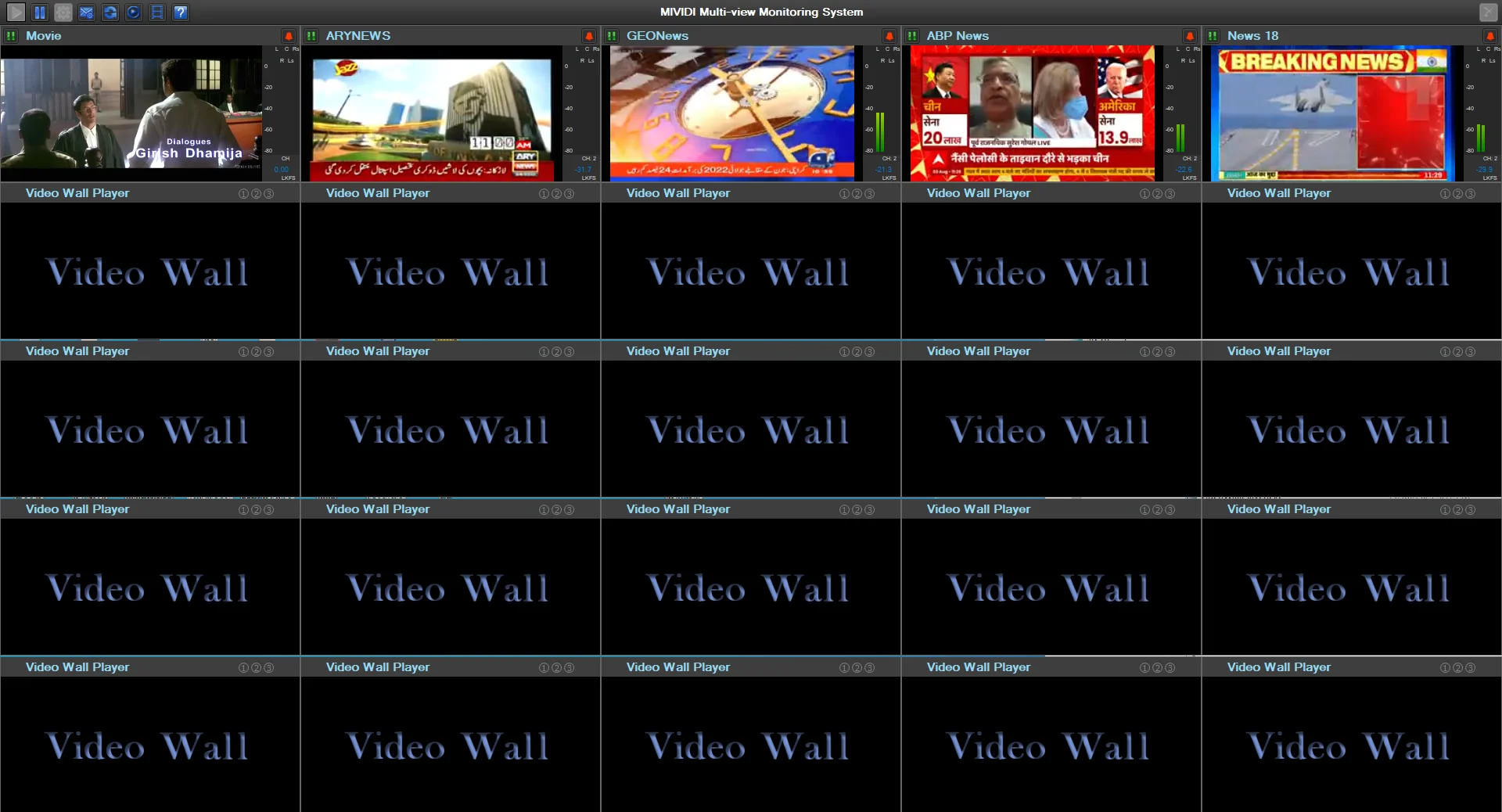
The core feature is its ability to create a flexible, customizable multiviewer display.
-
Simultaneous Monitoring: The system can simultaneously display and monitor up to 60 SD or 30 HD streams on a single computer .
-
Flexible Layouts: Users can configure the display into custom panel layouts, adjusting the size and position of each video window to prioritize critical feeds. Panels can be named for easy identification .
-
Full Screen Viewing: Any selected video can be expanded to full screen for detailed inspection .
-
Audio Monitoring: The software displays audio VU bars and calculates audio loudness levels according to standards like ITU-R BS.1770, which is crucial for broadcast compliance . It supports commonly used audio formats, including MP3, AAC, AAC+, and AC3 .
Stream Protocol and Format Support
One of the greatest strengths of the Mividi Videowall is its wide-ranging support for modern and legacy streaming protocols and formats.
-
IP Streaming Protocols: It supports a comprehensive list of protocols essential for IPTV and OTT services, including UDP, RTP, HTTP, HLS (HTTP Live Streaming), MPEG-DASH, RTMP (Flash), RTSP, MMS, and SRT (Secure Reliable Transport) .
-
Video and Audio Formats: It supports MPEG-2, H.264 (AVC), and H.265 (HEVC) video encoding, along with MP3, AAC, AAC+, and AC3 audio formats .
-
Uncompressed Video: The software can also monitor uncompressed video via SDI, HDMI, or NDI interfaces, offering a bridge between traditional broadcast infrastructure and IP-based systems .
-
Closed Captioning: It supports ATSC closed captioning and DVB subtitles, ensuring comprehensive monitoring of all content elements .
Automated Error Detection and Alerts
The system actively monitors incoming streams for a range of common errors, providing automated alerts to quickly identify issues.
-
Video Error Detection: It automatically detects black frames, frozen frames, and video/audio component loss .
-
Audio Error Detection: It can detect silent audio and loudness that falls outside user-defined thresholds .
-
Alarm System: When errors are detected, the system can trigger visual alerts (e.g., a red flashing border around the affected panel), on-screen audio, email notifications via an SMTP server, and even SMS messages for critical alerts .
Advanced Analysis and Remote Access
-
Transport Stream Analysis: For broadcast applications, the system includes professional MPEG TS analysis features. It can analyze streams based on DVB TR 101 290 and ATSC A78 standards, monitor bandwidth, PCR clock analysis, and decode PSI/SI tables and EPG data .
-
IP Stream Analysis: It calculates MDI (Media Delivery Index) on all services for IP network analysis .
-
Remote Monitoring: The multiviewer screen can be captured, encoded, and streamed to remote locations using HTTP or RTP protocols. This allows operators to view the video wall from a remote office or home using a standard video player like VLC .
What’s New in the Latest Version
Based on the available information for the Mividi WSM120 solution, the latest version builds upon its robust monitoring capabilities with continuous improvements to protocol support and performance.
-
Enhanced Protocol Support: The latest versions maintain and improve support for an expanding ecosystem of internet streaming protocols. This includes ongoing refinements for MPEG-DASH, RTMP, SRT, HLS, and WebRTC, ensuring compatibility with the latest OTT and IPTV delivery standards .
-
H.265 (HEVC) Support: Full support for H.265/HEVC video encoding is standard in the latest version, allowing for efficient monitoring of high-resolution, high-quality streams .
-
Windows Server 2025 Compatibility: The software now offers compatibility with the latest Windows Server platforms, including Windows Server 2022 and 2025, providing up-to-date operating system support for enterprise deployments .
-
User Interface and Workflow Improvements: While the core features remain powerful, continuous development focuses on streamlining the user interface, simplifying the configuration of large display panels, and improving the mapping of URLs to monitors for a more efficient workflow.
System Requirements
To run the Mividi Videowall V3.2 efficiently, the hardware must meet specific minimum requirements. The software is designed to run on standard Windows environments, providing flexibility in hardware choice.
-
Operating System: Microsoft Windows 10, Windows 11, or Windows Server 2016, 2019, 2022, or 2025 .
-
Processor: A modern multi-core processor (e.g., Intel Core i5/i7 or Xeon) is recommended for handling the load of multiple concurrent video decodes.
-
Memory (RAM): At least 8 GB of RAM is required, though 16 GB or more is recommended for monitoring a high number of streams.
-
Graphics Card: A dedicated graphics card with sufficient video memory (e.g., 2 GB or more) is highly recommended. The ability to support up to four monitoring panels makes use of graphic card features .
-
Network: A Gigabit Ethernet adapter is required for receiving multiple high-bandwidth IP video streams.
Installation Guide
Installing the Mividi Videowall software is a straightforward process similar to installing other Windows applications. While these steps are generalized based on software documentation for similar video wall managers, the process for the Mividi Videowall follows a standard pattern .
Step-by-Step Installation Process
-
Download the Software: Obtain the latest installer for the Mividi Videowall V3.2 software from the Mividi website or an authorized distributor.
-
Run the Installer: Navigate to the downloaded
.exefile and double-click it to begin the installation. You may be prompted by a security warning; click “Run” to proceed . -
Select Destination: Choose the folder where you want to install the software (the default location is usually recommended). Click “Next” .
-
Select Start Menu Folder: Choose the folder where you want the program shortcuts to be placed. You may also choose not to create a Start Menu folder. Click “Next” .
-
Select Additional Tasks: You can choose to create a desktop shortcut for easy access. Click “Next” .
-
Install Dependencies: The installer will check for necessary dependencies, such as the Visual C++ Redistributable. If it is not present, the installer will download and install it automatically. Click “Yes” to proceed .
-
Complete Installation: Click “Install” to copy the files. Once the process is complete, click “Finish.” If the “Launch VideoWall” option is checked, the application will start automatically .
How to Use the Software
After launching the Mividi Videowall application, the configuration process involves setting up a display, adding sources, and customizing the layout.
Configuring the Video Wall
-
Launch the Application: Open the Mividi Videowall application from the Start Menu or desktop shortcut. Ensure the computer’s display settings (e.g., extended desktop mode) are correctly configured if using multiple physical monitors .
-
Create a New Layout: Use the configuration interface to define the overall size of your video wall. This might involve setting up a grid of monitors or a single large screen. The system can support up to four monitoring panels using graphic card features .
-
Add Video Sources: Add the IP streams you want to monitor. This is typically done by mapping a URL for each service to a display panel .
-
Live Broadcast: Enter the URL for the live stream (e.g., an HLS
.m3u8or MPEG-DASH.mpdfile). -
VOD Monitoring: To monitor VOD services, list the playlist URLs. The system will request them one by one, decode, and display the videos .
-
-
Define Display Panels: Within the video wall layout, create display panels. You can define the number and size of these panels, arranging them in a grid or custom configuration .
-
Map Sources to Panels: Drag and drop or assign a specific URL to each display panel. You can also name each panel with a user-friendly name for easier identification .
-
Set Up Alerts: Configure the thresholds for error detection. For example, you can set the acceptable audio loudness range or how many black frames constitute an error. Then, define which actions to take when an error is detected (e.g., email alarm, visual alarm) .
-
Save and Apply: Once all sources are mapped and the layout is configured, save the configuration. The video wall should now be active and displaying all the selected streams.
Advanced Features
-
Stream Rotation: If you have more streams to monitor than display panels, configure the software to use “round-robin” video display rotation. It will cycle through the list of URLs on a panel .
-
Remote Monitoring: For remote access, navigate to the settings for screen capture. Enable the feature to capture and encode the multiviewer screen and stream it to a remote location using HTTP or RTP .
Best Use Cases
The Mividi Videowall software is an ideal solution for various professional video monitoring applications.
1. Broadcast Master Control Room (MCR)
In a broadcast master control room, operators need a comprehensive view of all channels going to air. The Mividi system can decode and display multiple incoming satellite, fiber, and IP feeds. The support for MPEG TS analysis (TR 101 290, ATSC A78) makes it invaluable for checking signal health, error monitoring, and ensuring video and audio compliance before transmission .
2. IPTV and OTT Service Providers
IPTV and OTT providers must monitor their video streams across the entire delivery chain, from the headend to the CDN . The software’s ability to ingest streams via a multitude of protocols—such as HLS, MPEG-DASH, RTMP, and SRT—allows engineers to verify service availability, quality of experience (QoE), and video integrity at multiple points in the network .
3. Corporate and Educational Video Surveillance
For large organizations and educational campuses with extensive digital signage or security camera networks, this videowall software provides a centralized monitoring solution. It can ingest streams from NDI sources, IP cameras (using RTSP), and other network video feeds, allowing security or AV staff to oversee numerous locations from a single command center .
4. Sports Venues and Live Events
During live events, a videowall is essential for production and broadcast teams. The software can combine feeds from multiple cameras, replay systems, and graphics sources into a single view, enabling producers to make quick, informed decisions about what content to broadcast or show on the stadium’s main screens.
Advantages and Limitations
Advantages
-
Cost-Effective: Significantly lower cost than traditional, hardware-based video walls and multiviewers .
-
Protocol and Format Support: Industry-leading support for diverse streaming protocols (UDP, HLS, MPEG-DASH, SRT, NDI) and video formats (H.265/HEVC) .
-
Scalability: A single server can handle a high number of streams (30+ HD), and multiple servers can be combined for even larger setups .
-
Comprehensive Monitoring: Beyond just viewing video, the system actively monitors for errors and provides automated alerts .
-
Flexibility: Easy to customize layouts, add or remove sources, and implement stream rotation for monitoring a high number of channels .
Limitations
-
Hardware Dependent: Performance is heavily reliant on the host computer’s CPU, GPU, and network capabilities. High-performance hardware is required for large configurations.
-
Windows-Only: The software is designed to run on Windows operating systems only, which may not suit environments that rely on Linux or macOS .
-
Learning Curve: While user-friendly, configuring extensive video walls with error detection and stream analysis may require technical expertise in broadcast and network engineering.
Alternatives to the Mividi Videowall
When considering a professional IP video monitoring solution, it’s useful to be aware of the landscape of alternatives. While the Mividi Videowall offers a robust and cost-effective option, other platforms may be better suited for different needs.
Overview of Video Monitoring Alternatives
-
TestTree StreamProbe: Another professional tool focused on stream analysis and monitoring, often used by broadcasters and service providers. It is a direct competitor in the QoS monitoring space.
-
Tangerine Global Mediaroom: A comprehensive turnkey platform for telco and cable operators offering a full IPTV system, including a managed video wall and monitoring component. It represents a more extensive (and expensive) ecosystem compared to a dedicated monitoring software .
-
Wireshark with Custom Scripts: For highly technical teams, a network analysis tool like Wireshark can be scripted to perform some monitoring tasks. However, this lacks the user-friendly interface and real-time visual display of a dedicated multiviewer.
Comparison with Mividi
| Feature/Criteria | Mividi Videowall | Alternatives (e.g., StreamProbe, Mediaroom) |
|---|---|---|
| Primary Function | Versatile IP video monitoring and display | Specialized analysis, full IPTV management |
| Protocol Support | Extensive (HLS, MPEG-DASH, SRT, RTMP, etc.) | Varies; often focused on specific markets or analysis types |
| Cost | Cost-effective, software-based | Can be expensive, often with hardware and licensing fees |
| Best For | Broadcast MCRs, OTT/IPTV providers, corporate AV, sports venues | Specialized stream analysis, large-scale IPTV deployments |
| Deployment | Simple, runs on standard Windows servers | Can be complex, may require dedicated hardware or specialized teams |
Frequently Asked Questions
Q: What is the Mividi Videowall IP Streaming Video Multiviewer V3.2?
A: It is a professional software application designed for monitoring multiple IP video streams and displaying them on a single screen or video wall. It is used by broadcasters and service providers for quality assurance and operations monitoring .
Q: What streaming protocols does the Mividi Videowall support?
A: The software supports a wide range of protocols, including UDP, RTP, HTTP, HLS, MPEG-DASH, RTMP, RTSP, SRT, and MMS . It also supports uncompressed video via SDI, HDMI, and NDI .
Q: What are the system requirements for running the software?
A: The software requires a PC running Windows 10, 11, or Windows Server 2016, 2019, 2022, or 2025. A modern multi-core processor, at least 8 GB of RAM, and a dedicated graphics card are recommended for optimal performance .
Q: How many video streams can be monitored at once?
A: A single Mividi Videowall system can simultaneously monitor up to 60 SD or 30 HD streams . This can be scaled further by using multiple systems .
Q: What types of errors can the software automatically detect?
A: The system can automatically detect several critical errors, including loss of input streams, loss of video/audio components, frozen video frames, black frames, and audio loudness violations .
Q: Can the video wall be monitored remotely?
A: Yes. The software can capture and encode the multiviewer display, then stream it to a remote location using HTTP or RTP protocols for viewing in a standard video player .
Q: Is the Mividi Videowall suitable for monitoring SMPTE 2110 streams?
A: Yes. Mividi offers specific solutions for analyzing and monitoring SMPTE 2110 streams. The system can check stream compliance to SMPTE standards (ST 2110-10, -20, -21, -30) and monitor for PTP messages and video/audio errors .
Final Thoughts
The Mividi Videowall IP Streaming Video Multiviewer V3.2 stands out as a powerful, flexible, and cost-effective solution for professional video monitoring. Its impressive range of supported protocols—from legacy MPEG-TS and SDI to modern OTT standards like HLS, MPEG-DASH, and SRT—makes it an invaluable tool for broadcasters, IPTV providers, and AV professionals navigating the complex, evolving world of video delivery .
By consolidating the monitoring of diverse feeds into a single, customizable interface and providing intelligent error detection and alerting, it empowers operators to maintain high service quality and resolve issues proactively. The Mividi Videowall is a compelling choice for any organization seeking to enhance its video monitoring infrastructure with a professional, scalable, and modern solution.
Our Paid Service
“We do not sell or provide any software. We only offer professional support services. If any software on your system is not working properly, or you are facing installation errors, crashes, or any other technical issue — just contact us. We will help you fix the problem quickly and remotely via AnyDesk. No software will be provided from our side — only expert troubleshooting and support.”