
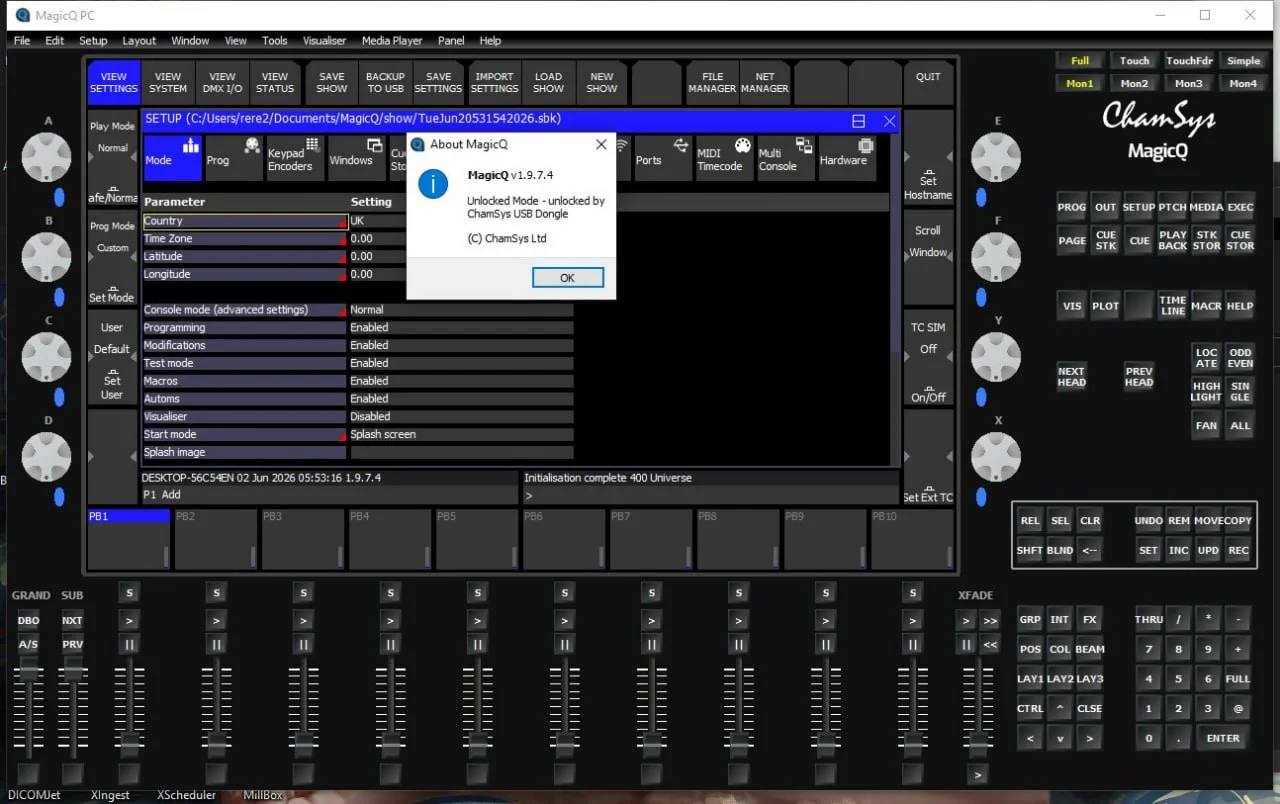
Overview of the MagicQ Lighting Control Software
Table of Contents
MagicQ V1.9.7.4 is the latest version of the powerful lighting control software from ChamSys, a leading name in the entertainment technology industry. This professional-grade software is widely used in the lighting design and live event sectors, providing a comprehensive platform for controlling complex lighting rigs, media servers, and moving lights.
For both beginners and seasoned lighting professionals, MagicQ offers a free, fully-featured software solution that can run on a standard Windows or macOS PC. Its intuitive interface and powerful features make it a popular choice for theatre, concerts, corporate events, and television productions. The software serves as a virtual lighting console, allowing users to program and control their entire lighting setup without the need for a physical hardware console, though it integrates seamlessly with ChamSys hardware for a more tactile experience.
The software’s core value lies in its ability to turn a computer into a professional lighting controller, offering a comprehensive toolset for pre-visualization and real-time control. MagicQ V1.9.7.4 continues this legacy by enhancing stability, adding new features, and refining user workflows to ensure it remains a top-tier solution in the dynamic field of entertainment lighting.
What is MagicQ?
MagicQ is a lighting control software developed by ChamSys. It is a powerful, scalable solution that provides users with complete control over their lighting systems, from small, simple setups to large, complex installations with thousands of channels.
Key Features of MagicQ V1.9.7.4
MagicQ V1.9.7.4 is packed with features that cater to the needs of modern lighting designers. Here are some of its most prominent capabilities:
-
Comprehensive Lighting Control: MagicQ provides robust control over all types of lighting fixtures, including moving lights, LED washes, dimmers, and media servers. It supports a vast library of fixture profiles.
-
Advanced Programming Tools: The software features a powerful programming engine with a comprehensive effects generator, pixel mapping capabilities, and a timeline for time-based programming.
-
Visualizer Integration: It includes a built-in visualizer for pre-visualizing your lighting design, allowing you to create and test complex cues and looks before a single light is plugged in.
-
Multi-User Support: MagicQ supports multiple users on a single network, enabling collaborative programming for large-scale productions.
-
Flexible Control Options: Users can control the software via a computer keyboard and mouse, or connect a range of ChamSys hardware consoles (like the MQ-series) for a dedicated, professional control surface.
-
MIDI and OSC Support: The software can be controlled and triggered via external MIDI and OSC devices, making it easy to integrate with other show control systems.
-
Extensive Fixture Library: ChamSys maintains an extensive, regularly updated library of fixture profiles, ensuring that you can easily control almost any lighting fixture on the market.
What’s New in MagicQ V1.9.7.4
The MagicQ V1.9.7.4 update focuses on refining the user experience, improving system stability, and introducing new features to streamline the workflow of lighting professionals.
-
Enhanced Performance and Stability: This version includes under-the-hood optimizations that improve the software’s overall stability and performance, particularly when handling large shows with numerous fixtures and effects.
-
UI/UX Improvements: The user interface has received subtle refinements to improve navigation and workflow. This includes updates to the palette management system and improved search functionality within the fixture library.
-
Expanded Fixture Profiles: The fixture library has been updated with profiles for the latest moving head lights, LED fixtures, and other lighting equipment from major manufacturers, ensuring out-of-the-box compatibility.
-
New Effects and Presets: New effect presets and functionality have been added to the effects generator, giving lighting designers more creative tools at their disposal.
-
Bug Fixes and Optimizations: The update addresses various user-reported bugs, leading to a more reliable and polished user experience.
MagicQ System Requirements
To run MagicQ V1.9.7.4 effectively, your computer system should meet the following recommendations:
Minimum System Requirements:
-
Operating System: Windows 10 (64-bit) or macOS 10.15 (Catalina) or later.
-
Processor: Intel Core i5 or equivalent AMD processor.
-
RAM: 8 GB of system memory.
-
Graphics: A dedicated graphics card with at least 2GB of VRAM is recommended for visualizer use.
-
Storage: 1 GB of available hard disk space.
-
Network: A network interface card (NIC) for Art-Net or sACN output (if using network protocols).
Recommended System Requirements for Professional Use:
-
Operating System: Windows 11 or macOS 12 (Monterey) or later.
-
Processor: Intel Core i7 or AMD Ryzen 7 processor.
-
RAM: 16 GB or more.
-
Graphics: Dedicated graphics card with 4GB+ VRAM for complex visualizer scenes.
-
Storage: SSD drive for faster loading times.
-
Network: Gigabit Ethernet for high-volume network protocols.
How to Install MagicQ
Installing the MagicQ lighting control software is a straightforward process. Follow these steps to get started:
-
Download the Installer: Visit the official ChamSys website and navigate to the Downloads section. Locate the MagicQ V1.9.7.4 installer for your operating system (Windows or macOS) and download it.
-
Run the Installer:
-
On Windows: Double-click the downloaded
.exefile. If prompted by User Account Control (UAC), click “Yes” to allow the installation. -
On macOS: Double-click the downloaded
.dmgfile, then drag the MagicQ application icon into your Applications folder.
-
-
Follow On-Screen Instructions: The installation wizard will guide you through the process. Accept the license agreement and choose the installation directory (the default location is recommended for most users).
-
Complete Installation: Click “Install” and wait for the process to complete. Once finished, click “Finish” or “Close” to exit the installer.
-
Launch the Software: You can now launch MagicQ from your Start Menu (Windows) or Applications folder (macOS). Upon first launch, the software will run in “Demo Mode” without any connected hardware.
Getting Started: A Beginner’s Guide to MagicQ
This quick-start guide will help you begin your journey with the MagicQ software.
Setting Up Your Fixtures
-
Open Patch: Upon launching MagicQ, the “Patch” window is one of the first things you’ll see. This is where you define the lighting fixtures you are using.
-
Add Fixtures: Click the “Add Fixture” button. A window will appear.
-
Select Fixture Type: Use the search bar to find the manufacturer and model of your lighting fixture.
-
Assign DMX Address: Set a starting DMX address for the fixture.
-
Name Your Fixture: Give the fixture a descriptive name (e.g., “Front Wash,” “Moving Head 1”).
-
Repeat: Repeat this process for all the fixtures in your lighting rig.
Basic Programming Workflow
-
Select Fixtures: Use the mouse to select fixtures in the “Grid” view or use the numeric keypad on your keyboard or console.
-
Set Intensity and Attributes: Use the on-screen faders or encoders to adjust the intensity, color, position, and other attributes of the selected fixtures.
-
Create a Cue: Once you have a look you like, press the “Record” button and then select an empty cue number in the cue stack to store it.
-
Build a Cue Stack: Continue creating cues in a sequence to build a show. You can adjust the timing and fade times between each cue.
-
Playback: Press the “Go” button to run your cue stack.
Best Use Cases for MagicQ
MagicQ’s versatility makes it suitable for a wide range of applications in the live events and entertainment industries.
-
Live Concerts & Tours: Lighting designers for major artists and touring acts rely on MagicQ for its powerful programming capabilities and reliable playback.
-
Theatre and Performing Arts: The software’s cue stack and timing features are perfect for the complex, time-based cues required in theatrical productions.
-
Corporate Events & Conferences: MagicQ provides professional control over stage lighting for presentations, galas, and product launches.
-
Television & Broadcasting: The software’s stability and precise control are essential in the fast-paced environment of TV studios.
-
House of Worship: Many churches use MagicQ for its ability to create dynamic and immersive lighting for services and events.
-
Pre-Visualization: Lighting designers often use MagicQ’s built-in visualizer for pre-production, allowing them to design and test their shows in a virtual environment before a venue is available.
Advantages and Limitations of MagicQ
Like any software, MagicQ has its strengths and weaknesses. Understanding these can help you decide if it’s the right tool for your needs.
Advantages
-
Feature-Rich Free Version: The free version of MagicQ is incredibly powerful and only limits output to two universes of DMX, making it ideal for smaller shows and learning.
-
Scalability: The software seamlessly scales from simple, two-universe setups to massive productions using ChamSys hardware.
-
Professional-Grade Features: It offers advanced features like a powerful effects engine, pixel mapping, and a robust timeline, competing with much more expensive systems.
-
Strong User Community: There is a large and active online community of MagicQ users, providing a wealth of tutorials, tips, and support.
-
Regular Updates: ChamSys is committed to its software, providing consistent updates with new features and bug fixes.
Limitations
-
Steep Learning Curve: While powerful, the software’s extensive feature set can be overwhelming for absolute beginners.
-
Hardware Dependency: To unlock the full potential of the software (e.g., more universes, fader control), you need to purchase ChamSys hardware.
-
Interface Complexity: The interface, while functional, can feel less intuitive compared to some newer, more streamlined lighting software options.
Alternatives to MagicQ
While MagicQ is a market leader, several other lighting control software options are available. Here’s a brief comparison:
| Software | Developer | Key Features | Best For | Target Audience |
|---|---|---|---|---|
| GrandMA 3 (onPC) | MA Lighting | Advanced networking, powerful effects, robust hardware ecosystem. | Large-scale professional tours and high-budget productions. | Experienced lighting professionals. |
| ETC Eos (Nomad) | Electronic Theatre Controls | Designed for theatrical workflows, cue-centric programming, powerful magic sheets. | Theatre, musicals, and dance productions. | Theatrical lighting designers. |
| QLC+ (Open Source) | QLC+ Community | Free and open-source, supports a wide range of USB-DMX interfaces. | Small clubs, schools, and hobbyists on a limited budget. | Beginners and budget-conscious users. |
Frequently Asked Questions
Here are some of the most common questions users have about MagicQ.
Is MagicQ really free?
Yes, the MagicQ software is completely free to download and use. The free version limits you to controlling two universes of DMX (1,024 channels each), which is sufficient for many smaller productions and for learning the software.
What is the difference between MagicQ and MagicQ PC?
They are essentially the same software. “MagicQ” is the overall software name, while “MagicQ PC” is often used to refer to the version running on a computer without dedicated ChamSys hardware.
Can I use MagicQ without a physical console?
Absolutely. You can use MagicQ with just a mouse and keyboard on your Windows or macOS computer. However, for tactile control, you can connect ChamSys hardware consoles or third-party MIDI controllers.
Does MagicQ support Art-Net and sACN?
Yes, MagicQ fully supports network protocols like Art-Net and sACN (Streaming ACN), allowing you to output DMX data over your local network to network nodes.
What file formats does MagicQ use?
MagicQ uses its own proprietary file formats for shows (.show) and fixture profiles. It also supports importing and exporting CSV data for patching.
How do I get started with programming in MagicQ?
The best way to start is to explore the software’s built-in tutorials. You can also find a wealth of resources on the official ChamSys website and on YouTube. We recommend starting by learning how to patch fixtures and create simple cues.
Is there a MagicQ app for iPad or Android?
While there is no dedicated standalone app for tablets, ChamSys offers remote control options. You can use a tablet’s web browser to access the MagicQ Web Remote interface, or use third-party software for remote control over a network.
Where can I find the latest MagicQ fixture profiles?
The latest fixture profiles are automatically updated within the software. When you add a fixture, you can search for it, and the software will download the latest profile from the ChamSys server if it’s not already in your local library.
Final Thoughts
MagicQ V1.9.7.4 represents the culmination of ChamSys’s commitment to providing a powerful, reliable, and feature-rich lighting control software for professionals and enthusiasts alike. Its combination of a free, fully-featured software version with a scalable hardware ecosystem makes it an unmatched option in the industry.
Whether you are a seasoned lighting designer programming for a global arena tour or a student taking your first steps into the world of lighting, MagicQ offers the tools you need to realize your creative vision. Its continuous updates, robust community support, and industry-standard status ensure that it remains a valuable asset for years to come.
By choosing MagicQ, you are not just downloading software; you are investing in a professional-grade solution that can grow with your career. Download MagicQ V1.9.7.4 from the official ChamSys website today to begin your journey into professional lighting control.
Our Paid Service
“We do not sell or provide any software. We only offer professional support services. If any software on your system is not working properly, or you are facing installation errors, crashes, or any other technical issue — just contact us. We will help you fix the problem quickly and remotely via AnyDesk. No software will be provided from our side — only expert troubleshooting and support.”