
Download the Intuit QuickBooks POS v19 Multistore (A Complete Guide to Retail Management) from this link…

Overview of Intuit QuickBooks POS v19 Multistore
Table of Contents
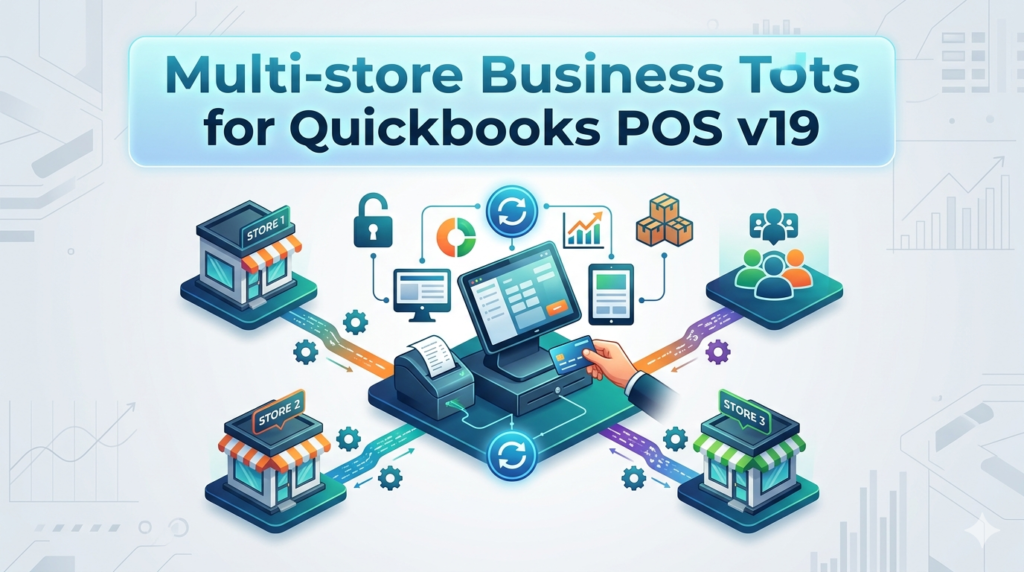
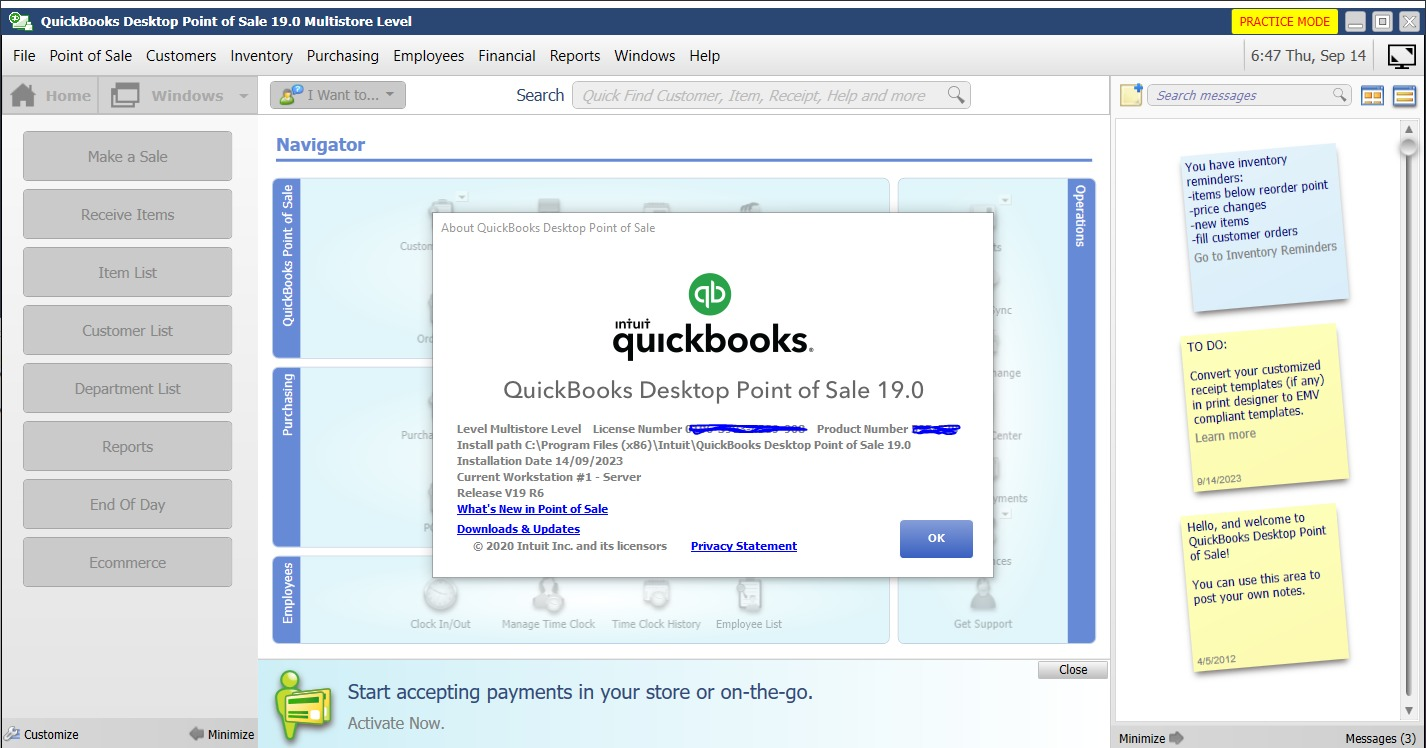
Intuit QuickBooks POS v19 Multistore is a dedicated point-of-sale (POS) and retail management software designed specifically for businesses operating across multiple physical locations. Unlike standard single-store versions, the Multistore edition synchronizes inventory, customer data, and sales reporting across every branch in real time.
Released as a feature-stable version for desktop environments, v19 remains a popular choice for retailers who prefer on-premise software over cloud-only solutions. This system integrates natively with QuickBooks Desktop Pro, Premier, and Enterprise (2019–2021 editions), bridging the gap between front-end checkout and back-end accounting.
For business owners seeking Intuit QuickBooks POS v19 Multistore capabilities, this guide covers installation, feature optimization, system requirements, and legal compliance—ensuring your retail operation scales efficiently without violating software licensing terms.
Key Features of QuickBooks POS v19 Multistore
Multi-Location Inventory Tracking
The core advantage of the Multistore version is centralized inventory control. You can transfer stock between stores, set location-specific pricing, and view consolidated stock levels from a single dashboard. Each store’s POS terminal syncs automatically via a local server or secure VPN.
Integrated Payment Processing
QuickBooks POS v19 includes native merchant services (QuickBooks Payments) for credit cards, debit, and gift cards. It also supports cash, check, and split-tender transactions. End-of-day settlement data flows directly into your QuickBooks Desktop General Ledger.
Customer Relationship Management (CRM)
Build a unified customer database across all stores. Track purchase history, issue store credit or refunds, and run loyalty programs. The software captures customer email addresses for marketing campaigns via Mailchimp or Constant Contact integration.
Advanced Reporting Suite
Access over 70 pre-built reports, including:
-
Sales by item, category, or location
-
Inventory valuation and reorder alerts
-
Employee sales performance
-
Tax liability summaries
Barcode Scanning and Label Printing
Generate and print custom barcodes (UPC, EAN, or SKU). Supports USB, Bluetooth, and serial barcode scanners. Label printing for shelf tags or price stickers is built-in.
Layaway and Special Order Management
Handle complex retail workflows like layaway plans, special orders, and quotes that convert to invoices. Each transaction retains location-specific data.
What’s New in the Latest Version (v19 vs. Earlier Releases)
Intuit QuickBooks POS v19 introduced several critical updates over v18 and prior versions:
-
Enhanced PCI Compliance: Updated encryption for credit card swipers and EMV (chip card) readers to meet 2019–2020 security standards.
-
Windows 10 Optimization: Full compatibility with Windows 10 Pro (build 1809 and later), including high-DPI display scaling for touchscreen POS hardware.
-
Faster Database Sync: Improved SQL query performance for multi-store data replication, reducing sync delays to under 5 seconds in typical LAN environments.
-
Gift Card Vault Integration: Direct support for third-party gift card processors like GiveX and Stored Value Solutions (SVS).
-
Tax Rate Updates: Preloaded 2019–2020 sales tax tables for all US jurisdictions (requires annual subscription for continued updates).
Note: As of 2024, Intuit has discontinued new sales of QuickBooks POS and ended support. Existing licensed users can continue operating v19, but no further tax table updates or security patches are issued.
System Requirements for QuickBooks POS v19 Multistore
Server (Host) Machine
-
OS: Windows 10 Pro (64-bit) or Windows Server 2016/2019
-
Processor: Intel Core i5 or equivalent (3.0 GHz+ recommended)
-
RAM: 8 GB minimum (16 GB for 5+ stores)
-
Storage: 256 GB SSD (plus additional for database growth)
-
Network: Gigabit Ethernet for LAN sync; static IP required
POS Terminals (Client Workstations)
-
OS: Windows 10 Pro (64-bit)
-
Processor: Intel Celeron or better (Core i3 recommended)
-
RAM: 4 GB minimum
-
Storage: 64 GB SSD
-
Peripherals: Receipt printer (Epson TM series), cash drawer (RJ11/USB), barcode scanner, customer display (optional)
Database & Networking
-
Microsoft SQL Server 2014 Express (included with installer)
-
TCP/IP network with reserved DHCP addresses for each terminal
-
VPN or SD-WAN for multi-location syncing (no cloud-hosted option)
Installation Guide for QuickBooks POS v19 Multistore
Pre-Installation Checklist
-
Verify all terminals run Windows 10 Pro (not Home edition).
-
Disable antivirus and Windows Defender temporarily.
-
Ensure all machines are on the same workgroup or domain.
-
Back up any existing QuickBooks POS data (if upgrading).
Step-by-Step Installation
Step 1: Install the Database Server
-
On the dedicated host PC, insert the installation DVD or run the downloaded
Setup.exe. -
Select “Install Database Server” and accept the license agreement.
-
Let the installer configure SQL Server 2014 Express (this takes 10–15 minutes).
Step 2: Install POS Software on Host
-
Run the installer again, choose “Install QuickBooks POS”.
-
Select “Multistore – Host” as the installation type.
-
Enter your license number and product key (found in your Intuit purchase confirmation).
-
Create a database instance name (default:
QBPOSDB).
Step 3: Deploy to Client Terminals
-
On each POS register, run the installer and choose “Multistore – Client”.
-
Enter the host machine’s IP address or network name.
-
Test the connection before finalizing.
Step 4: Initial Configuration
-
Launch POS Admin Console.
-
Add each store location (Name, address, tax zone).
-
Assign registers to locations.
-
Import inventory from CSV or sync from existing QuickBooks Desktop company file.
How to Use the Software for Multi-Store Operations
Processing a Cross-Store Sale
-
At the POS terminal, scan customer items.
-
If an item is out of stock at the current store, click “Check Other Locations”.
-
Select the store with inventory, then choose “Transfer for Sale” (creates an internal transfer order).
-
Complete the sale. The inventory is deducted from the source store automatically.
Running Daily Closing Reports
-
From the Manager Menu, select “Reports” > “Sales” > “Daily Summary by Location”.
-
Check for discrepancies between payment methods.
-
Click “Send to QuickBooks” to push sales data to your accounting file.
Performing a Physical Inventory Count
-
Print count sheets by location or category.
-
Use a barcode scanner with “Inventory Count” mode.
-
Enter quantities; the system highlights variance vs. expected stock.
-
Approve adjustments to reconcile.
Best Use Cases for QuickBooks POS v19 Multistore
This software excels in specific retail verticals:
| Industry | Why It Fits |
|---|---|
| Apparel Chains | Variants (size/color) tracking; cross-store returns. |
| Electronics Retailers | Serial number tracking; extended warranty management. |
| Hardware Stores | Bulk item pricing; special order fulfillment. |
| Pet Supply Stores | Loyalty programs; recurring purchase schedules. |
| Furniture Showrooms | Layaway plans; quote-to-invoice workflows. |
Not ideal for: Restaurants (no table mapping), service businesses (no appointment scheduling), or pop-up shops (requires permanent hardware).
Advantages and Limitations
Advantages (Pros)
-
Offline Capable: Continues working without internet; syncs later.
-
Deep QuickBooks Integration: No double-entry for sales, taxes, or COGS.
-
One-Time License Model (legacy): No monthly subscription fees for existing owners.
-
Fast Local Processing: Sub-500ms transaction times even with high item counts.
Limitations (Cons)
-
Discontinued Support: No new features, security updates, or tax table refreshes after 2022.
-
Windows-Only: Cannot run on Mac, iPad, or Android terminals.
-
Manual Cloud Backup Required: No automatic offsite data protection.
-
Limited Payment Processors: Works only with Intuit Merchant Services or a few legacy gateways (TSYS, First Data).
Alternatives to QuickBooks POS v19 Multistore
If you need active development and modern features, consider these replacements:
| Software | Key Feature | Best For | Cloud-Based? | QuickBooks Sync |
|---|---|---|---|---|
| Lightspeed Retail | Real-time multi-store inventory | Mid-size specialty retail | Yes | Via third-party (OneSaas) |
| Shopify POS Pro | Unified e-commerce + physical stores | Omnichannel brands | Yes | No (separate accounting) |
| ERPLY | Offline mode + barcode generation | Growing chains (2–20 stores) | Hybrid | Yes (native) |
| Clover Retail | All-in-one hardware + software | Quick-service retail | Yes | Via Clover app |
| Square for Retail | Free inventory base plan | Small boutiques (1–3 stores) | Yes | No |
Migration tip: Export your v19 inventory to CSV and map fields before trialing alternatives. Most competitors offer free data migration services for 50+ SKUs.
Frequently Asked Questions (FAQ)
Q1: Can I still activate Intuit QuickBooks POS v19 Multistore in 2026?
No. Intuit deactivated license activation servers for all POS versions in 2023. If you have an existing installation that is already activated, you can continue using it. New installations require a pre-activated image or an enterprise agreement (unavailable to new customers).
Q2: Does QuickBooks POS v19 work with Windows 11?
Not officially. Some users report basic functionality after compatibility mode tweaks, but database sync and payment processing become unstable. Intuit recommends staying on Windows 10 Pro for v19.
Q3: How do I handle credit card payments if Intuit no longer supports POS v19?
You have two options: (1) Process cards through a standalone terminal (e.g., Clover Flex) and manually enter sales into POS for inventory tracking, or (2) Migrate to a modern POS with active payment integration.
Q4: Can I use this software for a single store with future growth plans?
Yes, but cautiously. The Multistore edition works perfectly for one location. However, since support is discontinued, you risk being unable to add a second store later if you encounter activation issues.
Q5: Is there a legal way to get QuickBooks POS v19 without paying Intuit?
Only through authorized resellers selling their existing perpetual licenses with a transfer of ownership. Intuit allows one-time license transfers with a $50 fee. Avoid any website offering “free downloads”—those violate copyright law and may contain malware.
Q6: Will my v19 data be compatible with QuickBooks Online?
No. v19 exports only to QuickBooks Desktop (QBW file format). To use QBO, you need a third-party converter like Transaction Pro or Migration Wizard.
Q7: How do I add a new register without Intuit support?
Manually. Install the client software using your existing license key. If activation fails, you cannot add more than the original license count. Always document your original activation codes.
Final Thoughts on QuickBooks POS v19 Multistore
Intuit QuickBooks POS v19 Multistore represents the end of an era for on-premise, desktop-centric retail management. For businesses already running a stable, activated deployment, the software remains a reliable workhorse—particularly if you operate in an area with unreliable internet and your accounting already lives in QuickBooks Desktop.
However, the lack of security updates, expiring payment certifications, and frozen tax tables make v19 a depreciating asset. Strategic retailers should plan a migration to a supported POS platform within 12–24 months. Use this guide to maximize your existing investment while preparing a transition roadmap.
Premium Software Support Service
If you need professional help with software installation, setup, or technical configuration, our team is available to assist you.
Contact & Support
For quick assistance and latest updates, connect with us using the links below:
🔹 Direct Telegram Support
https://t.me/PlayoutKing
🔹 Official Telegram Updates Group
https://t.me/yourgroup
Service Policy
- Remote testing available through AnyDesk before confirmation.
• Verify the setup and performance before completing the order.
• Support available for single or multiple systems.
• Step-by-step guidance to ensure smooth installation and working environment.
Our goal is to provide reliable technical assistance so your software runs smoothly without interruptions.