

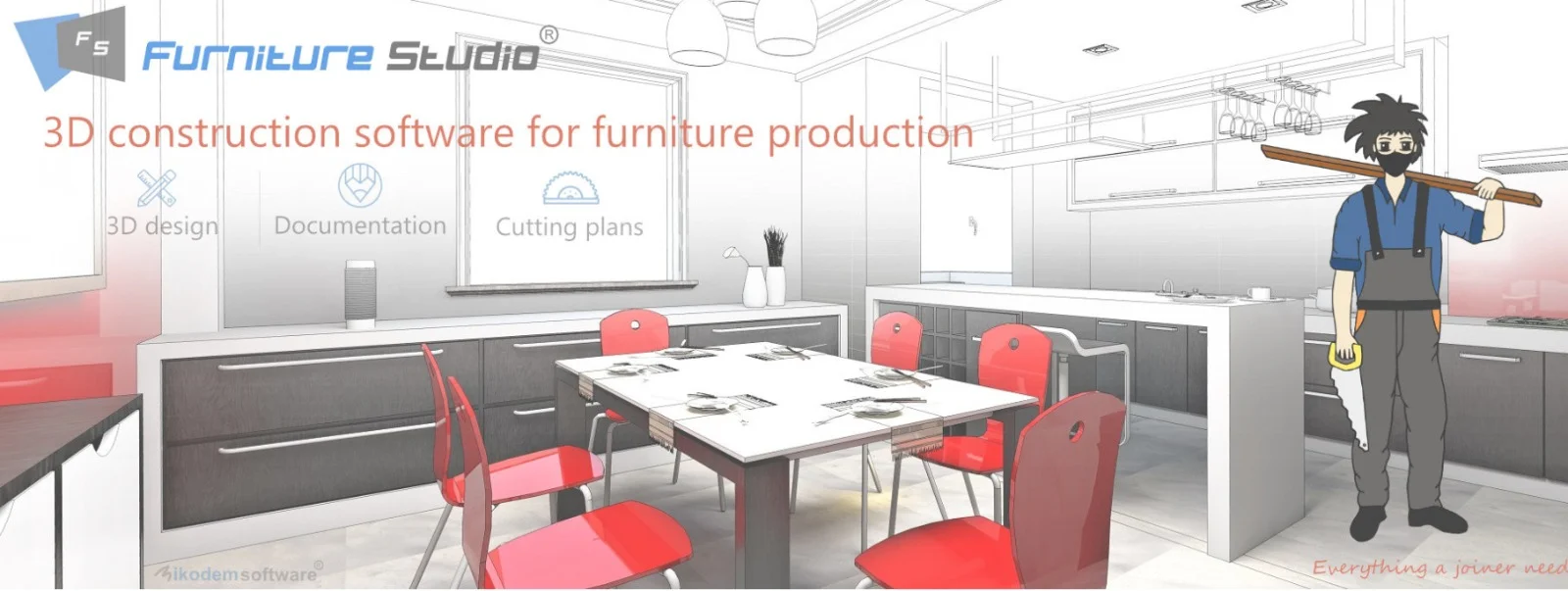
Overview of Furniture Studio 24.0
Table of Contents
Furniture Studio 24.0 is a professional, end-to-end software solution designed specifically for the furniture production and design industry. Moving beyond generic CAD programs, this specialized platform provides a dedicated environment for creating, visualizing, and manufacturing custom furniture pieces. It enables designers, manufacturers, and woodworking professionals to translate creative concepts into precise, production-ready specifications with remarkable efficiency.
At its core, Furniture Studio 24.0 streamlines the entire workflow, from initial 3D modeling to generating cutting lists and machine code. This comprehensive approach makes it an invaluable asset for bespoke furniture makers, kitchen designers, and cabinet manufacturers. The software’s primary strength lies in its ability to reduce manual errors and significantly accelerate the path from design to the workshop floor. It serves as a digital bridge, connecting the designer’s vision with the manufacturer’s execution.
Key Features of Furniture Studio
Furniture Studio 24.0 is packed with powerful tools tailored to the nuances of furniture creation. Its feature set is designed to enhance productivity and design quality.
-
Advanced 3D Furniture Modeling: Create detailed, photorealistic 3D models of any furniture piece. The software’s intuitive parametric design engine allows for quick modifications and iterations, making it simple to adjust dimensions, materials, and joinery.
-
Intelligent Part and Assembly Management: The software automatically manages complex assemblies, handling hundreds of individual components with ease. It allows users to define relationships between parts, ensuring that changes to one element are intelligently reflected across the entire project.
-
Comprehensive Material and Hardware Libraries: Access extensive, customizable libraries of materials (wood, glass, metal) and hardware (hinges, handles, connectors). This feature accelerates the design process and provides accurate cost estimations and weight calculations.
-
Automated Cutting List Generation: One of the most time-saving features is the ability to instantly generate precise cutting lists. These lists are detailed and structured to minimize material waste and speed up workshop preparation.
-
Integrated CNC Machine Code Export: The software includes a robust post-processor engine, allowing users to directly export machine-ready code (G-code) for a wide range of CNC routers and other automated machinery, such as 3- and 5-axis CNC machining centers.
-
Realistic Render and Presentation Tools: Create high-quality renders and virtual tours to present designs to clients. This built-in visualization capability helps secure approvals and reduces the need for expensive physical prototypes, a crucial feature for any furniture design software.
What’s New in the Latest Version of Furniture Studio
The 24.0 version of Furniture Studio introduces significant advancements over its predecessor, focusing on performance, collaboration, and workflow enhancements. These updates solidify its position as a leading furniture production software.
-
Enhanced 3D Engine & Real-Time Rendering: The latest iteration features a revamped 3D engine that provides faster, more fluid navigation and real-time ray-tracing capabilities. Users can now see realistic material finishes and lighting effects instantly, improving the design decision-making process.
-
Parametric Component Library Expansion: The new version comes with an expanded library of pre-built parametric components, including kitchen cabinets, wardrobes, and complex joinery. Users can easily drag-and-drop these customizable elements into their designs.
-
Streamlined CNC Post-Processor: The CNC export functionality is now more robust, with improved toolpath optimization for faster and smoother machining. This update reduces production time and enhances the life of cutting tools.
-
Improved Collaboration Tools: New project-sharing features facilitate better collaboration between design teams and production floors. Users can share project files, track revisions, and leave comments directly within the software environment.
-
API for Custom Integrations: For larger enterprises, Furniture Studio 24.0 now offers an API that allows for custom integration with existing ERP and inventory management systems, creating a seamless digital thread from order to delivery.
System Requirements for Furniture Studio 24.0
Before installation, ensure your system meets the following hardware and software prerequisites. The software is designed for performance on professional workstations and is compatible with standard Windows operating systems.
| Component | Minimum Requirement | Recommended Requirement |
|---|---|---|
| Operating System | Windows 10 (64-bit) | Windows 11 (64-bit) |
| Processor (CPU) | Intel Core i5 or AMD Ryzen 5 | Intel Core i7/i9 or AMD Ryzen 7/9 |
| RAM (Memory) | 16 GB | 32 GB or more |
| Graphics Card (GPU) | Dedicated, 4GB VRAM, OpenGL 4.5 | NVIDIA Quadro/RTX or AMD Radeon Pro, 8GB+ VRAM |
| Storage (SSD) | 50 GB of free space | 100 GB of free space (NVMe SSD recommended) |
| Display | 1920 x 1080 resolution | 4K (3840 x 2160) display |
| Other | Internet connection for licensing & updates | 3-button mouse, high-speed internet |
Installation Guide for Furniture Studio
Installing Furniture Studio 24.0 is a straightforward process. Follow these steps for a successful setup.
-
Download the Installer: Log in to your account on the official developer’s website. Navigate to your “My Products” or “Downloads” section and download the Furniture Studio 24.0 installer file.
-
Run the Installer: Locate the downloaded
.exefile (usually in your Downloads folder) and double-click it to run. If prompted by User Account Control (UAC), click “Yes” to allow the installation to proceed. -
Accept the License Agreement: Carefully read the End-User License Agreement (EULA) and check the box to accept its terms. Then, click “Next” to continue.
-
Choose the Installation Directory: You can choose the default installation folder (e.g.,
C:\Program Files\Furniture Studio 24.0) or browse to select a custom location. Click “Next”. -
Select Features: The installer may present optional components, such as sample projects or language packs. Select your desired features and click “Next”.
-
Begin Installation: Click the “Install” button to begin the file extraction and setup process. This may take a few minutes.
-
Launch the Application: Once the installation is complete, check the option to launch Furniture Studio immediately or click “Finish” to exit. You can then launch the software from your Start Menu or Desktop shortcut.
Activating Your License
Upon first launch, you will be prompted to activate your license. Enter the product key you received upon purchase and follow the on-screen instructions to connect to the server and validate your license.
How to Use Furniture Studio 24.0
Getting started with Furniture Studio is intuitive, especially for users familiar with CAD environments. Here is a basic workflow for a new project.
Step 1: Starting a New Project
Launch the software. From the welcome screen or the main menu, select File > New Project. Choose a template (e.g., “Cabinet Design,” “Table Design”) to get started with default settings.
Step 2: Creating a Basic Model
Using the software’s parametric modeling tools, you can begin to create your furniture piece.
-
Use the Library: Drag and drop a base component from the built-in library (like a cabinet box or table leg) into the workspace.
-
Define Parameters: Use the Properties panel to define its precise dimensions (Width, Depth, Height) and material. The model will update in real-time as you adjust these values.
-
Add Components: Continue to add shelves, drawers, doors, and other parts, using the “Align” and “Mate” tools to position them accurately within the assembly.
Step 3: Generating a Cutting List
Once your design is finalized, you can generate a cutting list.
-
Navigate to the “Production” tab and select “Generate Cutting List.” The software will automatically create a detailed report of all parts required, including dimensions, material, and quantity, organized to minimize waste.
Step 4: Exporting for CNC Production
To send your design directly to a CNC router, you need to export the toolpaths.
-
From the “Production” tab, select “CNC Export.”
-
Choose your specific post-processor (e.g., “Biesse,” “Homag,” “SCM,” or “Standard G-code”). This ensures the generated code is compatible with your specific machine.
-
Set your tool parameters (drill bit size, spindle speed, feed rate) and generate the NC program file to send to your workshop.
Best Use Cases for Furniture Studio 24.0
Furniture Studio 24.0 serves a wide array of professionals within the furniture industry.
-
Custom Cabinet and Kitchen Designers: The software is ideal for creating highly detailed kitchen layouts and custom cabinetry. Its automated cutting lists and CNC exports significantly reduce lead times.
-
Bespoke Furniture Makers: Craftspeople creating one-off pieces benefit from the precision and visualization capabilities, allowing them to perfect designs before starting construction.
-
Office Furniture Manufacturers: For commercial projects, the software’s ability to manage complex parts and produce accurate quotes, bills of materials, and production reports is invaluable.
-
Interior Design Professionals: Interior designers can use the software to create accurate 3D models of proposed furniture within a room layout, providing clients with a clear and compelling visualization.
-
Educational Institutions: The software is frequently used in woodworking and design courses to teach students the fundamentals of computer-aided manufacturing (CAM) and furniture construction.
Advantages and Limitations
Like any piece of software, Furniture Studio 24.0 comes with its own set of advantages and limitations to consider.
Advantages
-
Streamlined Workflow: Integrates design, estimation, and manufacturing into a single, cohesive platform.
-
High Precision: Minimizes human error by automating calculations and toolpath generation.
-
Industry-Specific Focus: Features and tools are tailored precisely for furniture production, unlike general-purpose CAD software.
-
Time and Cost Savings: Automating the creation of cutting lists and machine code can dramatically reduce manual work, saving labor costs and materials.
-
Professional Presentations: Built-in rendering tools create high-quality visuals for client approvals.
Limitations
-
Steep Initial Learning Curve: The software’s extensive features require dedicated training and time to master, especially for those new to 3D modeling or CAM.
-
Hardware Requirements: It demands a modern, high-performance computer, which represents a significant upfront investment.
-
License Cost: It is a professional-grade, premium software package, which may be a barrier for hobbyists or very small shops.
-
Limited 2D Drafting: The focus is heavily on 3D modeling and manufacturing, with less emphasis on traditional 2D architectural drafting.
Alternatives to Furniture Studio
While Furniture Studio 24.0 is powerful, other tools cater to different needs and budgets.
| Software | Best For | Key Differentiator | Platform |
|---|---|---|---|
| SketchUp Pro | General 3D modeling & visualization | Ease of use and large 3D Warehouse library. | Windows, macOS |
| SolidWorks | Complex mechanical design & assemblies | Superior parametric and simulation capabilities for engineering. | Windows |
| Fusion 360 | Integrated CAD/CAM for product design | Cloud-based collaboration and affordable subscription pricing. | Windows, macOS |
| AutoCAD | Precise 2D drafting and 3D design | Industry standard for 2D architectural and engineering drawings. | Windows, macOS |
| Cabinet Vision | Direct competitor for cabinet & woodworking | Strong focus on manufacturing and cost estimation for woodworking. | Windows |
| MOZAIK 3D | Modular kitchen and wardrobe planning | Simple, fast 3D planning for modular furniture. | Windows, macOS |
Frequently Asked Questions (FAQs)
What is the primary difference between Furniture Studio and general-purpose CAD software?
The main difference is specialization. Furniture Studio is built specifically for furniture production. It includes industry-specific features like automated cutting lists, hardware libraries, and direct CNC export. General-purpose CAD software lacks these specialized tools, which can create a slower, more error-prone workflow.
Is Furniture Studio 24.0 suitable for beginners?
The software is designed for professionals, so it has a learning curve. However, with its extensive documentation, tutorial videos, and structured approach, a dedicated beginner with some 3D modeling experience can learn it. For complete novices, starting with a simpler tool like SketchUp might be a better first step before moving to a professional-grade solution.
Can I import existing designs from other CAD software?
Yes, Furniture Studio 24.0 supports importing common 3D file formats, including .STEP, .IGS, .STL, and .DWG. This allows you to incorporate legacy data or collaborate with clients who use other software.
What is the significance of the CNC post-processor in the software?
The CNC post-processor is crucial because it converts the generic toolpath data from the software into machine-specific G-code. Different CNC routers (e.g., Biesse, Homag, SCM) use different code formats. The post-processor ensures your design data is translated accurately for your specific workshop machinery.
Does Furniture Studio 24.0 work on macOS?
No, Furniture Studio is designed exclusively for the Windows operating system (Windows 10 and 11). For macOS users, alternatives like running Windows via Boot Camp or using virtual machine software (like Parallels) are potential, though less optimal, workarounds.
What file formats are supported for export?
The software supports a wide range of export formats, including .DWG, .DXF for drawings, .STL, .STEP for 3D models, and various G-code formats for CNC machines. It also exports reports like cutting lists and bills of materials in formats like .PDF, .XLSX, and .CSV.
Final Thoughts: Is Furniture Studio 24.0 Right for You?
Furniture Studio 24.0 stands as a comprehensive and powerful tool in the realm of furniture design software. For professional cabinet makers, furniture manufacturers, and designers focused on production, it offers a transformative solution. The ability to seamlessly move from a creative concept to a precise, machine-ready production file in a single environment is a significant competitive advantage.
The software excels at eliminating bottlenecks, reducing manual errors, and accelerating production timelines. While the investment in time and money is considerable, the return on investment can be substantial for those who integrate it fully into their workflow. For high-volume or custom manufacturers, the precision and efficiency gains make it an essential asset.
For hobbyists or those with simpler needs, the price and complexity may be prohibitive. However, for serious professionals dedicated to quality and efficiency in the furniture production industry, Furniture Studio 24.0 is undoubtedly a top-tier choice and a worthwhile investment.
Our Paid Service
“We do not sell or provide any software. We only offer professional support services. If any software on your system is not working properly, or you are facing installation errors, crashes, or any other technical issue — just contact us. We will help you fix the problem quickly and remotely via AnyDesk. No software will be provided from our side — only expert troubleshooting and support.”