
FlyPaper Sherlock is a comprehensive Navisworks BIM toolkit developed by Flypaper Technologies to transform Autodesk® Navisworks® into a high-performance coordination machine. The mantra behind Sherlock is to let coordinators do what they’re good at while leveraging computers for everything else—enabling instant issue identification and streamlined team communication.
With a few simple commands, this Navisworks plugin helps BIM professionals identify clashes, group related issues, orient team members to specific model locations, and efficiently manage coordination workflows. Version 3.5.2 continues this tradition with enhanced features for Navisworks 2025 and improved Procore integration.
Key Features
Table of Contents
Distill: Intelligent Clash Grouping
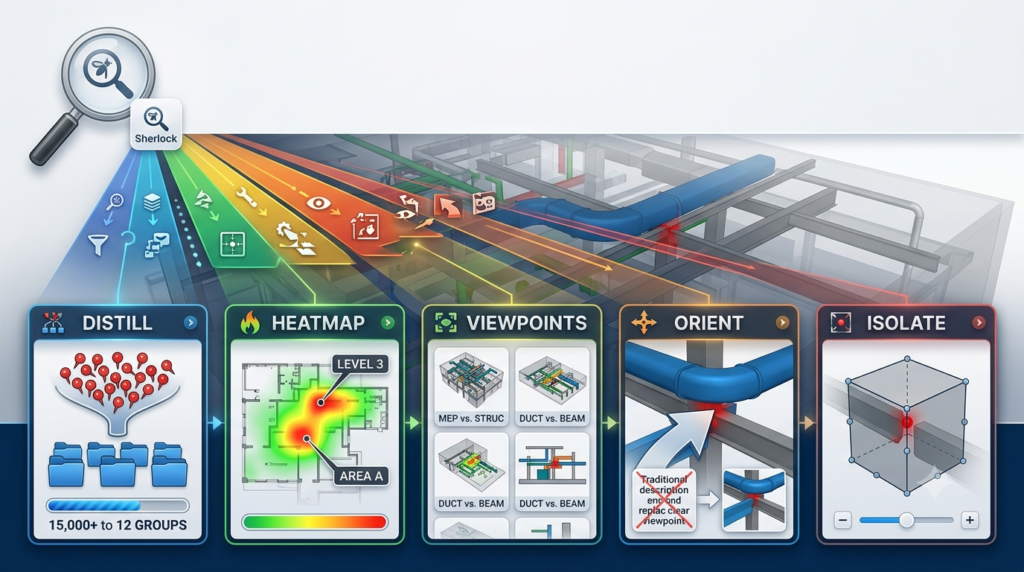
The Distill feature provides dead-simple clash grouping based on your already established model hierarchy. Instead of manually sifting through hundreds or thousands of clashes, Distill automatically gathers all clashes caused by the same element or piece of your model and organizes them into folders. This saves hours of manual sorting and accelerates the production of usable models for your team.
Heatmap: Visual Clash Density Analysis
With one click, the Heatmap tool highlights the worst areas in your model through visual density mapping. It identifies your highest-density clash areas and labels them from one to 10, allowing you to quickly prioritize coordination efforts. One more click tags the clash groups for your team, making it easy to assign responsibility for problem areas.
Orient: Precise Team Navigation
Orient helps you direct anyone to the exact pipe, conduit, duct section, or any other component you are discussing. The tool automatically creates a cut plane around the selected element, and with version 3.3.0+, you can add a Z offset to this cut plane—particularly useful in multi-level models. This feature eliminates the “where exactly are you looking?” confusion and gets teams back to coordinating as fast as possible.
Isolate: Enhanced Clash Review
Isolate provides a new way to review your clashes by automatically applying a section box around each clash. This section box can be adjusted simply by dragging the faces, and viewpoints can be saved with a single click. Version 3.3.0 introduced the ability to adjust the default Isolate bounding box by specifying X, Y, and/or Z expansion offsets, providing a buffer around the selected clash or items.
Rename: Rapid Clash Organization
The Rename feature allows you to rapidly rename selected clashes. For example, if a team member needs to work on a bunch of clashes, you can prefix their name with a couple of clicks. You can also add additional information into the names—such as Area, Level, Test name, or anything else you’d like—making clash management more intuitive and organized.
Procore Integration
Sherlock’s Procore integration bridges the gap between Navisworks clash detection and construction project management. You can pull comments and redline text from clashes into the description field of created Procore Coordination Issues (CIs). The integration also includes a Trade field that connects to your Configurable Fieldset settings. Clash status sync ensures that when a linked Procore CI changes to “Ready for Review” or “Moved to Observation,” the corresponding clash status updates appropriately.
Area Management
Create and edit Areas more easily to organize your coordination efforts by zones or discipline. Version 3.3.0 includes enhanced area management capabilities that help structure large-scale coordination projects.
Viewpoint Generation for Resolved Clashes
Previously, viewpoints could only be generated for New, Active, Reviewed, and Approved clashes. Version 3.3.0 now allows you to produce viewpoints for Resolved clashes as well, ensuring complete documentation throughout the project lifecycle.
What’s New in Version 3.5.2
Based on the release notes for version 3.3.0 and subsequent updates, FlyPaper Sherlock continues to evolve with significant improvements:
Navisworks 2025 Support
Sherlock 3.5.2 adds full support for Autodesk Navisworks 2025, enabling users of the latest Navisworks version to leverage Sherlock’s full feature set. With this release, support for Navisworks 2021 has been sunset—users on older versions can continue to operate Sherlock 2021 but will no longer receive feature or bug updates.
Enhanced Orient Tool with Z Offset
The Orient Cut Plane Z Offset setting allows you to add an offset to the automatic cut plane Orient creates. This is particularly valuable in multi-level models, where setting the cut plane below the finish floor of the level above provides better visibility and context.
Isolate Bounding Box Expansion
You can now adjust the default Isolate bounding box in the Settings dialog by specifying X, Y, and/or Z expansion offsets. This customization grows the initial bounding box by those values, providing a buffer around the selected clash or items for better review context.
Procore Integration Enhancements
Several improvements to the Procore integration enhance workflow efficiency:
-
Comments and redline text from clashes can now be pulled into the description field of created Procore CIs
-
Added a Trade field that connects to Configurable Fieldset settings
-
Fixed multiple connection and synchronization issues that previously caused frustration
Bug Fixes
Version 3.5.2 addresses several issues from earlier versions:
-
Resolved an issue causing users to need to log in to Procore repeatedly
-
Fixed problems preventing some CIs from being created
-
Corrected an issue where areas wouldn’t save if the filename contained an apostrophe
-
Fixed the isolate viewpoint generation to respect the isolate expansion offset in settings
System Requirements
Software Requirements
-
Autodesk Navisworks 2025 (the primary supported version)
-
Previous versions: Navisworks 2024, 2023, and 2022
-
Note: Support for Navisworks 2021 has been discontinued as of version 3.3.0
Operating System
-
Windows 64-bit (Win64)
Internet Connectivity
Sherlock communicates with several servers, each serving a specific purpose. Understanding these connections is important for IT administrators managing firewall settings:
License Server (Required) : Validates license keys at https://flypaperqlm.azurewebsites.net. Transmits machine name, username, license key, and a unique computer ID generated by Sherlock.
Auto-Update Server (Optional) : Used to push Sherlock updates at https://flypaper.com/sherlock/releases/FlyPaperSherlock[YEAR]. No data is sent—only read operations. If not whitelisted, users must install updates manually.
Log Server (Optional) : Sends usage and error logs at https://monitoring.us-east-2.amazonaws.com. Transmits machine name, username, company name, setting values during feature operations, stack traces, and file names. Can be disabled by blocking access or setting the registry key HKEY_CURRENT_USER\Software\FlyPaper\Sherlock\DisableCloudLogs to a string value of 1. If disabled, logs are stored locally at %appdata%\FlyPaper\Sherlock[YEAR].
Procore API Server (Required only for Procore Integration) : Enables API calls at https://*.procore.com. Required for Procore integration to function.
Data Privacy Note: Sherlock does not send any model data to FlyPaper servers. All processing is performed locally by the application.
Installation Guide
First-Time Installation
-
Download the installer from the official FlyPaper download page or the Autodesk App Store.
-
Double-click the executable (e.g.,
FlyPaper.Sherlock2025.Installer.exe) to begin installation. -
Follow the on-screen prompts to complete the installation process.
-
Launch Navisworks and navigate to the “FlyPaper Sherlock” tab.
-
Activate your license:
-
Standalone License: Enter your license key to activate.
-
Network License: No IT setup is required—FlyPaper Sherlock network licensing is designed to work without complex IT configuration.
-
Upgrading from Previous Versions
Sherlock includes an auto-update feature that automatically installs updates when Navisworks is restarted. However, if your organization’s firewall blocks the auto-update server, you may need to download and install updates manually.
Uninstallation
To remove Sherlock, go to the Windows Control Panel, find Sherlock in the programs list, and click Uninstall. This will remove the plugin from your Navisworks installation.
How to Use the Software
Getting Started
-
Open Navisworks and load your model.
-
Navigate to the FlyPaper Sherlock tab in the Navisworks ribbon.
-
Click on any Sherlock tool icon to activate it.
Using Key Tools
Heatmap:
-
Click the Heatmap icon to highlight the worst areas in the model with a 1-10 density rating
-
Use a second click to tag the clash groups for your team members
Distill:
-
Click Distill to automatically group all clashes by the same model element
-
Review the organized clash folders to prioritize your work
Orient:
-
Select a model element (pipe, conduit, duct, etc.)
-
Click Orient to generate a cut plane view around that element
-
Adjust the Z offset in settings for multi-level models
Isolate:
-
Select a clash or items
-
Click Isolate to apply a section box around the selected objects
-
Drag the section box faces to adjust the review area
-
Click Save Viewpoint to save your current view
Rename:
-
Select multiple clashes
-
Click Rename and enter a prefix or additional information
-
The selected clashes will be renamed accordingly
Procore Integration Workflow
-
Connect your Procore account in the Sherlock settings
-
Select clashes you want to sync with Procore
-
Use the sync tool to create Procore CIs linked to your clashes
-
Pull comments and redline text into the CI description field as needed
-
Monitor status updates—approved clashes may auto-update when the corresponding Procore CI changes status
Best Use Cases
BIM Coordination for Large-Scale Construction Projects
Sherlock excels in large-scale construction projects where multiple trades (MEP, structural, architectural) intersect. The Distill feature alone can save teams hours by automatically organizing thousands of clashes into manageable groups.
Multidisciplinary Clash Resolution
When coordinating between disciplines, the Orient and Isolate features help teams quickly locate and understand clash contexts. The ability to adjust cut planes and section boxes ensures reviewers see exactly what they need to address.
Procore-Integrated Quality Management
For firms using Procore, Sherlock’s integration creates a seamless workflow from clash detection to issue tracking. Comments and redline text from Navisworks transfer directly to Procore CIs, eliminating duplicate data entry and ensuring consistency between platforms.
Coordination Meetings and Walkthroughs
The Orient tool is particularly valuable during coordination meetings. When discussing specific clashes, team members can instantly orient to the exact location and context, reducing confusion and accelerating decision-making.
Progress Tracking and Reporting
Sherlock’s viewpoint generation capabilities support project documentation. With the ability to generate viewpoints for resolved clashes, teams can maintain complete visual records of issues from identification through resolution.
Advantages and Limitations
Advantages
Time Savings: Distill’s automatic clash grouping alone can save hours of manual sorting. Heatmap visualization helps prioritize the most critical clashes first.
Enhanced Communication: Orient and Isolate provide visual clarity that eliminates ambiguity when discussing issues with team members.
Seamless Procore Integration: Eliminates double-entry and keeps Navisworks clash data synchronized with project management systems.
Customizable Workflows: Rename, Isolate offset, and Orient Z offset settings allow teams to adapt the tool to their specific needs.
No Model Data Upload: Privacy-conscious design ensures model data stays local—only usage statistics and license verification data are transmitted.
Easy Deployment: Network licensing requires no IT setup, making enterprise deployment straightforward.
Limitations
Navisworks Dependency: Sherlock is a plugin and requires Autodesk Navisworks—it cannot function as a standalone application.
Version Compatibility: Each Sherlock version is tied to specific Navisworks releases. Users must install the correct version for their Navisworks year. Support for older Navisworks versions is eventually sunset (2021 support ended with version 3.3.0).
Internet Requirements: License verification requires internet connectivity. Organizations with strict firewall policies may need to whitelist FlyPaper servers for automatic updates and license validation.
Learning Curve: While designed for ease of use, teams unfamiliar with BIM coordination tools may need initial training to fully leverage all features.
Alternatives to the Software
While FlyPaper Sherlock is a leading Navisworks BIM toolkit, several alternatives exist depending on specific needs:
Revizto
A complete BIM collaboration platform that goes beyond clash detection to include issue tracking, federated models, and VR support. Revizto offers a more comprehensive collaboration environment but with a steeper learning curve and higher cost.
BIM 360 (Autodesk)
Autodesk’s cloud-based platform for project delivery and collaboration. While it includes clash detection capabilities, it lacks some of Sherlock’s specialized features like Distill and Orient.
Solibri Model Checker
Strong in model checking and code compliance but less focused on real-time clash visualization and team coordination workflows.
Navisworks Manage (Native Tools)
Navisworks includes basic clash detection capabilities without the Sherlock enhancements. While free with Navisworks Manage, it lacks the automation and productivity features that Sherlock provides.
Comparison Summary
| Feature | Sherlock | Native Navisworks | Revizto |
|---|---|---|---|
| Automated Clash Grouping | ✓ Distill | Limited | ✓ |
| Visual Heatmap | ✓ | ✗ | Limited |
| Precise Orientation | ✓ | ✗ | ✗ |
| Isolate with Section Box | ✓ | Basic | ✓ |
| Procore Integration | ✓ | ✗ | ✓ |
| Model Data Privacy | ✓ | ✓ | ✓ |
| Learning Curve | Moderate | Lower | Higher |
Frequently Asked Questions
What Navisworks versions are compatible with Sherlock 3.5.2?
Sherlock 3.5.2 supports Navisworks 2025. It also supports Navisworks 2024 and 2023. Support for Navisworks 2021 has been discontinued—users on older versions can continue using Sherlock 2021 but won’t receive updates.
Does Sherlock send my model data to the cloud?
No. Sherlock processes all model data locally on your machine. The only information sent to FlyPaper servers includes license validation data, usage logs (which can be disabled), and Procore API calls if the integration is used.
How do I get a license for Sherlock?
Sherlock licenses are available for purchase from Flypaper Technologies. You can activate a standalone license with a license key or use network licensing, which requires no IT setup.
Can I use Sherlock without an internet connection?
Sherlock requires an internet connection for license validation. While logs can be disabled via firewall settings or registry keys, the license server (https://flypaperqlm.azurewebsites.net) must be accessible for the software to function.
How does the Procore integration work?
The Procore integration syncs clashes from Navisworks to Procore Coordination Issues. Comments and redline text can be automatically pulled into Procore CI descriptions. The integration also handles status synchronization—when a Procore CI changes status, the linked clash updates accordingly.
How do I update Sherlock?
Sherlock includes an auto-update feature that installs updates when you restart Navisworks. If your organization blocks the auto-update server, you can download updates manually from the FlyPaper download page.
What’s the difference between Sherlock and native Navisworks clash detection?
Sherlock adds automation and visualization capabilities that Navisworks lacks: Distill automatically groups related clashes, Heatmap visualizes clash density, Orient provides precise navigation, and Isolate delivers enhanced review experiences. These features save significant time in large coordination projects.
Does Sherlock work with Revit models?
Sherlock works with any model formats compatible with Navisworks, including Revit (.RVT), IFC, DWG, and others. The tool operates on the Navisworks platform, so any model that Navisworks supports is compatible with Sherlock.
Final Thoughts
FlyPaper Sherlock 3.5.2 represents a significant advancement in BIM coordination software, transforming Autodesk Navisworks from a capable but basic clash detection tool into a high-performance coordination platform. The Distill feature alone justifies the investment for large projects—automating what would otherwise be hours or days of manual clash sorting.
The Procore integration adds substantial value for construction firms already using that platform, while the privacy-conscious architecture ensures that your sensitive model data never leaves your control.
For BIM coordinators, VDC managers, and construction project teams working on complex multidisciplinary projects, Sherlock offers a compelling return on investment through time savings, improved communication, and streamlined workflows. The learning curve is manageable, and the support for Navisworks 2025 ensures compatibility with the latest tools.
As building information modeling continues to grow in complexity, tools like Sherlock that automate routine tasks and enhance human decision-making become increasingly essential. Version 3.5.2 continues Flypaper Technologies’ commitment to letting coordinators focus on what they’re good at—while computers handle the rest.
Our Paid Service
“We do not sell or provide any software. We only offer professional support services. If any software on your system is not working properly, or you are facing installation errors, crashes, or any other technical issue — just contact us. We will help you fix the problem quickly and remotely via AnyDesk. No software will be provided from our side — only expert troubleshooting and support.”