Overview of Corpus 3D Furniture Design Software
Table of Contents
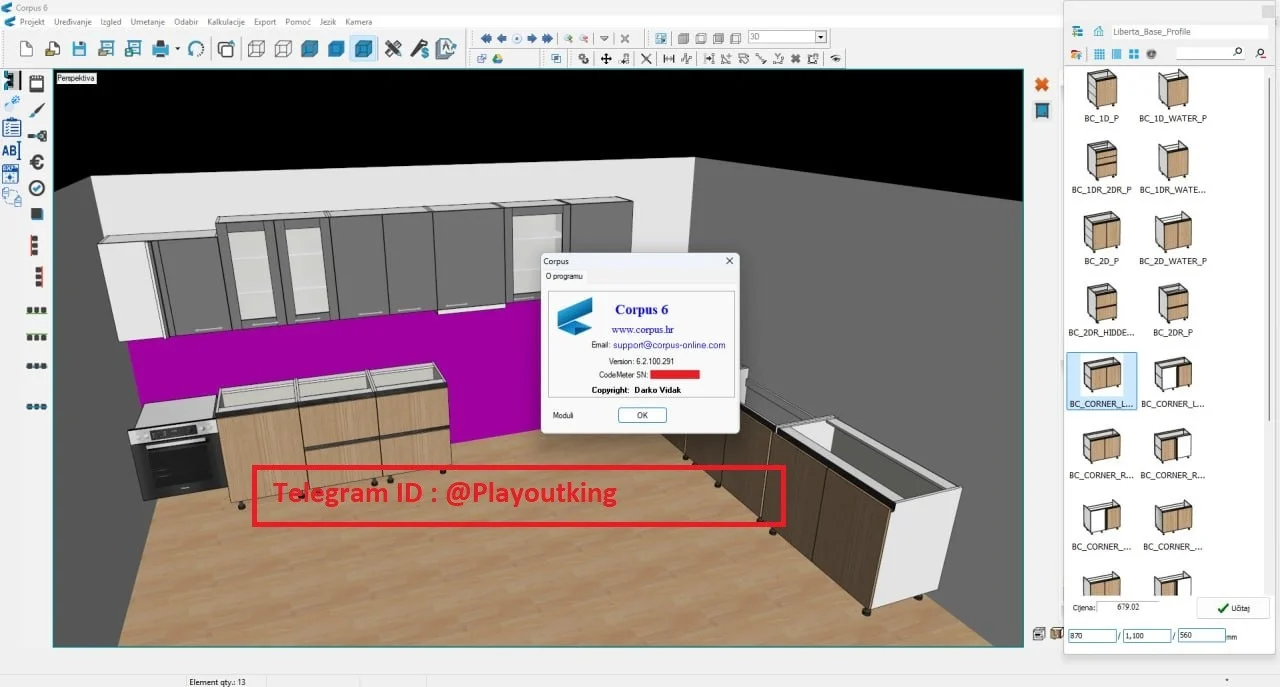
Corpus V6.2.100.291 is a professional 3D furniture design software tailored for the woodworking and interior design industries. This CAD furniture software allows designers, manufacturers, and architects to create precise 3D models, generate production-ready documentation, and streamline the manufacturing process. By offering a robust set of tools for 3D modeling, rendering, and CNC integration, Corpus has become an indispensable asset for furniture professionals worldwide.
Whether you are designing a custom cabinet or a complex piece of office furniture, this software offers the flexibility to turn your concepts into manufacturable reality. Its focus on parametrical design ensures that changes are managed seamlessly, saving time and reducing errors.
Key Features of Corpus V6.2.100.291
This furniture design software is packed with features that cater to both designers and manufacturers.
-
Advanced 3D Modeling: Create complex furniture designs with ease using powerful 3D modeling tools.
-
Parametric Design: Make changes to parameters and watch your design update automatically, ensuring design integrity.
-
Integrated Rendering Engine: Produce photorealistic renders to visualize materials, lighting, and finishes before production.
-
CNC Machine Support: Generate optimized toolpaths and code for CNC machinery, bridging the gap between design and manufacturing.
-
Material Library: Access a comprehensive library of wood, metal, and hardware components to speed up the design process.
-
Automatic Report Generation: Generate cut lists, material lists, and assembly instructions to streamline the production workflow.
-
DXF and DWG Support: Import and export industry-standard file formats for seamless collaboration with other CAD software.
What’s New in the Latest Version (V6.2.100.291)
The latest version of this 3D design software brings significant improvements to enhance user experience and performance.
-
Enhanced Rendering Quality: The rendering engine has been updated for better realism, providing more accurate lighting and shadow effects.
-
Improved Performance: The software now handles larger, more complex 3D models with greater speed and stability.
-
Expanded Hardware Library: The library has been updated with a wider range of contemporary hardware components.
-
Bug Fixes and UI Refinements: This version includes multiple bug fixes and user interface improvements for a smoother, more intuitive workflow.
System Requirements for Corpus V6.2.100.291
To run this design software effectively, your system should meet the following specifications.
Minimum Requirements:
-
OS: Windows 10 (64-bit) or Windows 11
-
Processor: Intel Core i5 or equivalent AMD processor
-
RAM: 8 GB
-
Graphics: Dedicated GPU with at least 2 GB VRAM, supporting OpenGL 3.3
-
Storage: 10 GB of free disk space
Recommended Requirements:
-
OS: Windows 11 (64-bit)
-
Processor: Intel Core i7 / i9 or AMD Ryzen 7 / 9
-
RAM: 16 GB or more
-
Graphics: Dedicated GPU with 4 GB+ VRAM (e.g., NVIDIA Quadro or GeForce RTX series)
-
Storage: 10+ GB of free disk space (SSD recommended)
Comprehensive Installation Guide
Installing Corpus is a straightforward process.
-
Download: Download the Corpus V6.2.100.291 installer from the official developer website.
-
Run the Installer: Locate the downloaded
.exefile and run it as an administrator. -
Accept Terms: Read and accept the End-User License Agreement (EULA).
-
Choose Installation Path: Select the destination folder for the software or use the default path.
-
Select Components: Choose any optional components, such as additional material libraries or language packs.
-
Install: Click the ‘Install’ button and wait for the process to complete.
-
Launch: Once installed, launch the software and enter your valid Corpus software license key to begin.
How to Use Corpus for 3D Furniture Design
Getting started with this powerful tool is intuitive.
Getting Started
-
Open the Software: Launch Corpus and create a new project.
-
Set Up Workspace: Configure your workspace by selecting a template and setting up units (e.g., millimeters, inches).
Designing a Project
-
Create 2D Sketch: Start by sketching the base profile of your furniture piece using the 2D drawing tools.
-
Extrude to 3D: Convert your 2D sketch into a 3D model by extruding it to the desired thickness.
-
Add Components: Use the hardware library to add hinges, handles, shelves, and other standard components.
-
Apply Materials: Select materials from the library to apply realistic textures and finishes to your model.
-
Refine with Parametric Tools: Adjust dimensions and other parameters to fine-tune the design.
Generating Outputs
-
Rendering: Create high-quality renders to present your design to clients.
-
Manufacturing Data: Generate cut lists and G-code for CNC machinery directly from your 3D model.
-
Documentation: Export your design with detailed annotations and dimensions.
Best Use Cases for Corpus Software
This furniture CAD software is versatile and used across various sectors.
-
Custom Furniture Design: Tailor-made pieces for individual clients, such as custom kitchens and wardrobes.
-
Office Furniture Manufacturing: Design efficient, modular workstations and storage solutions.
-
Millwork and Cabinetry: Create complex cabinet sets and architectural millwork.
-
Product Design: Prototype and develop new furniture products for the commercial market.
Advantages and Limitations
Advantages
-
Precision: Offers exceptional accuracy for furniture manufacturing.
-
Integration: Seamless export to CNC machines reduces manual errors.
-
Efficiency: Parametric tools and automated reporting save significant time.
-
Professional Output: High-quality renders and detailed documentation impress clients.
Limitations
-
Complexity: The software may have a steeper learning curve for beginners compared to simpler tools.
-
System Requirements: Requires a powerful computer for optimal performance with large projects.
Alternatives to Corpus Software
If you are exploring other options, here are some alternatives.
| Software | Key Features | Best For |
|---|---|---|
| SketchUp | Easy to learn, great for conceptual design, extensive plugin library. | Early-stage design and ideation. |
| SolidWorks | Industry-leading for mechanical and product design with integrated simulation. | Complex product design and engineering. |
| AutoCAD | Industry-standard 2D drafting and 3D modeling, highly versatile. | Versatile drafting and architectural work. |
| Fusion 360 | Cloud-based with CAD, CAM, and CAE tools in one package. | Product design and manufacturing, CNC. |
Frequently Asked Questions
What is Corpus software used for?
Corpus is a professional 3D furniture design software used for creating detailed models, renders, and manufacturing documentation for the furniture and woodworking industries.
Is Corpus software suitable for beginners?
While it is professional-grade software, its interface is designed to be relatively intuitive. However, new users may benefit from online tutorials or training to master its full potential.
Can I export my Corpus designs for use in other software?
Yes, the software supports export to standard file formats like DXF and DWG, allowing for easy collaboration with users of other CAD software.
What file formats does Corpus support for import?
Corpus typically supports importing DXF, DWG, and various 3D file formats, enabling you to work with models created in other programs.
Do I need a powerful computer to run Corpus?
For effective use, especially with complex 3D models, a computer with a dedicated graphics card and at least 16 GB of RAM is recommended.
Is there a free trial available for Corpus?
Yes, the developers usually offer a free trial version. It’s best to check their official website for the latest details on software trials.
What is the difference between Corpus and SketchUp?
SketchUp is generally better for quick conceptual modeling, while Corpus is specialized for detailed furniture manufacturing with features like CNC integration and automatic cut lists.
Final Thoughts
Corpus V6.2.100.291 proves to be an industry-leading solution for 3D furniture design. Its blend of powerful modeling, precise manufacturing tools, and ease of use makes it a top choice for furniture professionals. By integrating CAD and CAM capabilities, it offers a comprehensive workflow from concept to production. This latest version further solidifies its position as a key tool for maximizing efficiency and quality in furniture manufacturing.
Our Paid Service
“We do not sell or provide any software. We only offer professional support services. If any software on your system is not working properly, or you are facing installation errors, crashes, or any other technical issue — just contact us. We will help you fix the problem quickly and remotely via AnyDesk. No software will be provided from our side — only expert troubleshooting and support.”