
Overview of CNC Simulator 3.1
Table of Contents
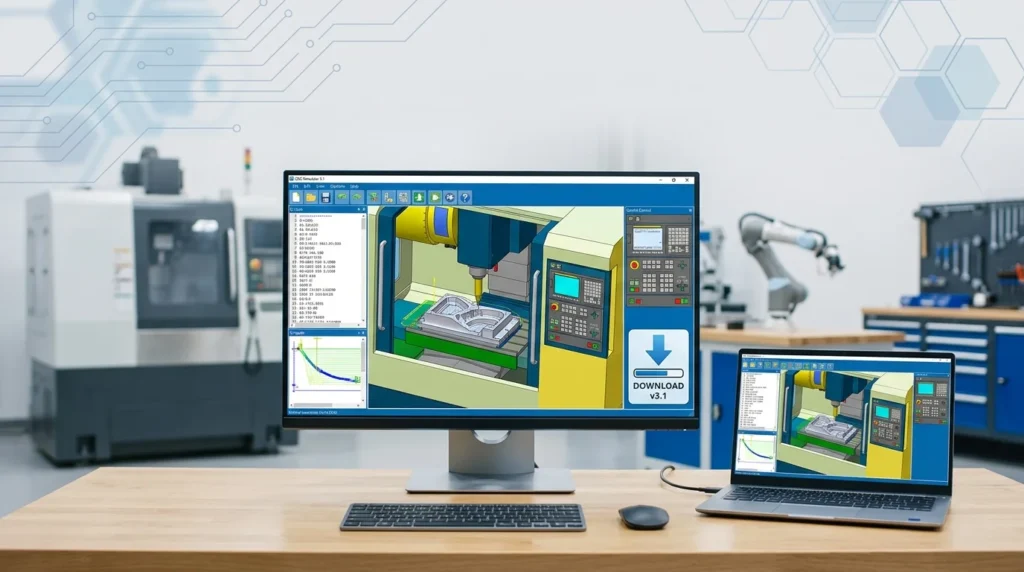
CNC Simulator 3.1 is a powerful and educational software solution designed for anyone looking to learn or teach CNC (Computer Numerical Control) machining. This software provides a risk-free, virtual environment where users can write, test, and debug G-code and M-code programs. By simulating the entire machining process on a computer, it allows beginners to grasp fundamental concepts and professionals to refine their skills without the expense or danger of operating a real machine. As a leading CNC simulation software, it offers a true-to-life experience that bridges the gap between theoretical knowledge and practical application. It is an invaluable tool for engineering students, machinists, hobbyists, and technical educators.
Key Features of CNC Simulator 3.1
CNC Simulator 3.1 is packed with features that make it a standout choice in the world of CAD/CAM simulation. These features are designed to provide a comprehensive and interactive learning experience.
-
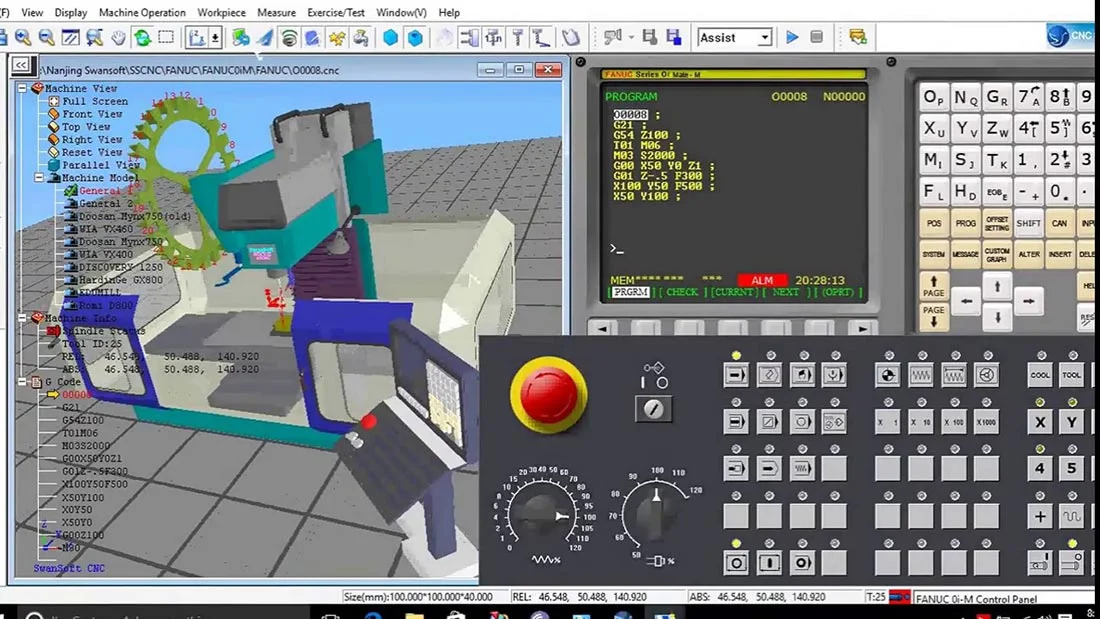
Realistic 3D Simulation: The software provides a detailed 3D visualization of a milling machine. This allows users to watch their toolpaths come to life, making it easy to spot potential errors like collisions or incorrect cuts.
-
G-Code and M-Code Editor: It includes a built-in editor with syntax highlighting, making it easier to write and debug your CNC programming code. This feature is essential for understanding the direct relationship between your code and the machine’s actions.
-
Virtual Control Panel: The interface mimics the layout of a physical CNC machine control panel. This intuitive design helps users become familiar with the standard controls of a CNC machine, enhancing the realism of the machine tool simulation.
-
Error Detection: The simulator is capable of detecting programming errors, such as invalid G-codes or syntax mistakes, before they would cause a crash on a real machine. This feature is crucial for safe and efficient learning.
-
Variable Step Speed: Users have the ability to control the simulation speed, allowing them to slow down complex operations for detailed analysis or speed up simple routines.
-
Multiple Axis Support: The software supports the simulation of 3-axis machining, which covers the majority of standard CNC milling operations.
What’s New in CNC Simulator 3.1
The latest version, CNC Simulator 3.1, brings several key improvements and new functionalities that significantly enhance the user experience and learning outcomes.
-
Enhanced User Interface: The UI has been streamlined for better navigation, making it more intuitive for new users to access complex features. The layout is cleaner, focusing the user’s attention on the simulation and code.
-
Improved Simulation Engine: The simulation engine has been optimized for better performance, providing smoother and faster graphics without compromising on the accuracy of the toolpath simulation.
-
Advanced Error Reporting: The error detection system has been updated. It now provides more context for errors, offering suggestions on how to correct them, which is a major advantage for educational purposes.
-
Expanded Code Support: The software now supports a wider range of standard G-code and M-code commands, making it compatible with more advanced programming techniques and workflows.
-
Metric and Imperial Units: Users can now seamlessly switch between metric and imperial units within the simulation environment, a critical feature for international use.
System Requirements
To ensure the best experience with CNC Simulator 3.1, your system should meet the following requirements:
| Component | Minimum | Recommended |
|---|---|---|
| Operating System | Windows 7 SP1, Windows 8.1, or Windows 10 | Windows 10/11 (64-bit) |
| Processor | Intel Core i3 or equivalent | Intel Core i5 or equivalent |
| RAM | 4 GB | 8 GB or more |
| Graphics | Integrated graphics with OpenGL 3.0 support | Dedicated graphics card (e.g., NVIDIA GeForce GTX 1050) |
| Storage | 500 MB of free space | 1 GB of free space (SSD recommended) |
| Display | 1024×768 resolution | 1920×1080 or higher |
Installation Guide for CNC Simulator 3.1
Installing CNC Simulator 3.1 is a straightforward process. Follow these steps to get started.
-
Download the Installer: Visit the official developer’s website to download the latest
CNC Simulator 3.1 setup.exefile. Ensure you download the version compatible with your Windows operating system (32-bit or 64-bit). -
Run the Installer: Locate the downloaded file and double-click it to start the installation process. If prompted by Windows User Account Control, click “Yes” to allow the program to make changes.
-
Accept the License Agreement: Read the End-User License Agreement (EULA) and select “I Agree” to proceed.
-
Choose Destination Location: The installer will suggest a default folder (e.g.,
C:\Program Files (x86)\CNC Simulator). You can choose a different location if preferred. Click “Next”. -
Select Components: Choose the components you wish to install. It is recommended to install all components for a full experience. Click “Next”.
-
Start Installation: Click the “Install” button to begin copying the files. The installation process should only take a few minutes.
-
Complete the Installation: Once the files are copied, click “Finish” to exit the setup wizard. You can now launch the software from your Start Menu or Desktop shortcut.
How to Use CNC Simulator 3.1: A Step-by-Step Guide
This section provides a basic tutorial on how to start using CNC Simulator 3.1.
H3: Writing Your First CNC Program
-
Open the Editor: Launch the software and open the code editor window.
-
Start a New File: Clear the default code or start a new file.
-
Write Basic G-Code: Begin with a simple program. For example:
N10 G17 G21 G40 G49 G80 G90    (Safety block)
N20 T1 M6                     (Select tool 1)
N30 S2000 M3                  (Spindle on at 2000 RPM)
N40 G00 X0 Y0 Z5              (Rapid to start position)
N50 G01 Z-1 F50               (Plunge to depth)
N60 G01 X50 Y0 F100           (Linear cut)
N70 G00 Z5                    (Rapid retract)
N80 M30                       (End of program)
-
Save Your Program: Save the file with a
.ncor.cncextension.
H3: Running the Simulation
-
Load the Program: Use the file menu to open your saved CNC program.
-
Set Up the Machine: Ensure the virtual machine is in a ready state.
-
Start Simulation: Click the “Run” or “Start” button on the virtual control panel. You will see the machine simulate the actions in the 3D viewport.
-
Analyze the Results: Watch the simulation carefully. The software will highlight any errors or potential collisions in real-time.
-
Debug Your Code: If you encounter an error, return to the code editor, correct the issue, and re-run the simulation to verify the fix.
Best Use Cases for CNC Simulator 3.1
CNC Simulator 3.1 is an incredibly versatile tool. Here are some of the best ways to leverage its capabilities:
-
Educational Institutions: An indispensable resource for teaching CNC programming. It allows students to learn in a safe, virtual environment, reducing the risk of machine damage.
-
Hobbyist Machinists: Perfect for beginners who want to learn the basics of CNC milling without investing in expensive, large machinery. It’s a cost-effective way to start a CNC training journey.
-
Professional Training: Companies can use it to train new operators on basic programming and safety procedures before they move on to real machines.
-
Prototyping and Testing: Experienced machinists can use it to test new G-code programs quickly. This saves valuable machine time and prevents costly crashes during initial program runs.
-
Skill Enhancement: A great tool for individuals looking to expand their skills in CAD/CAM programming and improve their understanding of machine dynamics.
Advantages and Limitations
No software is perfect for every scenario. Understanding the pros and cons of CNC Simulator 3.1 will help you determine if it’s the right tool for your needs.
Advantages
-
Safe Learning: Eliminates the risk of damaging expensive machinery or causing injury, making it the safest way to learn CNC machining.
-
Cost-Effective: A far more affordable solution than purchasing a real CNC machine for learning purposes.
-
Accessibility: Allows users to practice programming anytime and anywhere, requiring only a standard computer.
-
Immediate Feedback: Quickly identifies errors in code, helping users learn from their mistakes and develop better programming habits.
Limitations
-
No Actual Cutting: As a simulator, it does not perform real cutting. It cannot replace the hands-on experience of feeling tool pressure and chip formation.
-
Limited to Milling: The primary focus is on milling machines. It does not simulate lathes or other types of CNC equipment.
-
Simplified Physics: While accurate for toolpath visualization, advanced physics like tool deflection or material hardness are not simulated.
Alternatives to CNC Simulator 3.1
While CNC Simulator 3.1 is a great entry-level tool, several other CNC simulation software options exist, ranging from free to enterprise-level.
| Software | Description | Key Difference |
|---|---|---|
| CNC Simulator Pro | A more advanced version with support for lathes and additional machine configurations. | Supports multiple machine types, including lathes. |
| LinuxCNC | A free, open-source CNC control software that includes a powerful simulation mode. | Open-source and can control real machines. More complex setup. |
| FANUC CNC Simulator | Official software from the FANUC Corporation, offering high-fidelity simulation for their specific controllers. | Highly accurate for FANUC machines; often used in professional industrial settings. |
| Autodesk Fusion 360 | A comprehensive CAD/CAM suite with integrated simulation capabilities. | A full-featured CAD/CAM tool for professional design and manufacturing. |
| Vectric VCarve Pro | A CAD/CAM software tailored for woodworking and sign-making, featuring its own simulation module. | Focused on woodworking and 2.5D/3D carving; includes design tools. |
Frequently Asked Questions about CNC Simulator 3.1
What is CNC Simulator 3.1?
CNC Simulator 3.1 is a computer-aided manufacturing (CAM) simulation software that allows you to simulate the operation of a CNC milling machine in a virtual environment. It is used for learning, teaching, and testing CNC programming and G-code.
How do I get CNC Simulator 3.1 for free?
CNC Simulator 3.1 is not officially free. You can acquire it by purchasing a license from the official developer. Some older, limited versions may be available as freeware, but they often lack the features of the latest release. Always purchase from the official source to ensure software integrity and receive updates.
Is CNC Simulator 3.1 good for beginners?
Yes, CNC Simulator 3.1 is an excellent choice for beginners. Its intuitive interface, visual feedback, and error detection make it one of the most effective tools for learning the fundamentals of CNC machining and G-code.
What is the difference between CNC Simulator 3.1 and a real CNC machine?
The primary difference is that CNC Simulator 3.1 is a virtual machine; it does not physically cut material. A real machine executes the code to shape physical objects. The simulator eliminates the physical risk, allowing for safe and fast program testing. It is a learning and verification tool, whereas a real machine is a production tool.
What operating systems does CNC Simulator 3.1 support?
The software is designed for the Windows platform. It supports Windows 7, Windows 8.1, and Windows 10. For the best performance, Windows 10 or 11 with a 64-bit architecture is recommended.
What are the typical system requirements for running this software?
The minimum requirements include a Windows operating system, an Intel Core i3 processor, 4 GB of RAM, and a graphics card with OpenGL support. For a smooth experience, an Intel Core i5 or better with 8 GB of RAM is recommended.
Can I use this software for professional purposes?
While primarily an educational and training tool, it can be beneficial for professionals to test and verify G-code before running it on a real machine. It serves as an excellent safety check and can help prevent costly mistakes in a professional workshop.
Final Thoughts
CNC Simulator 3.1 stands out as a premier tool for entering the world of CNC machining. By providing a realistic, risk-free platform for G-code simulation, it empowers a new generation of machinists and engineers to learn and perfect their craft. Whether you are a student looking for a safe introduction to machine tools, a hobbyist building your skills, or a professional refining your technique, this software offers a practical and effective way to master CNC programming. Its combination of a user-friendly interface, powerful simulation engine, and robust error detection makes it an essential addition to any technical learning environment. We recommend trying CNC Simulator 3.1 to bridge the gap between theory and practical machining.
Our Paid Service