
Overview of the Software
Table of Contents
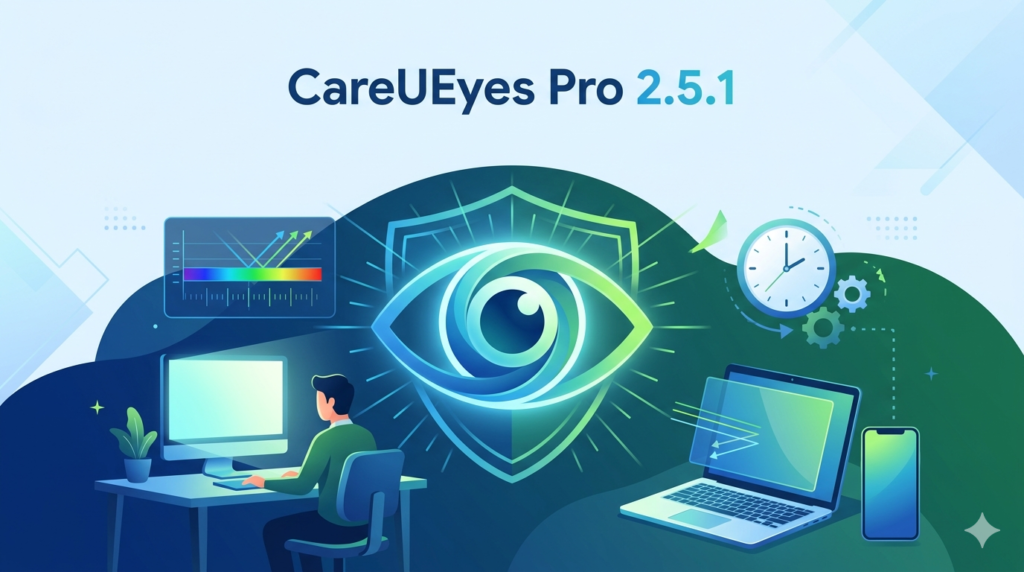
CareUEyes Pro 2.5.1 is a sophisticated blue light filter and screen dimmer designed for Windows PCs. Its primary function is to reduce eye strain caused by prolonged exposure to computer screens. By adjusting the color temperature and screen brightness automatically based on the time of day, the software helps minimize symptoms of Computer Vision Syndrome (CVS), such as dry eyes, headaches, and sleep disruption.
Unlike basic display settings, CareUEyes Pro uses intelligent color adjustment algorithms that do not distort screen colors aggressively. This version, 2.5.1, continues to build on the software’s reputation as a trusted utility for office workers, graphic designers, and night-time readers who need to protect their vision without sacrificing display quality.
Key Features
-
Blue Light Reduction: Reduces blue light emissions by 30% to 70% using customizable color temperature sliders (2700K to 6500K).
-
Screen Dimming: Lowers screen brightness below the physical monitor’s minimum limit, perfect for dark environments.
-
Smart Timer: Automatically activates eye protection modes at scheduled intervals.
-
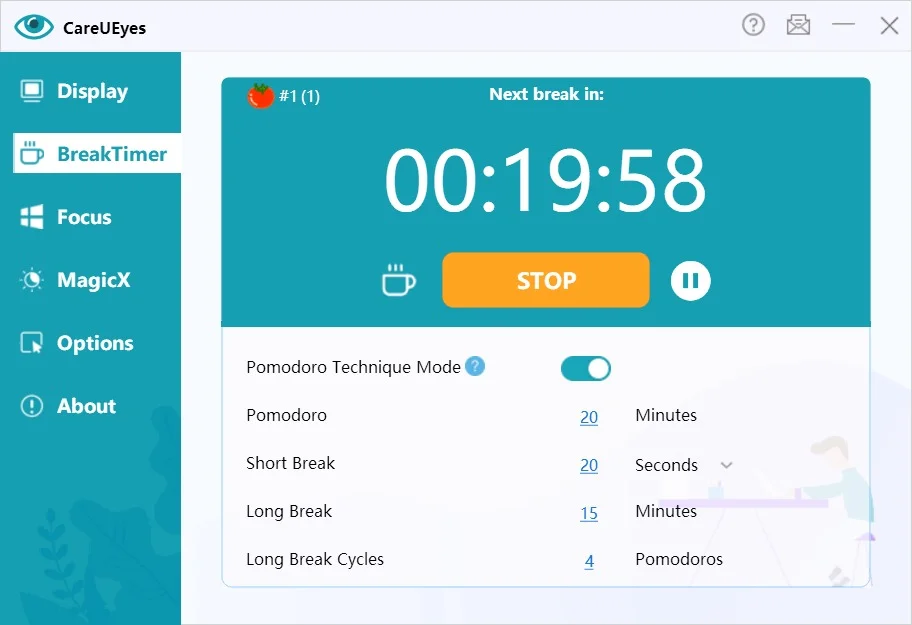
Break Reminders: Prompts users to take regular 5-minute eye breaks based on customizable work intervals (e.g., every 20, 30, or 60 minutes).
-
Multiple Filter Modes: Includes pre-configured modes for Office, Gaming, Movie, Night, and Reading.
-
Multi-Monitor Support: Independently controls blue light and brightness on each connected display.
-
Inversion Filter: Provides a temporary negative color inversion for high-contrast text editing.
What’s New in CareUEyes Pro 2.5.1
The 2.5.1 update focuses on performance stability and user experience refinements:
-
Improved color profile switching speed, reducing lag when changing modes.
-
Optimized memory usage, lowering background resource consumption by approximately 15%.
-
Fixed a compatibility issue with Windows 11’s night light feature.
-
Added a hotkey (Ctrl+Alt+F12) to quickly pause the filter for color-critical work.
-
Enhanced the break reminder notification system with non-intrusive pop-ups.
System Requirements
| Component | Minimum Requirement |
|---|---|
| Operating System | Windows 7, 8, 10, 11 (32-bit & 64-bit) |
| Processor | 1 GHz or faster |
| RAM | 512 MB (1 GB recommended) |
| Disk Space | 50 MB free space |
| Additional | DirectX 9 or later for color overlay rendering |
Installation Guide
Follow these steps to install CareUEyes Pro 2.5.1 safely:
-
Download the official setup file from the developer’s website (care-eyes dot com).
-
Run the installer as administrator by right-clicking the
.exefile and selecting “Run as administrator.” -
Accept the End User License Agreement (EULA).
-
Choose the installation directory (default:
C:\Program Files\CareUEyes). -
Select whether to create a desktop shortcut and launch on system startup.
-
Click “Install” and wait for the process to complete.
-
Launch CareUEyes from the system tray.
How to Use the Software
Adjusting Blue Light Filter Manually
-
Click the CareUEyes icon in the system tray.
-
Drag the “Blue Light” slider left (warmer, more protection) or right (cooler, less protection).
-
Drag the “Brightness” slider to dim or brighten the screen.
Setting Up Automatic Scheduling
-
Go to Timer tab.
-
Enable “Enable Schedule.”
-
Set sunrise and sunset times (or use auto-location).
-
Choose day and night filter intensities.
Using Break Reminders
-
Navigate to Break tab.
-
Set work duration (e.g., 30 minutes) and break duration (e.g., 5 minutes).
-
Enable “Strict Break” to lock the screen during breaks (optional).
Best Use Cases
-
Office Professionals: Reduce glare and eye fatigue during 8-hour workdays in brightly lit offices.
-
Students: Improve sleep quality by reducing blue light exposure during late-night study sessions.
-
Gamers: Maintain immersive display quality with “Game Mode” that balances protection and color accuracy.
-
Writers & Programmers: Use “Reading Mode” (sepia background + reduced blue light) to enhance text clarity.
-
Night Shift Workers: Schedule warmer color temperatures to mimic natural evening light.
Advantages and Limitations
Advantages
-
✔ Minimal CPU usage (under 1% on modern processors).
-
✔ Works with any external monitor, including laptops and desktops.
-
✔ Non-intrusive – runs silently in the system tray.
-
✔ Supports high-DPI and 4K displays without scaling issues.
-
✔ Pause feature for design or photo editing work.
Limitations
-
✘ Not available for macOS or Linux (Windows only).
-
✘ Does not replace hardware calibration for professional print design.
-
✘ Free trial limited to 30 days; full features require a paid license.
-
✘ Some antivirus software may flag screen dimming tools incorrectly (false positive).
Alternatives to CareUEyes Pro
| Software | Platform | Key Difference | License Model |
|---|---|---|---|
| f.lux | Windows, macOS, Linux | Focuses solely on circadian rhythm; fewer manual controls | Free |
| Iris | Windows, macOS, Linux | Includes biometric break reminders and extensive color settings | Freemium |
| Windows Night Light | Windows 10/11 | Basic blue light filter; no screen dimming below hardware limit | Free (built-in) |
| Redshift | Linux | Open-source, command-line driven | Free |
| CareUEyes Standard | Windows | Same features but limited to one monitor | Paid (lower tier) |
Frequently Asked Questions
Is CareUEyes Pro 2.5.1 compatible with Windows 11?
Yes, it is fully compatible with Windows 11, including version 22H2 and newer. The 2.5.1 update fixed previous compatibility issues with the native Night Light feature.
Does the software work with external monitors and projectors?
Yes, it supports multiple displays independently. You can apply different blue light levels to each monitor.
Can I use CareUEyes Pro for free after the trial?
The free trial lasts 30 days with full features. After that, a one-time license purchase is required. No activation crack or license bypass is available or legal.
Will CareUEyes slow down my games or videos?
No. The software uses GPU-accelerated overlays, resulting in negligible performance impact (typically less than 0.5% CPU usage and no VRAM consumption).
How is this different from Windows Night Light?
Windows Night Light only adjusts color temperature. CareUEyes also dims the screen below hardware limits, provides break reminders, and offers mode presets for specific activities.
Does CareUEyes work with HDR content?
When HDR is enabled, CareUEyes enters a pass-through mode to preserve HDR metadata. For best results, disable HDR when using color-sensitive filters.
Is the software safe from malware?
Yes, when downloaded from the official website. Always avoid third-party sites offering “cracked” or “torrent” versions, as those often contain malware.
Final Thoughts
CareUEyes Pro 2.5.1 is a reliable, lightweight, and legally safe solution for anyone spending extended hours in front of a Windows PC. It bridges the gap between basic operating system features and advanced eye-care utilities by offering granular control over blue light, screen brightness, and break scheduling. While free alternatives like f.lux exist, CareUEyes excels in multi-monitor environments and professional workflows where color accuracy and screen dimming below hardware limits are essential.
For users experiencing digital eye strain, the 30-day trial offers ample time to evaluate benefits before purchasing a license. Avoid any third-party sources promising unauthorized access—legitimate use ensures both your security and compliance with software licensing laws.
Our Paid Service
“We do not sell or provide any software. We only offer professional support services. If any software on your system is not working properly, or you are facing installation errors, crashes, or any other technical issue — just contact us. We will help you fix the problem quickly and remotely via AnyDesk. No software will be provided from our side — only expert troubleshooting and support.”