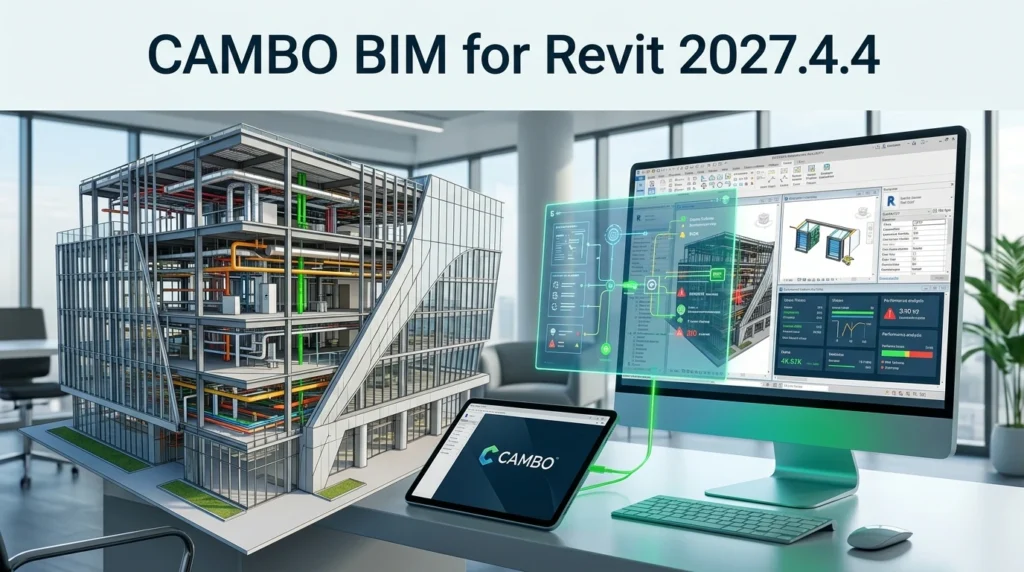

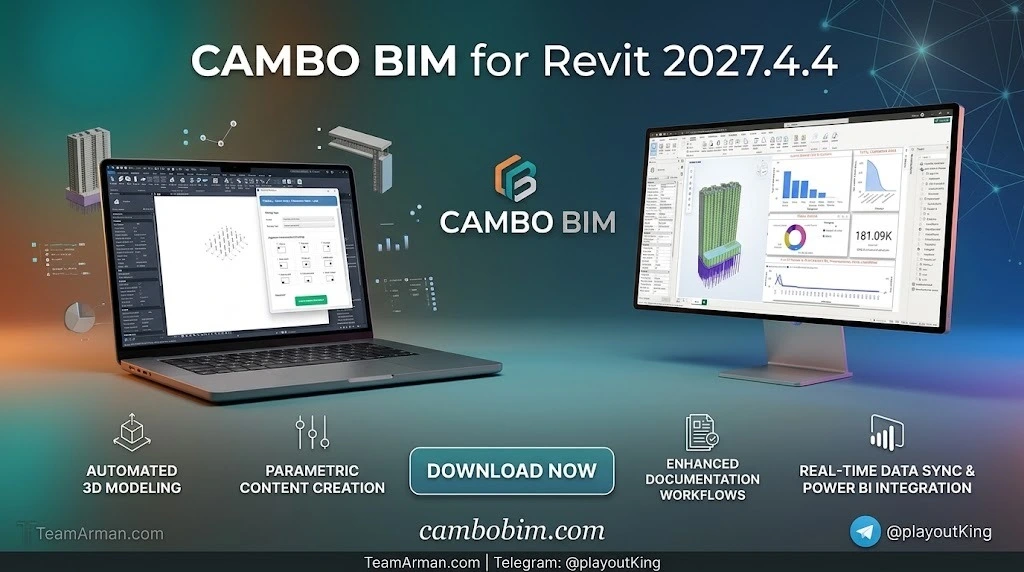
Overview of CAMBO BIM for Revit
Table of Contents
CAMBO BIM for Revit 2027.4.4 is a specialized productivity plugin developed by DiPCSoft for Autodesk Revit users in the architecture, engineering, and construction (AEC) industry. It extends Revit’s native capabilities by automating repetitive tasks across quantity surveying, reinforcement detailing, structural drawing, CAD-to-BIM conversion, and model management.
Unlike standalone BIM platforms, CAMBO BIM operates directly inside the Revit ribbon, meaning you do not need to switch between applications to access its tools. This integration reduces manual effort, accelerates project timelines, and improves consistency in construction documentation.
The plugin supports Autodesk Revit versions 2022 through 2027, making it accessible to teams working on both legacy and current projects. Whether you are a quantity surveyor preparing takeoffs, a structural engineer detailing reinforcement, or a BIM manager cleaning up models, CAMBO BIM provides targeted automation for each workflow.
Key Features of CAMBO BIM
CAMBO BIM 2027.4.4 offers a comprehensive toolkit organized around five core functional areas. Each module addresses a specific bottleneck in BIM project delivery.
Quantity Survey and Estimation
The quantity survey module calculates construction material amounts directly from your Revit model. It supports:
-
Concrete volume calculations for footings, beams, columns, walls, and slabs
-
Formwork area measurement with automatic quantification
-
Surface area calculations for finishes and cladding
-
Length and count calculations for linear and repetitive elements
-
Schedule generation with direct export to Excel or native Revit schedules
Quantity surveyors can reduce takeoff time significantly because the tool reads model geometry and properties without requiring manual measurement.
Reinforcement and Rebar Management
Structural engineers gain specialized reinforcement tools that integrate with Revit’s rebar system:
-
Rebar weight calculation for accurate material estimation and procurement
-
Comprehensive rebar reporting for construction documentation and BBS preparation
-
2D and 3D rebar visibility management to control how reinforcement appears in drawings and models
These features reduce the time spent manually creating rebar schedules and checking visibility settings across multiple views.
Structural Drawing Automation
CAMBO BIM streamlines structural documentation by automating repetitive drafting tasks:
-
Grid and level creation with standardized positioning
-
Structural element placement including footings, beams, columns, and walls
-
CAD to standard conversion for transitioning from 2D drafting to 3D BIM workflows
The automation ensures that structural drawings follow consistent standards across projects, reducing review cycles and rework.
CAD to BIM Model Conversion
One of the plugin’s most valuable capabilities is converting 2D CAD data into intelligent 3D BIM models:
-
Line and polyline conversion from CAD files into native Revit elements
-
Automated 3D model generation that reduces manual drawing time
-
Intelligent element mapping for accurate BIM representation
Firms transitioning from CAD-based workflows can reuse existing drawings instead of rebuilding models from scratch, lowering migration costs and timelines.
Model Modification and Revision Tools
BIM managers and project coordinators use CAMBO BIM for model cleanup and quality control:
-
CAD layer removal to clean up imported geometry
-
Auto-join functionality for proper element connectivity
-
Model purging to optimize file performance
-
Crop view management for focused documentation
-
Coordinate management for accurate positioning
These tools help maintain model health throughout the project lifecycle, especially when multiple disciplines are contributing to a shared Revit model.
What’s New in CAMBO BIM 2027.4.4
The 2027.4.4 release builds on the foundation of previous versions with targeted improvements. While DiPCSoft has not published a detailed changelog for this specific build, the following enhancements are consistent with the version trajectory observed across the 2027 series:
-
Extended Revit compatibility: Full support for Revit 2022 through 2027, including the latest Autodesk service packs
-
Performance optimizations: Faster processing for quantity calculations and CAD-to-model conversion operations
-
Updated standards compliance: Alignment with current BIM standards and structural documentation best practices
-
Stability improvements: Enhanced reliability for complex model operations and large project files
If you are upgrading from an earlier 2027 release, the installation process is the same. The plugin will overwrite the previous version while preserving your project settings.
System Requirements
CAMBO BIM runs as an add-in for Autodesk Revit, so the host system requirements mirror Revit’s own specifications. The following table summarizes the minimum and recommended configurations.
| Component | Minimum | Recommended |
|---|---|---|
| Operating System | 64-bit Windows 10 (version 1809 or later) | 64-bit Windows 11 |
| Processor | Intel i-Series, Xeon, AMD Ryzen, or Ryzen Threadripper PRO at 2 GHz+ | Highest single-core base clock speed available |
| Memory (RAM) | 32 GB | 64 GB or higher for large, complex models |
| Graphics Card | DirectX 11 capable with Shader Model 5 | 8 GB video memory for large models |
| Display | 1920 x 1200 with true color | Higher resolution for multi-monitor setups |
| Storage | 30 GB free for installation | Additional 100 GB for temporary files and project data |
| .NET Platform | .NET 10 (for Revit 2027) | Latest supported version |
Supported Revit Versions: Autodesk Revit 2022, 2023, 2024, 2025, 2026, and 2027.
Platform Note: Revit does not have a native macOS version. Mac users can run Revit and CAMBO BIM through Boot Camp (on Intel-based Macs) or virtual machines such as Parallels Desktop or VMware Fusion. However, these setups may experience performance limitations compared to native Windows installations.
Installation Guide
Installing CAMBO BIM follows a straightforward process. Follow these steps carefully to ensure the plugin loads correctly in Revit.
Prerequisites
-
Autodesk Revit (version 2022–2027) must already be installed and activated
-
Close all running Revit sessions before beginning
-
Verify that your system meets the hardware requirements listed above
-
Ensure you have administrative privileges on your Windows account
Installation Steps
-
Download the installer from the official DiPCSoft distribution channel.
-
Extract the installation files to a folder you will not move or rename after installation.
-
Run the installation executable and follow the on-screen prompts.
-
The installer will automatically detect compatible Revit versions on your system.
-
Launch Revit after installation completes.
-
A security dialog may appear confirming the plugin’s access to Revit. Confirm to load the extension.
-
Verify successful installation by locating the CAMBO BIM tab in the Revit ribbon. The tools should be visible and functional.
Troubleshooting Tips
-
If the CAMBO BIM tab does not appear, confirm that your Revit version is within the supported range (2022–2027).
-
Run the installer as administrator if you encounter permission errors.
-
Temporarily disable antivirus software if the installation is blocked.
-
Restart your computer after installation if the plugin does not load on the first attempt.
How to Use CAMBO BIM
Each module follows a logical workflow within the Revit interface. The steps below outline the primary operations.
Getting Started with Quantity Survey
-
Open your Revit project file.
-
Navigate to the CAMBO BIM tab in the ribbon.
-
Select the Quantity Survey tool.
-
Choose the elements you want to quantify (concrete, formwork, rebar, etc.).
-
Review the automatically generated quantities.
-
Export results to Excel or create native Revit schedules.
Converting CAD to BIM
-
Import or open a CAD file containing 2D geometry.
-
Select the lines or polylines representing structural elements.
-
Use the CAD Modeling tool to convert selected geometry.
-
Specify element types (walls, columns, beams, etc.).
-
Review the generated 3D model and make any necessary adjustments.
Generating Structural Drawings
-
Set up your grid and level system using CAMBO BIM’s automation tools.
-
Place structural elements using the element creation tools.
-
Apply reinforcement using the rebar management features.
-
Generate structural drawings with standardized annotations.
Managing Model Revisions
Use the Modify and Reviser tools to remove CAD layers, auto-join elements, purge unused families, and manage crop views. These operations help maintain model performance as projects grow.
Best Use Cases
CAMBO BIM delivers the most value in workflows that involve repetitive data entry, manual measurement, or CAD-to-BIM migration.
Quantity Surveying and Cost Estimation
Quantity surveyors can dramatically reduce takeoff time using automated calculation features. The tool computes concrete volumes, formwork areas, and rebar weights directly from the BIM model, eliminating manual measurement errors and speeding up the estimation process.
Structural Design and Documentation
Structural engineers benefit from a streamlined workflow for creating grids, levels, and structural elements. Automated drawing capabilities ensure consistent documentation across projects, reducing time spent on repetitive drafting tasks.
CAD to BIM Migration
Firms transitioning from CAD-based workflows can convert existing 2D drawings into intelligent 3D models. This significantly reduces the cost and time associated with recreating building models from scratch.
Model Management and Quality Control
BIM managers use the modification and revision tools to maintain model cleanliness and consistency. Auto-join, purge, and coordinate management features help ensure that BIM models remain accurate and reliable throughout the project lifecycle.
Advantages and Limitations
Advantages
-
Time savings: Automation features significantly reduce manual work in quantity estimation and model creation.
-
Accuracy: Automated calculations minimize human errors in material takeoff and element placement.
-
Seamless integration: Works directly inside the Revit ribbon without requiring a separate application.
-
Comprehensive feature set: Covers multiple disciplines from structural design to quantity surveying.
-
Broad Revit compatibility: Supports Revit versions 2022 through 2027.
Limitations
-
Windows-only: Requires Windows because Revit does not run natively on macOS.
-
Learning curve: Users familiar only with Revit’s native tools may need training to utilize CAMBO BIM’s full capabilities.
-
Hardware demands: Resource-intensive operations require powerful hardware, especially for complex models.
-
Template dependency: Some features may require project templates with specific family and parameter configurations.
Alternatives to CAMBO BIM
Several tools address overlapping needs in the Revit ecosystem. The best choice depends on your specific workflow and team expertise.
| Tool | Type | Best For | Key Difference |
|---|---|---|---|
| pyRevit | Open-source add-in | Custom scripting and automation | Requires Python knowledge for advanced use |
| Glodon Cubicost | Standalone BIM QTO platform | 5D cost management | Strong local standard compliance; may be less flexible for complex geometry |
| Rhino.Inside.Revit | Integration bridge | Free-form and computational design | Embeds Rhino and Grasshopper inside Revit |
| Native Revit Features | Built-in tools | Basic scheduling and reinforcement | More manual effort required; no specialized automation |
pyRevit is a free and open-source tool that extends Revit functionality through Python scripting. It offers customization options but requires programming knowledge for advanced use.
Glodon Cubicost is a specialized BIM quantity takeoff and cost estimation platform that excels in speed and local standard compliance. It is particularly strong in 5D BIM cost management.
Rhino.Inside.Revit embeds Rhino and Grasshopper into Revit for advanced geometric modeling and bidirectional data exchange. It is ideal for complex, free-form architectural design.
Native Revit features provide many of the functions that CAMBO BIM automates, but with more manual effort. Revit’s built-in quantity schedules, reinforcement tools, and modeling capabilities may be sufficient for firms with dedicated training resources.
Frequently Asked Questions
Is CAMBO BIM compatible with all versions of Revit?
CAMBO BIM 2027.4.4 supports Autodesk Revit versions 2022 through 2027. Verify that your Revit version falls within this range before installation.
Can CAMBO BIM be used on macOS?
No. CAMBO BIM requires Windows because it is a plugin for Revit, which does not run natively on macOS. Mac users can run Revit and CAMBO BIM through Boot Camp (Intel Macs) or virtual machines like Parallels Desktop, but performance may be lower than on native Windows systems.
What hardware is recommended for optimal performance?
For best results, use a Windows system with at least 32 GB RAM (64 GB recommended for complex projects), a multi-core processor (Intel i-Series or AMD Ryzen), and a DirectX 11-capable graphics card with 8 GB of video memory.
How do I obtain CAMBO BIM for my organization?
CAMBO BIM is distributed through official DiPCSoft channels. Contact the software provider directly for licensing and distribution information. This article does not provide or facilitate access to unauthorized copies.
Can CAMBO BIM export data to other software?
Yes. CAMBO BIM allows export of quantity data to Excel and Revit schedules. The tool also supports CAD import for model conversion.
Is training available for CAMBO BIM?
Training resources are typically available through the software provider. Many users find that Revit professionals can adapt to CAMBO BIM’s workflow with basic training because it integrates directly into the Revit interface.
How does CAMBO BIM compare to native Revit schedules?
Revit’s native scheduling features provide basic quantification. CAMBO BIM automates and expands the process with specialized algorithms for concrete, formwork, and rebar calculations, resulting in faster and more accurate quantity takeoffs.
Does CAMBO BIM replace the need for skilled BIM professionals?
No. CAMBO BIM automates repetitive tasks and reduces manual effort, but it does not replace the judgment and expertise of quantity surveyors, structural engineers, or BIM managers. It is a productivity tool that amplifies skilled professionals’ output.
Final Thoughts
CAMBO BIM for Revit 2027.4.4 is a practical addition to the toolkit of any AEC professional working in Revit. By automating quantity survey, reinforcement management, structural drawing, and CAD-to-BIM conversion, it allows teams to focus on higher-value tasks such as design optimization and project coordination.
The plugin’s seamless integration with Revit 2022–2027 makes it accessible to organizations at different stages of BIM adoption. Firms transitioning from CAD will find the conversion tools particularly valuable, while established BIM teams will benefit most from the quantity survey and model management automation.
Consider your specific workflow requirements, team expertise, and hardware capacity when evaluating CAMBO BIM. The investment in automation tools often pays dividends through improved accuracy, faster project delivery, and reduced rework across the project lifecycle.
For licensing, pricing, and official distribution, contact DiPCSoft directly. Always obtain software through authorized channels to ensure compliance, security, and access to technical support.
Our Paid Service