

Overview of the Software
Table of Contents
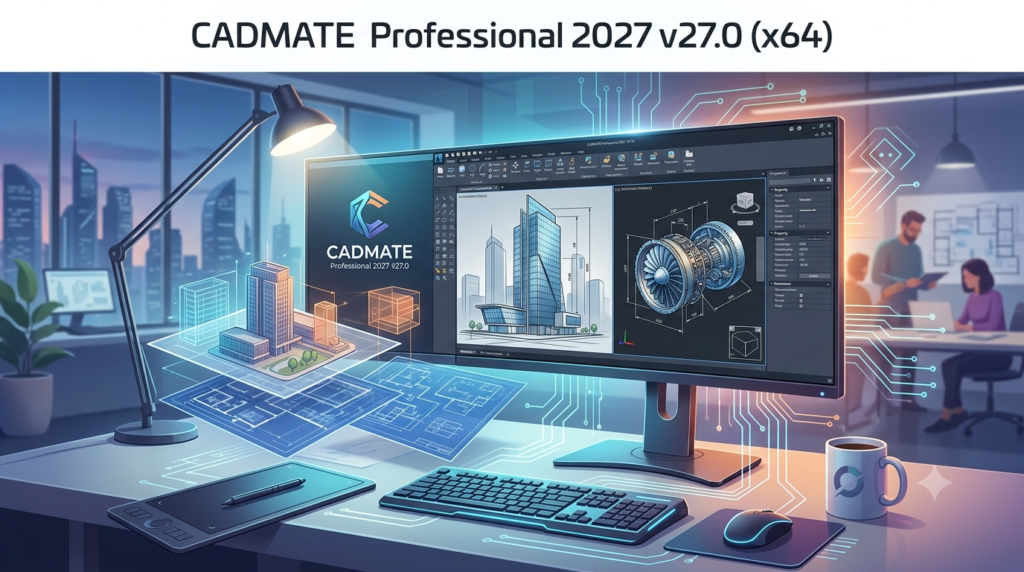
CADMATE Professional 2027 v27.0 is a feature-rich CAD software solution developed to streamline the design process for engineers, architects, and drafters. Unlike many mainstream CAD programs, it is specifically optimized for the AEC sector, offering specialized tools for structural detailing, MEP (Mechanical, Electrical, Plumbing) design, and architectural modeling. The software is known for its user-friendly interface that balances power with accessibility, allowing both seasoned professionals and newcomers to produce high-quality work efficiently. As a comprehensive design and modeling platform, it supports both 2D drafting and 3D visualization, making it a versatile tool in any project’s lifecycle.
Who is it For?
-
Architects for creating floor plans, elevations, and detailed sections.
-
Structural Engineers for reinforced concrete and steel detailing.
-
MEP Engineers for designing complex building service systems.
-
CAD Technicians and Drafters for producing construction documentation.
-
Small to Medium-Sized Design Firms looking for a cost-effective solution.
Key Features
CADMATE Professional 2027 v27.0 is packed with features that facilitate precision and speed. Here is a breakdown of its core capabilities:
-
Advanced 2D Drafting: A full suite of drawing, editing, and annotation tools for creating detailed floor plans and technical diagrams.
-
3D Modeling and Visualization: Ability to create solid and surface models with realistic rendering and walkthrough capabilities.
-
Parametric Components: Intelligent objects like doors, windows, and structural elements that automatically adjust to changes in the model.
-
Integrated Bill of Quantities (BOQ): A powerful tool to automatically generate accurate material takeoffs and cost estimates directly from the model.
-
AutoCAD Compatibility: Seamless import and export of DWG and DXF files, ensuring smooth collaboration with teams using other software.
-
Advanced Annotation Tools: Automatic dimensioning, dynamic text, and smart callouts to streamline the documentation process.
Key Enhancements for 2027:
-
AI-Assisted Design: An experimental feature that offers intelligent snapping and placement suggestions.
-
Cloud Collaboration Support: Enhanced integration with cloud storage services for better file sharing.
What’s New in the Latest Version
The CADMATE Professional 2027 v27.0 release introduces significant updates that focus on enhancing user experience and design accuracy. This update solidifies its position as a modern, efficient CAD solution.
Enhanced User Interface
The v27.0 version features a completely revamped, ribbon-based user interface. This modern design organizes tools logically, making navigation more intuitive and reducing the time spent searching for commands.
AI-Powered Drafting Assistance
A groundbreaking feature is the new AI-assist tool. It analyzes the context of your drawing and offers intelligent suggestions for object placement and alignment, which helps in speeding up drafting tasks and minimizing errors.
Advanced Steel and Concrete Detailing
For structural engineers, the detailing module has been significantly upgraded. It now includes a more extensive library of parametric steel connections and automatic rebar detailing tools that comply with international building codes.
Improved Rendering Engine
The built-in rendering engine has been upgraded to produce more photorealistic visualizations. This is crucial for presenting designs to clients and stakeholders, as it provides a clearer vision of the final product.
System Requirements
Before you proceed with the installation, ensure your hardware is capable of running CADMATE Professional 2027 smoothly to fully leverage its 3D rendering and modeling capabilities.
| Component | Requirement |
|---|---|
| Operating System | Windows 10 64-bit (Version 20H2 or later) or Windows 11 |
| Processor (CPU) | Intel Core i5 or AMD Ryzen 5 (or equivalent) |
| Memory (RAM) | 8 GB (16 GB or more highly recommended for large 3D models) |
| Graphics Card (GPU) | Dedicated GPU with 2 GB VRAM (NVIDIA GeForce or AMD Radeon) |
| Storage | 10 GB of available hard disk space for full installation |
| Display | 1920 x 1080 resolution (Full HD) or higher |
Installation Guide
Installing CADMATE Professional 2027 is a straightforward process. Follow this simple guide to get the software up and running on your Windows system.
-
Download the Installer: Log in to your official CADMATE account and download the installer file.
-
Run as Administrator: Right-click the installer and select “Run as administrator” to ensure all files are installed correctly.
-
Accept the License Agreement: Read and accept the End User License Agreement (EULA) to continue.
-
Choose Installation Type: Select the “Full Installation” for all features or “Custom” to choose which components to install.
-
Select Installation Directory: Choose the folder where you want to install the software, or accept the default path.
-
Install: Click the “Install” button and allow the setup to complete, which may take a few minutes.
-
Activate: Once installed, launch the software and enter your valid license key to activate your copy.
How to Use the Software: A Beginner’s Guide
Learning a new CAD tool can be daunting. This section provides a quick start guide to get you drafting with CADMATE Professional 2027.
-
Starting a New Project:
-
Launch the software.
-
From the ‘File’ menu, select “New.” This opens the ‘Project Setup’ window. Here you can choose a template, set units (e.g., millimeters, inches), and define drawing sheet sizes.
-
-
Navigating the Interface:
-
Ribbon: The main toolbar at the top with tabs for ‘Home’, ‘Insert’, ‘Annotate’, etc.
-
Drawing Area: The central workspace where you create your model.
-
Command Line: A text bar (usually at the bottom) where you can type commands directly for advanced control.
-
Properties Palette: A side panel showing properties of selected objects.
-
-
Basic Drawing Commands:
-
Line: Click the ‘Line’ icon in the ribbon or type
Land press Enter. Click a point in the drawing area to start, then click another to create a line segment. -
Rectangle: Click the ‘Rectangle’ icon or type
REC. Click the first corner, then drag to define the opposite corner. -
Circle: Click the ‘Circle’ icon or type
C. Click the center point and then drag to set the radius.
-
-
Modifying Objects:
-
Select: Click on an object to select it.
-
Move: With an object selected, click the ‘Move’ icon and specify a base point and a second point to relocate it.
-
Copy: Use the ‘Copy’ command to create duplicates.
-
Trim/Extend: Use these commands to clean up lines and shapes.
-
-
Saving Your Work:
-
Go to ‘File’ > ‘Save’ or press
Ctrl + S. You can save in native CADMATE format (.cdt) or export to compatible formats like DWG.
-
Best Use Cases
The versatility of CADMATE Professional 2027 makes it suitable for a wide range of professional applications.
-
Architectural Design: Creating 2D floor plans, 3D building elevations, and detailed section drawings.
-
Structural Engineering: Producing detailed structural framing plans, foundation drawings, and reinforcement details.
-
MEP Systems Design: Drafting layouts for HVAC systems, electrical circuits, and plumbing networks.
-
Construction Documentation: Generating precise drawings, bills of materials, and permit sets for contractors.
Advantages and Limitations
A balanced perspective is crucial for potential users. Here are the key pros and cons of using CADMATE Professional 2027.
Advantages
-
Cost-Effective: Often more affordable than industry giants like AutoCAD, offering a high ROI for small and medium firms.
-
User-Friendly Learning Curve: The intuitive interface makes it easier for new users to become productive.
-
Industry-Specific Tools: Features like the integrated BOQ and structural detailing are tailored for the AEC industry, boosting productivity.
-
Excellent Compatibility: Reliable import/export of DWG files ensures seamless interoperability.
Limitations
-
Smaller Ecosystem: Compared to Autodesk products, CADMATE has a smaller third-party plugin marketplace.
-
Limited Mac Support: The software is exclusively for Windows, which can be a drawback for teams using macOS.
-
Learning Advanced Features: While basic functions are easy, mastering the advanced 3D and rendering modules still requires significant study.
Alternatives to the Software
Depending on your needs and budget, you may consider these top CAD alternatives for the AEC industry.
| Software | Developer | Strengths | Best For |
|---|---|---|---|
| AutoCAD | Autodesk | The industry standard with vast community, plugin support, and high compatibility. | All-around design needs, large firms, and complex projects. |
| BricsCAD | Bricsys | Fast and highly compatible with AutoCAD, with a focus on 2D/3D and AI-assisted tools. | Draftsmen and designers looking for a high-value, powerful alternative. |
| DraftSight | Dassault Systèmes | Professional-grade 2D drafting software with robust file management. | Users primarily focused on 2D drafting and documentation. |
| SketchUp | Trimble | Exceptionally intuitive 3D modeling, especially for architectural conceptual design. | Early concept design, architectural visualization, and woodworking. |
Frequently Asked Questions
FAQ
-
What is the primary use of CADMATE Professional 2027?
CADMATE Professional 2027 is a specialized CAD software used for architectural design, structural engineering, MEP detailing, and creating precise construction documentation. -
What are the main new features in the 2027 version?
The 2027 version introduces a revamped ribbon interface, an AI-powered drafting assistance tool, and significantly enhanced steel and concrete detailing modules. -
Is CADMATE Professional compatible with AutoCAD?
Yes, the software supports robust import and export of DWG and DXF files, ensuring excellent compatibility with AutoCAD and other CAD applications. -
What are the system requirements to run CADMATE Professional 2027?
You will need Windows 10/11 64-bit, an Intel Core i5 or AMD Ryzen 5 CPU, 8 GB of RAM (16 GB recommended), a dedicated graphics card, and 10 GB of free hard disk space. -
How can I obtain a license for CADMATE Professional 2027?
You can purchase a legitimate license directly from the official CADMATE website or through their network of authorized resellers. -
Is there a free trial version of CADMATE Professional available?
Yes, the developer typically provides a free, fully functional trial version of the software for a limited time on their official website, allowing you to test all features before purchase.
Final Thoughts
CADMATE Professional 2027 v27.0 stands as a compelling choice for professionals and firms within the AEC sector. It effectively balances a gentle learning curve with powerful, industry-specific tools, making it a strong contender against more expensive and complex solutions. The integration of AI features and continuous performance improvements demonstrate a commitment to innovation and user-centric design. For those seeking a reliable, efficient, and cost-effective CAD design platform, CADMATE Professional 2027 is an excellent investment that promises to enhance productivity and streamline the design-to-documentation workflow.
Our Paid Service
“We do not sell or provide any software. We only offer professional support services. If any software on your system is not working properly, or you are facing installation errors, crashes, or any other technical issue — just contact us. We will help you fix the problem quickly and remotely via AnyDesk. No software will be provided from our side — only expert troubleshooting and support.”