


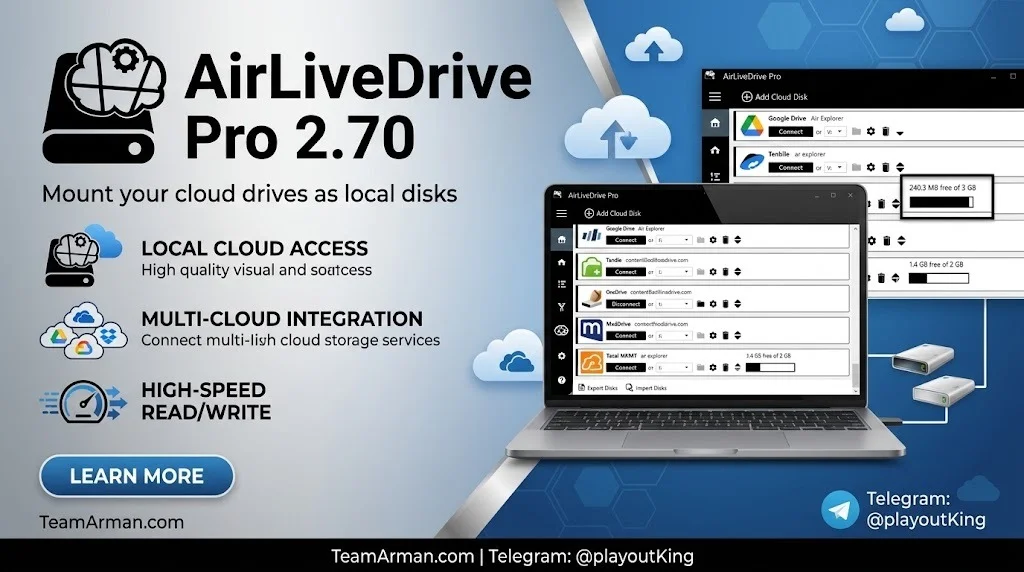
Overview of AirLiveDrive Pro 2.70
Table of Contents
AirLiveDrive Pro is a cloud drive mounting tool developed by Air Live Drive. It creates a virtual disk in Windows that connects directly to your cloud storage account. Files appear in File Explorer as if they were stored on a physical USB drive or external hard disk.
The software is built for users who manage multiple cloud storage accounts and want to avoid switching between browser tabs or installing a separate desktop client for every provider. Instead of downloading entire folders to your PC, AirLiveDrive streams file access on demand. This keeps local storage usage minimal while preserving full read-write access to remote files.
Version 2.70 is a mature release in the 2.x line, following a series of stability and compatibility improvements introduced across versions 2.4 through 2.6.3.
Key Features of AirLiveDrive Pro 2.70
AirLiveDrive Pro 2.70 offers a focused feature set designed for cloud storage integration and local drive simulation.
Multiple Cloud Service Support
The software connects to a wide range of cloud providers:
-
Google Drive (including shared drives)
-
OneDrive and OneDrive for Business
-
Dropbox
-
Box
-
MEGA
-
Apple iCloud (new in 2.70)
-
Drime cloud (new in 2.70)
-
WebDAV, SFTP, FTP
-
Amazon S3, Azure, Backblaze B2, CloudFlare R2
-
PikPak, pCloud, Yandex, Mail.ru, Naver, HiDrive, and more
You can add multiple accounts from the same provider. Each account becomes a separate local drive with its own drive letter, making it easy to distinguish between personal and work storage.
Local Drive Simulation in Windows Explorer
Once mounted, a cloud account appears as a standard disk in Windows File Explorer. You can:
-
Browse folders with keyboard navigation
-
Copy, move, rename, and delete files
-
Right-click to access context menu options
-
Use Windows search within the mounted drive
A common complaint about some competing tools is lag or stuttering when browsing mounted drives with arrow keys. AirLiveDrive Pro is specifically noted for smooth directory navigation in File Explorer.
Real-Time File Editing
You can open remote files directly in desktop applications such as Microsoft Word, Excel, Photoshop, or Notepad. Changes are saved back to the cloud when you save the file in the application. This eliminates the download-edit-upload cycle that slows down cloud-based workflows.
Optional Cache and Background Upload
AirLiveDrive Pro includes a configurable cache system that accelerates access to frequently used files. Cached files load faster on subsequent opens because they are stored locally on a temporary basis.
The background upload feature lets you continue working while large files transfer to the cloud. You do not have to wait for an upload to complete before opening another application or file.
Command-Line Support (Pro Version)
The Pro edition adds command-line operations for advanced users and automation scripts:
-
Mount or unmount a drive
-
Force refresh a folder
-
Add or remove files from the cache
-
Clear the disk cache
This makes AirLiveDrive Pro suitable for IT administrators and power users who need to automate cloud drive management.
Claude Integration (New in 2.70)
Version 2.70 introduces compatibility with Claude Cowork and Claude Code. Drives mounted with AirLiveDrive can now be accessed directly by these AI-assisted productivity tools, expanding the range of applications that can work with your cloud files.
What’s New in AirLiveDrive Pro 2.70
Version 2.70, released on July 18, 2026, focuses on expanding cloud support and improving compatibility with third-party applications.
New Cloud Providers
-
Apple iCloud support added
-
Drime cloud support added
Application Compatibility
-
Drives mounted by AirLiveDrive can now be used with Claude Cowork and Claude Code
-
Broader compatibility with more desktop applications
OneDrive for Business Enhancements
-
Ability to define OneDrive for Business account settings, including access to shared drives
-
Improved support for shared folders in OneDrive and OneDrive for Business
Bug Fixes and Stability Improvements
-
Fixed login errors in MEGA and Huawei
-
Fixed upload issues in Mail.ru, CloudFlare R2, and Synology C2 Object Storage
-
Fixed access issues with some Google Drive accounts
-
Improved support for Google Drive folders ending in spaces
-
Fixed uploads with special file names in Dropbox, Box, Mail.ru, and Directcloud
-
Fixed 0-byte file uploads in MediaFire
-
Improved compatibility with AWS S3, Azure, PikPak, Nextcloud, FTP, and Degoo
-
Updated German and Hungarian translations
System Requirements for AirLiveDrive Pro 2.70
AirLiveDrive Pro is a lightweight Windows application. The system requirements are modest and should be met by most modern PCs.
| Component | Minimum | Recommended |
|---|---|---|
| Operating System | Windows 7, 8.1, 10, or 11 (32-bit or 64-bit) | Windows 10 or 11 (64-bit) |
| Processor | 1 GHz Intel-compatible CPU | 2 GHz dual-core or faster |
| RAM | 2 GB | 4 GB or more |
| Disk Space | 50 MB free | 100 MB free |
| Privileges | Administrator rights required for installation | Administrator rights |
The software runs on both 32-bit and 64-bit Windows installations. An internet connection is required to access cloud storage, though previously cached files remain available offline.
Installation Guide for AirLiveDrive Pro 2.70
Installing AirLiveDrive Pro follows a standard Windows setup process. The steps below describe a licensed installation.
Step 1: Download the Installer
Obtain the AirLiveDrive Pro 2.70 installer from the official Air Live Drive website or an authorized software reseller. The download is a single executable file.
Step 2: Run the Setup Wizard
Double-click the installer to launch the setup wizard. Follow the on-screen prompts:
-
Accept the license agreement
-
Choose the installation directory (the default location is recommended)
-
Select whether to create a desktop shortcut
Step 3: Complete Installation
When the wizard finishes, click Finish to close the setup. The AirLiveDrive application is now installed but not yet activated.
Step 4: Activate the Pro License
If you purchased a Pro license, you will receive a coupon code at the time of purchase. Use this code on the Air Live Drive activation page to generate an activation code. Enter your name, email address, and coupon code, then click OK to receive the activation code.
Launch AirLiveDrive, click the Pro version button or select Pro version from the menu, and enter your activation code. The software will verify the license and unlock all Pro features.
Step 5: Add Your First Cloud Account
After activation, click Add cloud storage to open the list of supported providers. Select your provider (for example, Google Drive or OneDrive) and sign in with your account credentials. Grant the requested permissions. AirLiveDrive will mount the account as a new local drive in Windows Explorer.
How to Use AirLiveDrive Pro 2.70
Using AirLiveDrive Pro is designed to feel natural for anyone comfortable with Windows File Explorer.
Mounting a Cloud Drive
When you add a cloud account, AirLiveDrive assigns it a drive letter (such as Z: or Y:). You can change the drive letter in the software settings if needed. The drive appears in This PC alongside your physical drives.
Working with Files
Open File Explorer and navigate to the mounted drive. You can:
-
Open files directly in associated applications
-
Create new folders and files
-
Drag and drop files between the cloud drive and local drives
-
Use standard cut, copy, and paste operations
Configuring Cache and Upload Settings
Open the AirLiveDrive settings to adjust:
-
Cache size and location — control how much local space is used for temporary file caching
-
Background upload — enable or disable asynchronous uploads
-
Startup behavior — mount drives automatically when Windows starts
-
Password protection — require a password when AirLiveDrive launches (Pro feature)
Using the Command Line (Pro)
Advanced users can manage drives from a command prompt or script:
AirLiveDrive.exe mount <drive> <account>
AirLiveDrive.exe unmount <drive>
AirLiveDrive.exe refresh <folderPath>
AirLiveDrive.exe cache <path>
These commands allow automated mounting in login scripts or scheduled tasks.
Best Use Cases for AirLiveDrive Pro 2.70
AirLiveDrive Pro is particularly valuable in scenarios where local storage is limited or multiple cloud accounts need unified access.
Use Case 1: Laptop with a Small SSD
Modern ultrabooks often ship with 256 GB or 512 GB SSDs. Installing a separate sync client for Google Drive, OneDrive, and Dropbox can consume tens of gigabytes of local space. AirLiveDrive mounts those accounts as virtual drives without syncing the full contents, preserving valuable SSD capacity.
Use Case 2: Managing Personal and Work Cloud Accounts
Many users have a personal Google account and a work Microsoft 365 account. AirLiveDrive lets you mount both as separate drives. You can copy files between them using File Explorer, without downloading everything through a browser.
Use Case 3: Accessing WebDAV or SFTP Storage
AirLiveDrive supports WebDAV and SFTP connections. This makes it useful for accessing self-hosted cloud storage, NAS devices, or remote servers through the familiar Windows Explorer interface.
Use Case 4: Automated Backup and Sync Scripts
With Pro command-line support, AirLiveDrive can be integrated into batch scripts or scheduled tasks. For example, a nightly script can mount a cloud drive, copy backup files, and unmount the drive—all without manual intervention.
Use Case 5: AI-Assisted Workflows
The 2.70 release adds Claude Cowork and Claude Code compatibility. Developers and analysts who use Claude for code review, document analysis, or data processing can now point those tools directly at mounted cloud drives.
Advantages and Limitations of AirLiveDrive Pro 2.70
Advantages
-
Broad cloud provider support — more than 20 services in a single interface
-
No full synchronization required — saves local disk space
-
Smooth File Explorer integration — arrow-key navigation without lag, unlike some competitors
-
Cache and background upload — improves performance for large files
-
Command-line automation — available in the Pro edition
-
Password protection — adds a layer of access control
-
Active development — frequent updates with bug fixes and new provider support
Limitations
-
Windows only — no native macOS or Linux version
-
Requires administrator rights for installation
-
Internet connection needed for uncached files
-
Pro features require a paid license — the free version has functional limitations
-
Some providers may require OAuth re-authentication periodically
-
Performance depends on cloud provider API limits — very large directories can load slowly
Alternatives to AirLiveDrive Pro 2.70
Several tools occupy the same niche as AirLiveDrive Pro. The table below compares the most common alternatives.
| Tool | Platform | Pricing Model | Notable Strength |
|---|---|---|---|
| RaiDrive | Windows | Free + Paid tiers | Popular, supports many protocols |
| Mountain Duck | Windows, macOS | Paid | Cross-platform, Cyberduck-based |
| WebDrive | Windows, macOS | Paid | Enterprise-focused, long-standing |
| Rclone | Windows, macOS, Linux | Free / Open Source | Command-line power, scriptable |
| ExpanDrive | Windows, macOS | Paid | Fast network drive performance |
| CloudMounter | Windows, macOS | Paid | Simple interface, macOS focus |
RaiDrive is the closest direct competitor. It also mounts cloud storage as local drives and offers a free tier. However, some users report slower directory navigation compared to AirLiveDrive.
Mountain Duck is a strong choice for users who need both Windows and macOS support. It builds on the Cyberduck open-source foundation and supports a wide range of protocols.
Rclone is the most flexible option for technically inclined users. It is entirely command-line based and free, but it lacks the graphical File Explorer integration that makes AirLiveDrive approachable for non-technical users.
Frequently Asked Questions About AirLiveDrive Pro 2.70
What is AirLiveDrive Pro 2.70 used for?
AirLiveDrive Pro 2.70 is used to mount cloud storage accounts as local disk drives on Windows. It lets you open, edit, and manage files stored in Google Drive, OneDrive, Dropbox, and other cloud services directly from File Explorer, without syncing files to your local hard drive.
Is AirLiveDrive Pro free?
AirLiveDrive offers a free version and a Pro version. The free version has limitations on the number of cloud accounts and features. The Pro version adds command-line support, password protection, and additional configuration options. A paid license is required to unlock all Pro features.
Does AirLiveDrive Pro work with Google Drive and OneDrive?
Yes. AirLiveDrive Pro supports Google Drive, OneDrive, and OneDrive for Business. Version 2.70 specifically improves support for Google Drive shared drives and OneDrive for Business shared folders.
Can I use AirLiveDrive Pro without an internet connection?
Files that have been previously accessed and cached remain available offline. However, accessing files that are not cached requires an active internet connection. The cache system is configurable, so you can control how much data is stored locally for offline access.
What are the system requirements for AirLiveDrive Pro 2.70?
AirLiveDrive Pro 2.70 runs on Windows 7, 8.1, 10, and 11 (both 32-bit and 64-bit). Minimum requirements are a 1 GHz processor, 2 GB RAM, and 50 MB of free disk space. Administrator rights are required for installation.
Does AirLiveDrive Pro support macOS?
No. AirLiveDrive Pro is a Windows-only application. Mac users should consider alternatives such as Mountain Duck or CloudMounter.
How does AirLiveDrive Pro compare to RaiDrive?
Both tools mount cloud storage as local drives. AirLiveDrive Pro is often noted for smoother File Explorer navigation and offers a broader set of command-line options in the Pro edition. RaiDrive has a free tier and a large user base. The best choice depends on your specific provider needs and budget.
Can I mount multiple cloud accounts from the same provider?
Yes. AirLiveDrive Pro allows you to add multiple accounts from the same cloud provider. Each account is mounted as a separate drive with its own drive letter.
Final Thoughts
AirLiveDrive Pro 2.70 is a practical solution for Windows users who work with multiple cloud storage services and want to avoid the storage overhead of full synchronization. Its broad provider support, smooth File Explorer integration, and Pro-level automation features make it a strong contender in the cloud drive mounting category.
The 2.70 release strengthens the software with Apple iCloud support, Drime cloud integration, and Claude compatibility, while fixing numerous provider-specific bugs. For users who value local drive simulation without the cost of additional SSD space, AirLiveDrive Pro 2.70 is worth evaluating.
Before purchasing, test the free version with your specific cloud providers to confirm compatibility. If you need cross-platform support or prefer a fully open-source command-line approach, consider alternatives like Mountain Duck or Rclone.
Our Paid Service
“We do not sell or provide any software. We only offer professional support services. If any software on your system is not working properly, or you are facing installation errors, crashes, or any other technical issue — just contact us. We will help you fix the problem quickly and remotely via AnyDesk. No software will be provided from our side — only expert troubleshooting and support.”


