
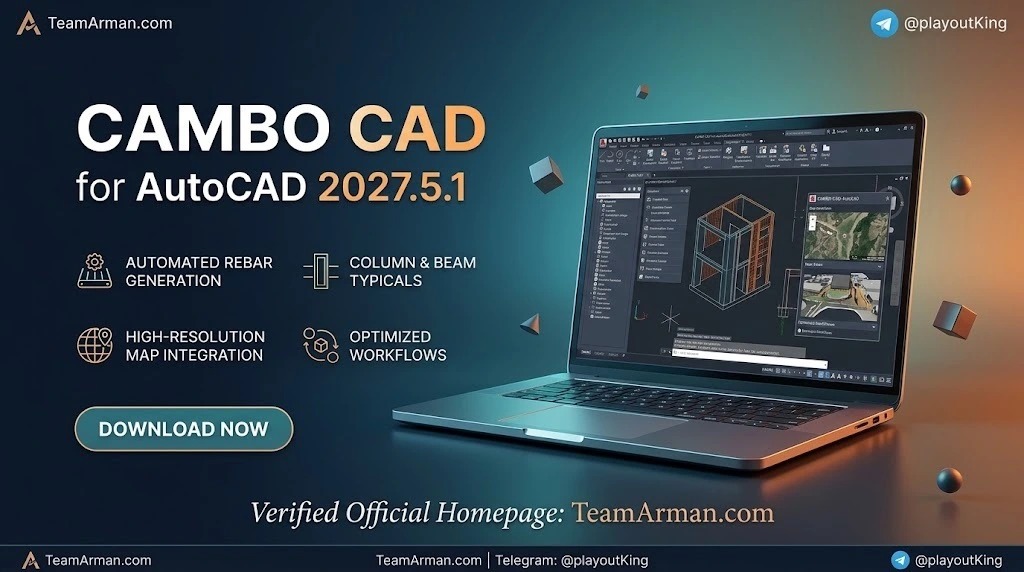
Overview of CAMBO CAD for AutoCAD
Table of Contents
CAMBO CAD is developed and distributed by DiPCSoft, a software vendor that specializes in construction-oriented CAD and BIM plugins. The core value proposition of CAMBO CAD is simple: it reduces repetitive manual drafting by automating the most time-consuming tasks in construction documentation. Instead of drawing columns, footings, pile caps, dimensions, and rebar details line by line, users can run CAMBO CAD commands that generate these elements parametrically.
The add-in is designed as a separate Ribbon inside AutoCAD, which means it does not replace or disrupt the native AutoCAD interface. Users can switch between standard AutoCAD tools and CAMBO CAD tools at any time. The software supports AutoCAD 2007 through AutoCAD 2027, including the Civil 3D vertical. This unusually broad version support makes CAMBO CAD attractive to firms that operate mixed-version environments or that have not yet upgraded to the newest AutoCAD release.
Because CAMBO CAD focuses on construction documentation rather than conceptual design, it is particularly relevant for quantity surveyors, structural drafters, shop drawing teams, and rebar detailers. The plugin also appeals to general CAD users who want faster block management, layer control, and dimension creation.
Key Features
CAMBO CAD bundles several functional modules into a single Ribbon tab. The official description groups them under headings such as CAMBOCAD Modeling, CAMBOCAD Rebar, AUTO NO, CAD Modify, and Data Workflow. Below is a detailed breakdown of each feature area.
CAMBOCAD Modeling
This module automates the creation of structural and construction elements that would otherwise require manual drawing.
-
Coordinate and Boundary creation – Generate site coordinates and boundary polylines from data inputs rather than drawing them point by point.
-
Column, Footing, and Pile Cap automation – Insert standard structural elements with predefined dimensions and attributes.
-
Objective Construction tools – Speed up the placement of common construction components.
These tools are especially useful during the early stages of a shop drawing package, when dozens of identical or slightly varying elements must be placed quickly.
CAMBOCAD Rebar
Reinforcement detailing is one of the most labor-intensive parts of structural documentation. CAMBO CAD addresses this with tools for:
-
Rebar detailing – Draw and annotate reinforcement bars according to standard detailing conventions.
-
Bar bending schedules – Generate bending schedules automatically from the drawn rebar.
-
Cutting lists – Produce cutting lists that can be exported for fabrication.
-
Shop drawing for structural details – Create reinforcement shop drawings directly from the model.
These features reduce the risk of manual counting errors and help standardize the presentation of rebar information across a project.
AUTO NO (Dimension Automation)
The AUTO NO module focuses on dimensioning. It creates and edits dimensions quickly, with the goal of producing clean, standard-compliant dimension lines while reducing dimension errors. Automated dimensioning is particularly valuable in large plan sets where inconsistent dimension styles can lead to costly misinterpretations on site.
CAD Modify
The CAD Modify module handles everyday CAD housekeeping tasks:
-
Block management – Insert, replace, and manage blocks across a drawing.
-
Text and attribute editing – Batch-edit text and block attributes.
-
Layer management – Control layer states and properties efficiently.
-
Table and print management – Manage tables and batch-print drawing sets.
-
Batch merge – Combine multiple drawings or data sources.
These utilities are not glamorous, but they eliminate hours of repetitive clicking and typing that accumulate over a project.
Data Workflow
CAMBO CAD connects AutoCAD data to external tools:
-
Excel and Google Sheets integration – Push and pull data between AutoCAD and spreadsheet applications.
-
AI Support – The official description mentions AI-assisted workflows, though the specific implementation is not detailed on the product page.
-
IFC 3D Viewer – View IFC models alongside AutoCAD drawings for coordination purposes.
This data workflow capability positions CAMBO CAD as more than a drafting accelerator; it becomes a lightweight bridge between CAD documentation and construction data management.
Quantity Survey and Volume Calculation
One of the most frequently cited benefits of CAMBO CAD is its ability to help quantity surveyors quickly pull volumes from drawings. The software can download volume from draw based on objects, polylines, blocks, text, dimensions, and other construction elements. This means a quantity surveyor can select a set of elements and receive volume or quantity data without manually measuring each item.
What’s New in CAMBO CAD 2027.5.1
The 2027.5.1 release is a maintenance and compatibility update within the 2027 series. Based on the version history visible on the DiPCSoft website, the 2027.2.1 release introduced the same core feature set, and 2027.5.1 continues that line. Key points for this version include:
-
Continued compatibility with AutoCAD 2027 – The add-in is tested against the latest AutoCAD release.
-
Support for Civil 3D 2027 – Civil 3D users can run CAMBO CAD without conflicts.
-
Stability improvements – Maintenance releases typically address edge cases in volume calculation, block management, and dimension automation.
-
No breaking interface changes – The Ribbon layout and command names remain consistent with earlier 2027 builds, so existing users do not need to relearn the interface.
Because DiPCSoft does not publish a detailed changelog for every minor version on the public product page, users who need a precise list of fixes should contact the vendor directly or consult the release notes included with the installer.
System Requirements
CAMBO CAD is an AutoCAD add-in, not a standalone application. This means the system requirements are primarily those of AutoCAD itself, plus a small amount of additional overhead for the plugin.
AutoCAD Version
-
Supported versions: AutoCAD 2007 through AutoCAD 2027.
-
Civil 3D: Supported as well, including Civil 3D 2027.
Operating System
-
Windows 10 (64-bit) or Windows 11 (64-bit) for AutoCAD 2027. Older AutoCAD versions supported by CAMBO CAD may run on older Windows builds, but modern deployments should use a supported Windows release.
Hardware (Recommended for AutoCAD 2027)
-
Processor: 2.5–2.9 GHz or faster, with SSE2 technology. ARM processors are not supported by AutoCAD 2027.
-
Memory: 8 GB RAM minimum; 16 GB or more recommended for large drawings and 3D work.
-
Graphics: 2 GB GPU with 29 GB/s bandwidth and DirectX 11 compatibility.
-
Disk space: Sufficient space for AutoCAD plus the CAMBO CAD installer. AutoCAD itself typically requires several gigabytes; allow additional space for project files and the plugin.
Additional Requirements
-
.NET Framework – Required by many AutoCAD plugins. Ensure the appropriate .NET version is installed.
-
Administrative rights – Needed to install the add-in and register it with AutoCAD.
Installation Guide
Installing CAMBO CAD follows the standard pattern for AutoCAD plugins. The exact steps may vary slightly depending on whether DiPCSoft provides an MSI installer, an EXE installer, or a manual bundle. The general process is as follows.
-
Obtain the installer from the official source. CAMBO CAD is distributed by DiPCSoft. Download the version that matches your AutoCAD release.
-
Close AutoCAD. The plugin cannot be registered while AutoCAD is running.
-
Run the installer as administrator. Right-click the installer and choose Run as administrator to ensure the plugin files are written to the correct program directories.
-
Follow the on-screen prompts. The installer will copy the CAMBO CAD files and register the add-in with AutoCAD.
-
Launch AutoCAD. After installation, open AutoCAD. A new CAMBO CAD tab should appear in the Ribbon.
-
Verify the add-in. If the Ribbon tab does not appear, use the APPLOAD command in AutoCAD to manually load the CAMBO CAD bundle file. In some configurations, you may need to add the plugin folder to AutoCAD’s Trusted Locations.
-
Activate your license. CAMBO CAD is commercial software. Enter the license information provided by DiPCSoft or your reseller. Without a valid license, the plugin may run in a limited or trial mode.
For version-specific instructions, always consult the documentation included with your CAMBO CAD download. DiPCSoft may also provide a PDF or online help file that covers activation and troubleshooting.
How to Use CAMBO CAD
Once installed, CAMBO CAD appears as a dedicated Ribbon tab. The tools are organized into panels that correspond to the feature modules described earlier. Here is a practical workflow for getting started.
Step 1: Set Up Your Drawing
Open the AutoCAD drawing you want to work on. Ensure that your units, layer standards, and dimension styles are configured according to your project requirements. CAMBO CAD works within your existing drawing standards; it does not impose its own layer system unless you choose to use its templates.
Step 2: Explore the Ribbon Panels
The CAMBO CAD Ribbon typically contains panels for Modeling, Rebar, Dimension (AUTO NO), CAD Modify, and Data Workflow. Click each panel to see the available commands. Hover over a button to read its tooltip, which usually includes a brief description of what the command does.
Step 3: Use Modeling Tools
Start with the Modeling panel if you need to create structural elements. For example:
-
Use the Coordinate tool to place site coordinates.
-
Use the Boundary tool to generate a boundary polyline.
-
Use the Column, Footing, or Pile Cap tools to insert standard structural elements.
Each tool typically prompts you for parameters such as dimensions, insertion point, and rotation. Because the elements are generated parametrically, you can edit them later without redrawing.
Step 4: Detail Reinforcement
Switch to the Rebar panel for reinforcement work. The rebar tools allow you to:
-
Draw rebar shapes according to standard detailing conventions.
-
Annotate bar marks and spacing.
-
Generate bar bending schedules and cutting lists.
If your project requires shop drawings for structural details, the rebar module can produce them directly from the model.
Step 5: Automate Dimensions
Use the AUTO NO panel to dimension your drawing. Select the objects you want to dimension, and the tool will create dimension lines according to your dimension style. This is much faster than placing dimensions manually, especially in repetitive plans.
Step 6: Clean Up with CAD Modify
The CAD Modify panel is useful for drawing maintenance:
-
Block tools – Replace one block with another across the entire drawing.
-
Text tools – Batch-edit text and attributes.
-
Layer tools – Isolate, freeze, or lock layers.
-
Table tools – Edit and format tables.
-
Print tools – Batch-plot multiple layouts.
Step 7: Connect Data
Finally, use the Data Workflow panel to link AutoCAD data with Excel or Google Sheets. This is particularly useful for quantity takeoff, where you can export element data to a spreadsheet and perform calculations outside AutoCAD.
Best Use Cases
CAMBO CAD is not a general-purpose CAD replacement. It is a focused productivity tool. The following scenarios represent its strongest use cases.
Construction Quantity Surveying
Quantity surveyors who work in AutoCAD can use CAMBO CAD to extract volumes and quantities directly from drawings. Instead of measuring each element manually, they can select a group of objects and let the software calculate totals. This reduces errors and shortens the takeoff cycle.
Structural Steel and Concrete Detailing
Structural drafters who prepare shop drawings for concrete or steel structures benefit from the CAMBOCAD Rebar and Modeling modules. The ability to generate bar bending schedules and cutting lists automatically is a significant time saver.
Shop Drawing Production
Teams that produce large volumes of shop drawings can use CAMBO CAD to standardize their output. The dimension automation and block management tools help maintain consistency across drawing sets.
General AutoCAD Productivity
Even users who do not work in construction can benefit from CAMBO CAD’s CAD Modify and Data Workflow tools. Batch block replacement, layer management, and Excel integration are useful in any AutoCAD environment.
Civil 3D Coordination
Because CAMBO CAD supports Civil 3D, infrastructure drafters can use it alongside Civil 3D’s native tools. The IFC 3D Viewer and data workflow features add coordination capabilities that Civil 3D does not provide out of the box.
Advantages and Limitations
Like any software, CAMBO CAD has strengths and weaknesses. Understanding both helps you decide whether it is the right tool for your team.
Advantages
-
Broad AutoCAD compatibility – Works with AutoCAD 2007 through 2027, including Civil 3D.
-
Ribbon integration – Does not disrupt the native AutoCAD interface.
-
Construction-specific automation – Modeling, rebar, and dimension tools are tailored to construction documentation.
-
Data connectivity – Excel, Google Sheets, and IFC viewer support extend AutoCAD’s data capabilities.
-
Time savings – Automates repetitive tasks that would otherwise require manual drafting.
-
Standardization – Helps enforce consistent drawing standards across a team.
Limitations
-
Requires AutoCAD – CAMBO CAD is not a standalone application. You must have a valid AutoCAD license.
-
Learning curve – New users need time to learn the Ribbon panels and command behaviors.
-
Limited public documentation – The vendor’s public product page is brief. Detailed tutorials may require contacting support or purchasing training.
-
Version-specific behavior – Because CAMBO CAD supports many AutoCAD versions, some features may behave differently depending on the AutoCAD release.
-
No 3D BIM modeling – CAMBO CAD is a drafting and documentation tool, not a full BIM authoring platform. For 3D BIM, tools like Revit or Tekla Structures are more appropriate.
Alternatives to CAMBO CAD
If CAMBO CAD does not meet your needs, several other tools occupy similar or adjacent niches. The following alternatives are worth considering.
Other AutoCAD Add-Ins
-
CAD-Earth – A plugin for importing and exporting data between AutoCAD, Google Earth, and SketchUp. It focuses on terrain and imagery rather than construction detailing.
-
CADtools – A general-purpose productivity add-in for AutoCAD with layer, text, and block tools.
-
RebarCAD – A specialized rebar detailing add-in for AutoCAD. It overlaps with CAMBO CAD’s rebar module but does not offer the same breadth of modeling and data workflow tools.
Standalone CAD Platforms
-
BricsCAD – A DWG-compatible CAD platform with its own API and plugin ecosystem. Some users switch to BricsCAD to avoid AutoCAD subscription costs.
-
ZWCAD – Another DWG-compatible alternative with a lower price point than AutoCAD.
BIM and Detailing Software
-
Tekla Structures – A dedicated BIM and detailing platform for steel and concrete. It is more powerful than CAMBO CAD for 3D rebar modeling but requires a larger investment.
-
Revit with CAMBO BIM – DiPCSoft also offers CAMBO BIM for Revit, which provides similar construction automation inside Autodesk Revit. Teams that have moved to Revit may prefer CAMBO BIM over CAMBO CAD.
The right alternative depends on whether you want to stay in AutoCAD, move to a different CAD platform, or adopt a BIM workflow.
Frequently Asked Questions
Is CAMBO CAD a standalone CAD program?
No. CAMBO CAD is an add-in for AutoCAD. You must have AutoCAD installed to use it. It does not run independently.
Which AutoCAD versions does CAMBO CAD 2027.5.1 support?
CAMBO CAD supports AutoCAD 2007 through AutoCAD 2027, including Civil 3D. This broad compatibility is one of its distinguishing features.
Can I use CAMBO CAD with AutoCAD LT?
AutoCAD LT does not support third-party add-ins in the same way as full AutoCAD. CAMBO CAD requires the full AutoCAD application, not AutoCAD LT.
Does CAMBO CAD work with Civil 3D?
Yes. Civil 3D is explicitly supported, including Civil 3D 2027.
How much does CAMBO CAD cost?
Pricing is not published on the public product page. CAMBO CAD is commercial software. Contact DiPCSoft or an authorized reseller for a quote.
Is there a free trial?
DiPCSoft does not advertise a free trial on the public page. Some vendors offer evaluation versions on request. Contact the vendor to inquire about trial options.
How do I update CAMBO CAD?
Updates are distributed by DiPCSoft. Check the official product page or contact your reseller for the latest version. Always back up your AutoCAD customization files before installing an update.
What file formats does CAMBO CAD use?
CAMBO CAD works within AutoCAD’s native DWG format. It also supports data exchange with Excel, Google Sheets, and IFC models through its Data Workflow module.
Final Thoughts
CAMBO CAD for AutoCAD 2027.5.1 is a practical, construction-focused add-in that fills a specific gap in the AutoCAD ecosystem. It does not try to be a full BIM platform or a standalone CAD application. Instead, it accelerates the drafting tasks that consume the most time in construction documentation: modeling standard elements, detailing rebar, automating dimensions, managing blocks and text, and connecting drawing data to spreadsheets.
For quantity surveyors, structural drafters, and shop drawing teams that work primarily in AutoCAD, CAMBO CAD offers a compelling productivity boost. Its compatibility with AutoCAD versions from 2007 to 2027 means it can be deployed across a mixed-version office without forcing an immediate software upgrade. The addition of Excel, Google Sheets, and IFC viewer support extends its usefulness beyond simple drafting.
The main caveats are the dependency on AutoCAD, the limited public documentation, and the learning curve associated with any specialized plugin. Teams considering CAMBO CAD should request a demonstration or trial from DiPCSoft, review the system requirements carefully, and plan a short training period for users who are new to the Ribbon-based tools.
If your work involves repetitive construction drafting in AutoCAD, CAMBO CAD is worth evaluating. It is a legally licensed, vendor-supported tool that aims to reduce manual effort and improve drawing consistency—goals that align with the Helpful Content principles of providing genuine value to users.
Our Paid Service
“We do not sell or provide any software. We only offer professional support services. If any software on your system is not working properly, or you are facing installation errors, crashes, or any other technical issue — just contact us. We will help you fix the problem quickly and remotely via AnyDesk. No software will be provided from our side — only expert troubleshooting and support.”