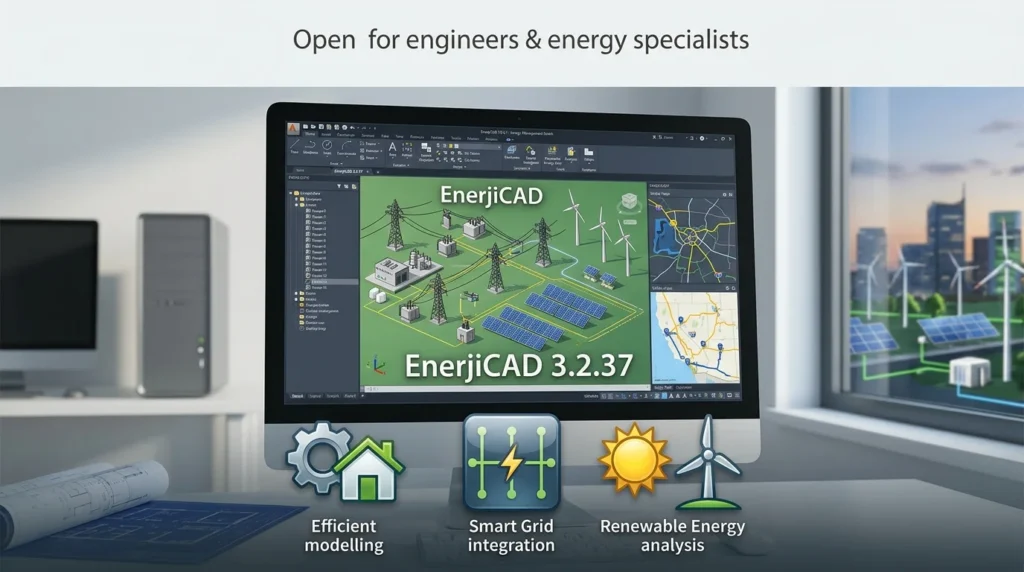

Overview of EnerjiCAD 3.2.37
Table of Contents
EnerjiCAD is positioned as a specialized CAD solution for the energy sector rather than a general-purpose drafting tool. Its architecture is organized around project modules that reflect the real stages of electrical utility design. Instead of forcing engineers to adapt a generic CAD environment to electrical workflows, the software presents dedicated tabs for Plan, Route (ENH), Network, Map Operations, ENH, and Calculations. This modular approach means that when you switch from laying out a distribution network to editing a transmission line profile, the interface and available tools adjust accordingly.
The software is developed by DiPCSoft and is distributed as a commercial CAD package. Its primary audience includes electrical utility companies, engineering consultancies, and project contractors operating in Turkey or working on projects that follow Turkish electrical design conventions. The inclusion of DOM (a projected coordinate system commonly used in Turkish surveying) and support for local coordinate systems reflects this regional focus. At the same time, the core drafting and editing tools are familiar enough that engineers trained on mainstream CAD platforms can transition without a steep learning curve.
Key Features of EnerjiCAD 3.2.37
EnerjiCAD 3.2.37 brings together a broad set of drafting, editing, and project-management tools under one roof. The following sections break down the most important capabilities.
Drawing and Editing Tools
The software includes a comprehensive set of geometric drawing tools: lines, polylines, rectangles, polygons, arcs, splines, circles, hatches, points, text, and dimensions. A built-in symbol library supports the repetitive elements common in electrical schematics and utility plans. For editing, EnerjiCAD offers move, copy, rotate, mirror, delete, scale, stretch, trim, extend, fillet, chamfer, offset, and explode operations. These are standard CAD editing commands, but their integration with electrical-specific layers and project modules makes them more efficient for utility design than using a generic CAD package.
Layer Management and Project Modules
Layer management in EnerjiCAD 3.2.37 uses ByLayer color, linetype, and lineweight control. This means that when you assign an object to a layer, its visual properties follow the layer settings unless you explicitly override them. For electrical projects with many conductor types, voltage levels, and equipment categories, this layered approach keeps drawings organized and readable.
The project modules—Plan, Route (ENH), Network, Map Operations, ENH, and Calculations—are dedicated workspaces that group related tools. The ENH module, for example, includes a dedicated panel for line profile data, which is essential for transmission line design where terrain elevation and conductor sag must be visualized alongside the plan view.
Map and Coordinate Support
EnerjiCAD 3.2.37 supports datum selection with local coordinates and DOM. This is particularly valuable for projects that must align with national surveying grids or local utility coordinate systems. The Map Operations module allows engineers to work with georeferenced data directly inside the CAD environment, reducing the need to switch between GIS software and the drafting platform.
Interface and Usability
The user interface is Turkish-language with an optional light theme. A recent files start page lets users reopen existing projects quickly, and new projects can be created by selecting a project type. A command line provides precise input and feedback, which experienced CAD users will appreciate for scripting repetitive tasks or entering exact coordinates.
What’s New in EnerjiCAD 3.2.37
The 3.2.37 release focuses on refinement rather than a complete overhaul of the interface. Based on the available release information, the most notable updates include improved project module organization, continued support for DOM and local coordinate systems, and an expanded symbol library. The recent files start page and the ability to create projects by type have been carried forward as standard features. For users upgrading from earlier 3.x versions, the core drafting and editing tools remain consistent, which means existing workflows and layer standards should continue to function without significant adjustment. DiPCSoft has not published a detailed changelog for 3.2.37, so engineers evaluating the upgrade should test their specific project templates and coordinate system configurations before rolling it out across a team.
System Requirements
EnerjiCAD 3.2.37 is a Windows-based CAD application. While the developer does not publish a formal system requirements sheet on the distribution page, the software’s feature set and its use of 2D drafting with map and coordinate data suggest the following minimum configuration:
-
Operating System: Windows 10 or Windows 11 (64-bit recommended)
-
Processor: Intel Core i5 or AMD Ryzen 5 equivalent, or higher
-
RAM: 8 GB minimum; 16 GB recommended for large utility network projects
-
Storage: 2 GB of free disk space for installation; additional space for project files and symbol libraries
-
Display: 1920 × 1080 or higher resolution; a dedicated graphics card is not strictly required for 2D drafting, but it improves performance when working with large map layers
-
Input: Mouse with scroll wheel and keyboard; a digitizer is optional for survey-heavy workflows
Because EnerjiCAD handles coordinate data and map operations, machines with more RAM and a faster CPU will handle large ENH route profiles and network plans more smoothly. Engineers working with extensive DOM-based projects should prioritize RAM and storage speed.
Installation Guide
Installing EnerjiCAD 3.2.37 follows the standard Windows application setup process. The software is distributed through DiPCSoft and authorized resellers. A typical installation sequence includes the following steps:
-
Obtain the installer from DiPCSoft or an authorized distributor. EnerjiCAD is commercial software, so a valid license or trial authorization is required before the application will run.
-
Run the installer and follow the on-screen prompts. Choose the installation directory and confirm the components to install. The symbol library and project templates are installed by default.
-
Complete the license activation using the credentials provided with your purchase. The activation process may require an internet connection.
-
Launch EnerjiCAD from the Start menu or desktop shortcut. On first launch, the recent files start page appears, where you can create a new project by type or open an existing project.
-
Configure coordinate systems if your project uses DOM or a local survey datum. This is done through the Map Operations module, where you can select the appropriate datum and projection settings.
If you encounter activation issues, contact DiPCSoft support directly. The software does not include built-in troubleshooting documentation beyond the standard help resources.
How to Use EnerjiCAD 3.2.37
Getting started with EnerjiCAD involves selecting a project type, setting up layers, and using the dedicated modules for the relevant design task. The following walkthrough covers the essential workflow for a typical electrical utility project.
Step 1: Create or Open a Project
When you launch the application, the start page offers options to create a new project by type or open a recent file. Project types correspond to the main modules: Plan, Route (ENH), Network, and so on. Selecting a project type loads the appropriate workspace configuration, including layer presets and toolbar layouts.
Step 2: Set Up Layers and Coordinate System
Before drawing, configure your layer standards. EnerjiCAD uses ByLayer color, linetype, and lineweight control, so creating layers for conductors, poles, transformers, and other equipment categories will keep your drawing organized. If your project is georeferenced, open the Map Operations module and select the datum and coordinate system. DOM is supported for Turkish surveying projects.
Step 3: Draft the Electrical Layout
Use the drawing tools to create the physical layout. For distribution networks, this might include pole positions, conductor runs, and transformer locations. For transmission lines (ENH), the Route module provides tools for aligning the line and entering profile data. The symbol library speeds up the placement of standard electrical components.
Step 4: Edit and Refine
Use the editing commands to adjust the layout. Trim, extend, fillet, and offset are particularly useful for cleaning up conductor connections and equipment spacing. Layer management tools let you isolate or lock specific layers while editing others.
Step 5: Enter Profile and Calculation Data
For ENH projects, the dedicated profile table lets you input elevation data and visualize the line profile alongside the plan view. The Calculations module provides the workspace for the numerical checks and design calculations required by the project.
Step 6: Export and Document
Once the design is complete, use the command line and output tools to generate the necessary documentation. EnerjiCAD does not appear to include a built-in batch plot feature in the 3.2.37 release, so plotting is handled through the standard Windows print dialog or by exporting to PDF through the operating system’s print-to-PDF option.
Best Use Cases for EnerjiCAD 3.2.37
EnerjiCAD is most effective when the design task aligns with its dedicated modules. The following use cases represent where the software delivers the most value.
Electrical Distribution Network Design (EDŞ)
Utility engineers planning low- and medium-voltage distribution networks can use the Plan and Network modules to lay out feeders, transformers, and service connections. The layer management system keeps different voltage levels and equipment types visually distinct, and the symbol library reduces the time spent drawing repetitive components.
Energy Transmission Line Projects (ENH)
For high-voltage transmission line design, the Route (ENH) module and the dedicated profile table provide a workflow that keeps plan and profile views connected. This is particularly useful when route alignment must respond to terrain changes or when clearance calculations depend on accurate elevation data.
Georeferenced Utility Mapping
Projects that must align with national or local coordinate systems benefit from EnerjiCAD’s support for DOM and local coordinates. The Map Operations module allows engineers to bring in georeferenced data and work within the correct spatial reference without leaving the CAD environment.
Electrical Installation Documentation (EİT)
For energy transmission installations and related electrical infrastructure, EnerjiCAD provides the drafting and layer management tools needed to produce clear, organized documentation. The Turkish-language interface is an advantage for teams working within Turkish regulatory and documentation conventions.
Advantages and Limitations of EnerjiCAD 3.2.37
Advantages
-
Purpose-built for electrical utility design: The project modules (Plan, ENH, Network, Map Operations) reflect the actual stages of utility project development, reducing the need to adapt a generic CAD tool.
-
Turkish-language interface: Native language support lowers the barrier for engineers and technicians who work primarily in Turkish.
-
DOM and local coordinate support: The software handles projected coordinate systems used in Turkish surveying, which is uncommon in general-purpose CAD packages.
-
Integrated profile table for ENH: Transmission line designers can enter and visualize profile data without exporting to a separate application.
-
Familiar CAD editing tools: The move, copy, trim, fillet, and other editing commands follow standard CAD conventions, shortening the learning curve for experienced drafters.
Limitations
-
Windows-only: EnerjiCAD 3.2.37 does not run natively on macOS or Linux.
-
Turkish-language interface only: While this is an advantage for Turkish teams, it limits adoption in international projects where English or another language is the working standard.
-
Limited public documentation: The developer does not publish extensive online help, tutorials, or a detailed changelog, which can make troubleshooting and self-paced learning more difficult.
-
No batch plotting in the current release: Large projects with many drawings require individual plot operations, which adds time compared with CAD packages that offer batch output.
-
Narrow regional ecosystem: Third-party symbol libraries, training resources, and community forums are less abundant than those available for mainstream electrical CAD platforms.
Alternatives to EnerjiCAD 3.2.37
Engineers evaluating EnerjiCAD should also consider the following alternatives, each with different strengths and regional emphases.
AutoCAD Electrical
AutoCAD Electrical is Autodesk’s dedicated electrical CAD package. It offers extensive symbol libraries, automated wire numbering, and tight integration with the broader Autodesk ecosystem. It is widely used internationally and has a large training and support community. However, it is a general-purpose electrical CAD tool rather than a utility-network-specific solution, and it does not include native support for Turkish DOM coordinate systems.
ETAP
ETAP is a power system analysis and simulation platform with strong modeling capabilities for transmission and distribution networks. It is more analysis-focused than EnerjiCAD, which is primarily a drafting and design tool. ETAP is commonly used for load flow, short circuit, and protection studies, and it integrates with GIS and SCADA systems. Its learning curve is steeper, and its licensing cost is typically higher.
enjiCAD
enjiCAD is a Vietnamese-developed electrical CAD package that has been adopted by several power companies in Vietnam. It offers a familiar AutoCAD-like interface, low hardware requirements, and features such as KML import from Google Earth and batch plotting. Like EnerjiCAD, it is a regional solution tailored to local electrical design practices. It is not designed around Turkish coordinate systems or ENH profile workflows.
FreeCAD and LibreCAD
For teams with limited budgets, FreeCAD and LibreCAD are open-source CAD alternatives. They do not include electrical-specific modules or utility network tools, but they can be extended with workbenches and scripts. They are suitable for general drafting but require significantly more setup and customization to match the workflow efficiency of EnerjiCAD for utility projects.
Frequently Asked Questions
What is EnerjiCAD 3.2.37 used for?
EnerjiCAD 3.2.37 is used for electrical utility project design. It covers electrical distribution networks (EDŞ), energy transmission lines (ENH), and related energy transmission installations (EİT). Engineers use it to draft plans, manage layers, enter line profile data, and work with georeferenced coordinate systems.
Is EnerjiCAD free?
No. EnerjiCAD is commercial software distributed by DiPCSoft. A valid license is required to use the application. The developer does not offer a free version or a community edition.
What operating system does EnerjiCAD 3.2.37 require?
EnerjiCAD 3.2.37 is a Windows application. It is designed for Windows 10 and Windows 11, and it does not run natively on macOS or Linux.
Does EnerjiCAD support Turkish coordinate systems?
Yes. EnerjiCAD supports datum selection with local coordinates and DOM, a projected coordinate system commonly used in Turkish surveying. This makes it suitable for projects that must align with national or local survey grids.
Can EnerjiCAD open AutoCAD files?
The available documentation does not explicitly state native DWG or DXF support. EnerjiCAD uses its own project file format. Engineers who need to exchange data with AutoCAD-based workflows should verify file compatibility with DiPCSoft before committing to the platform.
What is the difference between EnerjiCAD and AutoCAD Electrical?
EnerjiCAD is a utility-network-specific CAD package with dedicated modules for EDŞ, ENH, and EİT projects. AutoCAD Electrical is a general-purpose electrical CAD tool with broader symbol libraries and international adoption. EnerjiCAD includes Turkish coordinate system support and ENH profile workflows that AutoCAD Electrical does not provide natively.
Does EnerjiCAD 3.2.37 include batch plotting?
The current release does not appear to include a batch plotting feature. Large projects require individual plot operations for each drawing.
How can I get support for EnerjiCAD 3.2.37?
Support is available through DiPCSoft, the software’s developer and distributor. Users should contact DiPCSoft directly for licensing, activation, and technical support inquiries.
Final Thoughts
EnerjiCAD 3.2.37 is a focused, regional CAD solution for electrical utility design. Its strength lies in the way it organizes the drafting environment around the actual stages of utility project development—plan, route, network, map operations, and calculations—rather than presenting a generic CAD canvas with electrical symbols bolted on. For Turkish engineering teams working on EDŞ, ENH, and EİT projects, the combination of a Turkish-language interface, DOM coordinate support, and a dedicated ENH profile table makes it a practical alternative to adapting a general-purpose CAD package.
The software is not without limitations. Its Windows-only, Turkish-language orientation means it is unlikely to replace international platforms in multilingual or cross-border project environments. The limited public documentation and the absence of batch plotting in the current release are also considerations for large teams. Nevertheless, for its intended audience—electrical utility designers who need a purpose-built drafting environment that respects local coordinate systems and project conventions—EnerjiCAD 3.2.37 offers a coherent and efficient workflow. Engineers evaluating the software should request a trial or demonstration from DiPCSoft and test it against their specific project templates before committing to a full deployment.
Our Paid Service
“We do not sell or provide any software. We only offer professional support services. If any software on your system is not working properly, or you are facing installation errors, crashes, or any other technical issue — just contact us. We will help you fix the problem quickly and remotely via AnyDesk. No software will be provided from our side — only expert troubleshooting and support.”