

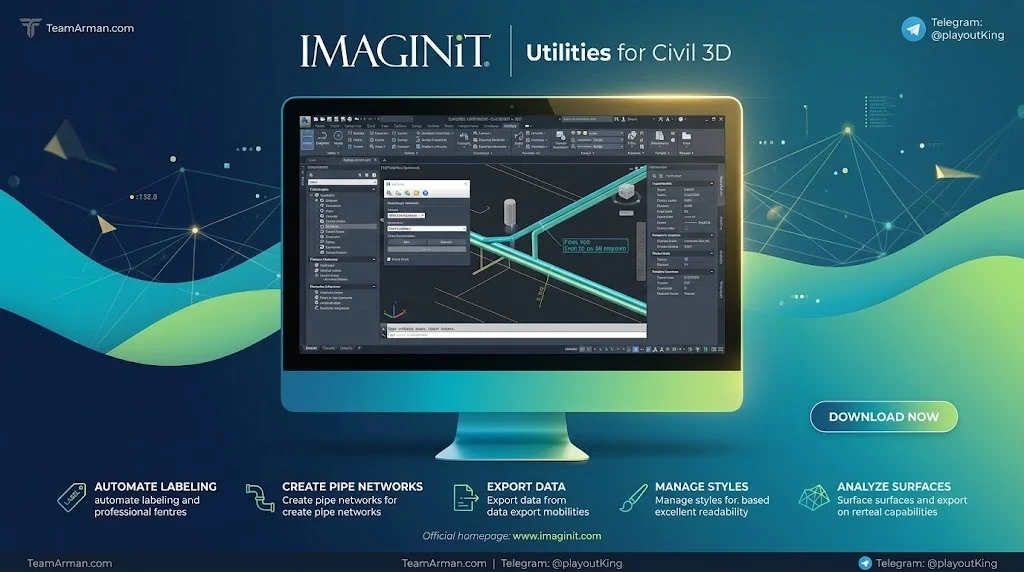
Overview of IMAGINiT Utilities for Civil 3D
Table of Contents
IMAGINiT Utilities for Civil 3D is not a standalone design application. It is a plugin bundle that runs directly inside the Autodesk Civil 3D environment, appearing as an additional “IMAGINiT” tab on the Civil 3D ribbon after installation. The suite is developed by IMAGINiT Technologies, an Autodesk Platinum Partner and Authorized Developer that has been providing engineering software solutions for over 25 years.
The utilities are designed to remove redundancies and rework by automating time-consuming manual tasks. The 2027 to 2021 release, identified by build number 27.0.1152.0, supports a wide range of Civil 3D versions, allowing teams that operate across multiple project years to use a consistent toolset.
Key entities at a glance:
| Attribute | Detail |
|---|---|
| Software category | CAD productivity add-in / Civil 3D plugin |
| Developer | IMAGINiT Technologies (Rand Worldwide) |
| Compatible platform | Autodesk Civil 3D 2021–2027 |
| Operating system | Windows 10 / Windows 11 (64-bit) |
| Supported file formats | DWG, KML, KMZ, HTML, Excel, TIN surfaces |
| Licensing | Standalone and Named-User |
Key Features
The utility suite includes more than a dozen individual tools, each targeting a specific civil design pain point.
Gravity Pipe Network Utilities
-
Quick Edit for Pipes – Modify the invert or slope/grade of pipes within a gravity network without navigating multiple Civil 3D dialog boxes.
-
Pipe Invert Adjustment – Set a pipe invert at the beginning and end of a run, then calculate a consistent slope between structures.
-
Pipe Elevation Adjustment – Raise or lower a set of pipe segments or an entire run in a single action.
-
Pipe Grade Adjustment – Re-adjust the grade or slope of a series of pipes while holding the invert, centerline, or crown, with optional structure drops.
-
Multi-Part Swap – Change the family and size of many pipes or structures across a network with one click.
Terrain and Map Data Utilities
-
Import Maps – Bring color, georeferenced imagery and terrain data from Google Maps or Bing into Civil 3D for TIN surface creation.
-
KML/KMZ Import – Import geometry from Google Earth directly into the drawing, enabling collaboration with stakeholders who do not have Civil 3D access.
Survey and Point Utilities
-
Create Offset Points – Generate offset points along a feature line for survey stakeout or grading workflows.
-
Profile from COGO Points – Create a profile from Civil 3D point objects without requiring a surface, with automatic alignment generation.
-
Point Station and Offset Report – Export point data along an alignment to HTML or Excel with full station and offset information.
-
AutoOffset – Calculate and label significant topography points from survey data parallel to a selected alignment.
Drawing and Style Management
-
Style Renamer – Add prefixes, suffixes, or perform find-and-replace operations on Civil 3D styles in bulk.
-
Polyline from Feature Line – Extract a polyline, including curves, from a 3D feature line.
What’s New in Version 27.0.1152.0 (2027 Release)
The 2027 to 2021 release introduces several enhancements that build on previous versions.
New and Enhanced Utilities
The latest utilities include Break Corridor, Quick Pipe Edits, and Pipe Invert Adjustment, alongside more than a dozen other tools. These additions focus on corridor editing and gravity network refinement, areas that historically required extensive manual adjustment.
Expanded Version Support
Version 27.0.1152.0 supports Autodesk Civil 3D versions 2021 through 2027, a broader range than earlier releases that typically covered three or four consecutive versions. This extended compatibility allows firms with mixed Civil 3D deployments to standardize on a single utilities build.
Surface Analysis Settings Export/Import
Recent enhancements include Surface Analysis Settings Export/Import, which enables teams to transfer surface analysis configurations between drawings and project team members. This feature reduces setup time when working across multiple project files.
Additional 2026 Enhancements
The 2026 release cycle added Stakeout Polylines, Zoom to Station, Stakeout Parcels, Extract Blocks from Points, Depth Profile Drop, and a Civil 3D Standards Checker. These tools carry forward into the 2027 release and are accessible through the IMAGINiT ribbon tab.
System Requirements
IMAGINiT Utilities for Civil 3D 27.0.1152.0 does not have separate system requirements beyond those of the host Autodesk Civil 3D application. The utilities install as an add-in and rely on Civil 3D’s runtime environment.
Minimum Requirements (Aligned with Civil 3D 2027)
-
Operating system: 64-bit Microsoft Windows 11 or Windows 10
-
Processor: 2.5–2.9 GHz base, 4 GHz or higher with turbo boost
-
Memory: 16 GB RAM minimum (32 GB recommended for large corridors)
-
GPU: 2 GB VRAM, DirectX 11 compatible, 29 GB/s bandwidth
-
Disk space: 20 GB free (SSD recommended)
-
Database components: Microsoft Access Database Engine 2016, MySQL ODBC 8.0 driver, SQL Server, Oracle Client
Licensing Infrastructure
For networked deployments, the IMAGINiT Utilities use Reprise License Manager (RLM). Four specific ports must be open for license communication, including port 5054.
Installation Guide
The installation process for IMAGINiT Utilities for Civil 3D follows a straightforward sequence. The steps below describe the standalone licensing path, which authorizes the application to a specific machine.
Prerequisites
-
An active Autodesk Civil 3D installation (2021–2027)
-
An authorization code from IMAGINiT
-
Administrative rights on the target workstation
Step-by-Step Installation
-
Generate the authorization code. Request an Authcode through the IMAGINiT Utilities request form. You will receive an email containing the code and a download link.
-
Download the utilities package. Click the download link in the email. If the download does not start automatically, copy the link and paste it into a different browser.
-
Unblock the ZIP file. Right-click the downloaded
.zipfile, select Properties, check the Unblock box, and click Apply. -
Extract the files. Move the ZIP file to the
C:\Autodeskfolder, then right-click and select Extract All. -
Close all Civil 3D sessions. Ensure no versions of Civil 3D are running before proceeding.
-
Uninstall previous versions. If an earlier build of IMAGINiT Utilities is present, remove it through Control Panel > Programs & Features.
-
Run the installer as administrator. Right-click
IMAGINiTUtilsCivil3D2027.exeand select Run as administrator. -
Accept the license agreement. Check the acceptance box and click Next.
-
Install and activate. Click Install. After installation completes, click Activate Standalone with Authorization code, paste the Authcode, and click Authorize.
-
Verify the installation. Launch Civil 3D and look for the IMAGINiT tab on the ribbon. Test with a utility such as Point Station Report.
How to Use IMAGINiT Utilities for Civil 3D
Once installed, the utilities are accessible from the dedicated IMAGINiT tab on the Civil 3D ribbon. Each tool opens a focused dialog or command prompt that guides the user through the operation.
Accessing the Tools
Navigate to the IMAGINiT tab in the Civil 3D ribbon. The tab contains grouped panels organized by function: Gravity Pipes, Points & Survey, Map Data, and Drawing Management.
Customizing the Ribbon
Users who prefer a customized workflow can drag individual utility commands into custom ribbon panels using the Civil 3D CUI (Customize User Interface) editor. Open the CUI command, locate the utility from the Command List, and drag it into a new drop-down collection.
Example Workflows
Importing Terrain from Google Maps:
-
Click Import Maps on the IMAGINiT tab.
-
Search for a location in the dialog box.
-
Choose image only, terrain only, or image and terrain.
-
If terrain is selected, the data is inserted as a Civil 3D surface ready for profile creation.
Adjusting a Gravity Pipe Run:
-
Select Pipe Invert Adjustment from the Gravity Pipes panel.
-
Pick the start and end structures of the run.
-
Specify the desired invert elevation at each end.
-
The utility calculates and applies a consistent slope across all pipes in the run.
Creating Offset Points for Stakeout:
-
Select Create Offset Points.
-
Choose a feature line.
-
Enter the offset distance.
-
The utility generates points along the feature line at the specified offset, suitable for survey crew stakeout.
Best Use Cases
IMAGINiT Utilities for Civil 3D delivers value across several civil engineering disciplines and project types.
Municipal Infrastructure Design
Municipal engineers and consultants who work with gravity sewer and storm drainage networks benefit from the pipe adjustment tools. Pipe Grade Adjustment and Pipe Invert Adjustment eliminate the repetitive dialog-based editing that Civil 3D requires for slope modifications.
Survey and Site Development
Surveyors and site development teams use Create Offset Points, AutoOffset, and Point Station and Offset Report to convert survey data into actionable stakeout information and design labels.
Transportation and Corridor Projects
The Break Corridor and Polyline from Feature Line utilities support roadway design workflows by enabling quick corridor segmentation and 2D polyline extraction from 3D feature lines.
BIM Coordination and Standards Management
CAD managers and BIM coordinators use Style Renamer and Civil 3D Standards Checker to enforce naming conventions and validate drawing standards across project teams.
Collaboration with Non-Civil 3D Stakeholders
KML/KMZ Import allows project managers, planners, and clients who use Google Earth to mark development areas and share geometry that can be brought directly into the Civil 3D model.
Advantages and Limitations
Advantages
-
Native integration: All utilities run inside Civil 3D without external applications or file exports.
-
Broad version support: A single build supports Civil 3D 2021 through 2027.
-
Time savings: Automates tasks that would otherwise require manual calculations and repetitive dialog interactions.
-
Survey-focused tools: Offset point creation and point reporting are tailored to real survey workflows.
-
Free for subscribers: Clients with an active Autodesk subscription through IMAGINiT receive the utilities at no additional cost.
Limitations
-
Civil 3D dependency: The utilities cannot function without an installed and licensed copy of Autodesk Civil 3D.
-
Windows only: There is no macOS or Linux support.
-
Imagery resolution cap: Google and Bing map imports are limited to 640×480 per tile, though tiling allows larger composite images.
-
Terrain data speed: Import speed depends on internet connection and Google server load.
Alternatives to IMAGINiT Utilities for Civil 3D
Several third-party and native options provide overlapping functionality.
| Alternative | Type | Key Difference |
|---|---|---|
| Autodesk Civil 3D native tools | Built-in | No pipe batch editing or map import automation |
| IMAGINiT Utilities for Revit | Add-in | Targets Revit, not Civil 3D |
| Bluebeam Revu | Standalone | PDF markup and review, not civil design |
| Twinmotion | Visualization | Real-time rendering, not design automation |
| Custom Dynamo scripts | Open-source | Requires development expertise; less polished UI |
For teams already using IMAGINiT Utilities for Revit, the Civil 3D suite provides a consistent productivity layer across both platforms.
Frequently Asked Questions
What versions of Civil 3D does IMAGINiT Utilities 27.0.1152.0 support?
Version 27.0.1152.0 supports Autodesk Civil 3D 2021 through 2027.
Do I need Google Earth installed to use the map import tools?
No. Google Earth is not required. The Import Maps command opens a dialog box that allows you to search for a location directly.
What licensing options are available?
IMAGINiT offers Standalone licensing (activated to a specific machine) and Named-User licensing (FLEXlm-based, locked to Windows user IDs).
Can imported imagery be printed from Civil 3D?
Yes. Imagery imported through the utilities is fully plottable within Civil 3D.
Is the software free for Autodesk subscribers?
Clients with an active annual or multi-year Autodesk subscription purchased through IMAGINiT may download the utilities at no cost for the duration of their subscription term.
How do I control units in the Point Station Report?
The utility reads the units defined in the drawing’s ambient settings and formats the report accordingly. Individual control of report items is also available.
Why do pipe rules reapply after gravity pipe commands?
In the 2020 and later versions, this behavior was streamlined. An entry in the IMAGINiT Options dialog box allows you to set “Apply Rules” to “Prompt” to restore the previous behavior.
Can I suggest new utilities for future releases?
Yes. Feature suggestions can be sent to the IMAGINiT development team at [email protected].
Final Thoughts
IMAGINiT Utilities for Civil 3D 2027 to 2021 version 27.0.1152.0 is a focused productivity layer for civil engineering teams that rely on Autodesk Civil 3D. Its strength lies in automating the small, repetitive tasks—pipe slope adjustments, offset point creation, map data imports, and style renaming—that collectively consume significant design hours. The broad version support from 2021 through 2027 makes it practical for firms with mixed deployments, and the free availability for Autodesk subscribers through IMAGINiT lowers the barrier to adoption. For civil design professionals seeking to reduce manual effort without leaving the Civil 3D environment, the IMAGINiT Utilities suite offers a mature and well-integrated solution.
Our Paid Service