
Overview of Clashtrix 1.2.1
Table of Contents
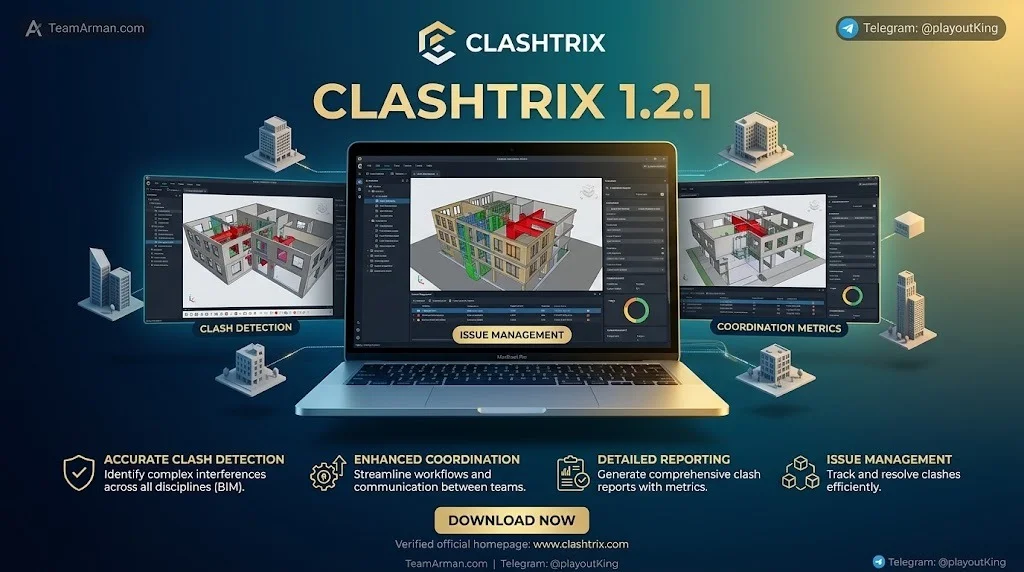
Clashtrix 1.2.1 is a specialized Autodesk Navisworks plugin built to streamline clash detection and BIM coordination workflows. Developed by DiPCSoft, this tool automates data extraction, clash test management, and batch operations, helping construction and design teams resolve model conflicts faster. It integrates directly into the Navisworks ribbon interface, providing a comprehensive set of commands that improve efficiency in BIM coordination.
The software is designed for BIM managers, coordination engineers, and AEC professionals who work with complex multi-discipline models. By automating repetitive tasks such as creating selection sets, generating clash tests, and exporting clash reports, Clashtrix reduces manual effort and allows teams to focus on resolving actual clashes rather than managing the detection process.
Clashtrix is compatible with Navisworks Manage and Navisworks Simulate versions 2021 through 2027, making it a versatile solution for teams using recent Autodesk platforms. The plugin operates as a native add-in, ensuring seamless integration with existing Navisworks workflows.
Key Features
Clashtrix 1.2.1 offers a comprehensive suite of tools organized into four main categories: Tests & Sets, Clash Status, Clash Management, and Power Tools.
Tests & Sets
-
Export Properties: Extracts element categories and properties from loaded models to CSV files, facilitating test and set creation. Includes predefined rules for Revit, Civil 3D, and IFC formats.
-
Tests Builder: Batch generates selection sets and clash tests using data from imported CSV files. Supports clash test types, tolerances, composite object options, and category grouping.
-
Export/Import Types: Exports a matrix containing test types and tolerances, which users can modify externally and import back into Navisworks.
-
Export/Import Priority: Manages test priorities through an exportable and importable matrix.
-
Flip Side: Quickly switches Selection A and Selection B for selected clash tests.
Clash Status
-
Export Approved: Extracts approved and reviewed clash results to an XML file for documentation or transfer.
-
Import Approved: Imports previously approved clash results from XML back into the model.
-
Summary Matrix: Generates an Excel clash matrix showing counts of remaining active clashes.
-
Summary Table: Exports clash tests with counts and statuses to a CSV table for reporting.
-
Detailed Tests Export: Exports selected test results to Excel with detailed information about clashing elements.
Clash Management
-
Group Clashes: Organizes clash results into groups based on custom user-defined rules.
-
Smart Results: Batch renames clash results from default names like “Clash1” to meaningful, descriptive names.
-
Auto Update: Updates result statuses based on defined property criteria, supporting OR groups and profiles.
-
Clash View: Generates viewpoints for every clash result within selected tests.
-
Sync Viewpoints: Synchronizes clash result statuses from viewpoint subfolders to actual test results.
-
Export Viewpoints: Exports generated viewpoints as images matching desired size and resolution.
Power Tools
-
Select by ID: Selects elements based on Revit Element ID values, with isolation and section box generation.
-
Annotate Pro: Annotates elements with coordinates and property data.
-
Renamer: Batch renames tests, sets, and viewpoints based on predefined rules.
-
Purge: Deletes tests, sets, and viewpoints matching specific criteria.
-
Bulk Actions: Applies batch modifications to clash tests efficiently.
Right-Click Menu and Shortcuts
Clashtrix adds a right-click menu with 11 unique buttons for quick model review and verification. The “Find Related Clashes” function redefines how clashes are addressed and resolved in Navisworks. The plugin also supports fully customizable two-letter shortcuts for frequently used functions, similar to Autodesk Revit’s keyboard shortcut system.
What’s New in Clashtrix 1.2.1
Version 1.2.1 builds upon the foundation established in previous releases, incorporating performance enhancements and workflow improvements. The most recent documented update notes major performance optimizations across all tools and expanded customization options.
Key improvements in the 1.2.x series include:
-
Enhanced performance: Optimizations implemented across all tools for faster execution on large models.
-
Flip Side feature: Added capability to quickly swap Selection A and Selection B in clash tests.
-
Improved customization: Expanded options for tailoring Clashtrix to specific project workflows.
-
Right-click menu expansion: A total of 11 unique buttons for quick model review and checking.
-
Find Related Clashes: A function that redefines how clashes are addressed, reviewed, and resolved in Navisworks.
For users upgrading from earlier versions, the 1.2.1 release maintains backward compatibility with existing project files and templates.
System Requirements
Clashtrix 1.2.1 operates as a plugin for Autodesk Navisworks, so the primary system requirements align with those of Navisworks itself. The plugin supports the following platform configurations:
Operating System
-
Windows 10 (64-bit) or Windows 11 (64-bit)
Autodesk Navisworks Compatibility
-
Navisworks Manage: Versions 2021, 2022, 2023, 2024, 2025, 2026, and 2027
-
Navisworks Simulate: Versions 2021, 2022, 2023, 2024, 2025, 2026, and 2027
Hardware Recommendations
For optimal performance with Clashtrix, especially when working with large multi-discipline models, the following hardware specifications are recommended:
-
Processor: Intel Core i7 or equivalent, quad-core or higher
-
Memory: 16 GB RAM minimum (32 GB recommended for large projects)
-
Graphics: Dedicated GPU with at least 4 GB VRAM (NVIDIA Quadro or GeForce series recommended)
-
Storage: SSD with sufficient free space for model files and exported reports
-
Display: 1920×1080 resolution or higher
These recommendations align with typical BIM workstation configurations and ensure smooth operation of both Navisworks and the Clashtrix plugin during intensive clash detection sessions.
Installation Guide
Installing Clashtrix 1.2.1 is a straightforward process that integrates directly with your existing Autodesk Navisworks installation.
Step-by-Step Installation
-
Obtain the installer: Download the official Clashtrix installer from the Autodesk App Store or the official Clashtrix website.
-
Close Navisworks: Ensure that Autodesk Navisworks is completely closed before running the installer.
-
Run the installer: Double-click the downloaded installer file and follow the on-screen prompts.
-
Select Navisworks version: The installer will detect installed Navisworks versions and allow you to select which ones to add the plugin to.
-
Complete installation: Wait for the installation process to finish, then click “Finish.”
-
Launch Navisworks: Open Navisworks and verify that the Clashtrix ribbon tab appears in the interface.
Trial and Licensing
Clashtrix offers a 14-day trial with full app functionality, allowing users to evaluate all features before purchasing a license. Licenses are available through the Autodesk App Store and the official Clashtrix marketplace listing.
Post-Installation Verification
After installation, confirm that the Clashtrix ribbon tab is visible and that all commands are accessible. If the plugin does not appear, check that the correct Navisworks version was selected during installation and that any necessary security permissions were granted.
How to Use Clashtrix 1.2.1
Clashtrix is designed to integrate seamlessly into existing Navisworks workflows. The following steps outline typical usage patterns for the main features.
Getting Started with Export Properties
-
Open your Navisworks model with all discipline files appended.
-
Navigate to the Clashtrix ribbon tab and click “Export Properties.”
-
Select which loaded models to export properties from.
-
Choose the output location for the CSV file.
-
Review the exported CSV, which contains all existing categories and properties from your models.
-
Use this CSV as input for the Tests & Sets tool to generate tailored clash tests.
Creating Clash Tests with Tests Builder
-
Prepare a CSV file with source file and category information (you can use the Export Properties output).
-
Click “Tests & Sets” in the Clashtrix ribbon.
-
Import your CSV file.
-
Configure clash test settings: test type, tolerance, and composite object options.
-
Define categories to ignore and combine multiple categories into single sets if needed.
-
Save settings as a template for future projects.
-
Click “Generate” to batch-create selection sets and clash tests.
Managing Clash Results
-
Run your clash tests in Navisworks as usual.
-
Use “Group Clashes” to organize results into logical groups based on custom rules.
-
Apply “Smart Results” to rename default clash names to meaningful identifiers.
-
Use “Auto Update” to automatically update result statuses based on property criteria.
-
Generate viewpoints for all clashes with “Clash View” and export them as images or PDF reports.
Exporting and Importing Approved Clashes
-
After reviewing and approving clashes, use “Export Approved” to save approved results to an XML file.
-
Share this XML file with project stakeholders.
-
To import approved results into another model or session, use “Import Approved” and select the XML file.
Best Use Cases
Clashtrix 1.2.1 is particularly valuable in the following scenarios:
Large-Scale BIM Coordination Projects
For projects with multiple disciplines and thousands of clash results, Clashtrix’s batch processing capabilities dramatically reduce the time required to set up tests, organize results, and generate reports. A LinkedIn user reported that Clashtrix streamlined their entire workflow by approximately 80%.
Multi-Discipline Model Reviews
When coordinating architecture, structure, MEP, and other disciplines, Clashtrix’s property export and test generation features allow teams to quickly create comprehensive clash tests without manual set creation.
Clash Report Generation
The Summary Matrix, Summary Table, and Detailed Tests Export features make Clashtrix ideal for generating standardized clash reports for project meetings, client presentations, and BIM execution plan compliance.
Model Quality Assurance
The right-click menu functions and “Find Related Clashes” feature enable quick model review and verification, making Clashtrix useful for QA/QC processes in BIM workflows.
Standardizing Clash Detection Workflows
Organizations that need consistent clash detection procedures across projects can use Clashtrix templates to standardize test creation, naming conventions, and reporting formats.
Advantages and Limitations
Advantages
-
Significant time savings: Batch operations and automation reduce hours of repetitive manual work to minutes.
-
Seamless integration: Native Navisworks plugin with intuitive ribbon interface requires minimal learning curve.
-
Comprehensive feature set: Covers the entire clash detection lifecycle from test creation to reporting.
-
Cross-version compatibility: Supports Navisworks Manage and Simulate from 2021 through 2027.
-
Customizable shortcuts: Two-letter shortcuts enhance productivity for power users.
-
Active development: Regular updates with performance improvements and new features.
Limitations
-
Navisworks dependency: Requires an existing Autodesk Navisworks license to function.
-
Windows only: Not available for macOS or Linux platforms.
-
Learning curve for advanced features: While basic functions are intuitive, advanced batch operations require understanding of CSV structures and property schemas.
-
Licensing cost: As a commercial plugin, Clashtrix requires a paid license beyond the 14-day trial.
-
Not a standalone solution: Clashtrix enhances Navisworks rather than replacing it.
Alternatives to Clashtrix
While Clashtrix is a specialized Navisworks plugin, several other tools address clash detection and BIM coordination needs. The following alternatives serve different segments of the AEC software market:
BIMcollab
BIMcollab is a cloud-based issue management platform that integrates with Navisworks and other BIM tools. It focuses on collaboration and issue tracking rather than automated test generation. BIMcollab is ideal for teams that need multi-platform issue management with cloud synchronization.
Revizto
Revizto is a collaboration platform for BIM and VDC teams that includes clash detection capabilities. It offers real-time model coordination with a focus on visual communication and issue resolution. Revizto is particularly strong for teams that need cross-platform collaboration.
Autodesk Navisworks Built-in Clash Detection
Navisworks itself includes native clash detection functionality. While it lacks the automation and batch processing features of Clashtrix, it remains a capable solution for smaller projects or teams with limited automation needs.
Solibri
Solibri Model Checker is a BIM quality assurance and code compliance tool that includes clash detection. It focuses on rule-based model checking and is popular in the Nordic regions and for regulatory compliance workflows.
Pattern-Making Software (Separate Category)
It is worth noting that Clashtrix is sometimes confused with pattern-making and fashion design software due to naming similarities. Tools such as Valentina, Gerber AccuMark, Lectra Modaris, and CLO 3D serve the garment and textile industry for 2D pattern drafting and 3D clothing simulation. These are entirely different software categories from BIM clash detection plugins like Clashtrix.
Frequently Asked Questions
What is Clashtrix 1.2.1 used for?
Clashtrix 1.2.1 is an Autodesk Navisworks plugin used to automate clash detection workflows in BIM coordination. It helps create clash tests, manage results, generate reports, and streamline multi-discipline model coordination.
Which Navisworks versions does Clashtrix support?
Clashtrix supports Navisworks Manage and Navisworks Simulate versions 2021, 2022, 2023, 2024, 2025, 2026, and 2027.
Is there a free trial for Clashtrix?
Yes, Clashtrix offers a 14-day trial with full app functionality, allowing users to evaluate all features before purchasing a license.
How does Clashtrix improve clash detection efficiency?
Clashtrix automates repetitive tasks such as creating selection sets, generating clash tests from CSV files, grouping and renaming clash results, and exporting reports. Users report workflow improvements of up to 80%.
Can Clashtrix export clash reports to Excel?
Yes, Clashtrix can export clash summaries to Excel matrices, CSV tables, and detailed test results to Excel files containing information about clashing elements.
What is the “Flip Side” feature in Clashtrix?
Flip Side allows users to quickly swap Selection A and Selection B in clash tests, making it easier to adjust test configurations without manual re-selection.
Does Clashtrix work with Revit and Civil 3D files?
Yes, Clashtrix includes predefined export rules for Revit, Civil 3D, and IFC formats, allowing property extraction and test generation from these common BIM file types.
Is Clashtrix a pattern-making or fashion design software?
No. Clashtrix is a BIM clash detection plugin for Autodesk Navisworks. It is unrelated to pattern-making or fashion design software such as Valentina, Gerber AccuMark, or CLO 3D. The similar-sounding name can cause confusion, but the tools serve entirely different industries.
Final Thoughts
Clashtrix 1.2.1 represents a significant advancement in BIM clash detection automation. By integrating directly into Autodesk Navisworks and providing a comprehensive suite of batch processing and management tools, it addresses one of the most time-consuming aspects of BIM coordination: the manual setup, organization, and reporting of clash detection workflows.
For BIM managers and coordination engineers working on complex multi-discipline projects, Clashtrix offers measurable time savings and workflow standardization. The plugin’s ability to export and import approved clash data, generate detailed reports, and automate test creation makes it a valuable addition to any Navisworks-based BIM coordination toolkit.
Teams interested in evaluating Clashtrix can take advantage of the 14-day full-feature trial available through the Autodesk App Store. Given the reported efficiency gains and the plugin’s active development cycle, Clashtrix is a worthwhile consideration for AEC firms looking to enhance their clash detection capabilities.
Our Paid Service
“We do not sell or provide any software. We only offer professional support services. If any software on your system is not working properly, or you are facing installation errors, crashes, or any other technical issue — just contact us. We will help you fix the problem quickly and remotely via AnyDesk. No software will be provided from our side — only expert troubleshooting and support.”