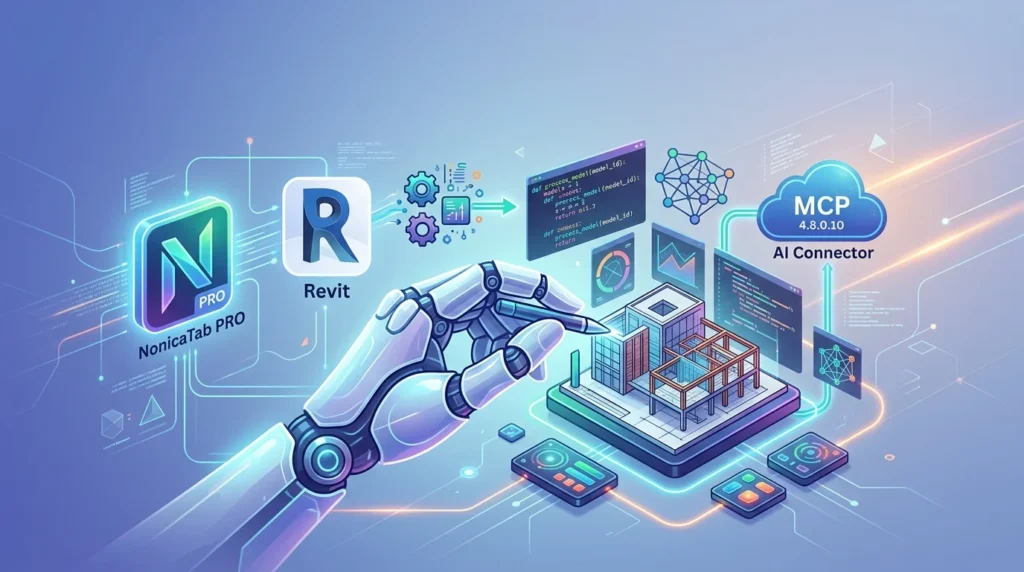

Overview of NonicaTab PRO
Table of Contents
NonicaTab PRO is a Revit plugin designed to enhance productivity through two core pillars: a customizable toolbar system and an AI-powered connector. The toolbar allows users to organize up to 36 tools across three switchable profiles (Default, Beta, and Gamma), each containing 12 buttons that can be configured with ready-to-use commands, custom Dynamo scripts, or AI Connector actions.
The AI Connector, introduced in version 1.4 of the connector module, leverages the Model Context Protocol to establish a secure bridge between Revit and compatible AI desktop applications. Unlike traditional AI chatbots that generate code from scratch, the AI Connector provides AI models with more than 50 pre-built, tested tools specifically designed for exploring, analyzing, editing, and documenting Revit models.
Key entities associated with NonicaTab PRO include:
-
Developer: Nonica
-
Software category: BIM productivity plugin / Revit add-in
-
Compatible platforms: Autodesk Revit 2020 through 2027, Windows OS
-
AI protocols: Model Context Protocol (MCP)
-
Supported AI applications: Claude Desktop, Cursor Desktop, ChatGPT Work, Copilot, Microsoft Visual Studio Code
Key Features
Customizable Revit Toolbar
NonicaTab PRO provides a drag-and-drop toolbar builder that lets users create personalized workflows. Each profile can host 12 buttons, and profiles can be switched instantly to access different tool sets. Available commands include Room Finishing, Color Splasher, Super Align, Element Renumbering, Bulk Duplicate Sheets, Master Purger, and many more.
AI Connector with MCP Integration
The AI Connector uses MCP to give AI applications access to more than 50 specialized Revit tools. This enables the AI to perform comprehensive model analysis, generate reports, edit parameters, and create documentation without requiring the user to write code. Supported workflows include accessibility compliance checking, performance analysis, schedule integration, and quality control auditing.
Error Reporting and Diagnostics
NonicaTab automatically monitors the execution of all tools and Dynamo scripts. Real-time notifications appear in Revit’s top-right corner, and detailed error reports can be exported to CSV for team sharing. The system detects node failures, data type mismatches, frozen nodes, and geometry issues.
Team Deployment and Remote Updates
The Pro version supports office-wide toolbar sharing through OneDrive or network locations. BIM managers can remotely update toolbars, enforce standard configurations, and collect usage data across teams.
What’s New in NonicaTab PRO 4.8.0.10
Version 4.8.0.10 includes several improvements over previous releases:
-
Enhanced AI Connector stability: Connection reliability improvements for Claude Desktop and Cursor environments.
-
Token efficiency with TOON: The AI Connector now includes token efficiency optimizations for reduced API consumption.
-
Expanded tool library: The Pro toolbar now supports up to 36 tools across three profiles, including new MEP hanger generation and opening creation tools.
-
Auto-setup for AI beginners: Claude Desktop App integration now features automatic setup with no Node.js dependencies.
-
Compatibility extension: Full support for Revit 2020 through 2027, including the latest releases.
System Requirements
Before installing NonicaTab PRO 4.8.0.10, verify that your environment meets the following prerequisites:
Revit Compatibility
-
Autodesk Revit: Version 2020 to 2027 (newest release supported)
-
Operating system: Windows 10 or Windows 11 (64-bit)
AI Connector Requirements
-
Revit version: 2022 or newer for AI Connector functionality
-
AI desktop application: Claude Desktop App, Cursor Desktop, ChatGPT Work, Copilot, or any MCP-compatible platform
-
.NET Runtime: Version 8.0 required if Revit 2025, 2026, or 2027 is not installed
-
Internet connection: Stable connection required for Pro features and AI Connector operation
Storage and Sharing
-
Shared storage: OneDrive or network location with write permissions for team toolbar synchronization
Installation Guide
Installing NonicaTab PRO is a straightforward process. Follow these steps:
Step 1: Download the Installer
Obtain the NonicaTab PRO installer from the Autodesk App Store or the official Nonica website.
Step 2: Run the Installation Wizard
Close all Autodesk Revit instances before running the installer. Follow the on-screen prompts to complete the installation.
Step 3: Launch Revit and Access NonicaTab
Open Revit and locate the NonicaTab tab on the ribbon. The toolbar should appear automatically.
Step 4: Set Up the AI Connector
Navigate to the NonicaTab tab and select A.I. Connector. If the tool is not visible, use the Set Up Button/Script dropdown to add it to your interface.
Step 5: Establish AI Connection
Launch your compatible AI desktop application. In Revit, click the A.I. Connector button to open the connection window. Keep the window open and the connection enabled throughout your session.
Step 6: Verify Installation
Run a test command, such as generating a door schedule report, to confirm that the AI Connector is functioning correctly.
How to Use NonicaTab PRO
Working with the Toolbar
NonicaTab PRO organizes tools into three profiles: Default, Beta, and Gamma. Use the profile switcher to access different sets of commands. Each button can be configured with:
-
Ready-to-use tools from the Nonica library
-
Custom Dynamo scripts with automatic input detection
-
AI Connector actions for model analysis and editing
Using the AI Connector
The AI Connector workflow involves three phases:
-
Setup: Launch Revit, open your target project, and establish the MCP connection.
-
Interaction: In your AI desktop app, ask specific questions about your Revit model, such as “Analyze model warnings and suggest solutions” or “Check accessibility compliance for all rooms”.
-
Output: The AI generates reports, charts, and recommendations based on your model data. The AI can also edit elements and parameters upon request.
Advanced Workflows
-
Model Auditing: Request comprehensive health checks and optimization recommendations.
-
Compliance Checking: Analyze accessibility, code compliance, and design standards.
-
Data Visualization: Convert schedule data into visual graphs and dashboards.
Best Use Cases
NonicaTab PRO 4.8.0.10 is suited for a wide range of AEC professionals:
BIM Managers and Coordinators
Use the toolbar customization and remote update features to standardize workflows across teams. The AI Connector enables automated model auditing and quality control reporting.
Architects and Designers
Leverage Room Finishing, Super Align, and Color Splasher tools to accelerate design documentation. The AI Connector can generate room elevations and arrange viewports on sheets automatically.
MEP Engineers
Use MEP hanger generation, opening creation, and parameter copying tools to streamline mechanical, electrical, and plumbing modeling tasks.
Construction Documentation Teams
Bulk sheet duplication, view renaming, and sheet transfer tools reduce manual effort in producing construction document sets.
Advantages and Limitations
Advantages
-
Comprehensive toolset: More than 30 ready-to-use tools in a single plugin.
-
AI-powered analysis: MCP integration enables natural-language interaction with Revit models.
-
Customizable interface: Three profiles with 12 buttons each for personalized workflows.
-
Team-ready: Remote toolbar updates and shared configurations for office-wide standards.
-
Broad compatibility: Supports Revit 2020 through 2027.
-
Active development: Regular updates with new features and AI capabilities.
Limitations
-
Windows-only: No macOS support.
-
Internet dependency: Pro features and AI Connector require a stable connection.
-
AI Connector requires Revit 2022+: Older Revit versions cannot use the AI Connector.
-
Learning curve: Advanced features like custom Dynamo script integration may require technical knowledge.
-
Subscription model: Pro features require an ongoing subscription.
Alternatives to NonicaTab PRO
Several Revit plugins offer overlapping functionality. Here is a comparison of notable alternatives:
| Tool | Category | Key Difference |
|---|---|---|
| NonicaTab PRO | Toolbar + AI Connector | Combines customizable toolbar with MCP-based AI integration |
| pyRevit | Open-source toolbar | Free, script-based, no AI Connector |
| Orkestra | Script launcher | Focuses on Dynamo script management with free version |
| Dyno | Dynamo package manager | Specializes in packaging Dynamo scripts as Revit commands |
| AUTOM8LABS MCP Connector | AI bridge | Standalone MCP connector without toolbar features |
NonicaTab PRO distinguishes itself by integrating both a customizable toolbar system and a purpose-built AI Connector within a single plugin ecosystem.
Frequently Asked Questions
What is NonicaTab PRO used for?
NonicaTab PRO is a Revit add-in that provides a customizable toolbar with over 30 productivity tools and an AI Connector for connecting Revit models to AI desktop applications using the Model Context Protocol.
Is NonicaTab PRO compatible with Revit 2026?
Yes. NonicaTab PRO supports Autodesk Revit versions 2020 through 2027, including Revit 2026.
What is the AI Connector MCP?
The AI Connector is a feature that uses the Model Context Protocol to establish a secure bridge between Revit and compatible AI applications. It provides AI with more than 50 pre-built Revit tools for analysis, editing, and documentation tasks.Which AI applications work with NonicaTab PRO?
The AI Connector supports Claude Desktop App, Cursor Desktop, ChatGPT Work, Copilot, Microsoft Visual Studio Code, and any other MCP-compatible platform.
Do I need internet access to use NonicaTab PRO?
Yes. A stable internet connection is required for Pro features and the AI Connector.
What is the difference between the Free and PRO versions?
NonicaTab FREE provides 12 toolbar buttons and 37 AI Connector tools for reading and analyzing Revit models. NonicaTab PRO adds editing and documentation capabilities, expanding the AI Connector to over 50 tools, plus additional toolbar profiles and team management features.
Can I use NonicaTab PRO on a Mac?
No. NonicaTab PRO is compatible with Windows operating systems only. Revit itself is a Windows-native application.
Is there a free trial available?
Yes. The Autodesk App Store listing indicates that a free trial is available for NonicaTab PRO, along with a free version that includes 30 popular tools.
Final Thoughts
NonicaTab PRO 4.8.0.10 represents a significant step forward in the convergence of BIM productivity and artificial intelligence. By combining a flexible toolbar system with a Model Context Protocol-based AI Connector, it gives AEC professionals the tools to automate repetitive work, enforce modeling standards, and explore AI-assisted model analysis without leaving the Revit environment.
For teams already invested in Revit workflows and looking to integrate AI capabilities responsibly, NonicaTab PRO offers a practical, subscription-based solution with broad version compatibility and active development. The learning curve is manageable for beginners thanks to automatic Claude Desktop setup, while advanced users can leverage custom Dynamo scripts and multi-agent workflows for deeper customization.
As AI continues to reshape AEC software, tools like NonicaTab PRO that bridge established BIM platforms with emerging AI protocols will become increasingly valuable. Whether you are a BIM manager seeking team-wide standardization or an individual designer looking to reduce documentation time, NonicaTab PRO 4.8.0.10 is worth evaluating in your Revit toolchain.
Our Paid Service
“We do not sell or provide any software. We only offer professional support services. If any software on your system is not working properly, or you are facing installation errors, crashes, or any other technical issue — just contact us. We will help you fix the problem quickly and remotely via AnyDesk. No software will be provided from our side — only expert troubleshooting and support.”