
Overview of Nomad Sculpt 2.9.22
Table of Contents
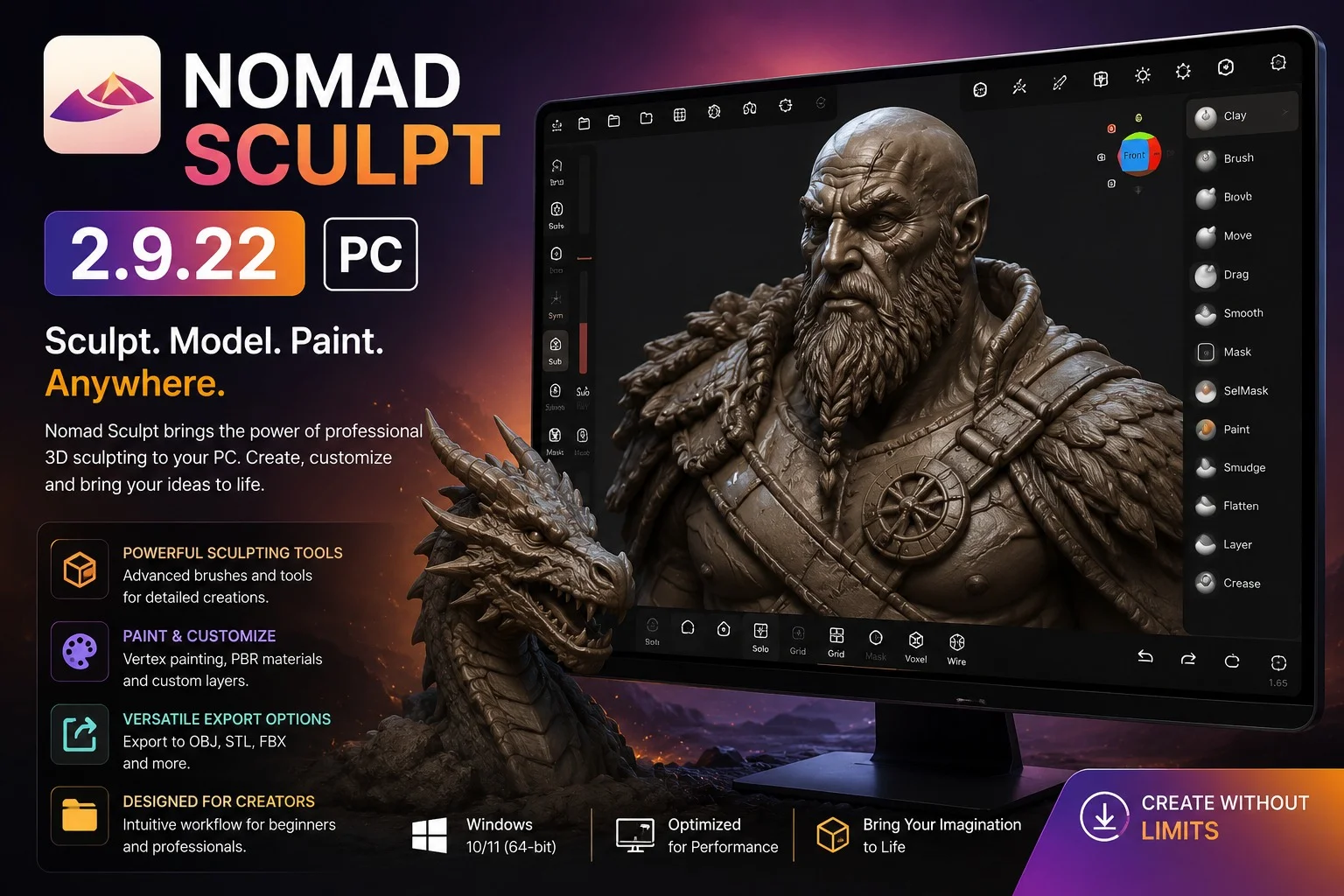
Nomad Sculpt started as a highly successful mobile application, renowned for making 3D digital sculpting and painting accessible on touch devices. Its philosophy was to create a powerful yet intuitive experience, drawing inspiration from industry giants like ZBrush and Blender . The release of Nomad Sculpt for PC extends this philosophy to the desktop environment, leveraging the power of larger screens and precision input devices like graphics tablets.
The desktop version, including Nomad Sculpt 2.9.22, is designed to be fully functional and consistent with its mobile counterpart . It eliminates the hardware limitations of mobile devices, allowing artists to tackle more complex projects with enhanced performance and control. This PC release is a direct response to the user base’s desire for a more powerful workstation environment, solidifying Nomad Sculpt’s position not just as a mobile app, but as a versatile 3D sculpting software solution for all platforms .
Key Features
Nomad Sculpt is packed with professional-grade tools that rival desktop 3D modeling and sculpting applications. Its feature set is designed to facilitate the entire creation pipeline, from initial concept to final rendering and export.
Advanced Sculpting Tools
The software provides a comprehensive array of brushes and tools for digital sculpting. The core toolset includes familiar brushes like Clay, Flatten, Smooth, Move, Crease, and Inflate, all of which can be customized with various stroke parameters .
-
Customizable Brushes: You can adjust the radius, intensity, falloff, and use alphas to create unique effects and achieve highly detailed sculpts .
-
Dynamic Topology: This feature automatically refines the mesh under the brush, adding polygons only where they are needed to maintain detail. This allows for a highly efficient workflow, preserving system resources while enabling intricate sculpting .
-
Multiresolution Sculpting: Users can move between different resolution levels of their mesh. This flexibility allows you to block out a shape at a low resolution and then subdivide it to add fine details, or work on the overall form at a broader level .
Painting and Material System
Nomad Sculpt is not just for sculpting; it also incorporates a robust vertex painting and rendering system.
-
Vertex Painting: You can paint directly onto the surface of your model with color, roughness, and metalness, allowing you to add detailed textures without the need for external image editing software .
-
PBR Rendering: The software features a beautiful Physically Based Rendering (PBR) engine by default, providing realistic lighting and shadows. Users can also switch to a Matcap (Material Capture) shading mode, which is often preferred for sculpting as it provides clear, uncluttered visual feedback on the model’s form .
-
Post-Processing: Enhance your final renders with built-in post-processing effects, including Screen Space Reflections (SSR), Depth of Field, Ambient Occlusion (AO), and tone mapping .
Dynamic Workflow and Topology
Managing the mesh’s topology is crucial for 3D sculpting, and Nomad Sculpt offers several powerful tools for this purpose.
-
Voxel Remeshing: This tool quickly remeshes your model to create a uniform level of detail. It’s incredibly useful for blocking out rough shapes, merging different pieces of a model, or fixing mesh issues before adding finer details .
-
Face Groups: You can segment your mesh into subgroups using the face group tool. This is especially helpful for organizing complex models and for controlling the automatic UV unwrapping process .
-
Decimate: For optimization, the decimate tool reduces the number of polygons in your mesh while preserving as much detail as possible. This is essential for preparing models for game engines or other applications where performance is a factor .
File Import and Export
Nomad Sculpt supports a wide range of industry-standard file formats, ensuring compatibility with other software and workflows.
-
Import Formats: glTF, OBJ, STL, and PLY .
-
Export Formats: glTF, OBJ, STL, and PLY .
This extensive support makes it easy to bring assets into Nomad Sculpt from other programs and to export your finished creations for 3D printing, game development, or further refinement in applications like Blender or ZBrush .
What’s New in the Latest Version
Nomad Sculpt 2.9.22 for PC represents a dedicated effort to stabilize and optimize the desktop experience . This version focuses on the desktop environment to ensure a smooth, professional-grade workflow.
-
Desktop-Specific Fixes: A primary motivation for releasing version 2.9 on desktop was to address and fix issues that were specific to the PC and Mac versions of the software, particularly those related to the licensing system .
-
Refined License and Input: Key improvements in this version include the resolution of various bugs and performance issues, such as fixing crashes related to importing USD files, and addressing issues with the input system, such as second single taps not always being recorded .
-
Stability Enhancements: Additional fixes include resolving a crash with the boolean tool and improving the behavior of the transform mode for locked reference objects .
These updates make Nomad Sculpt 2.9.22 a more reliable and robust application for desktop users, ensuring that critical functions work seamlessly with keyboard and mouse or pen tablet input.
System Requirements
Running Nomad Sculpt 2.9.22 on your PC requires specific system configurations. Here are the key requirements and recommendations based on compatibility information and community feedback.
-
Operating System: Windows 10 or newer, and macOS .
-
Processor: While not specified in detail by the developer, a modern multi-core processor is recommended for handling complex 3D models and high-polygon counts .
-
Memory: Nomad Sculpt is limited by the memory available to the system. Some users have reported handling up to 20 million vertices, suggesting that a system with 16GB of RAM or more is advisable for complex scenes .
-
Graphics Card: A dedicated graphics card is recommended for optimal performance and to take full advantage of the PBR rendering and viewport tools .
-
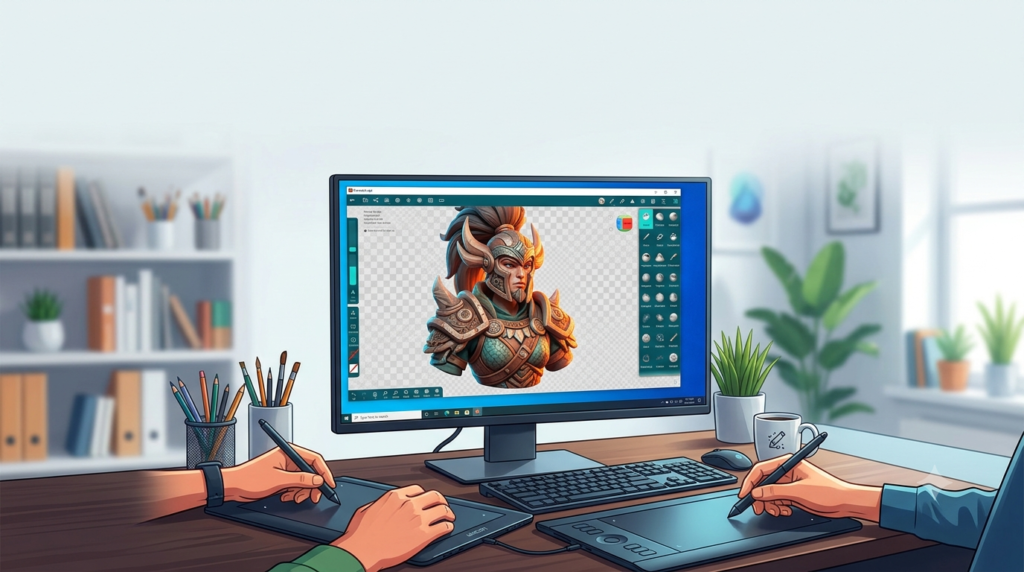
Input Device: While a mouse can be used, a pressure-sensitive stylus and graphics tablet are highly recommended for a natural and precise sculpting experience. The software is designed to work best with this type of input .
-
Network: An internet connection is required for initial license validation and periodically for re-activation (with a 15-day offline grace period) .
Installation Guide
Installing Nomad Sculpt on your PC is a straightforward process. The software is available for direct purchase from the official website.
Step-by-Step Installation:
-
Purchase and Download: Visit the official Nomad Sculpt website,
nomadsculpt.com, and navigate to the “Get Nomad Sculpt” section for the Desktop version (Windows & MacOS). Complete your purchase, and you will be provided with a link to download the installer for your operating system . -
Run the Installer: Locate the downloaded installer file on your computer and run it. Follow the on-screen instructions to complete the installation process.
-
Launch the Application: After installation, launch Nomad Sculpt 2.9.22 from your applications or programs menu.
-
License Activation: The first time you launch the software, you will need to activate your license. It’s important to ensure your computer has an active internet connection during this step. The license will need to be validated periodically, but the software offers a 15-day offline grace period, after which an internet connection is required for re-activation .
How to Use the Software
Getting started with Nomad Sculpt is intuitive for both beginners and experienced 3D artists. Here is a quick guide to navigating the interface and performing basic operations, based on the official manual .
Your First Sculpt
-
Start a New Project: When you first open Nomad Sculpt, you will be greeted with a sphere on the screen. This is your starting point for sculpting .
-
Basic Sculpting: By default, the Clay brush is selected. Simply click and drag your stylus or mouse on the sphere to add volume. To subtract material, tap the Sub button on the left toolbar .
-
Smoothing: To smooth out rough areas, tap the Smooth button. Tap it again to return to your regular sculpting brush .
-
Adjust Your Brush: Use the sliders on the left to adjust the radius (size) and intensity (strength) of your brush .
-
Painting: To add color, find and click the Paint tool in the tool palette on the right. A color sphere will appear on the left toolbar. Click it to choose your color, and then paint directly on your model’s surface .
Desktop Controls and Shortcuts
The desktop version utilizes keyboard shortcuts to enhance workflow, particularly for camera control.
-
Rotate View: Click and drag in empty space on the screen .
-
Pan View: Hold the
Altkey while clicking and dragging in empty space . -
Zoom: Hold the
Altkey, click and drag, and then release theAltkey. This mimics the ZBrush camera control scheme . -
Undo: Use the undo button in the lower-left corner of the screen or a two-finger tap on a touchpad .
Best Use Cases
Nomad Sculpt’s versatile toolset makes it suitable for a wide range of creative and professional applications.
-
Game Development: Create high-quality 3D assets, including characters, creatures, weapons, and environment props. Its efficient topology tools like Voxel Remeshing and Decimate make it ideal for preparing models for game engines .
-
3D Printing: The software is perfect for designing models for 3D printing. Its organic sculpting tools allow for the creation of intricate, one-of-a-kind designs, and the OBJ and STL export formats are standard for 3D printing workflows .
-
Concept Art: Designers can quickly and freely explore ideas in 3D, creating detailed maquettes to visualize characters, monsters, or environments for film and television .
-
Animation and Film: Its robust PBR rendering and painting tools allow artists to create high-fidelity, production-ready assets for animation projects .
-
Education and Learning: The intuitive interface and comprehensive toolset make Nomad Sculpt an excellent platform for learning the fundamentals of 3D sculpting and digital art .
Advantages and Limitations
Advantages:
-
Professional-Grade Features: Offers a powerful toolset comparable to high-end desktop software like ZBrush .
-
Intuitive UI: Provides an easy-to-understand, clean interface that is accessible for beginners yet powerful for professionals .
-
Cross-Platform Availability: Available on Windows, macOS, iOS, and Android, allowing for a seamless transition between mobile and desktop workflows .
-
One-Time Purchase: The application is a one-time purchase, unlike many competitors that require subscription models .
-
Comprehensive Pipeline: Covers everything from sculpting and painting to rendering and exporting, streamlining the creation process .
Limitations:
-
Limited Industry Adoption: While powerful, it is not the industry standard in the same way ZBrush is, which may affect compatibility in some professional pipelines .
-
Desktop-Specific Performance: While generally stable, some users have reported performance lag or freezing issues on the PC version, potentially related to specific hardware configurations and input drivers .
-
No Steam Release: Currently, the desktop version is not available on Steam, which is a distribution method some users prefer .
-
Primarily a Sculpting Tool: For extensive retopology, UV mapping, rigging, and animation, it is often used in conjunction with other software like Blender .
Alternatives to the Software
While Nomad Sculpt is a powerful choice, several alternatives cater to different needs and preferences.
-
Blender (Free, Open Source): Blender is the most comprehensive free and open-source 3D software available. It includes sculpting tools, but its true strength lies in its complete pipeline, including modeling, UV mapping, rigging, animation, simulation, rendering, and video editing. It’s a top alternative for those needing an all-in-one solution .
-
ZBrush (Paid, Proprietary): ZBrush is the undisputed industry standard for digital sculpting. It offers an incredibly powerful and deep toolset used in film, games, and collectible creation. While it has a steep learning curve and a complex UI, its capabilities are unparalleled. A dedicated version is also available for iPad .
-
Forger (Subscription, iPad/iPhone): Forger is a well-established mobile sculpting app available for iPad. It has been a professional option on the App Store for many years. However, its subscription model makes it more expensive over time compared to Nomad Sculpt’s one-time purchase .
-
SculptGL (Free, Open Source): SculptGL is a browser-based sculpting application. It is a fantastic, free entry point into digital sculpting for beginners, though it lacks many of the advanced features found in professional applications like Nomad Sculpt .
Frequently Asked Questions
1. Is Nomad Sculpt available for PC and Mac?
Yes, Nomad Sculpt has a dedicated desktop version, officially available for both Windows and macOS operating systems. This version is currently on version 2.9.22 .
2. What file formats does Nomad Sculpt support?
Nomad Sculpt is highly compatible with other 3D software, supporting the import and export of glTF, OBJ, STL, and PLY file formats .
3. What are the system requirements for Nomad Sculpt 2.9.22 on PC?
The software requires Windows 10 or newer or macOS. For optimal performance with complex models, a modern multi-core processor, at least 16GB of RAM, and a dedicated graphics card are recommended .
4. Can I use Nomad Sculpt without an internet connection?
Yes, the software does not require a constant internet connection. After license activation, it offers a 15-day offline grace period before needing to reconnect for re-activation .
5. Is Nomad Sculpt a good software for 3D printing?
Yes, it is an excellent choice for 3D printing. Its sculpting and modeling tools are perfect for creating organic shapes and detailed models, and it supports the STL format which is a standard for 3D printing .
6. What is the difference between Nomad Sculpt on PC and mobile?
The desktop version is designed to have feature parity with the mobile versions. The main differences are the user interface, optimized for keyboard shortcuts and graphics tablet input, and the increased potential for performance and handling more complex projects due to desktop hardware .
7. What are the best alternatives to Nomad Sculpt?
Popular alternatives include Blender (a free, all-in-one solution), ZBrush (the industry standard for sculpting), and Forger (an iPad-based competitor). Other web-based options include SculptGL .
Final Thoughts
Nomad Sculpt 2.9.22 for PC is a significant and powerful addition to the 3D digital sculpting market. By successfully bridging the gap between mobile accessibility and desktop power, it offers a compelling alternative to more complex, industry-standard software. Its intuitive interface, professional features, and one-time purchase model make it an excellent investment for artists of all levels. While there are limitations, such as being a primarily sculpting-focused tool and some minor performance considerations on specific PC setups, its strengths are undeniable. For digital artists looking for a versatile, high-performing, and user-friendly 3D sculpting and painting application, Nomad Sculpt for PC stands out as a top-tier choice that is both accessible and incredibly capable.
Our Paid Service
“We do not sell or provide any software. We only offer professional support services. If any software on your system is not working properly, or you are facing installation errors, crashes, or any other technical issue — just contact us. We will help you fix the problem quickly and remotely via AnyDesk. No software will be provided from our side — only expert troubleshooting and support.”