
Overview of OptiNest V3.05
Table of Contents
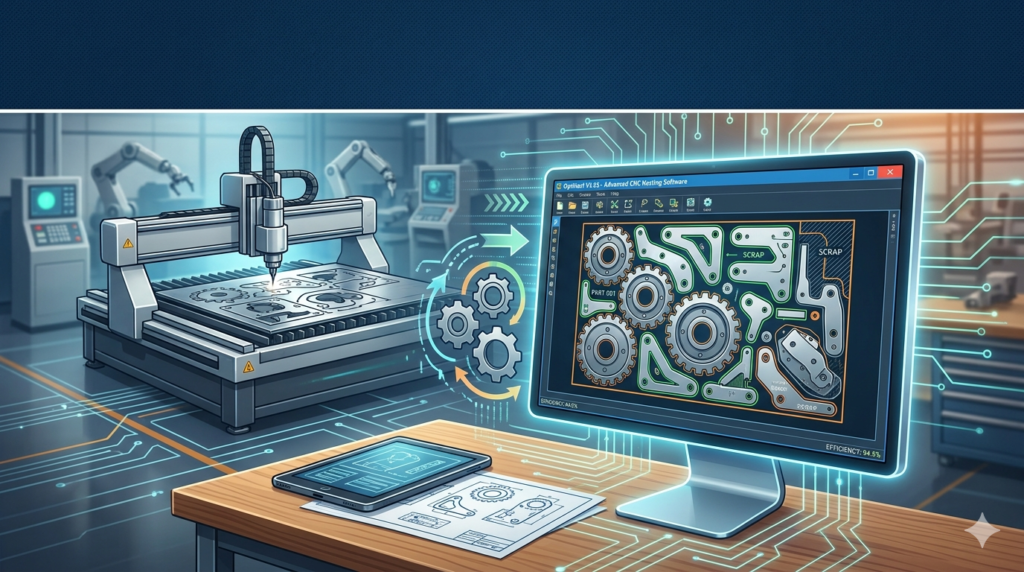
OptiNest V3.05 is a professional-grade CNC nesting software developed by CADCode Systems and Boole & Partners. It is designed to optimize material usage and cutting efficiency for manufacturing industries . The software uses advanced nesting algorithms to automatically arrange 2D parts on sheet materials, reducing waste and maximizing yield for CNC machining operations .
This CAD nesting software supports various cutting technologies, including plasma, laser, waterjet, and router-based cutting systems . By intelligently positioning parts on raw material sheets, OptiNest helps manufacturers reduce material costs, minimize machine time, and improve overall production efficiency. The software accepts DXF file imports for part geometry and exports optimized nesting layouts ready for CNC tooling .
OptiNest is available in several versions to accommodate different production needs: ON-LT (Light version for basic shapes), ON-Std (Standard version for all polyline shapes), and ON-Pro (Toolings version for bored and tooled pieces) .
Key Features
Advanced Nesting Algorithms
The software employs powerful algorithms based on the BOOLE & PARTNERS CalepiLib functions library . Key computational parameters include calculation depth, smoothing factor, pieces grouping, and propagation mode. These algorithms analyze part geometry and sheet dimensions to determine the most efficient arrangement, minimizing gaps and maximizing material utilization.
True-Shape Nesting for Irregular Parts
OptiNest excels at handling non-rectangular shapes. The software can nest irregular shapes by considering the smallest rectangle that contains each part . For complex curved or polygonal components, the optional true-shape nesting feature fits shapes within shapes, reducing space between parts and increasing the number of parts per sheet .
Multiple Operation Integration
Nesting integrates seamlessly with other machining tasks, including drilling, routing, dados, and pocketing . OptiNest optimizes the movement of router heads to minimize travel time and reduce overall cycle times. When processing a job, the software can simultaneously generate machining programs, part labels, and production reports .
Panel Editor for Manual Adjustments
For situations requiring customized nesting layouts, the OptiNest Panel Editor allows users to view cutting patterns and manually move parts . After adjustments, the software automatically generates updated cutlists and fresh machining programs. This feature provides greater control for specialized production requirements.
Small Part Management
Small parts present unique challenges in CNC machining due to reduced vacuum holding force. OptiNest addresses this with multiple control options, including tabs and onionskinning, multiple machining passes, and intelligent nesting algorithms that connect small parts to larger parts until final release .
Bored Parts and Hole Integration
OptiNest handles bored pieces by treating holes as specific tooling types . The software can recover material from part holes and reuse it for placing smaller components, further improving material efficiency. This feature is particularly valuable for industries manufacturing parts with cutouts or openings.
DXF Import and Export
The software supports importing part outlines, toolings, and inner openings in DXF format . Outlines can be described using closed polylines or sequences of open polylines, arcs, and lines. After optimization, nesting maps can be exported in DXF format for transfer to CAD software or CNC machines.
Direct Shape Entry
In addition to DXF import, OptiNest offers quick entry of rectangular, circular, and polygonal shapes directly within the software . This feature is useful for creating simple parts without requiring external CAD tools.
Customizable Labeling
OptiNest provides customizable labeling configurations, including QR codes and barcodes . Labels include essential information such as placement guides, rotation indicators, and edge banding details, facilitating efficient production tracking.
What’s New in OptiNest V3.05
OptiNest V3.05 represents the latest iteration of this nesting software, building on previous versions with enhanced performance and refined features. Version 3.05 includes:
-
Improved nesting algorithms for faster optimization processing
-
Enhanced support for bored and tooled pieces
-
Refined labeling configurations with QR code and barcode capabilities
-
Streamlined integration with CAD software and CNC tooling workflows
-
Advanced stock and off-cut management features
Users of earlier versions can upgrade to V3.05 to benefit from these improvements. The software maintains compatibility with existing workflows and file formats.
System Requirements
Before installing OptiNest V3.05, ensure your system meets the following requirements:
Minimum System Requirements:
-
Operating System: Windows 7, 8, 10, or 11
-
RAM: 8 GB minimum (16 GB recommended for complex jobs)
-
Processor: Multi-core processor recommended
-
Storage: Sufficient space for software installation and project files
-
Display: Monitor with adequate resolution for viewing nesting layouts
Supported File Formats:
-
DXF (primary format for part geometry)
-
DWG
-
AI
Installation Guide
Step 1: Download the Software
Visit the official OptiNest website or authorized distributor portal to download the latest version of OptiNest V3.05 . Ensure you obtain the software from legitimate sources to maintain compliance and security.
Step 2: Backup Your Settings
Before performing a new installation or upgrade, back up your existing OptiNest settings and configurations . This step preserves your custom parameters, material libraries, and preferences.
Step 3: Run the Installer
Execute the downloaded installation file and follow the on-screen prompts. The installer will guide you through the setup process, including:
-
Accepting the license agreement
-
Selecting installation directory
-
Choosing components to install
Step 4: Activation
If you are using the free or demo version of OptiNest, activation is not required . For licensed versions, enter your activation key or license credentials as prompted during installation.
Step 5: Verify Installation
After installation completes, launch OptiNest and verify that all features are functioning correctly. Test the software by importing sample DXF files and generating nesting layouts.
How to Use the Software
Importing Part Geometry
-
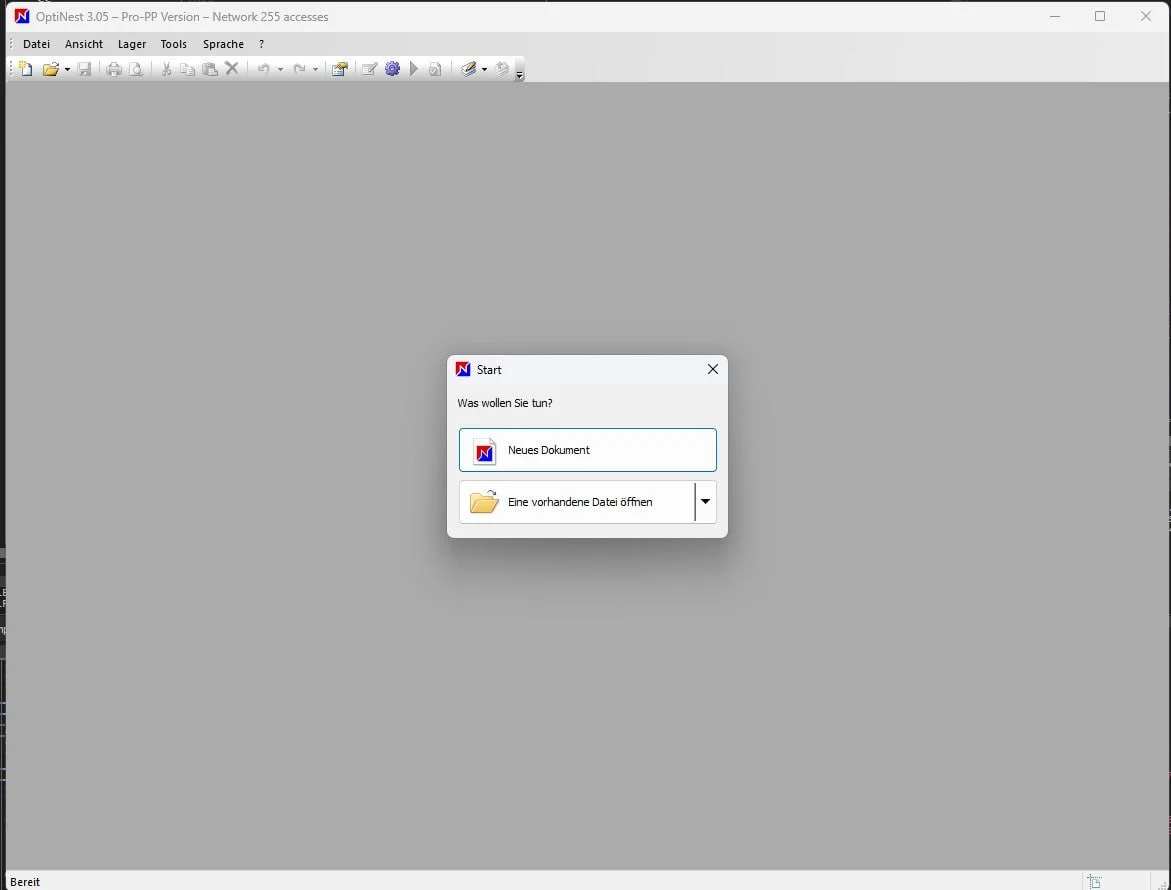
Launch OptiNest and create a new job
-
Import part outlines in DXF format or use the direct shape entry feature for basic geometries
-
Specify part quantities, colors, rotation limits, and reversal capabilities
-
Define material type and sheet dimensions
Configuring Nesting Parameters
-
Set calculation depth and smoothing factor based on job complexity
-
Define spacing requirements between parts
-
Configure rotation and placement constraints
-
Enable pieces grouping or propagation mode if needed
-
Specify cutting tool thickness and panel trim cuts
Running the Nesting Process
-
Click the optimize button to generate nesting layouts
-
The software will automatically arrange parts to maximize material utilization
-
Review the results in the visualization panel
-
If necessary, use the Panel Editor to manually adjust part positions
Exporting Results
-
After finalizing the nesting layout, export the nesting map in DXF format
-
Generate machining programs for CNC equipment
-
Produce part labels and production reports
-
Transfer files to your CNC machine for cutting
Best Use Cases
Woodworking and Cabinet Manufacturing
OptiNest is widely used in woodworking for nesting cabinet components, furniture parts, and custom millwork . The software integrates seamlessly with design tools like PolyBoard, enabling efficient production of complex wooden parts. Users benefit from significant material savings and reduced waste when cutting panel-based materials .
Metal Fabrication
In metalworking, OptiNest supports plasma cutting, laser cutting, and waterjet cutting operations . The software optimizes layouts for sheet metal components, reducing scrap and maximizing production efficiency. Its ability to handle irregular shapes makes it suitable for custom metal fabrication projects.
CNC Routing
CNC routing applications benefit from OptiNest’s integration capabilities, including simultaneous drilling, routing, and cutting operations . The software optimizes router head movement to reduce cycle times and improve throughput.
Aerospace and Automotive Manufacturing
For industries producing complex, precision-cut components, OptiNest’s true-shape nesting and bored parts handling provide significant advantages . The software can arrange intricate parts on expensive materials, maximizing yield and reducing material costs.
Job Shop Production
Custom manufacturing shops benefit from OptiNest’s flexibility in handling diverse part geometries and materials . The software’s ability to generate production reports and labels supports efficient job tracking and quality control.
Advantages and Limitations
Advantages
Superior Material Utilization
OptiNest’s advanced nesting algorithms minimize waste by intelligently arranging parts on sheet materials . This feature directly reduces material costs and improves sustainability.
Support for Irregular Shapes
Unlike basic rectangular nesting software, OptiNest handles complex geometries including curved, polygonal, and bored parts .
Integration with Cutting Operations
The software optimizes not just material placement but also tool movement, reducing machine cycle times .
Multiple Cutting Technologies
OptiNest supports various CNC cutting methods including plasma, laser, waterjet, and routing .
Automated Workflow
Users can generate machining programs, labels, and reports with one click, streamlining production processes .
Limitations
Learning Curve
Effective use of OptiNest requires understanding CAD and nesting concepts. Advanced features such as rule tuning for gaps and constraints may require iterative setup .
Complex Job Setup
While basic operations are straightforward, complex job configurations can feel less streamlined than simpler editors .
Limited Direct Design Capabilities
Although OptiNest offers basic shape creation, detailed part design still requires external CAD software .
Compatibility Considerations
Users must ensure their CNC equipment supports the generated output formats and machining programs.
Alternatives to OptiNest
SigmaNEST
SigmaNEST is a comprehensive nesting solution for metal fabrication, offering advanced features for plasma, laser, waterjet, and punching operations. It provides robust automation and integration capabilities for manufacturing environments .
NestFab
NestFab focuses on efficient nesting for CNC routing and woodworking applications. It offers user-friendly tools for arranging parts on sheet materials and generating optimized cutting layouts .
DeepNest
DeepNest is an open-source nesting software suitable for hobbyists and small shops. It provides basic nesting functionality for 2D part arrangement and supports DXF imports .
CADnest
CADnest offers nesting optimization with a focus on integration with CAD environments. It is suitable for manufacturing teams requiring seamless CAD-to-CAM workflows .
PolyBoard with OptiNest Integration
PolyBoard is a design software for woodworking that integrates seamlessly with OptiNest for automatic part nesting. This combination provides a complete solution from design to production .
Frequently Asked Questions
What is OptiNest software used for?
OptiNest is a CAD nesting software used to optimize material usage in CNC machining. It automatically arranges 2D parts on sheet materials to minimize waste, reduce machine time, and improve production efficiency across woodworking, metalworking, and manufacturing industries .
What file formats does OptiNest support?
OptiNest primarily supports DXF format for importing part geometry and exporting nesting layouts . Additional supported formats include DWG and AI. The software also offers direct entry for rectangular, circular, and polygonal shapes .
What are the system requirements for OptiNest?
OptiNest requires Windows 7, 8, 10, or 11 with at least 8 GB RAM (16 GB recommended) . A multi-core processor and adequate storage space are also required for optimal performance.
Can OptiNest handle irregular or curved shapes?
Yes, OptiNest excels at nesting irregular shapes and curved geometries. The software uses true-shape nesting algorithms to fit non-rectangular parts efficiently, reducing space between parts and maximizing material utilization .
What is the difference between OptiNest and standard cutting software?
Standard cutting software like Cutting is primarily designed for rectangular parts and format-cutting machines . OptiNest is built for CNC machining and supports irregular shapes, curved geometries, and complex part arrangements. It also integrates with cutting
Our Paid Service
“We do not sell or provide any software. We only offer professional support services. If any software on your system is not working properly, or you are facing installation errors, crashes, or any other technical issue — just contact us. We will help you fix the problem quickly and remotely via AnyDesk. No software will be provided from our side — only expert troubleshooting and support.”