
Overview of the AnyMiro Screen Mirroring App
Table of Contents
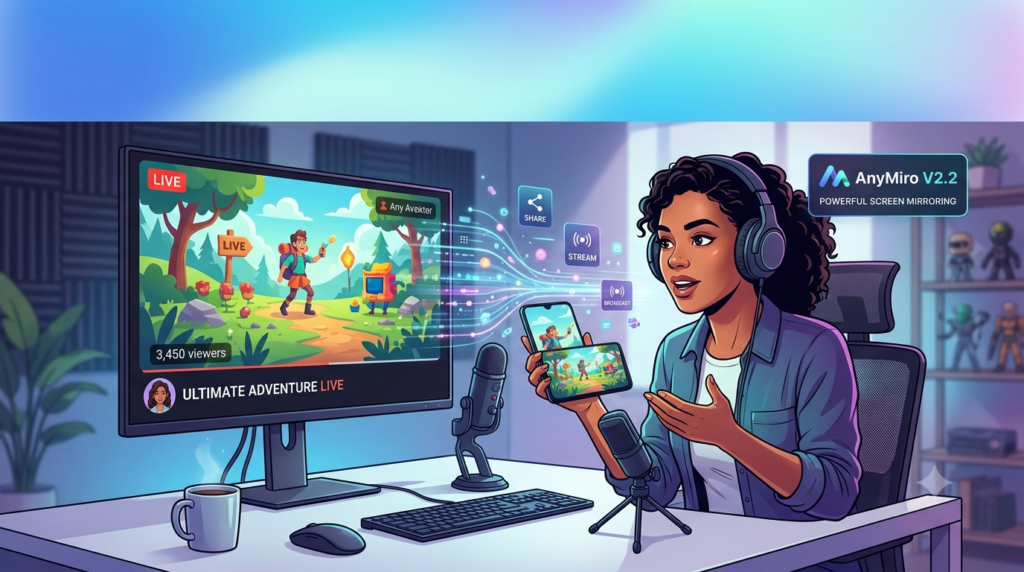
AnyMiro In today’s interconnected digital landscape, the ability to share your device’s display seamlessly is no longer a luxury—it’s a necessity. Whether you are a business professional delivering a critical presentation, a content creator live-streaming gameplay, or an educator sharing a lesson, screen mirroring software is an essential tool. Enter AnyMiro V2.2, a versatile and powerful screen mirroring app designed to bridge the gap between your devices and your audience with unparalleled ease.
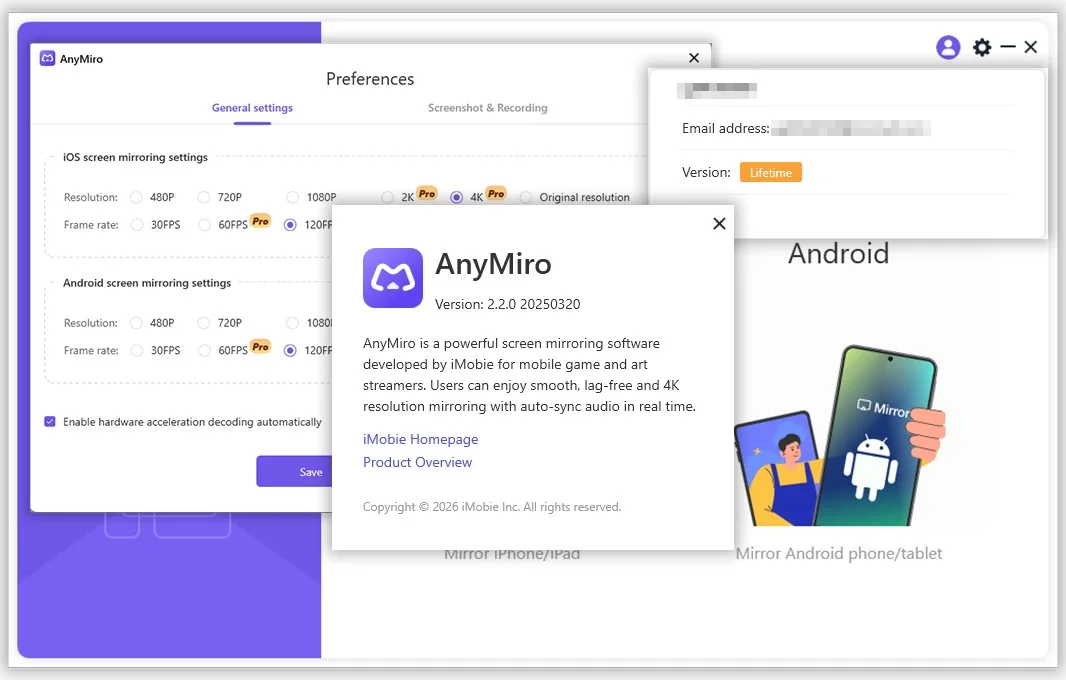
AnyMiro V2.2 is more than just a basic mirroring tool; it is a comprehensive solution for wireless display, collaboration, and content broadcasting. It allows users to cast their smartphone, tablet, or computer screen to a larger display, such as a smart TV, projector, or another PC, in high definition. With support for various protocols like Miracast, AirPlay, and Google Cast, this screen mirroring app for Windows and Android ensures broad compatibility across different ecosystems. The latest version, V2.2, focuses on stability and performance, making it an ideal choice for both professional presentations and high-fps game streaming.
As a screen mirroring application, AnyMiro stands out by offering low-latency streaming and a user-friendly interface that simplifies the connection process. This screen mirroring and streaming app is designed to make high-quality casting accessible to everyone, from tech-savvy professionals to home users. By supporting multiple file formats and source devices, it ensures that you can share presentations, videos, games, and photos without the hassle of tangled cables or complex setup procedures.
Key Features of AnyMiro V2.2
AnyMiro V2.2 is packed with features that cater to a wide range of mirroring and streaming needs. Here are the standout capabilities that make it a leading choice in the market.
High-Definition Wireless Mirroring
Experience crisp, clear visuals with support for resolutions up to 1080p at 60 frames per second (fps). The wireless screen mirroring feature ensures that you can cast from your phone to TV or from your laptop to a projector without any noticeable drop in quality, making it perfect for viewing photos or presenting detailed documents.
Multi-Protocol Support
AnyMiro acts as a universal receiver, supporting the three major industry standards:
-
Miracast: Ideal for Windows and Android devices, offering a direct peer-to-peer connection without needing a Wi-Fi network.
-
AirPlay: Seamless integration for Apple devices, allowing you to mirror iPhones, iPads, and Macs.
-
Google Cast: For casting from Chrome browsers, Android devices, and compatible apps directly to the software.
Ultra-Low Latency Mode
For gamers and live streamers, latency is the enemy. AnyMiro V2.2 includes an optimized “Game Mode” that significantly reduces lag, ensuring that your on-screen actions are reflected on the big screen almost instantly. This feature makes it a robust tool for game streaming and real-time mobile gaming.
Annotation and Recording Tools
Beyond basic mirroring, AnyMiro V2.2 provides interactive tools. Users can annotate directly on the mirrored screen during presentations. Additionally, a built-in screen recorder allows you to capture your streaming session, complete with audio from the source device, creating valuable content for later review or sharing.
Screen Sharing Without a Cable
The core philosophy of AnyMiro is convenience. The app facilitates screen sharing without a cable, allowing for a clean, professional setup. This is particularly advantageous in meeting rooms or classrooms where mobility and accessibility are key.
What’s New in AnyMiro V2.2
The latest iteration of AnyMiro, version 2.2, is not just a minor update; it is a significant leap forward in terms of performance and user experience. The development team has focused on listening to user feedback to refine what was already a powerful tool.
Enhanced Security Protocols
Security is a paramount concern in screen mirroring, especially in corporate environments. V2.2 introduces enhanced WPA2-PSK encryption and a new connection PIN system to ensure that only authorized users can access the display. This update makes AnyMiro a trusted screen mirroring software for enterprise use.
Optimized Audio Synchronization
One of the common challenges with wireless mirroring is audio delay. The new audio codec in V2.2 ensures perfect lip-sync between the video and audio streams, providing a more immersive and professional experience, particularly for media playback and video conferencing.
Improved App Performance and Stability
The V2.2 update includes under-the-hood optimizations to improve CPU usage. Users will experience a smoother, more stable live streaming and screen mirroring app with less stuttering and lower resource consumption, even during extended streaming sessions.
New User Interface (UI)
The interface has been redesigned for better intuitiveness. The connection wizard is now smarter, automatically detecting the best protocol for your device. This makes setting up a wireless display connection quicker and easier for first-time users.
System Requirements
Before downloading AnyMiro V2.2, it is crucial to ensure your system meets the necessary requirements for optimal performance.
For the Receiver (Host Device)
This is the PC or laptop that will be displaying the mirrored content.
-
Operating System: Windows 10/11 (64-bit) or Android 8.0+.
-
Processor: Intel Core i3 or equivalent AMD processor.
-
RAM: Minimum 4 GB, recommended 8 GB for high-definition streaming.
-
Network: Dual-band Wi-Fi adapter supporting 5 GHz band is recommended for low-latency performance.
-
Graphics: Integrated graphics with support for DirectX 10.
For the Sender (Source Device)
This is the device you are casting from.
-
Android: Android 5.0 (Lollipop) or higher with the AnyMiro Sender app installed.
-
Windows: Windows 10 or 11.
-
Apple: iPhone/iPad running iOS 11.0+ or Mac running macOS 10.14+ for AirPlay integration.
-
Chromebook: Chrome OS version 80 or higher for Google Cast support.
Network Requirements
For wireless screen mirroring, a stable Wi-Fi network is essential. A router supporting 802.11ac or 802.11ax (Wi-Fi 5 or 6) is recommended for 1080p streaming without interruption.
Installation Guide
Installing AnyMiro V2.2 is a straightforward process, whether you are setting it up on a PC or an Android device. Follow these steps to get started.
Installing on Windows
-
Download: Visit the official AnyMiro website and download the AnyMiro screen mirroring app installer for Windows.
-
Run Installer: Open the downloaded
.exefile and click “Yes” when prompted by User Account Control. -
License Agreement: Read and accept the End-User License Agreement (EULA).
-
Choose Directory: Select your preferred installation directory or stick with the default path.
-
Install: Click the “Install” button. The process will take a few moments.
-
Launch: Once complete, click “Finish” and the software will open automatically.
Installing on Android
-
Open Google Play Store: Go to the Play Store on your Android device.
-
Search: Type “AnyMiro screen casting app” into the search bar.
-
Download: Click “Install” next to the AnyMiro V2.2 app.
-
Permissions: The app will request necessary permissions, such as access to media files and the ability to appear on top of other apps, to function correctly. Grant these permissions.
How to Use AnyMiro V2.2
Using AnyMiro is designed to be intuitive, but here’s a step-by-step guide for different devices to help you get started with the screen mirroring app.
Mirroring from Android to PC or TV
-
Launch App: Open the AnyMiro app on both your Android phone and the receiving Windows PC.
-
Connect: On your phone, tap the “Mirror” button. The app will scan for available receivers.
-
Select Device: Choose your PC from the list. A PIN may appear on both screens for verification.
-
Start Casting: Click “Start Now” on your phone. Your screen will instantly appear on the PC.
-
Use Features: You can now use the annotation tools or recording feature on the PC.
Mirroring from Windows or iOS (AirPlay)
-
Launch Receiver: Ensure AnyMiro is running on your Windows PC and is in “Receive” mode.
-
Enable AirPlay on iOS: Swipe down to open the Control Center on your iPhone or iPad and tap “Screen Mirroring.”
-
Select Device: Select “AnyMiro” from the list.
-
Enter Code: If prompted, enter the 4-digit code displayed on your Windows PC screen.
-
Begin Mirroring: Your iOS device’s display will be mirrored.
Using Google Cast from a Browser
-
Open Chrome: Ensure you have the Google Cast extension installed.
-
Click Cast: Click the Cast icon in the browser toolbar.
-
Select Source: Choose “Cast Tab” or “Cast Desktop” and select “AnyMiro” from the list of available devices to start streaming.
Best Use Cases for AnyMiro V2.2
AnyMiro V2.2 is a versatile tool that can be adapted to various scenarios. Here are some of its most powerful applications.
Professional Presentations and Meetings
Replace the traditional HDMI cable with a wireless connection. This gives presenters the freedom to move around the room. The annotation tools allow for marking up slides in real-time, making it an invaluable tool for video conferencing and presentations.
Classroom Education and Remote Learning
Teachers can mirror their tablet or computer to a smart board or projector. Using the screen recording feature, educators can create on-demand lessons for students. The screen mirroring for education capabilities foster an interactive and collaborative environment.
Mobile and Console Gaming
For gamers, the ultra-low latency mode makes AnyMiro a viable alternative to capture cards for streaming mobile games to a PC. This is excellent for content creators looking to stream Android games to audiences on platforms like Twitch or YouTube.
Home Entertainment and Streaming
Users can easily watch movies, shows, and photos from their phone on a smart TV. AnyMiro is a practical alternative to native smart TV apps, offering broader file format support and a more consistent interface for entertainment streaming.
Advantages and Limitations
Like any software, AnyMiro V2.2 comes with a set of advantages and a few limitations.
Advantages
-
Cross-Platform Compatibility: Works seamlessly with Android, Windows, and iOS (via AirPlay).
-
Cordless Convenience: Eliminates the need for HDMI cables and adapters.
-
Low Latency: The dedicated Game Mode offers a lag-free experience for gaming.
-
Feature-Rich: Includes annotation, recording, and screenshot tools.
-
User-Friendly Interface: Easy setup and connection wizard.
Limitations
-
Performance Over Wi-Fi: While the 5 GHz band helps, performance can be affected by network congestion or a weak router.
-
Mac Support: There is no dedicated receiver app for MacOS; it relies on AirPlay for Apple devices, which may not be as feature-rich.
-
Audio Limitations: While improved in V2.2, some very old protocols may not support 5.1 surround sound audio.
-
No Cloud Integration: AnyMiro does not offer a cloud option for remote mirroring outside of a local network.
Alternatives to AnyMiro V2.2
While AnyMiro is an excellent choice, other screen mirroring solutions cater to specific needs. Here is a brief comparison.
| Feature | AnyMiro V2.2 | ApowerMirror | Reflector | TeamViewer |
|---|---|---|---|---|
| Primary Use | General Mirroring | Phone Management & Mirroring | Classroom & Training | Remote Support |
| Platforms | Win, Android, iOS (Sender) | Win, Mac, Android, iOS | Win, Mac, iOS | Multi-Platform |
| Unique Feature | Ultra-Low Latency Mode | Phone Control from PC | Mirror for Chromecast | Remote Access |
| Best For | Gaming and presentations | Tech support and phone management | Education and marketing | IT support and remote work |
| Protocol Support | Miracast, AirPlay, Google Cast | AirPlay, Google Cast, Miracast | AirPlay, Google Cast, Miracast | Proprietary |
While alternatives like ApowerMirror are excellent for managing a phone from a PC, AnyMiro excels in providing a fast, low-latency connection for media and gaming. For enterprise, TeamViewer is better for remote administration, but AnyMiro is superior for local, high-quality mirroring.
Frequently Asked Questions (FAQ)
Is AnyMiro V2.2 free to use?
AnyMiro V2.2 offers a free trial period that allows you to test all features. For continued use, a one-time purchase or subscription license is required to unlock the full potential of the screen mirroring app. This ensures you receive regular updates and support.
Can I use AnyMiro for live streaming games?
Yes, AnyMiro is a powerful screen mirroring app for live streaming. Its Game Mode provides ultra-low latency, making it ideal for broadcasting mobile games to streaming software on your PC.
How do I reduce lag while mirroring?
To reduce lag, ensure your devices are connected to a 5 GHz Wi-Fi network, close unnecessary applications on your PC to free up resources, and enable the “Game Mode” setting within the AnyMiro application.
Can I mirror an iPhone to Windows without a cable?
Absolutely. You can use the AirPlay feature built into iOS. Ensure the AnyMiro receiver is running on your Windows PC, then select “Screen Mirroring” from your iPhone’s Control Center and choose the AnyMiro receiver.
Does AnyMiro work without the internet?
Yes, with Miracast support, AnyMiro can establish a direct wireless connection between a Windows PC and an Android device without a router or internet access.
What is the maximum resolution supported?
AnyMiro V2.2 supports up to Full HD 1080p resolution at 60 frames per second. This provides a clear and smooth mirroring experience, which is perfect for viewing documents, videos, and games.
Is AnyMiro safe and legal to use?
Yes. AnyMiro is a legitimate, licensed screen mirroring software. It is safe to download from official app stores and the developer’s website. It does not engage in or promote any illegal activity regarding software licensing. We recommend obtaining the software through proper legal channels to ensure security and support.
Final Thoughts
AnyMiro V2.2 distinguishes itself in a crowded market of screen mirroring applications by striking an excellent balance between advanced features and user accessibility. Its support for multiple protocols (AirPlay, Miracast, Google Cast) makes it a “one-size-fits-all” solution for modern tech environments. The addition of an ultra-low latency mode and robust annotation tools elevates it from a simple mirroring tool to a comprehensive platform for productivity and entertainment. While it has some limitations, such as requiring a stable network for the best performance, the benefits of wireless freedom, high-quality streaming, and the interactive toolkit make it a compelling choice for anyone looking to cast their screen. Whether for professional presentations, educational content creation, or gaming, AnyMiro V2.2 is a reliable and powerful ally in a connected world.
Our Paid Service
“We do not sell or provide any software. We only offer professional support services. If any software on your system is not working properly, or you are facing installation errors, crashes, or any other technical issue — just contact us. We will help you fix the problem quickly and remotely via AnyDesk. No software will be provided from our side — only expert troubleshooting and support.”